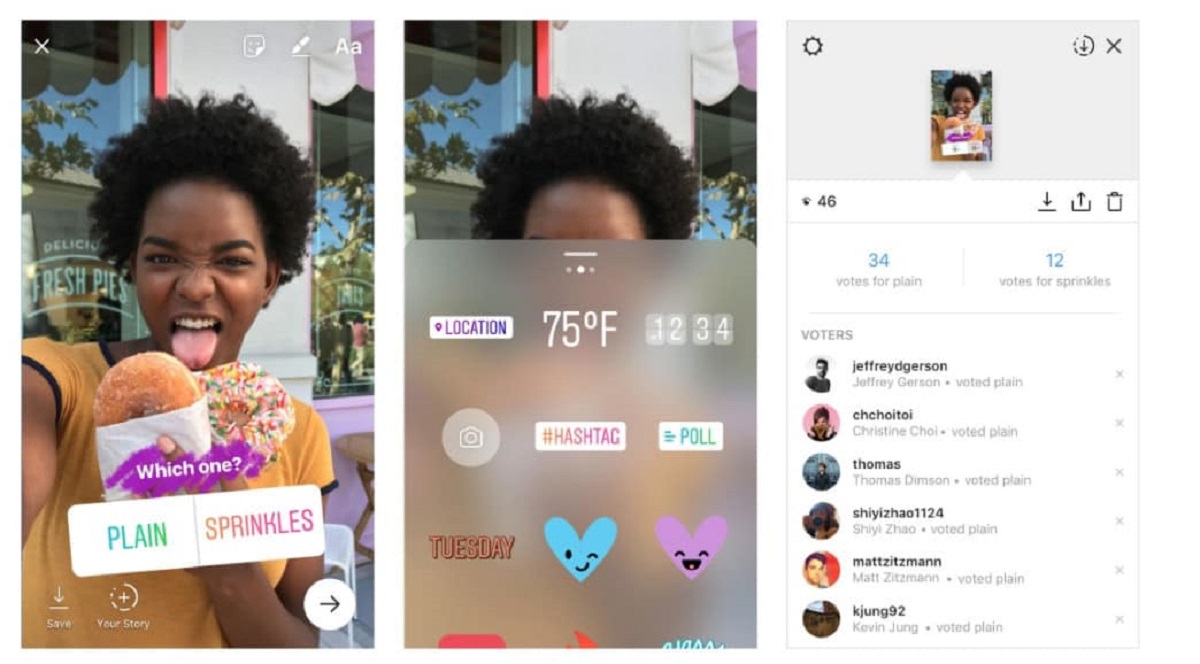
Your Instagram app likely needs a cache reset or update, but first check that you aren't using a layout mode like Layout or Hands-Free—these restrict interactive stickers even with media present.
Check you're not in layout or hands-free mode (poll sticker greyed out fix)
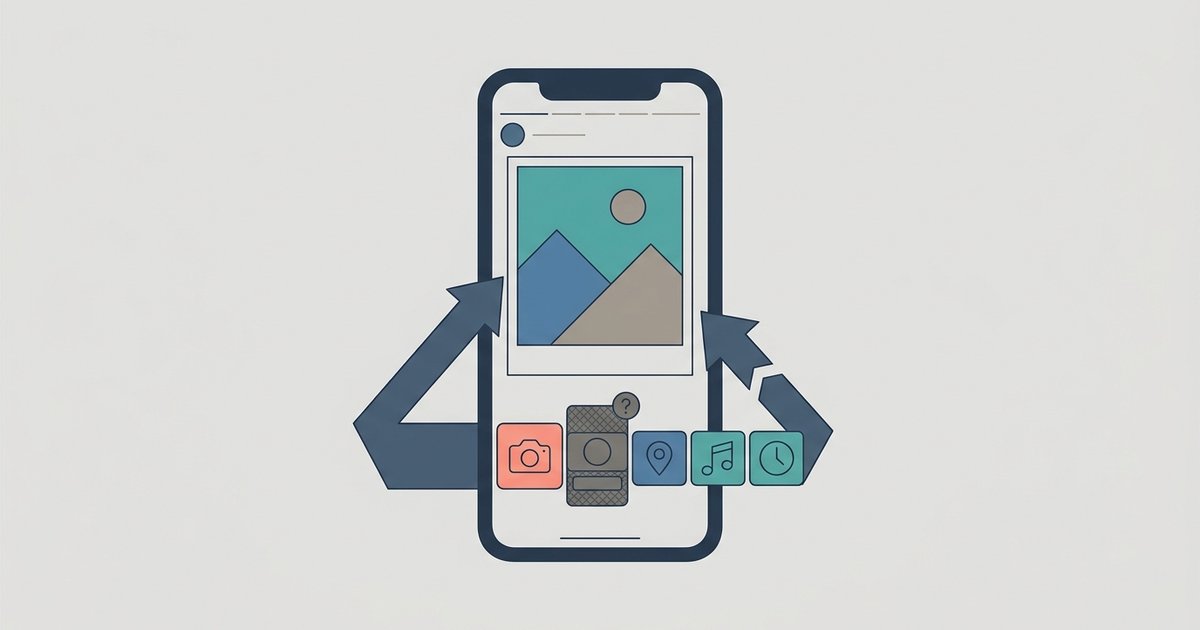
When you open the Instagram story camera, the bottom toolbar offers several capture modes: Normal, Layout, Hands-Free, Boomerang, and others. If you have selected Layout or Hands-Free before adding your photo, the poll sticker will remain greyed out and unresponsive even after you upload an image from your gallery. This happens because those modes predefine a capture workflow that disables interactive stickers. The app treats the canvas as still being in a "recording" or "grid" state. To fix this, tap the mode name at the top of the screen and switch back to "Normal" capture mode. Once you do, the poll sticker should become active immediately. If you already have a photo on the canvas when you switch modes, the sticker becomes available. Even after fixing this, you might later find your Instagram poll results hidden after highlights.
Clear your Instagram cache and restart the app
A corrupted local cache can cause sticker options to grey out even when you are in the correct capture mode. Instagram stores temporary data to speed up loading, but this cache sometimes becomes stale or broken, blocking features like the poll sticker. On Android, go to your device Settings > Apps > Instagram > Storage, then tap "Clear Cache." Do not tap "Clear Data" unless you want to log out. On iOS, the only way to clear the cache is to uninstall and reinstall the app. You can first try offloading the app via Settings > General > iPhone Storage > Instagram > Offload App. This removes the app but keeps its documents and data. Then reinstall from the App Store. After clearing the cache on either platform, force-close Instagram and reopen it. Before testing the sticker, ensure your question and options stay within the Instagram poll question and answer length limits to avoid another common cause of greying out. The poll sticker should now be tappable if the cache was the issue.
Update or reinstall Instagram if the sticker stays greyed out
If switching capture modes and clearing the cache do not work, your Instagram app is likely outdated or has a bugged installation. Open your device’s app store, search for Instagram, and check whether an update is available. If you are on the latest version but the poll sticker remains greyed out, uninstall the app completely. Restart your device, and then download a fresh copy from the store. A fresh install removes any corrupted configuration files that a simple cache clear might miss. This step also resolves issues where the app’s internal feature flags are stuck. Those stuck flags can prevent features like creating a poll on Instagram from appearing even when all conditions are met. After reinstalling, log back in and test the sticker again. It should be functional.
When the answer is no, account or region restrictions
If you have done everything above and the poll sticker is still greyed out, the limitation is not a bug but a deliberate restriction tied to your account type or location. Business accounts with certain categories may have interactive stickers disabled by default. Switch to a personal or creator account in Settings > Account > Account Type to restore access. Additionally, Instagram rolls out features region by region. If you are in a country where polls are not yet available, the sticker will remain permanently greyed out regardless of media or app version. Age restrictions also apply. Accounts belonging to users under 18 may have interactive stickers limited. Those are separate features governed by different settings.
Unlike general help articles, this page confirms that Layout and Hands-Free modes disable interactive stickers by predefining a capture workflow that locks the canvas state, even after you upload media.