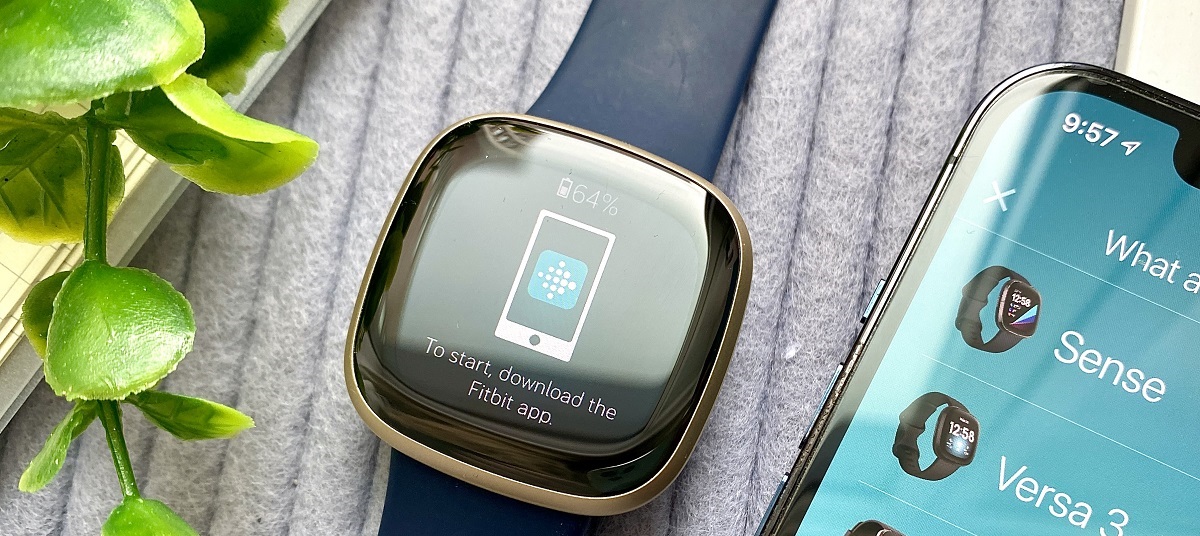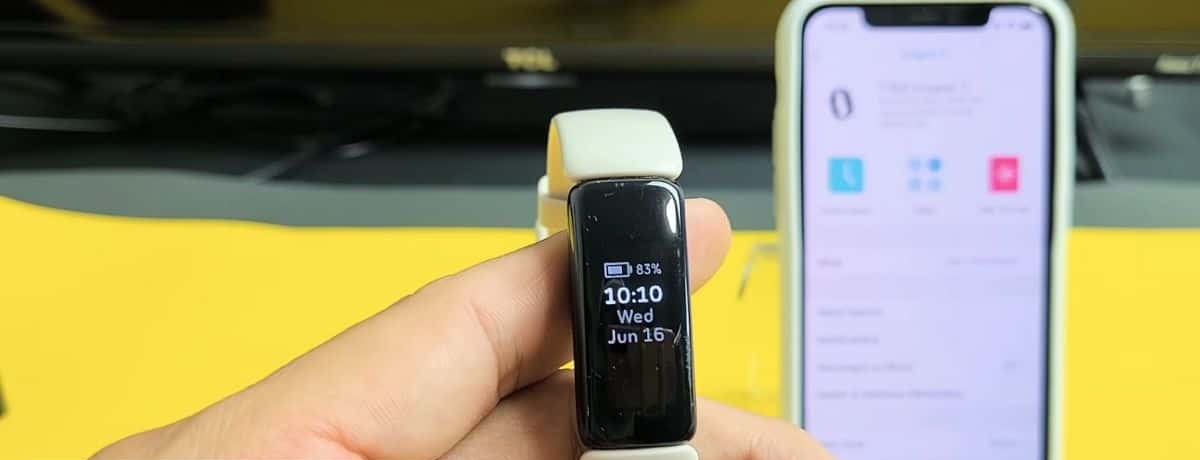
To pair your Fitbit with your phone for the first time, you need to download the Google Health app and sign in with your Google Account. This guide walks you through each step to successfully pair your Fitbit and start syncing your health data.
Before you pair your Fitbit: what you'll need
Before starting the setup, gather the essentials. You must have a Google Account ready; a Google Account is required for all new Fitbit users and to activate new Fitbit devices. Your phone must be compatible: the Google Health app requires iOS 16.4 or higher on iPhones (iPhone 8 or newer), and Android 11.0 or higher on Android devices. Download the Google Health app from the Apple App Store or Google Play Store. Finally, ensure your Fitbit device is connected to its charger and has sufficient battery before you begin.
Step 1: download the Google Health app and sign in
Open the Apple App Store or Google Play Store on your phone. Search for the Google Health app and install it. Once installed, open the app and sign in with your existing Google Account, or create a new one if necessary. This account replaces the old Fitbit account system and is mandatory for all new Fitbit users. After signing in, you will be ready to add your device.
Step 2: add your Fitbit device to the app
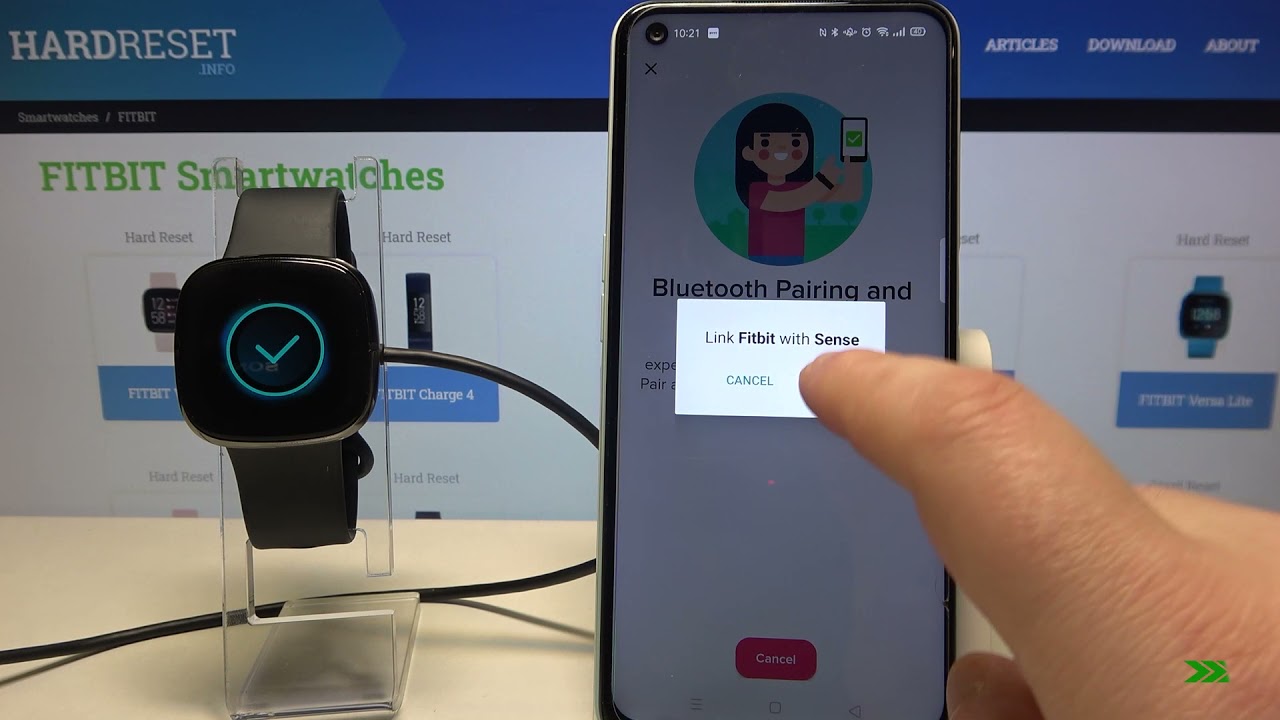
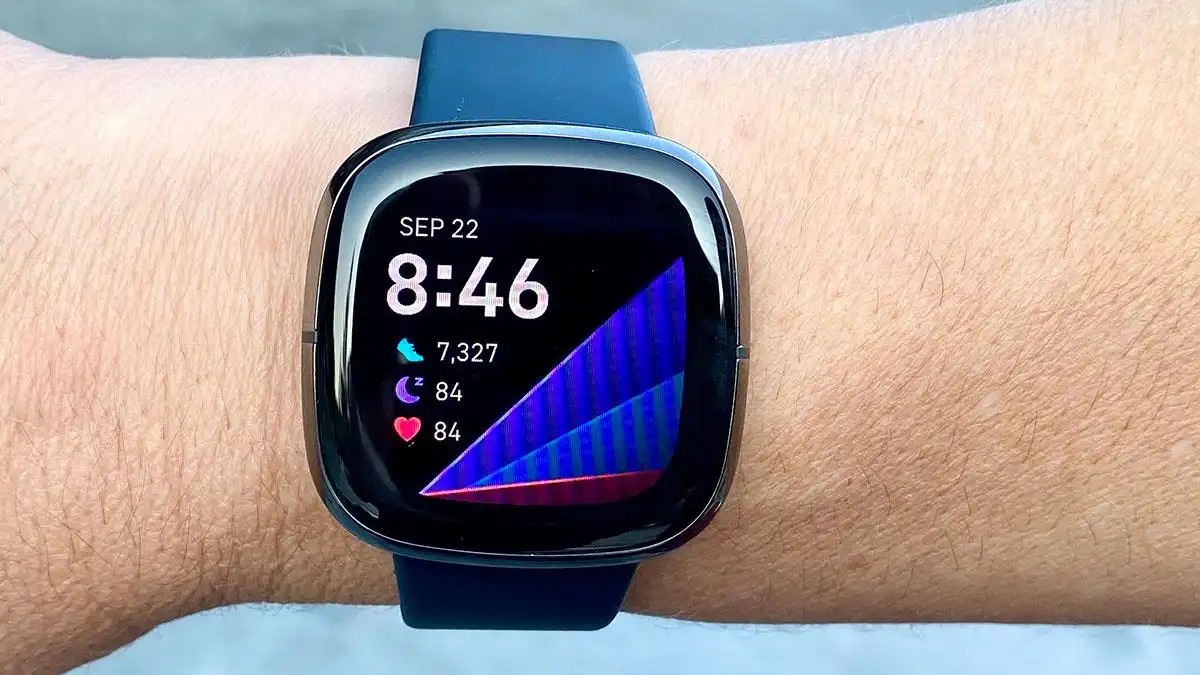
Inside the Google Health app, navigate to the device section. Select the option to add a new device and choose your specific Fitbit model from the list. The app will then search for your Fitbit via Bluetooth. Make sure your Fitbit is on its charger and close to your phone. If the app asks you to confirm the device identity, you can quickly verify it by locating your Fitbit's serial number on its original packaging or settings. Follow the on-screen instructions to complete the Bluetooth pairing; if you own a Sense model, a step-by-step guide to pairing your Fitbit sense with your phone can clarify its unique on-screen prompts. Your Fitbit will generate a unique signal, and the app will establish a secure connection.
Step 3: confirm the connection and sync
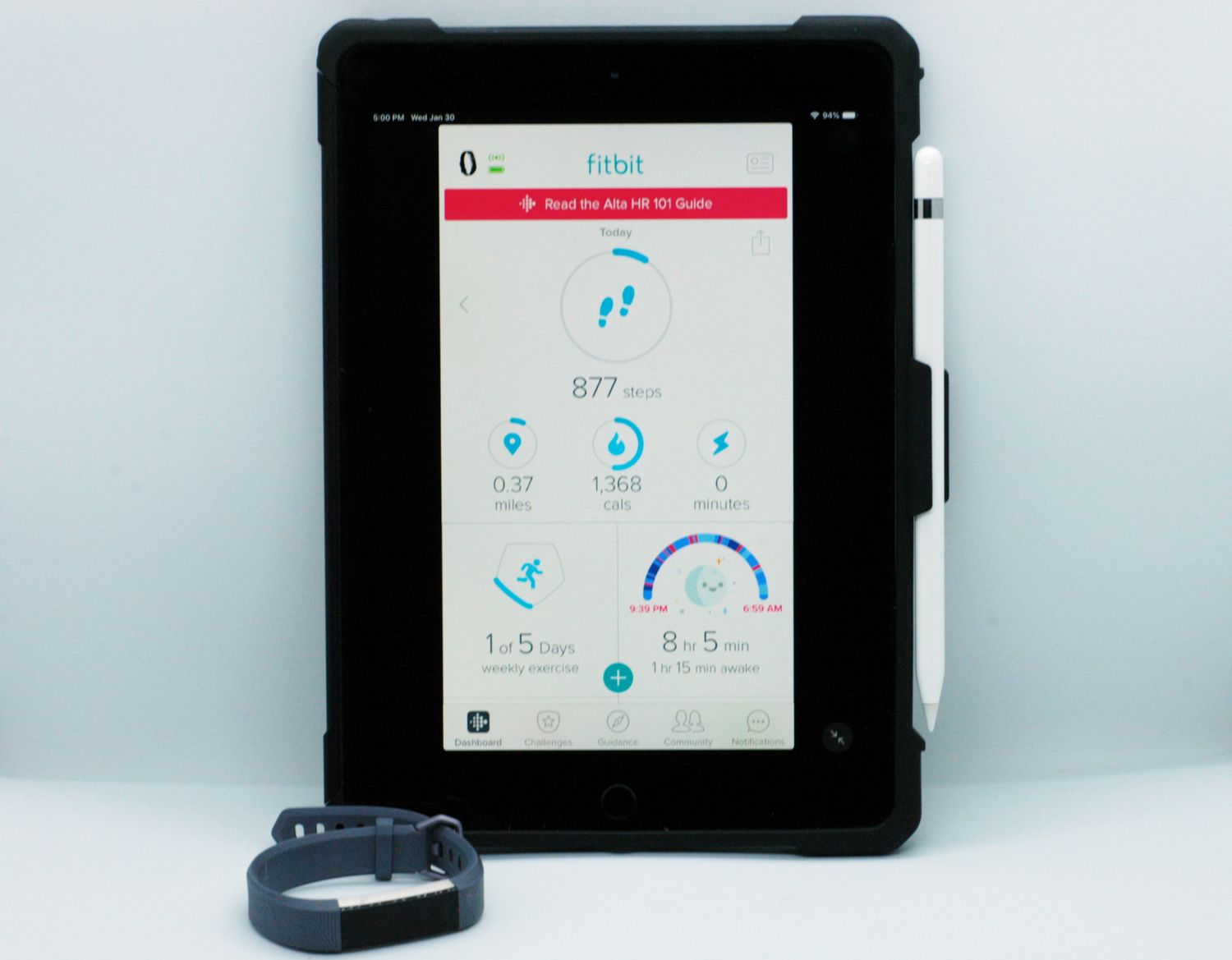
Once the pairing is successful, you will see a confirmation notification on both your phone and your Fitbit device. At this point, the initial data sync begins automatically. The Google Health app will retrieve your Fitbit’s recorded data, such as steps and heart rate. After this first sync, your devices will continue to sync automatically in the background whenever they are within Bluetooth range, keeping your health metrics up to date without any extra effort.
Next steps after you pair your Fitbit
With your Fitbit paired and syncing, you can customize notifications and settings directly in the Google Health app. Adjust which calls, texts, and app alerts appear on your wrist, and set activity reminders to stay moving. If you ever run into issues, the mandatory hub for troubleshooting covers all aspects of Fitbit setup and syncing, ensuring you can quickly resolve any problems.