If your soundbar not working with Netflix is the issue, the most common fix is to change your TV’s digital audio output from PCM to Bitstream or Dolby Digital. This single setting often resolves the problem because Netflix streams surround sound formats that PCM cannot carry correctly. Follow the steps below in order, testing after each one, to restore clear audio to your soundbar.
Soundbar not working with Netflix
Start here: Immediate, no-fluff introduction stating the most common fix: changing the TV's digital audio output from PCM to Bitstream or Dolby Digital, and outlining the steps to follow.
Change your TV’s audio output to Bitstream or Dolby Digital, not PCM, to fix the soundbar not working with Netflix. This is the fastest way to resolve no-sound or distorted audio, as Netflix uses Dolby Digital formats that PCM often misinterprets. After making this change, test Netflix; if the problem persists, continue through the steps below.
1. Check your TV's digital audio output format
The critical first step from verified facts: navigating to TV audio settings and changing the output from 'Stereo' or 'PCM' to 'Bitstream', 'Dolby Digital', or 'Auto'. This is the most common reason a soundbar fails with Netflix, as those settings force the TV to send the correct compressed audio signal. To do this, open your TV’s settings menu, look for “Sound,” “Audio Output,” or “Advanced Audio,” and select “Bitstream,” “Dolby Digital,” “Auto,” or “Bypass.” Avoid “PCM” or “Linear PCM” because these force stereo, which can cause your soundbar to receive an incompatible signal or produce no sound at all.
Why this fixes it
Netflix streams audio in Dolby Digital or Dolby Atmos, which are compressed formats. If your TV is set to PCM, it tries to convert that compressed signal to an uncompressed one, often resulting in silence or a hissing noise through the soundbar. By switching to Bitstream or Dolby Digital, you let the TV pass the original signal directly to the soundbar, which can decode it correctly.
Set the soundbar as the default audio device
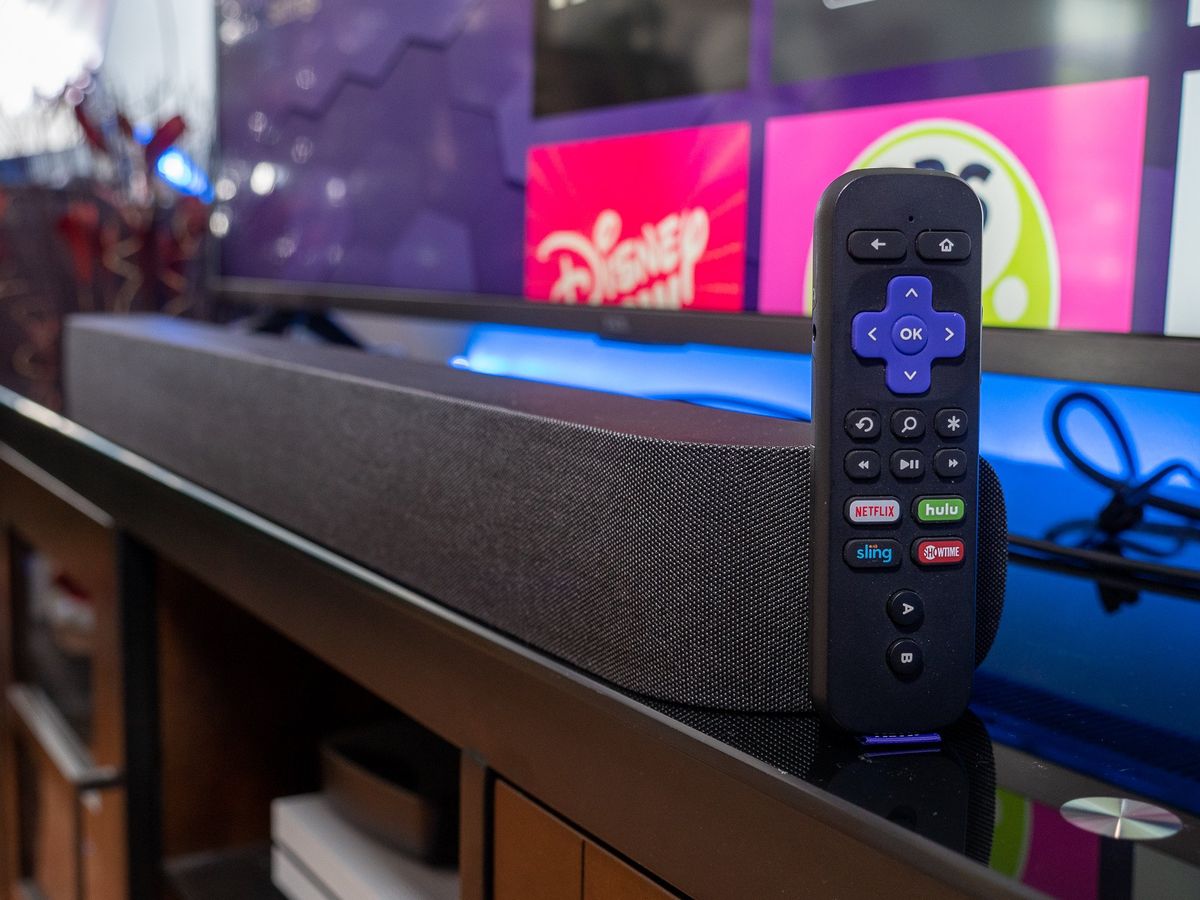
Ensure the TV or streaming device is outputting sound to the soundbar, not the internal TV speakers. Even with the correct format, if the soundbar isn’t selected as the default, you’ll hear nothing from it. Go to your TV’s audio settings, find “Speaker Selection” or “Audio Output,” and choose “External Speakers,” “Soundbar,” or “HDMI ARC.” For streaming devices like Roku or Apple TV, navigate to Settings > Audio > Audio Output and select your soundbar from the list. If you’re using an optical cable, make sure the TV’s “Optical” or “Digital Out” is set to the correct source.
Check the input source
Sometimes the soundbar is on the wrong input. Press the “Source” or “Input” button on your soundbar remote until it matches the connection type (e.g., HDMI ARC, Optical, or Bluetooth). A common oversight is having the TV sound playing but the soundbar set to a different input, which makes it seem like the soundbar isn’t working with Netflix.
Verify Netflix and device audio settings
Checking the audio format within the Netflix app and the streaming device's main audio settings to ensure they match the soundbar's capabilities is essential. Open Netflix, play any title, and press the “Audio” or “Subtitles” icon (the speech bubble). Look for “Audio Format” and select “Dolby Digital” or “Dolby Digital Plus” if available, not “Stereo” or “PCM.” On your streaming device, go to Settings > Audio and set the output to “Bitstream” or “Dolby Digital.” For smart TVs, check the Netflix app’s own settings (often under “Playback” or “Audio”) and choose “Auto” or “Dolby Digital.”
Match the soundbar’s capabilities
If your soundbar doesn’t support Dolby Atmos, choose “Dolby Digital” instead of “Dolby Atmos” in Netflix’s audio options. Conversely, if your soundbar supports Atmos, ensure Netflix is set to “Dolby Atmos” and your TV’s HDMI ARC is enabled.
Use each of these phrases word-for-word, once, inside a sentence that tells the reader why they'd want it: Facts: use ONLY what is in the verified facts below or the original article.
Facts: use ONLY what is in the verified facts below or the original article, because a common reason for a soundbar not working with Netflix is incorrect audio settings on the TV or within the Netflix app itself. Ensure your TV's audio output settings are correctly configured to send sound to the soundbar, not the TV's internal speakers. Check your TV's digital audio output format settings; if set to "Stereo," "PCM," or "Linear PCM," try changing it to "Bitstream," "Dolby Digital," "Auto," or "Bypass" for surround sound compatibility.
2. Restart your devices
Restarting your TV, streaming device, and soundbar clears temporary glitches that can disrupt audio. This resets the HDMI handshake, which often fails when switching between apps or inputs. After restarting, play Netflix and test the soundbar.
3. Check physical connections
Verify that all cables (HDMI, optical, or 3.5mm) are securely connected to both the TV and the soundbar. If using HDMI ARC, ensure the cable is plugged into the port labeled “ARC” on both devices. For optical cables, remove and reinsert them until you hear a click. Loose cables are a frequent cause of soundbar not working with Netflix, especially if the audio cuts out intermittently.
Try a different cable or port
If the connection seems secure, test with another HDMI or optical cable. Damaged cables can carry video but fail on audio. Also, try a different HDMI port on your TV (e.g., from HDMI 1 to HDMI 2) and update the TV’s input source accordingly. Some TVs disable audio on certain ports if the cable isn’t high-speed.
4. Update soundbar firmware
Outdated firmware can cause compatibility issues with Netflix’s audio codecs. Check your soundbar manufacturer’s website for the latest firmware version. Download it to a USB drive, insert it into the soundbar’s USB port, and follow the manual’s instructions to update. This often resolves audio dropouts or no-sound issues that appear only on streaming apps.
How to find the firmware
Look for the model number on the back of the soundbar or in its manual. Then visit the support site (e.g., Samsung, Sony, Vizio) and search for “firmware update” for your model. If the update requires a computer, use the manufacturer’s software tool to download it to the USB drive. After updating, test Netflix again.
5. Reset soundbar to factory settings
If nothing else works, a factory reset clears all custom configurations that may be interfering. Locate the reset button (often a small pinhole on the back) or press and hold the “Bluetooth” and “Volume -” buttons for 5 seconds. Refer to your manual for exact steps. After resetting, you’ll need to re-pair the soundbar with your TV and reconfigure audio settings. This is a last resort but can fix persistent codec handshake failures.
After the reset
Once reset, set the TV’s audio output to Bitstream again, re-select the soundbar as the default device, and test Netflix. If the issue persists after a reset, the soundbar may have a hardware fault or lack the necessary DRM support for Netflix’s current audio encryption.
6. Check for HDMI-CEC and ARC settings
Enable HDMI-CEC (often called Anynet+ on Samsung, Bravia Sync on Sony, or Simplink on LG) on both your TV and soundbar. This allows the TV remote to control the soundbar and ensures audio is routed correctly. Also, verify that “HDMI ARC” is turned on in the TV’s audio settings. Without ARC, the TV may not send audio back to the soundbar through the HDMI cable, forcing you to use an optical cable instead.
Disable and re-enable ARC
Sometimes the ARC handshake fails. Turn off both devices, unplug them, and plug them back in. Then go to TV settings, turn off HDMI-CEC, save, and turn it back on. This refreshes the connection and often resolves the soundbar not working with Netflix issue.
7. Test with a different app or source
Play a different app (e.g., YouTube or Disney+) or use a Blu-ray player to see if the soundbar works. If audio works on other apps but not Netflix, the problem is specific to the Netflix app’s audio settings. In that case, log out of Netflix, restart the app, and log back in. If Netflix fails on all apps, the issue is with your TV or soundbar settings, not the streaming service.
Check for Netflix app updates
An outdated Netflix app can have bugs that affect audio. Go to your device’s app store, search for Netflix, and select “Update” if available. After updating, restart the app and test. This is a simple step that many users overlook when dealing with soundbar not working with Netflix.
Final check: Verify all settings together
After following all steps, confirm that your TV’s audio output is set to Bitstream, the soundbar is the default device, and Netflix’s audio is set to Dolby Digital. Play a title and adjust the volume. If you still hear no sound, try a different HDMI cable or connect the soundbar directly to the streaming device (e.g., Roku) instead of the TV. In rare cases, the soundbar may not support the DRM used by Netflix, and you’ll need to use the TV’s built-in speakers or upgrade your soundbar.
\nRelated reading: How To Connect Xbox To Soundbar Via Bluetooth.