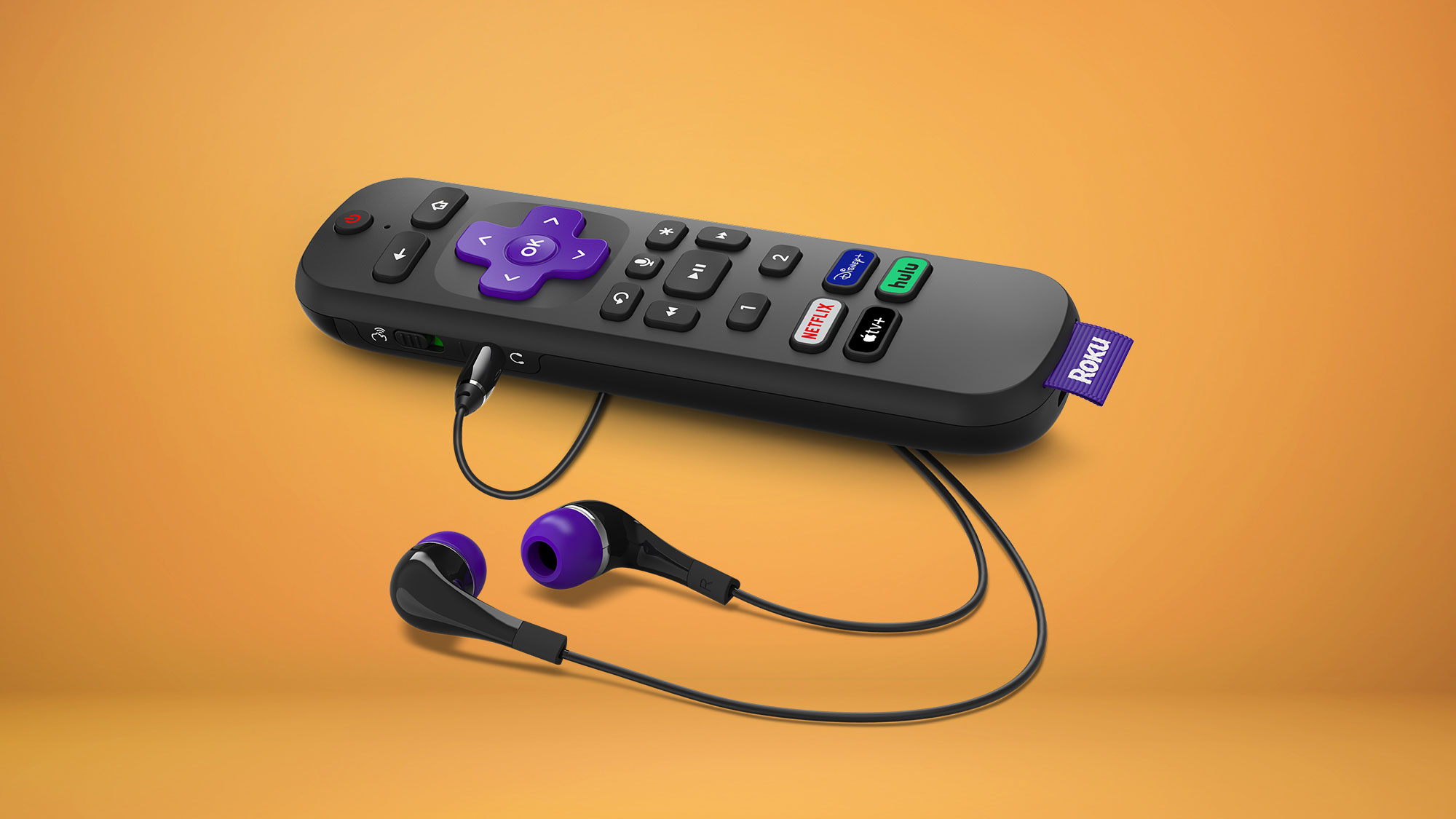
To program a Roku remote to a soundbar, you primarily use HDMI-CEC to let your TV pass volume and power commands through to the soundbar, or you set up a compatible Roku Voice Remote to send infrared signals directly. Both methods let you ditch multiple remotes and control your entire audio setup from one device.
Before you start: know your Roku remote and soundbar connection
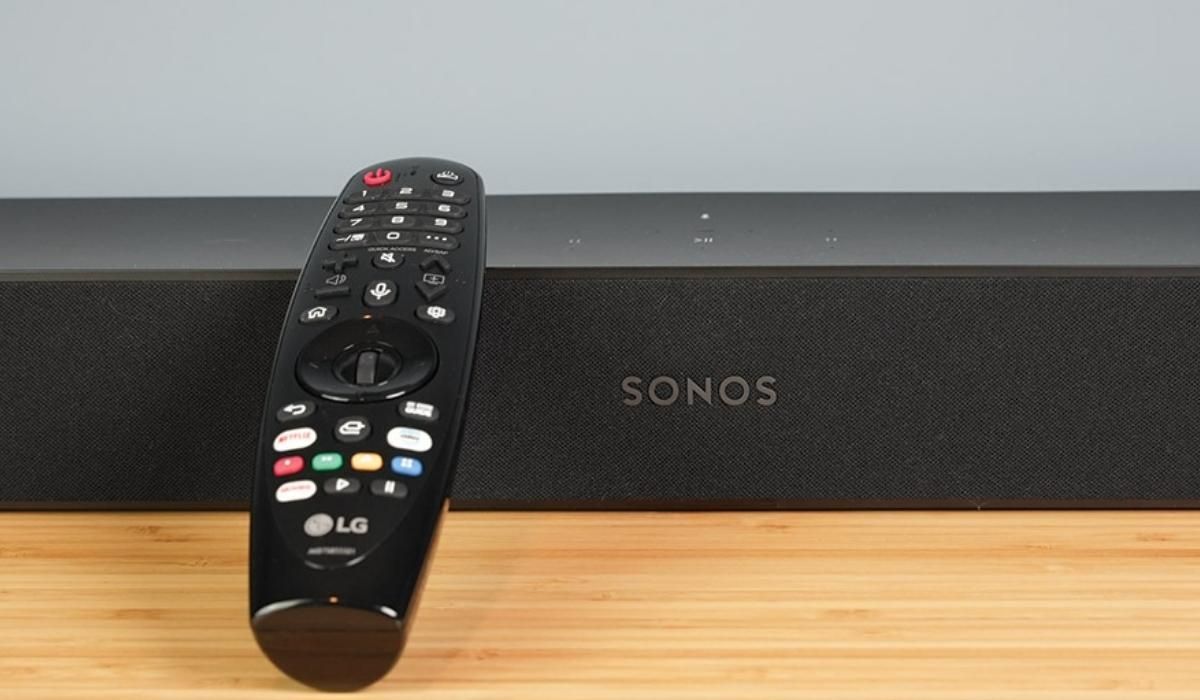
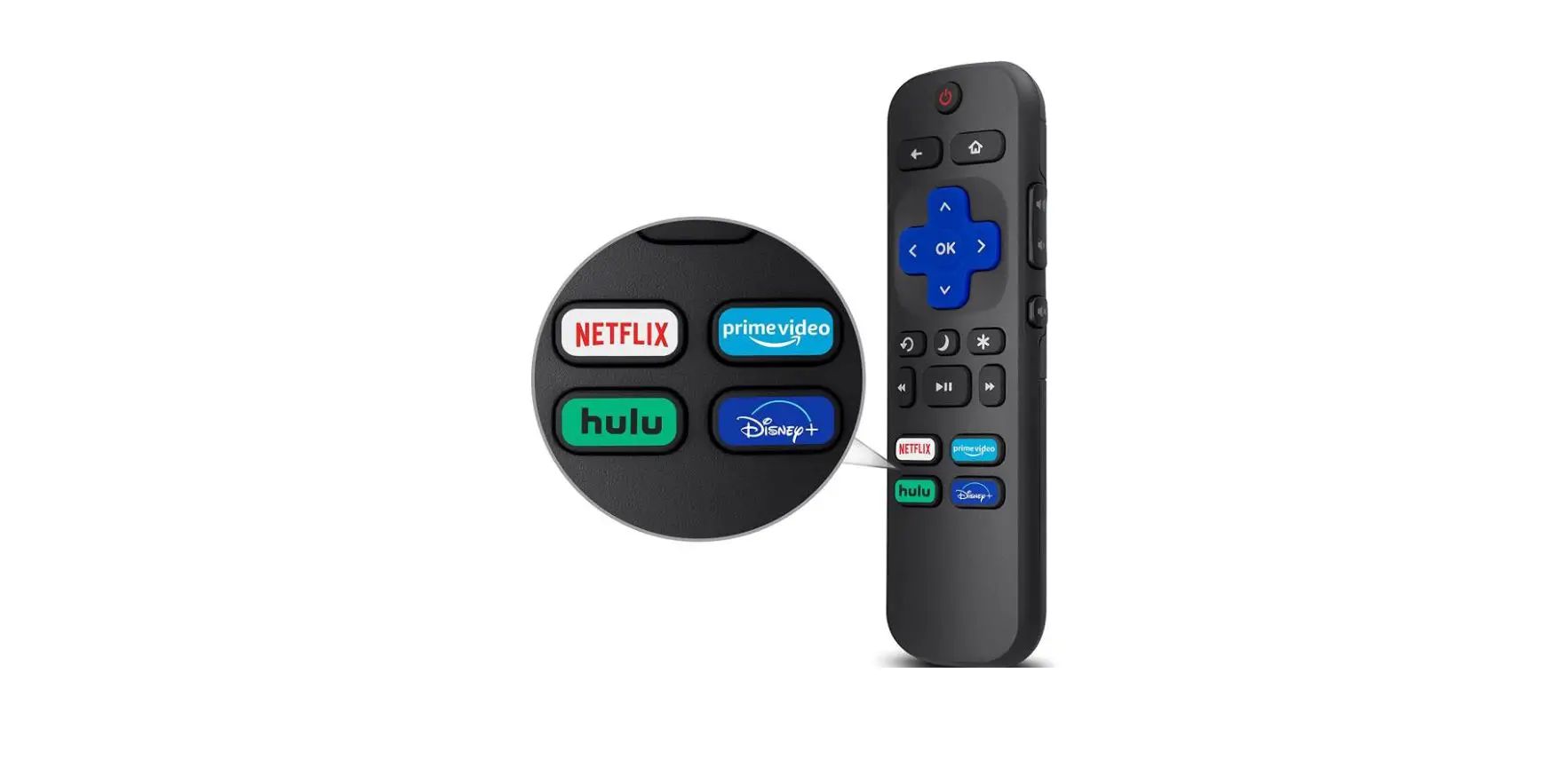
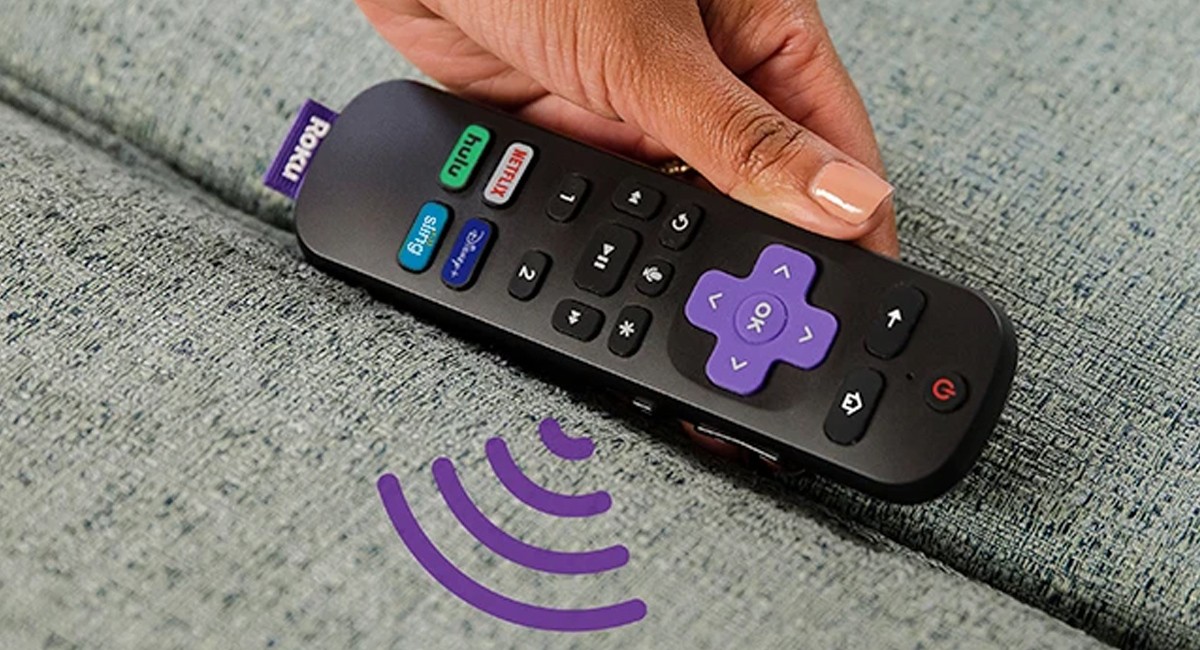
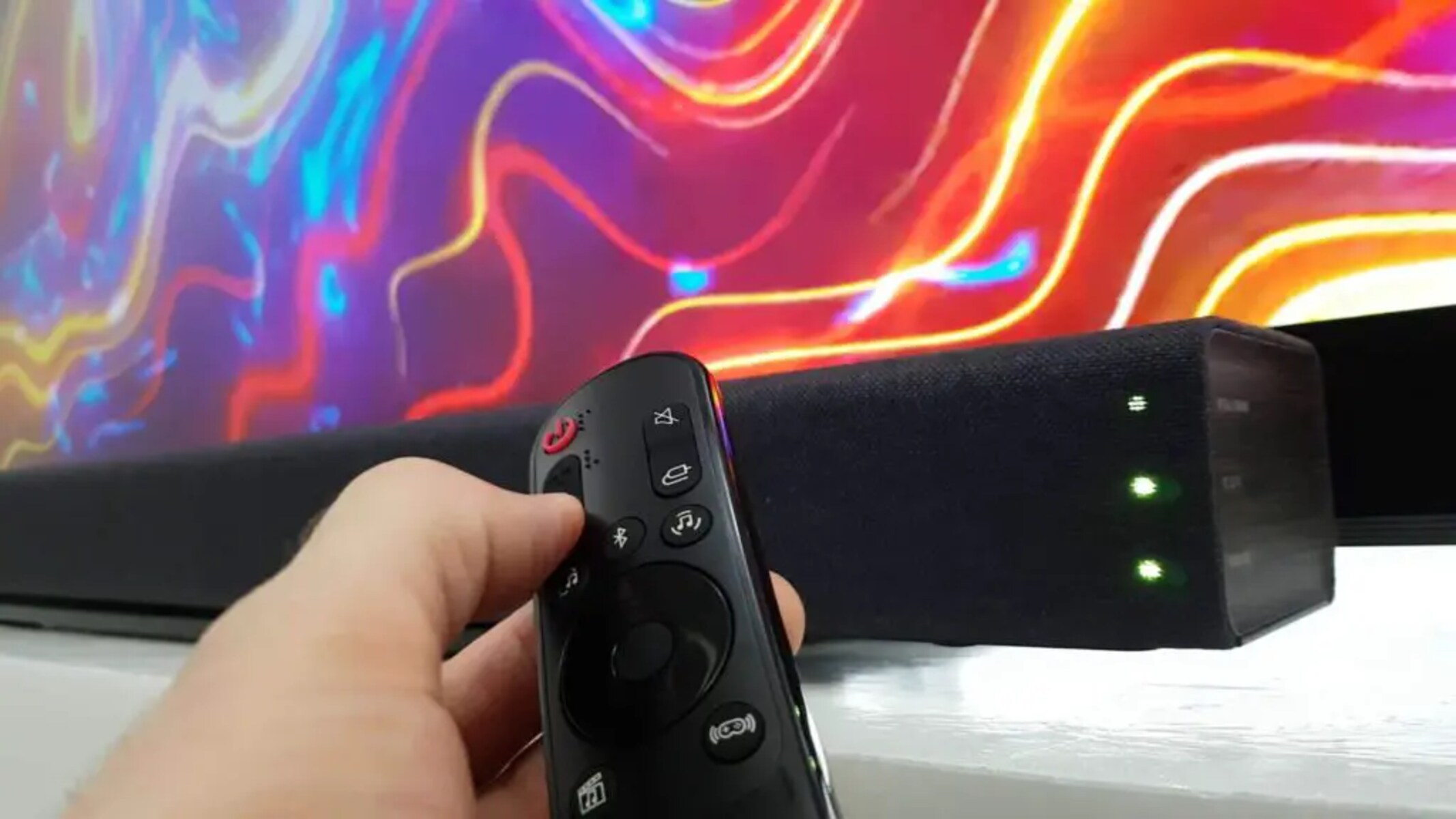
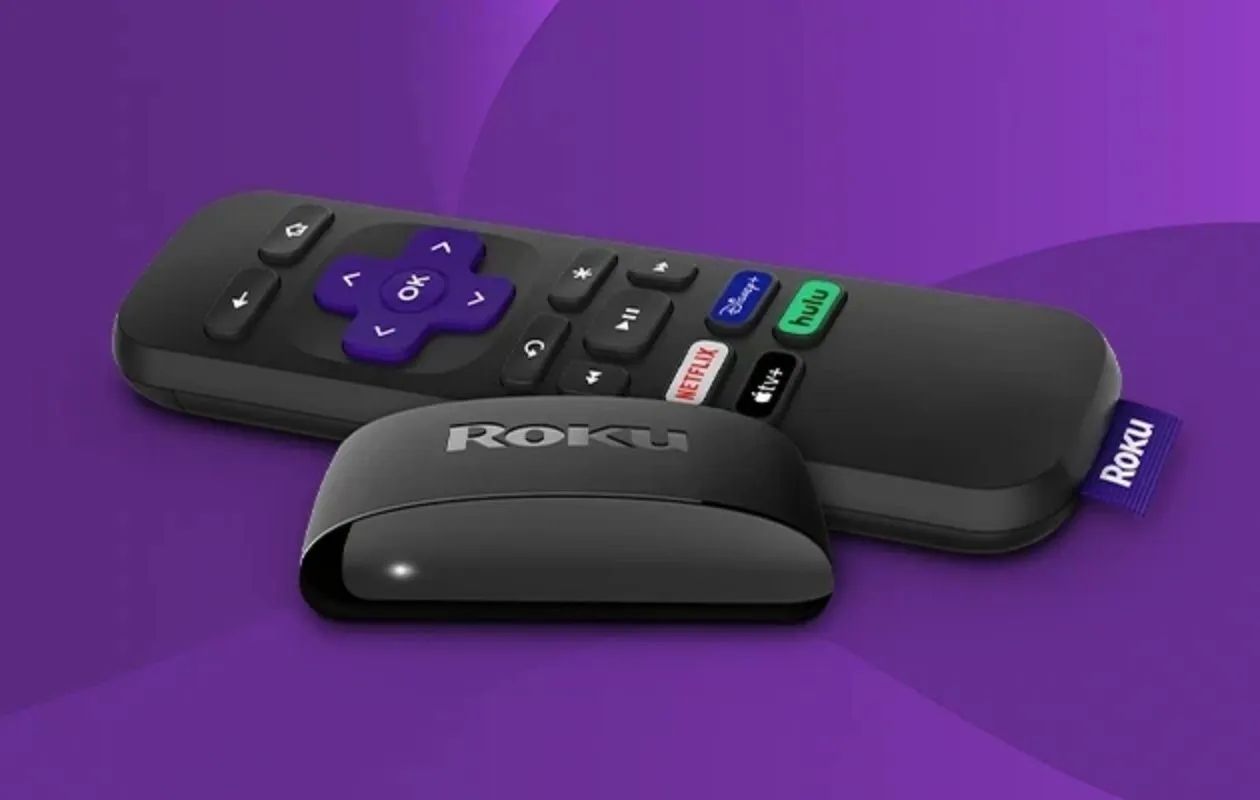
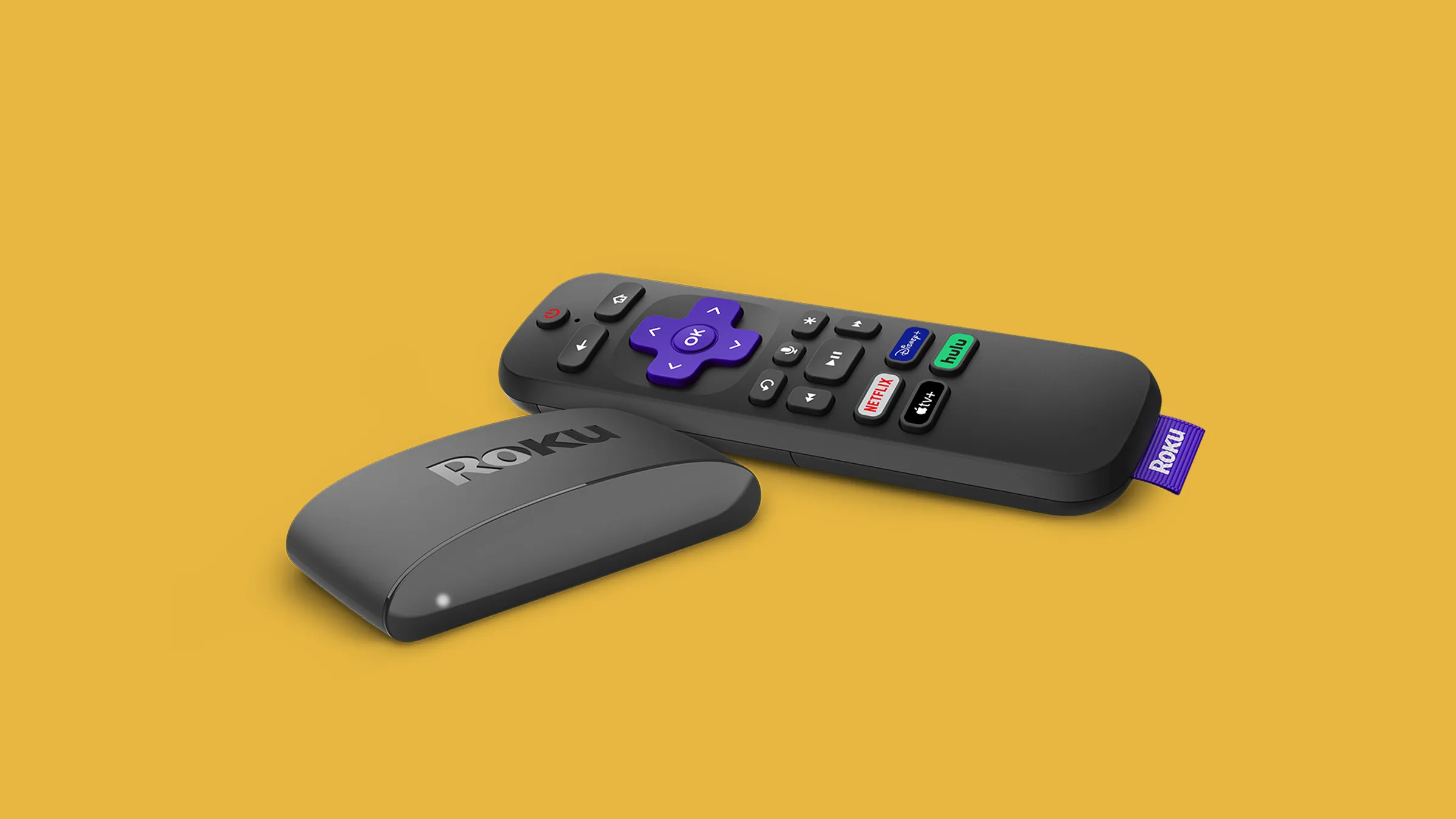
Roku makes two types of remotes. A Roku Voice Remote has volume and power buttons and can be programmed to control a soundbar. A Simple IR Remote lacks a pairing button and can only control the Roku player itself, it cannot control a soundbar. The way you connect a soundbar to your TV also matters. If you use an HDMI ARC port, your Roku remote can control the soundbar through the TV. If you use an optical cable, the Roku remote generally cannot control volume directly because optical connections do not support CEC. If your soundbar brand uses a different setup process, you may need to pair a Vizio remote to a soundbar instead, or if you have an LG TV you can control a soundbar with an LG TV remote using its built-in setup.
The easiest method: program your Roku remote to soundbar with HDMI-CEC
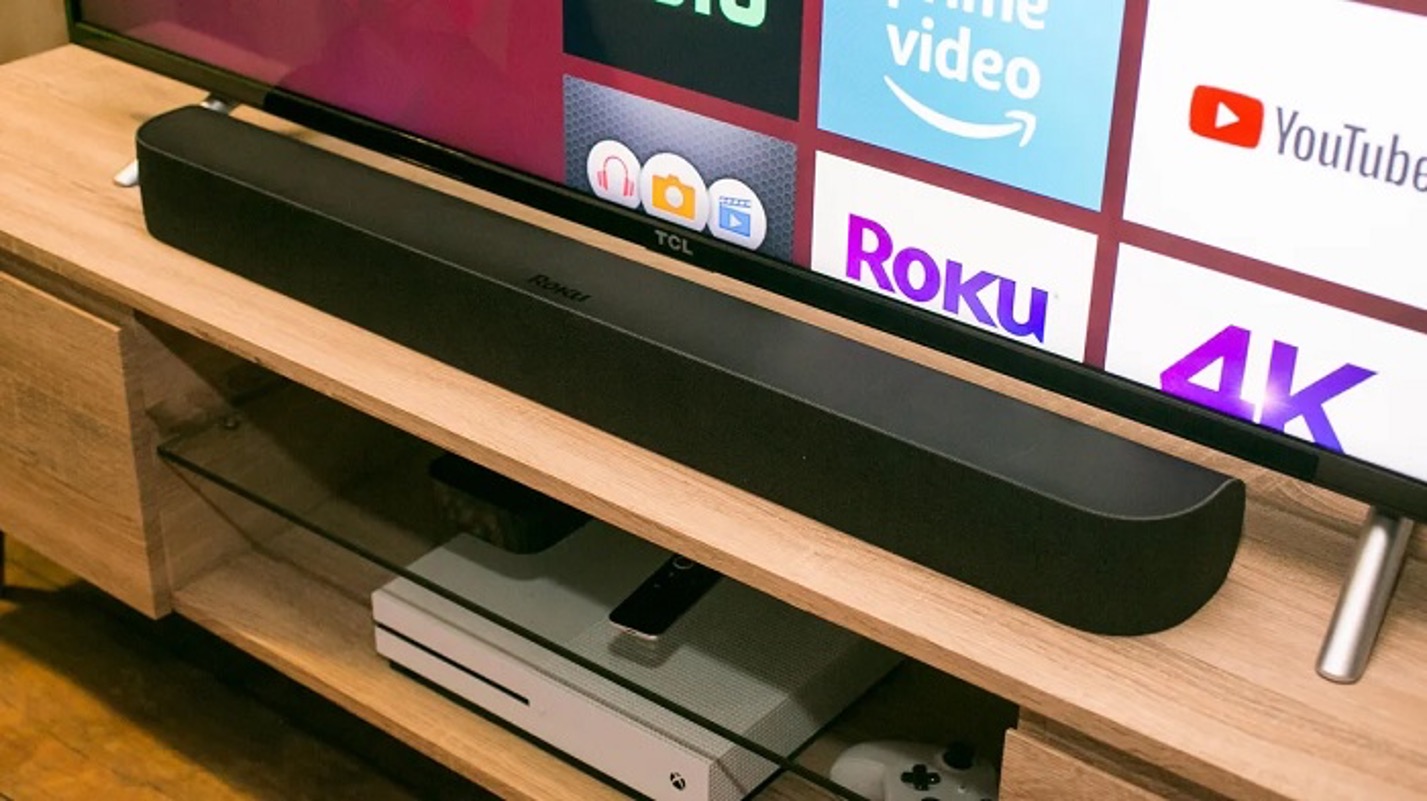
HDMI-CEC (Consumer Electronics Control) lets your TV send commands to devices connected via HDMI. When you connect your soundbar to the TV’s HDMI ARC port and enable CEC, your Roku remote controls the soundbar automatically through the TV. This is the simplest way to program a Roku remote to a soundbar because it requires no manual remote setup.
- Connect your soundbar to the HDMI port labeled “ARC” or “HDMI ARC” on your TV.
- Press the Home button on your Roku remote.
- Navigate to Settings > System > Control other devices (CEC).
- Ensure “System audio control” and “1-touch play” are checked.
Once enabled, your Roku remote’s volume and power buttons will control the soundbar through the TV. Both your TV and soundbar must support HDMI ARC or HDMI-CEC, and these features must be turned on in their respective settings.
Alternative method: set up your Roku Voice Remote for TV control
If your soundbar is not connected via HDMI ARC, you can still program a Roku Voice Remote to control it using infrared (IR) signals. This on-screen process teaches the remote to send the right IR codes to your soundbar.
- Go to Settings > Remotes & devices > Remotes.
- Select your voice remote, then choose “Set up remote for TV control”.
- Follow the on-screen prompts. The setup will play sounds and ask you to confirm if the volume changes or mutes.
- Point your Roku Voice Remote directly at your TV during setup.
- Ensure your TV’s volume is turned up and not muted during the process.
If your Roku streaming player is connected to a soundbar or receiver, temporarily connect it directly to your TV during remote setup. This helps the device detect your TV brand correctly. Note that Roku remotes may not be able to control all TV models or soundbars, and some may only allow volume control, not power.
Test your soundbar control and troubleshoot common issues
After setup, test the volume up, volume down, and mute buttons on your Roku remote. Also test the power button to see if it turns the soundbar on and off. If control does not work, try these troubleshooting steps:
- Make sure the soundbar’s IR receiver is not blocked by objects or direct sunlight.
- Update your soundbar’s software for optimal compatibility.
- If using the HDMI-CEC method, verify that both the TV and soundbar have CEC enabled.
- If using the IR setup method, temporarily connect the Roku player directly to the TV and repeat the setup process.
If your soundbar is connected via an optical cable, the Roku remote cannot control its volume directly, you must switch to an HDMI ARC connection or use the soundbar’s own remote. Remember, Roku remotes do not directly control other devices like soundbars; instead, the Roku player or Roku TV controls the soundbar via HDMI-CEC.
For the wider topic, see connecting a soundbar.