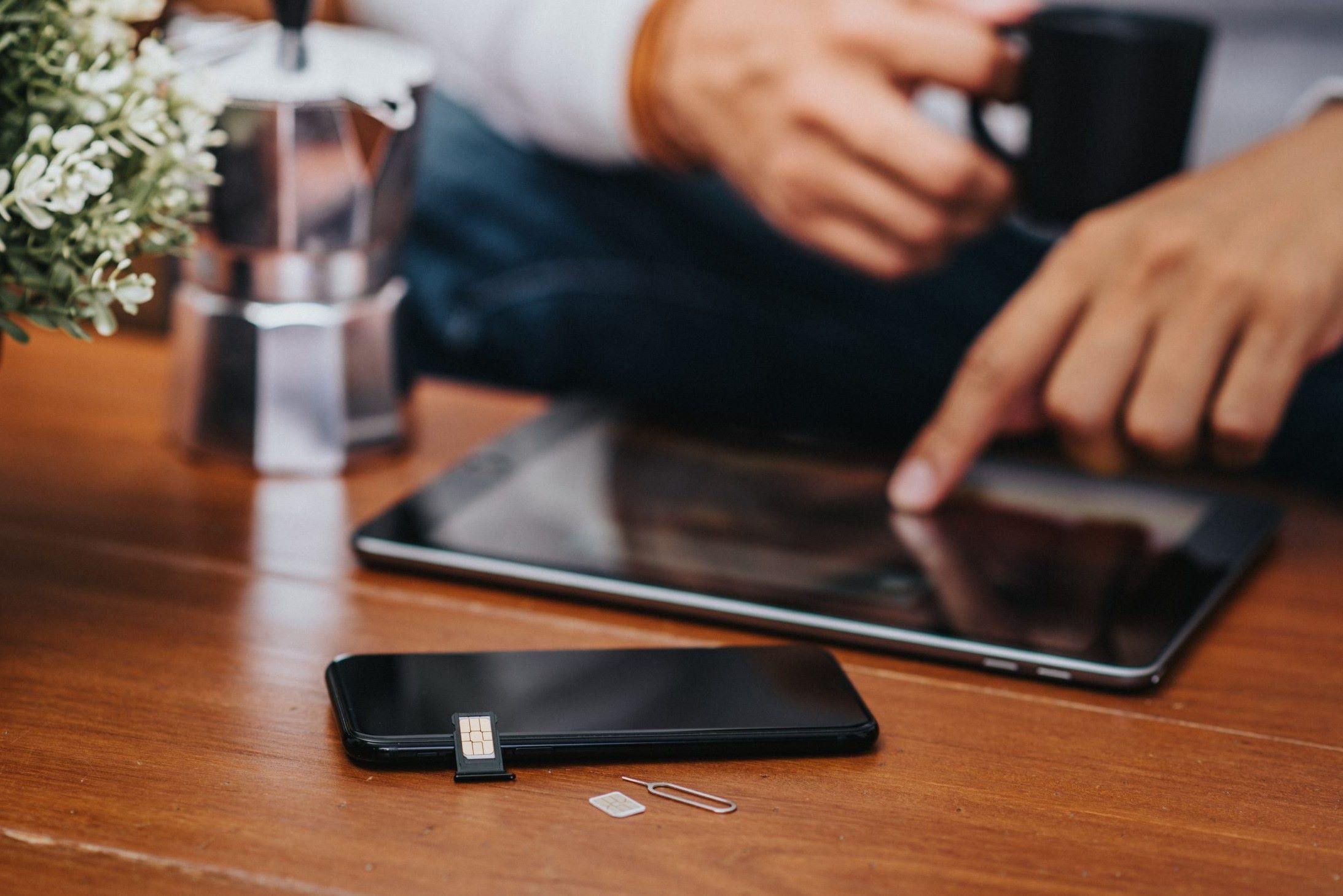
Opening the SIM card slot on your phone is a straightforward task that requires powering off your device first, then using the SIM eject tool or a straightened paperclip to pop out the tray. This guide provides clear, safe instructions for physically ejecting the SIM card tray from your phone, whether you are switching carriers, troubleshooting connectivity, or simply inserting a SIM card.
Before you begin opening the SIM card slot
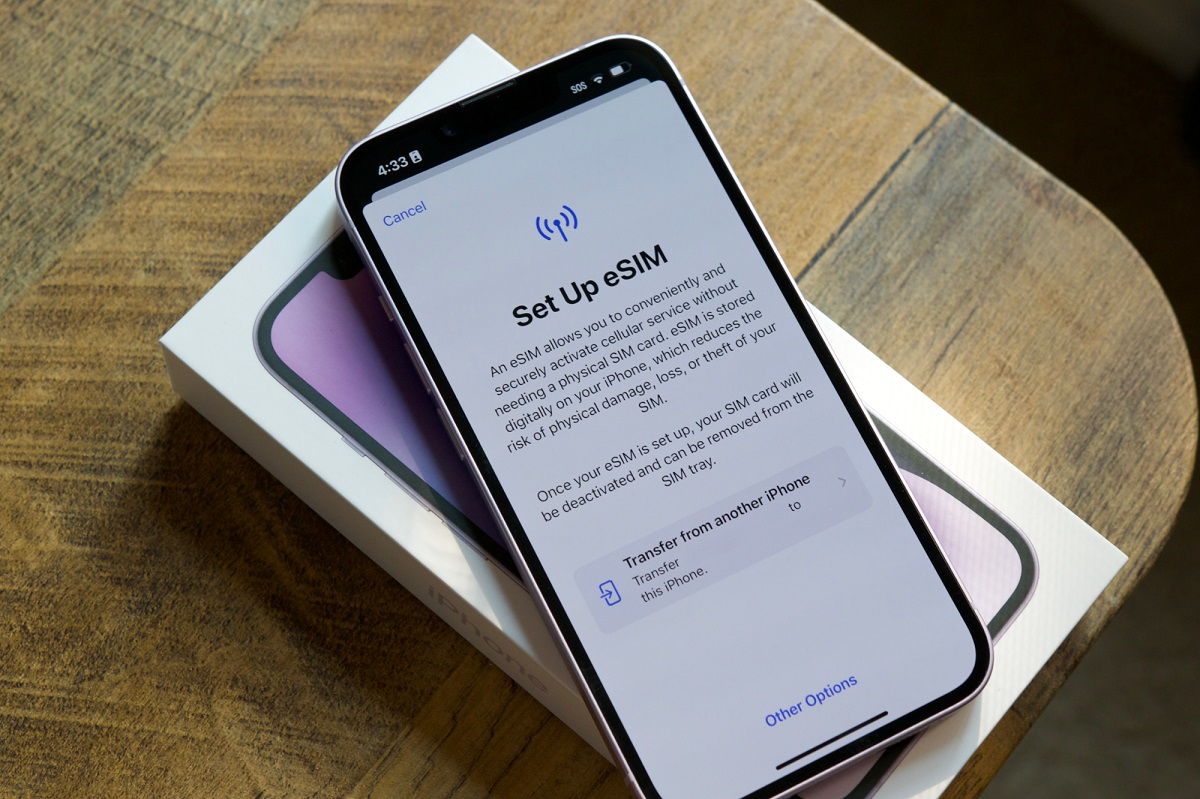
Before you start, power off your phone completely. This prevents accidental data corruption or damage to your device during the process. Note that newer US models, specifically iPhone 14 models and later purchased in the United States, along with US Pixel 10, Pixel 10 Pro, or Pixel 10 Pro XL models, do not have a physical SIM card slot and rely solely on eSIM technology. For all other phones, the only tool you need is the SIM eject tool that came with your device or a straightened paperclip, which is a widely recommended and effective alternative.
Locate the SIM tray on your phone
Finding the SIM tray is the first practical step. The location varies by manufacturer and model, so use these verified placements to quickly find the small pinhole:
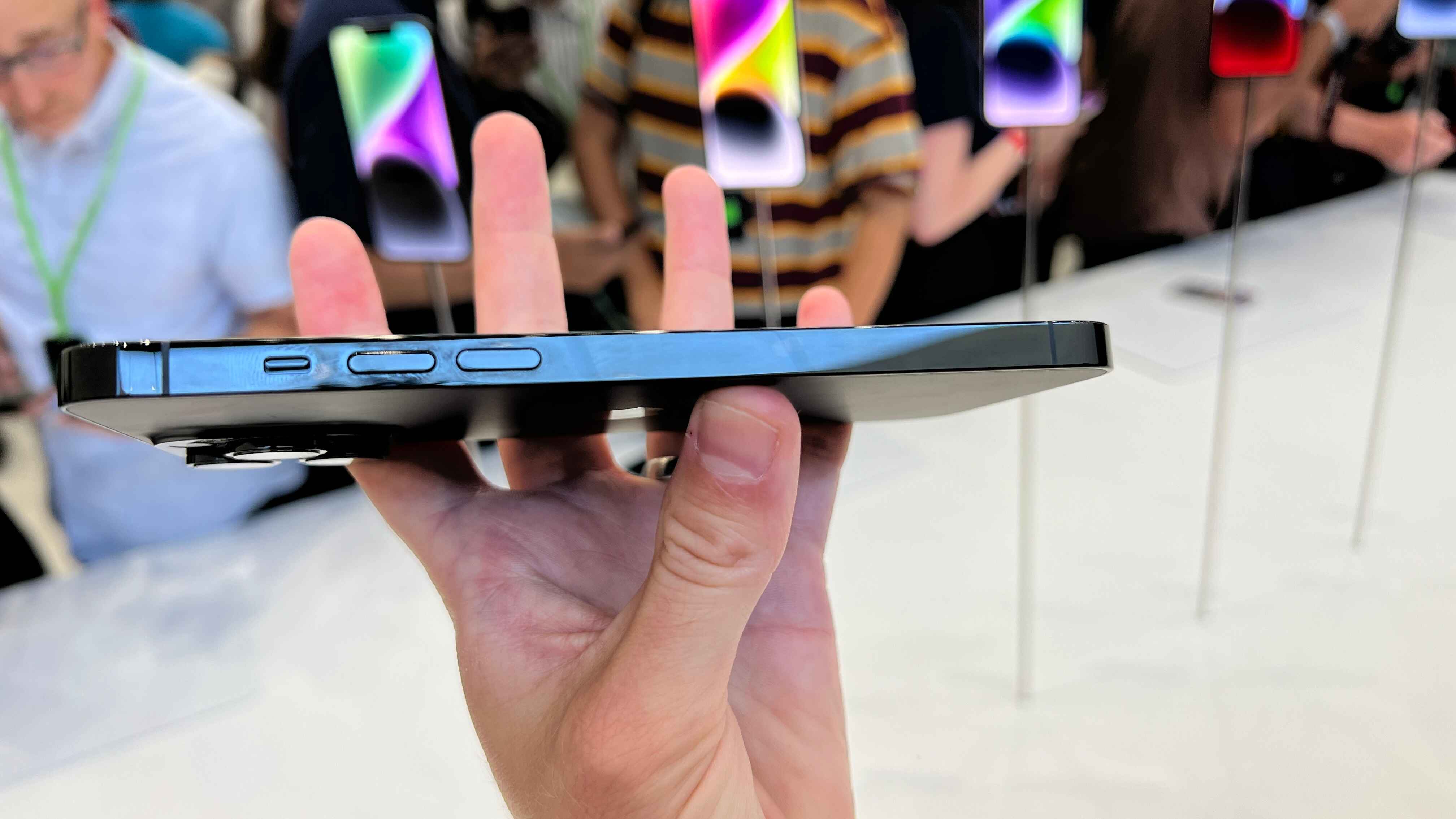
- iPhone 12 models and later: The SIM tray is on the left side of the device. (US iPhone 14 models and later have no physical tray.)
- iPhone 11 models and earlier: The SIM tray is on the right side of the device.
- Google Pixel phones: The SIM tray is commonly on the left edge, though some models like the Pixel 3 have it on the bottom, and the Pixel 10 series has it on the top.
If your phone is not listed here, look for a small pinhole on the edges of your device, it is usually accompanied by a tiny tray icon.
Eject the SIM card tray
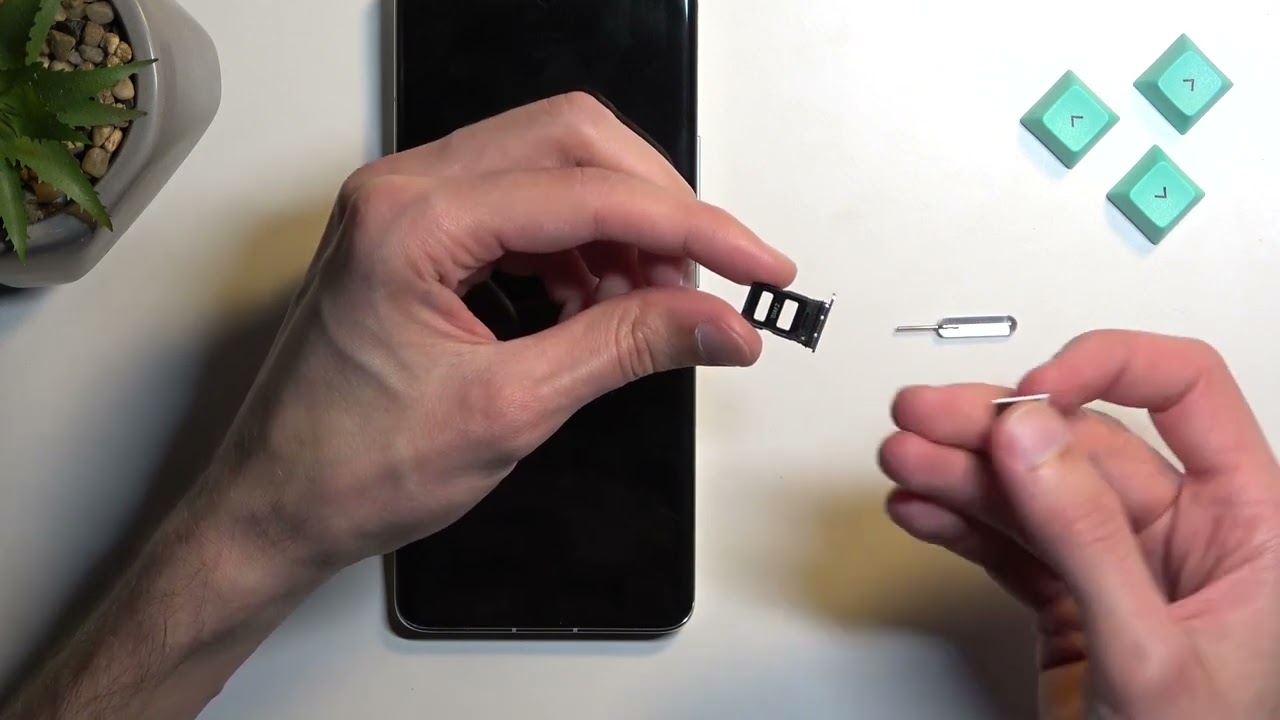
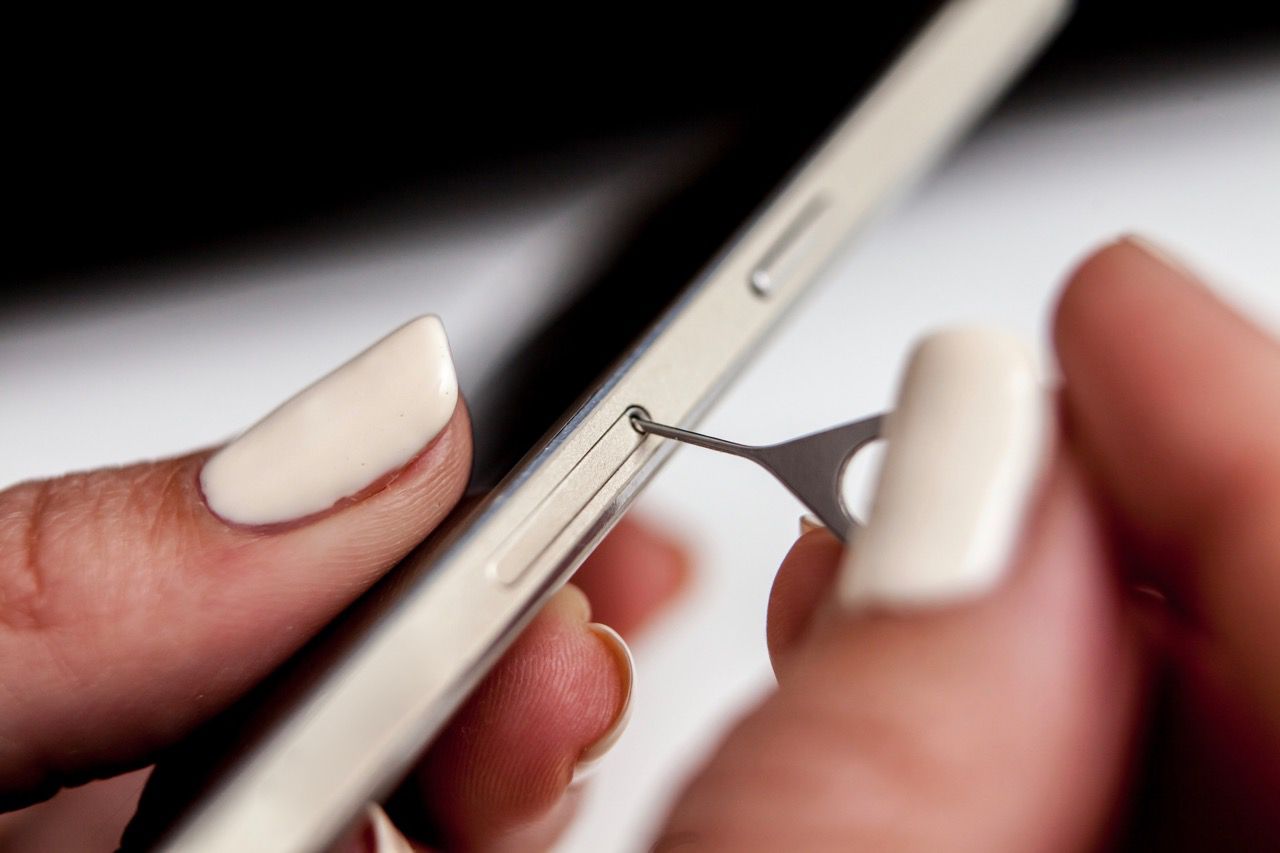
- Insert the SIM eject tool or straightened paperclip straight into the small pinhole next to the SIM tray.
- Push gently but firmly until you feel a slight click and the tray pops out slightly.
- Carefully pull the tray completely out of the slot using your fingers.
Insert or replace the nano SIM card
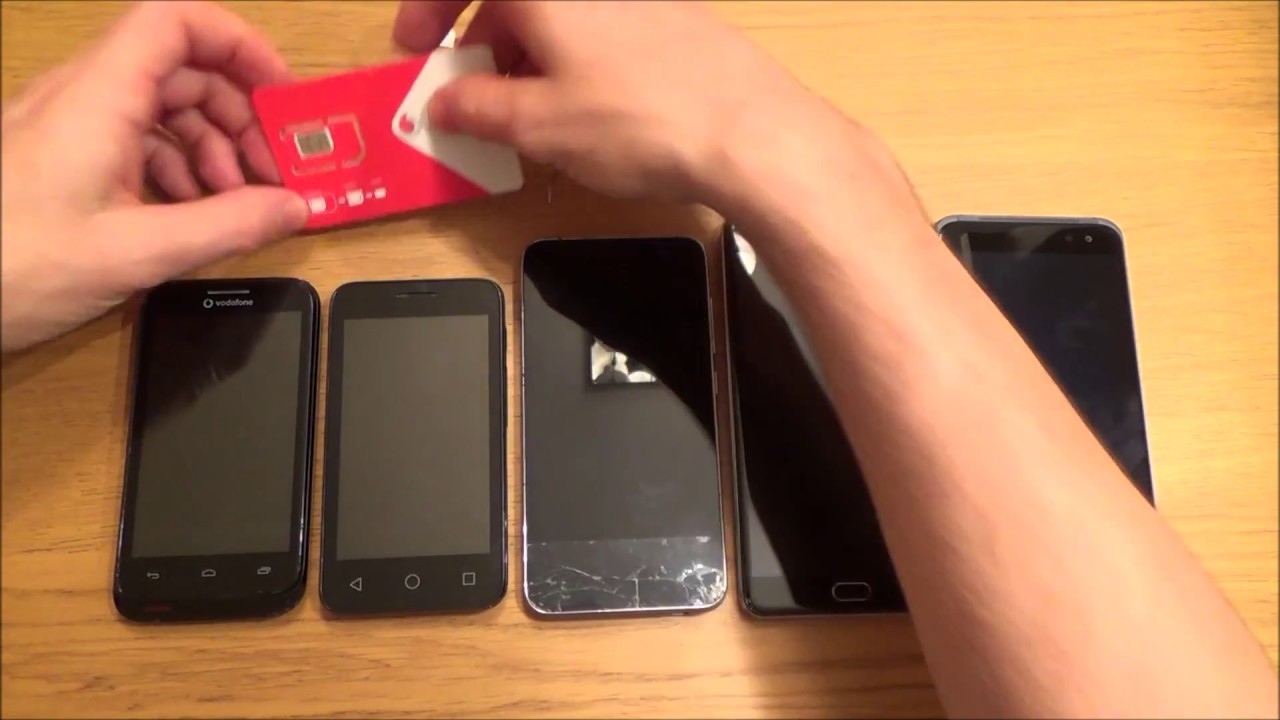
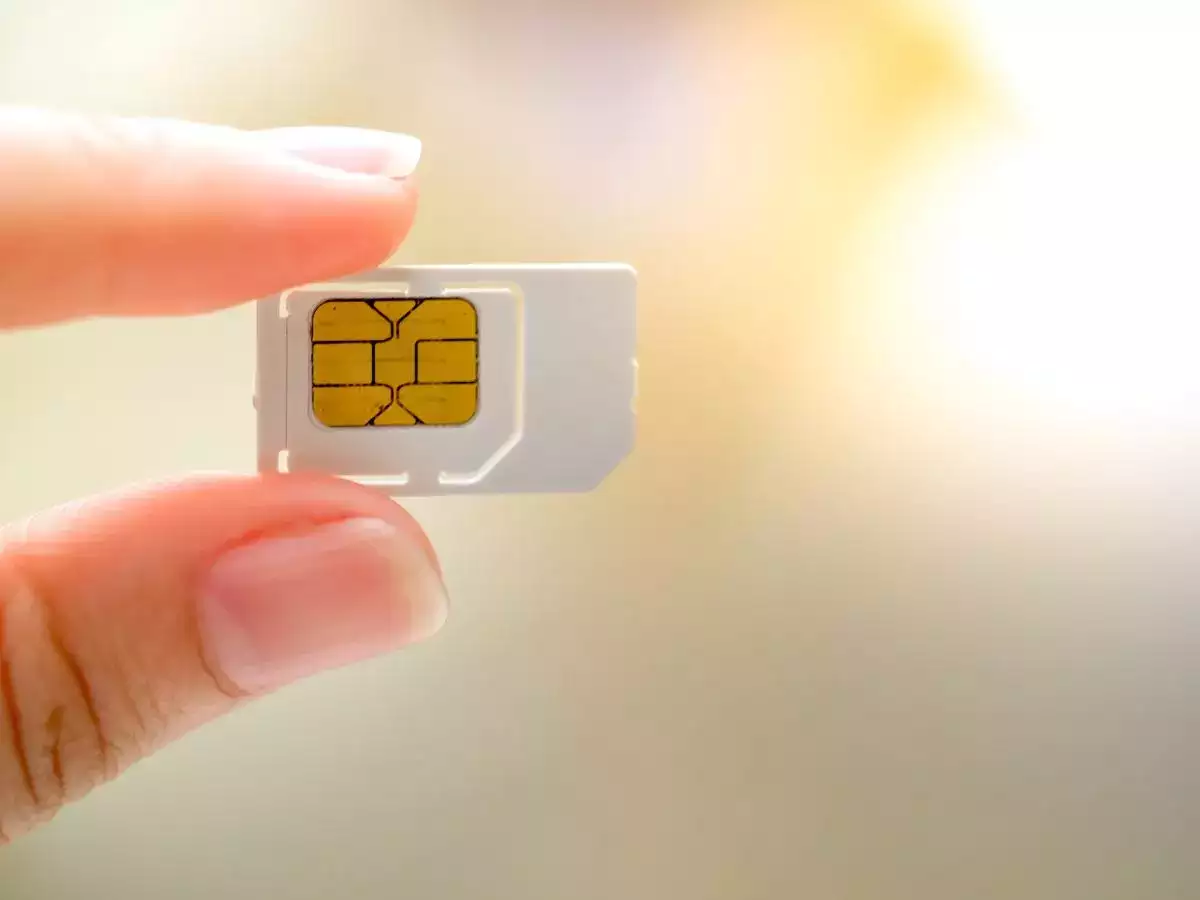
Modern smartphones primarily use nano SIM cards. When handling the card, hold it by its edges to avoid touching the gold contacts. Align the notched corner of the nano SIM with the notched corner of the tray. Orientation matters: for Samsung devices, the gold contacts typically face down; for Pixel devices, the gold contacts typically face up. If the card has been inactive for a while, you may need to consider reactivating your old SIM card before it will register on the network. This same physical handling care applies when adding a SIM card to your laptop for cellular connectivity. This is a critical step for locating the SIM card on Android phones, as improper alignment can prevent the tray from reinserting or damage the card.
If you are replacing an existing card, gently remove the old one and place the new one in the same orientation.
Reinsert the SIM card tray
- With the nano SIM card securely seated in the tray, gently push the tray back into the slot in the same orientation you removed it.
- Push until the tray sits completely flush with the device's frame, do not force it. If you meet resistance, remove the tray and check the card's alignment.
Once the tray is flush, power on your phone. Your device will recognize the SIM card and connect to your cellular network.