First, understand what a browser already does for you
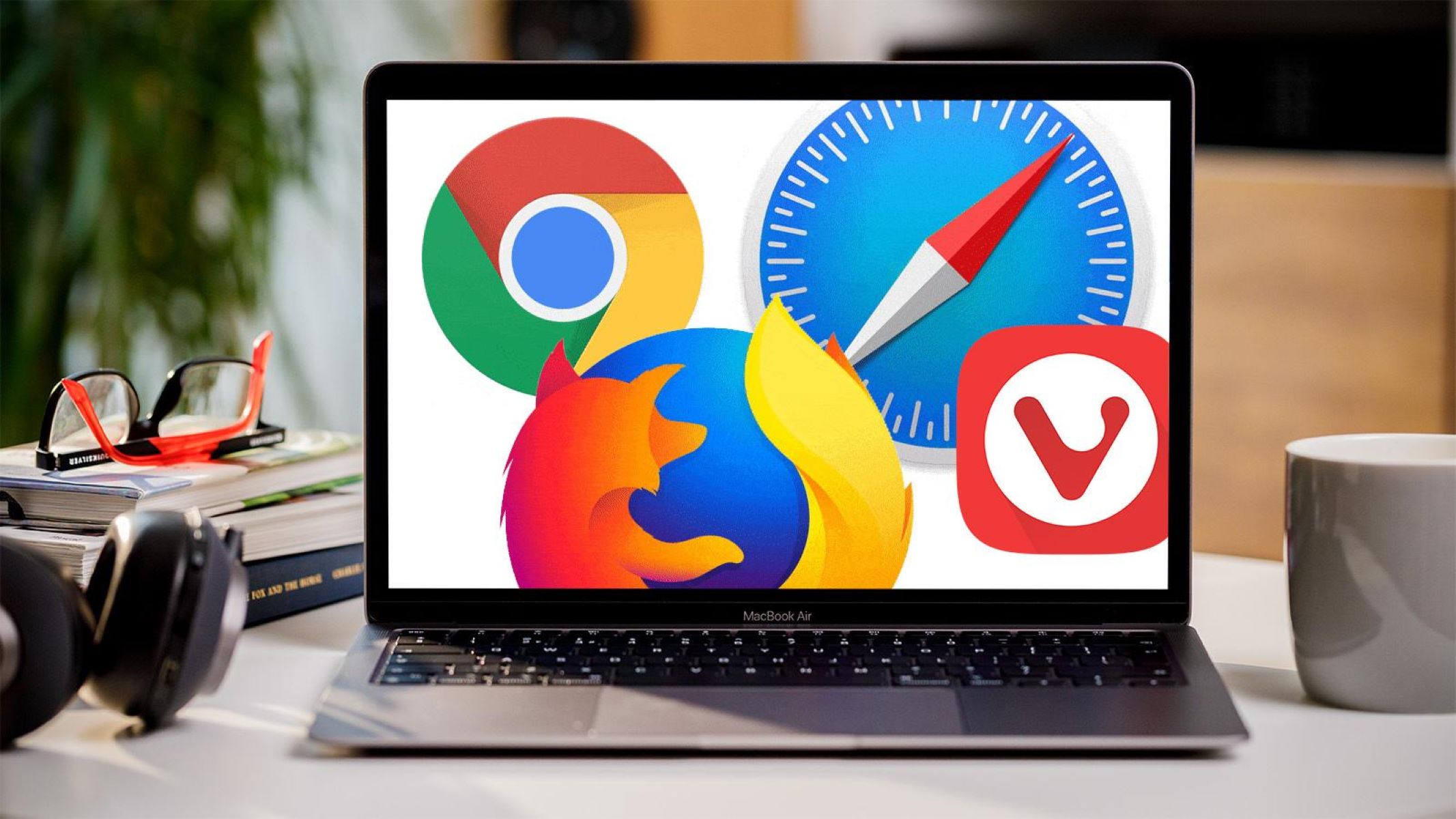
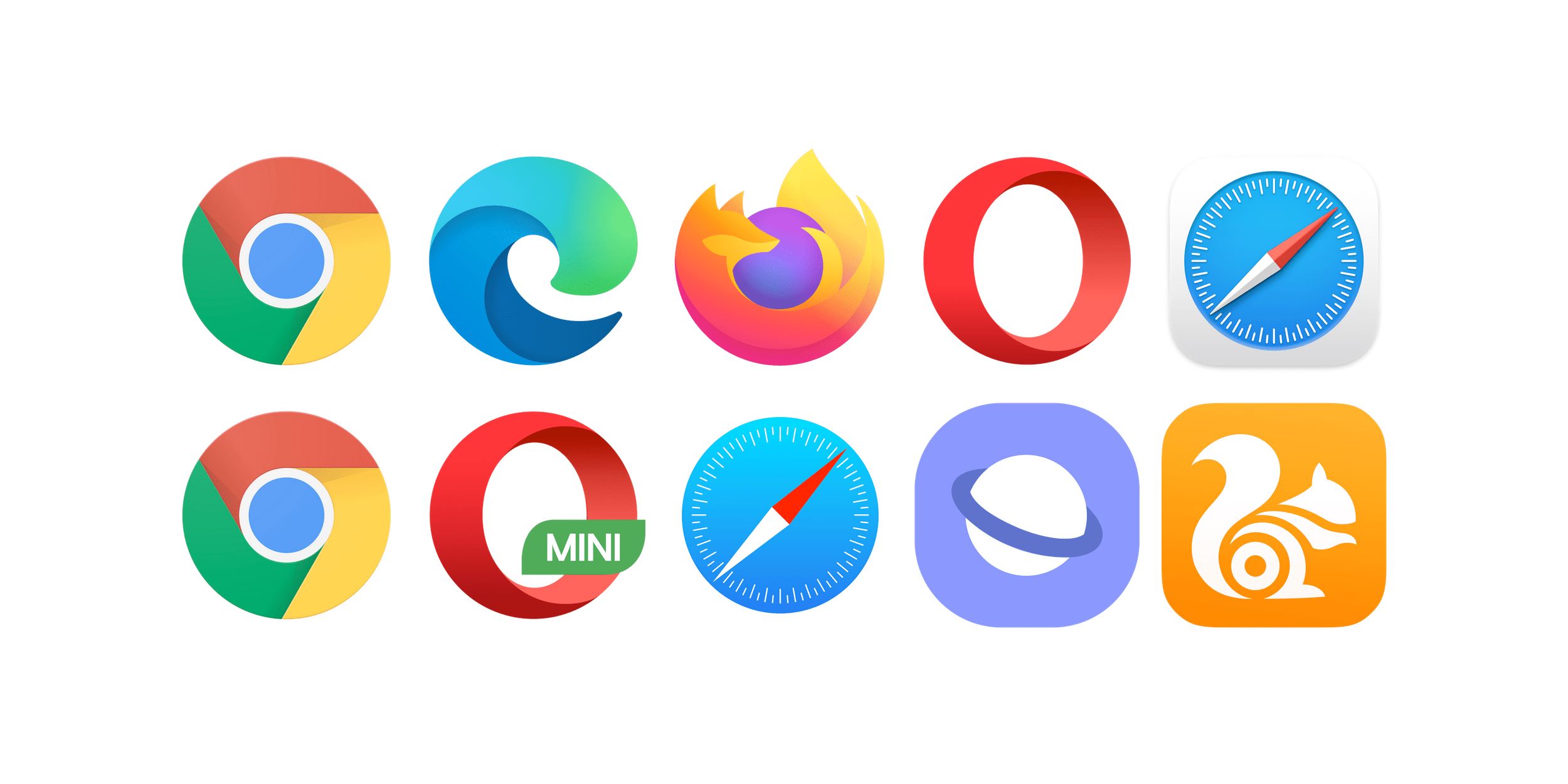
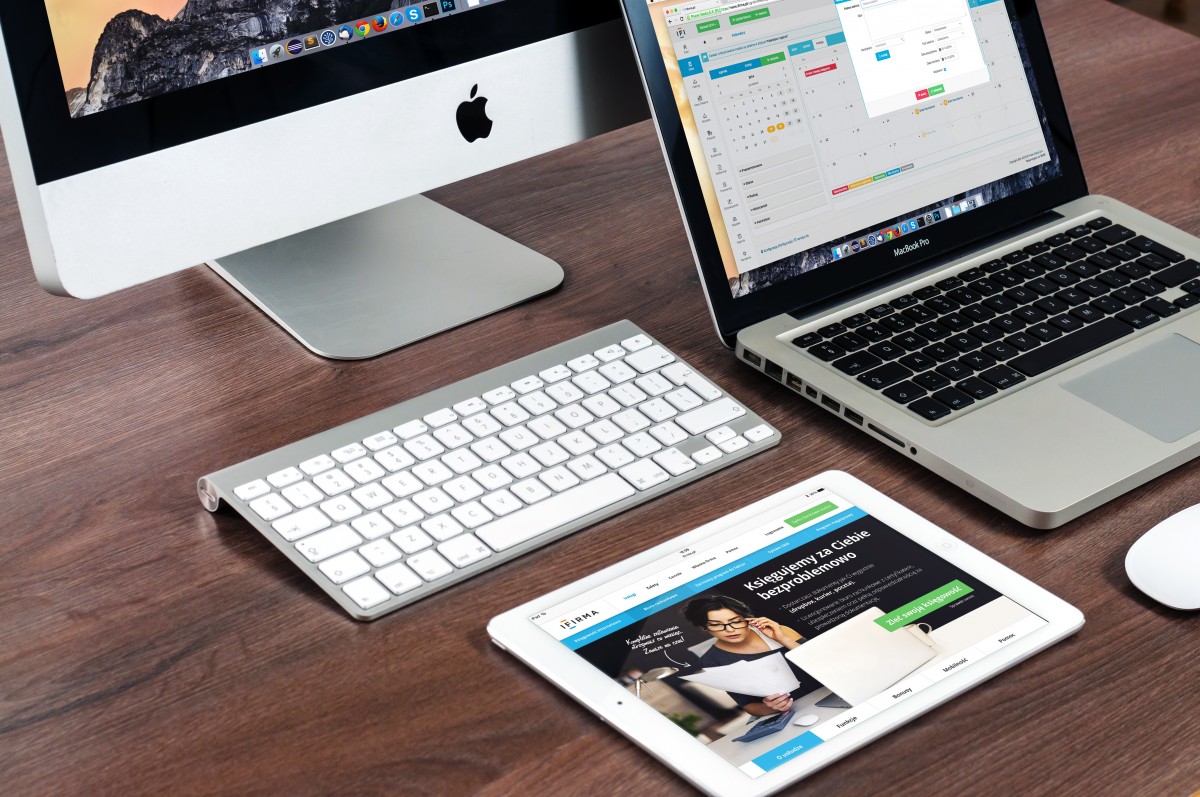
What is a browser? Look at the screen in front of you. The icon you tap or click to get onto the internet, that is a web browser. It is a blue-green swirl for Edge, a colorful pinwheel for Safari, or a red, yellow, and green circle for Chrome. If you are reading this on a phone, tablet, or computer, you are already using one. To find it, open your app drawer or Start menu and look for that icon. When you launch it, the window that opens is your browser.
Now, a common trap: people search for "my web browser" online because they think they need to download one. But you already have at least one. The confusion comes from mixing up the tool with the service. The URL for Google Chrome is not a website address, Chrome itself does not have a URL. Instead, you type URLs into Chrome to visit sites. The easiest way to grasp this is to understand the difference between Google and Chrome: Google is the search engine you use to find pages, and Chrome is the application that displays those pages. You do not use Chrome to search; you use it to view results from Google or any other search engine you prefer. A web browser is the only piece of software on your device that can both reach out to the internet and build a visible page from the code it receives.
Getting around your browser
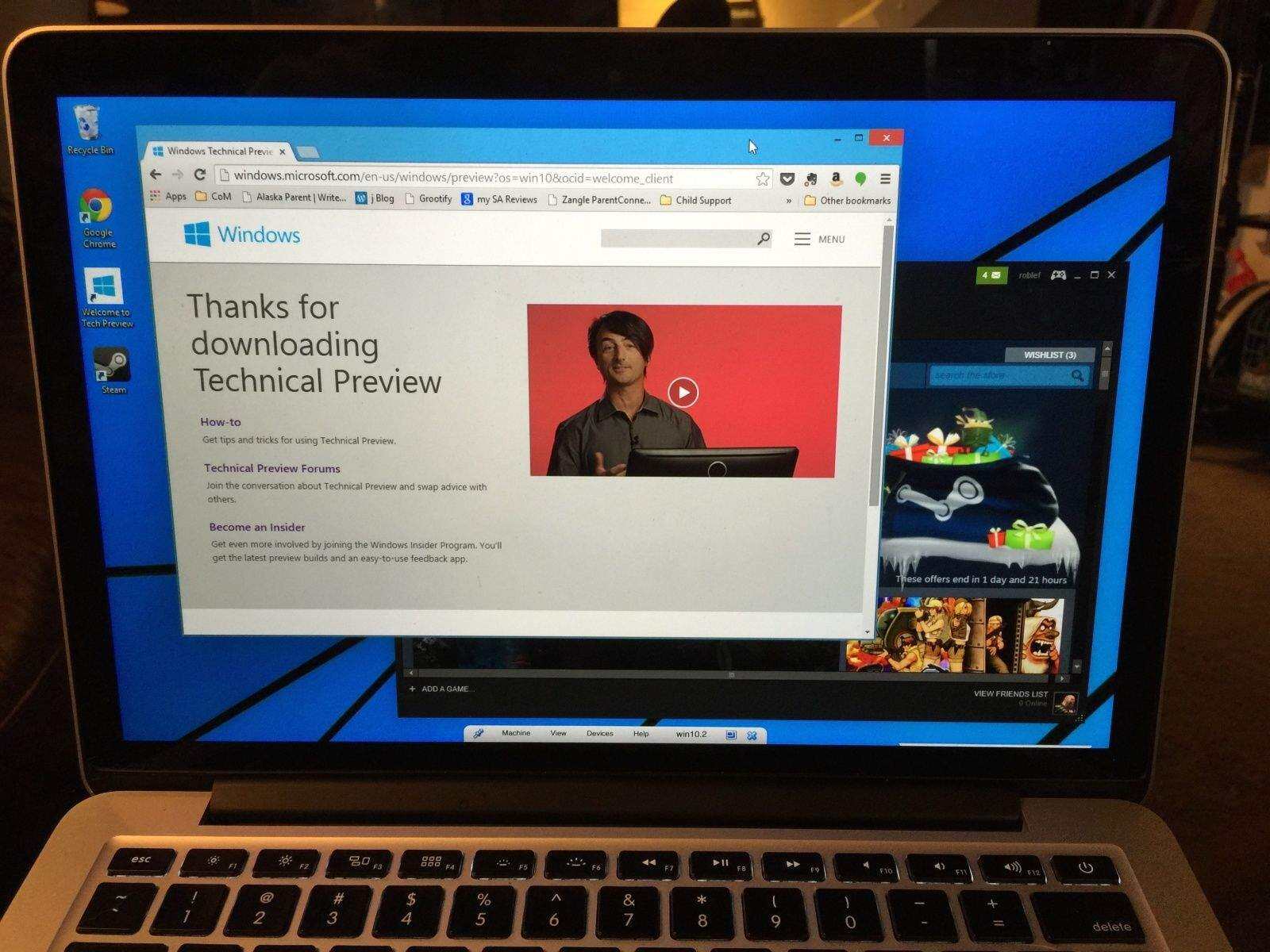
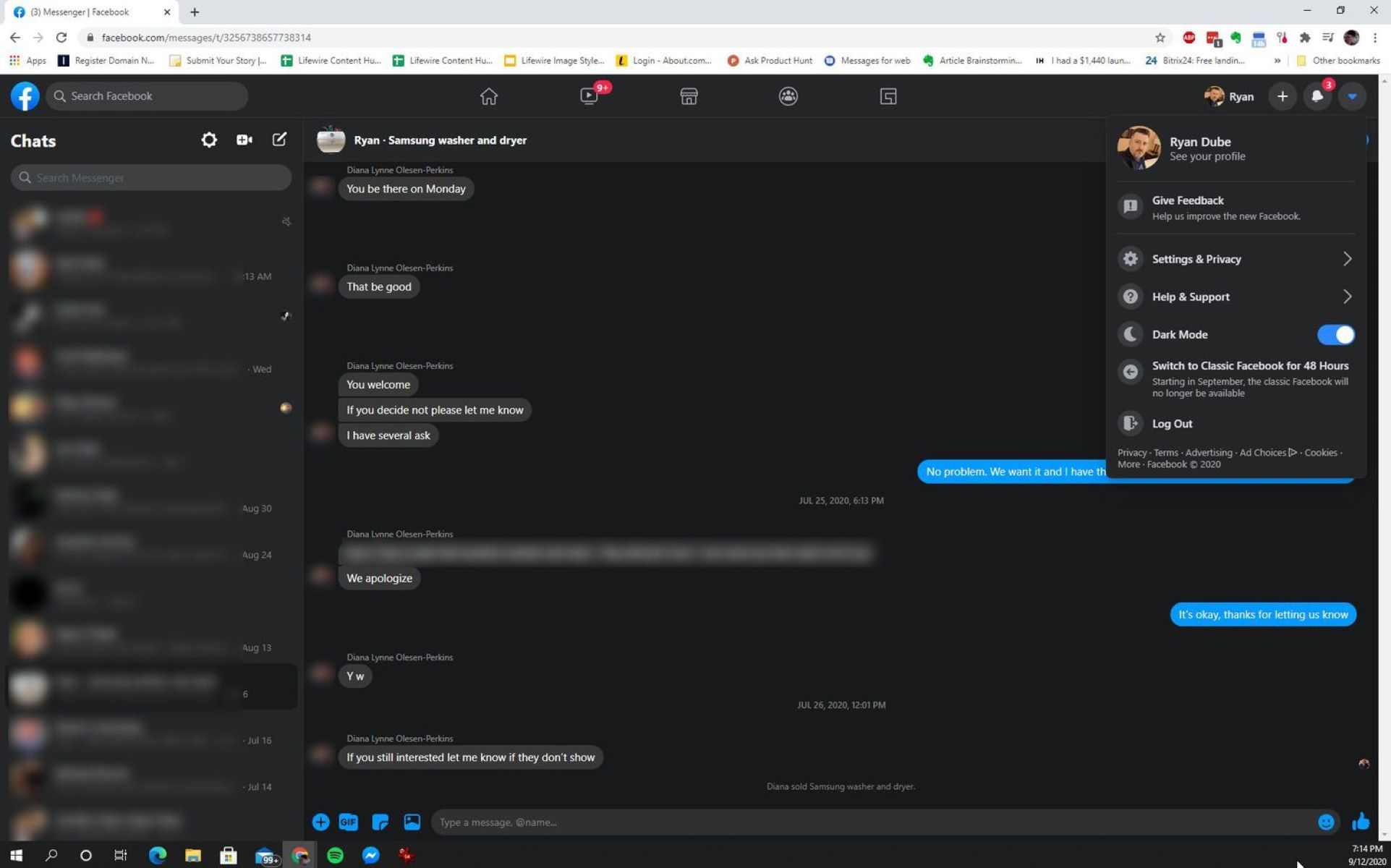
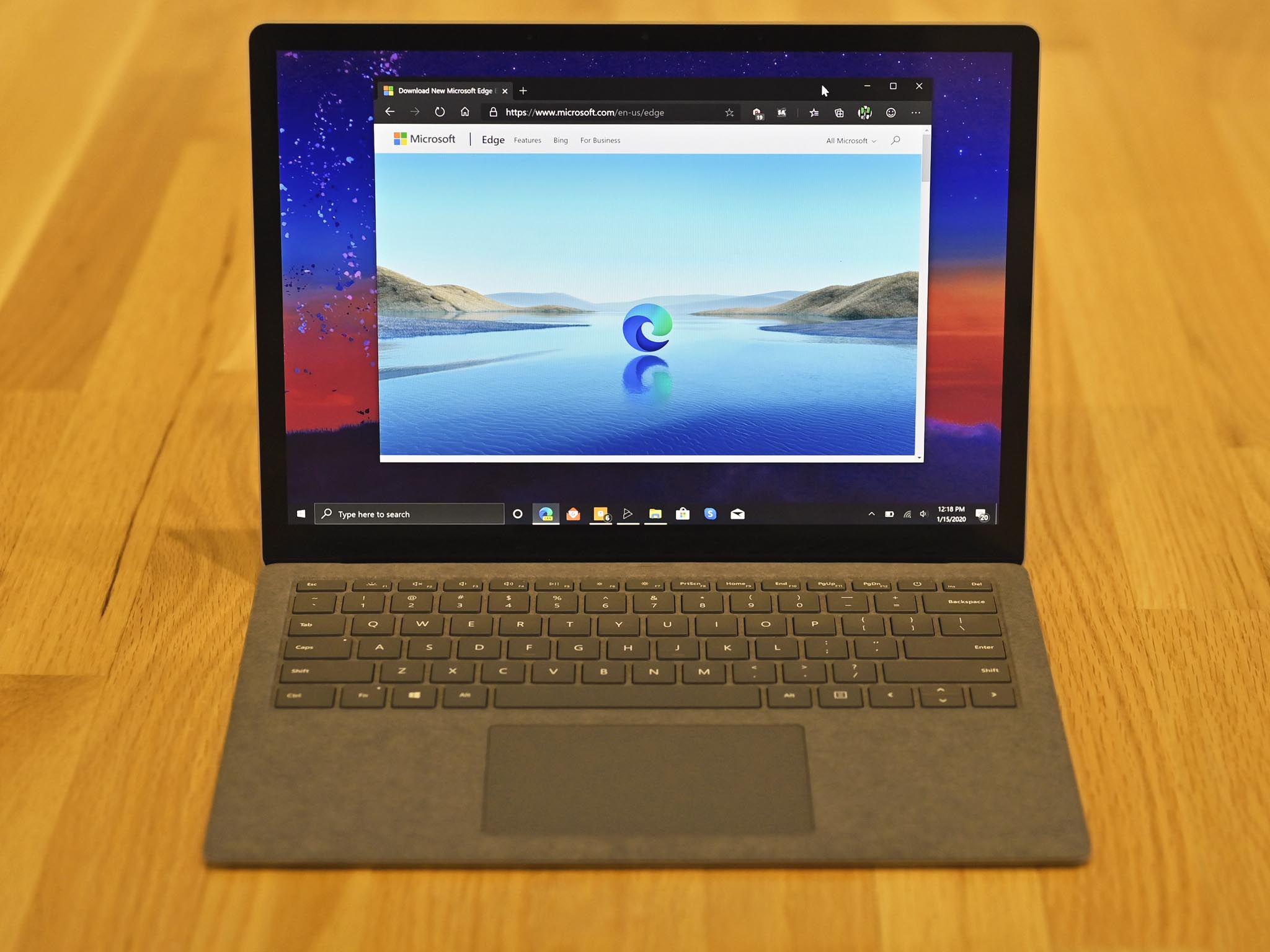
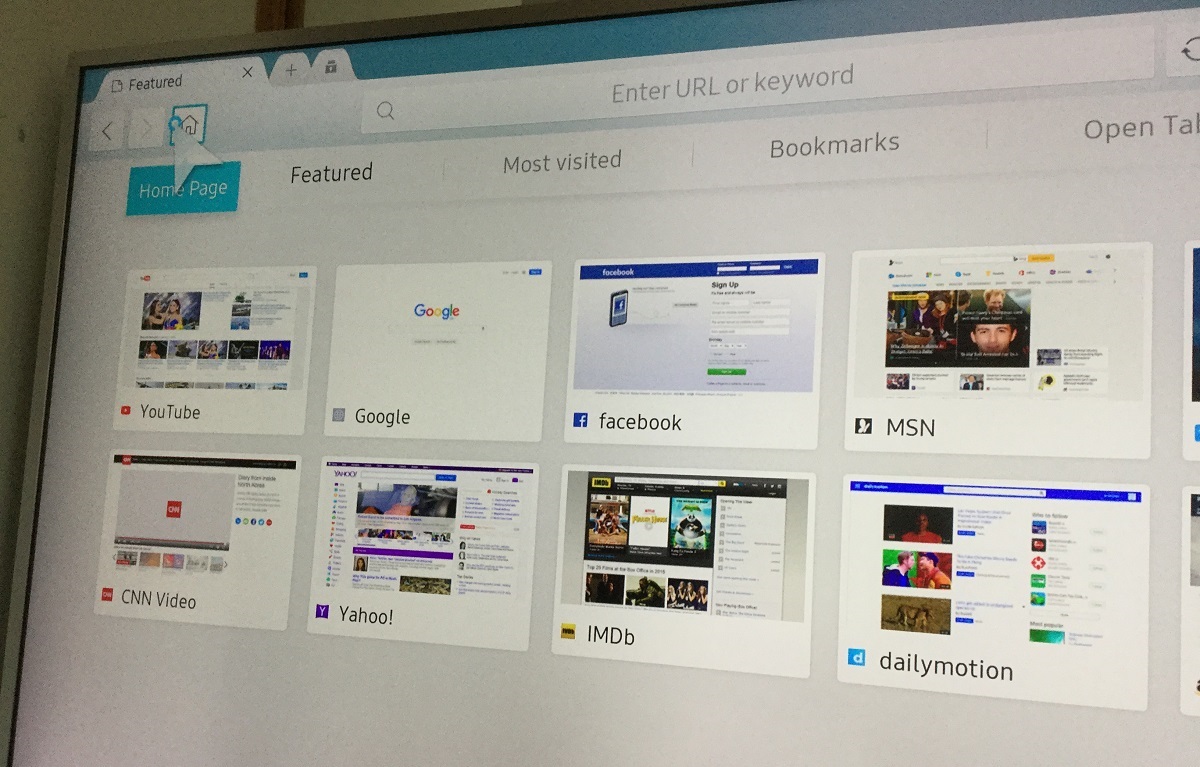
The rectangular frame holding this page, with its back, forward, and refresh buttons, the address bar where the web address lives, and the tabs you might have open, is a browser window. That frame is the container for everything you do online. But here is the catch: that frame looks different depending on where you are sitting. If you borrow a friend’s laptop, you see the same buttons in different places, a different color scheme, or a completely different set of icons. That is a browser looking different on another computer, and it happens for a few simple reasons. Your friend changed the theme, or their operating system draws the buttons in its own style. They use a different version of the same browser. None of that changes what the browser does, it still fetches and displays web pages, but the visual differences startle you if you are not expecting them. The key is to recognize the parts that never change: the address bar, the back button, the reload button. Once you know those, you can navigate any browser, on any computer, without getting lost. A browser is the only software on your computer that speaks the web’s language and renders it into a human-readable page, which makes it the single non-negotiable tool for reaching the open internet.
Fixing problems and customizing your setup
When a site refuses to load properly, the first thing to check is whether you are seeing websites looking broken or asking to update your browser, which links to an article about why some websites look broken or ask me to update my browser. This happens because the site relies on a newer feature that your current browser version doesn't support, or because a security certificate has expired. Instead of hunting for a different program, simply go to your browser's menu and look for "About" or "Check for updates", most modern browsers update themselves automatically, but a manual check resolves the glitch instantly. If the problem persists, try clearing your cache and cookies, which clears out corrupted data that makes layouts appear scrambled.
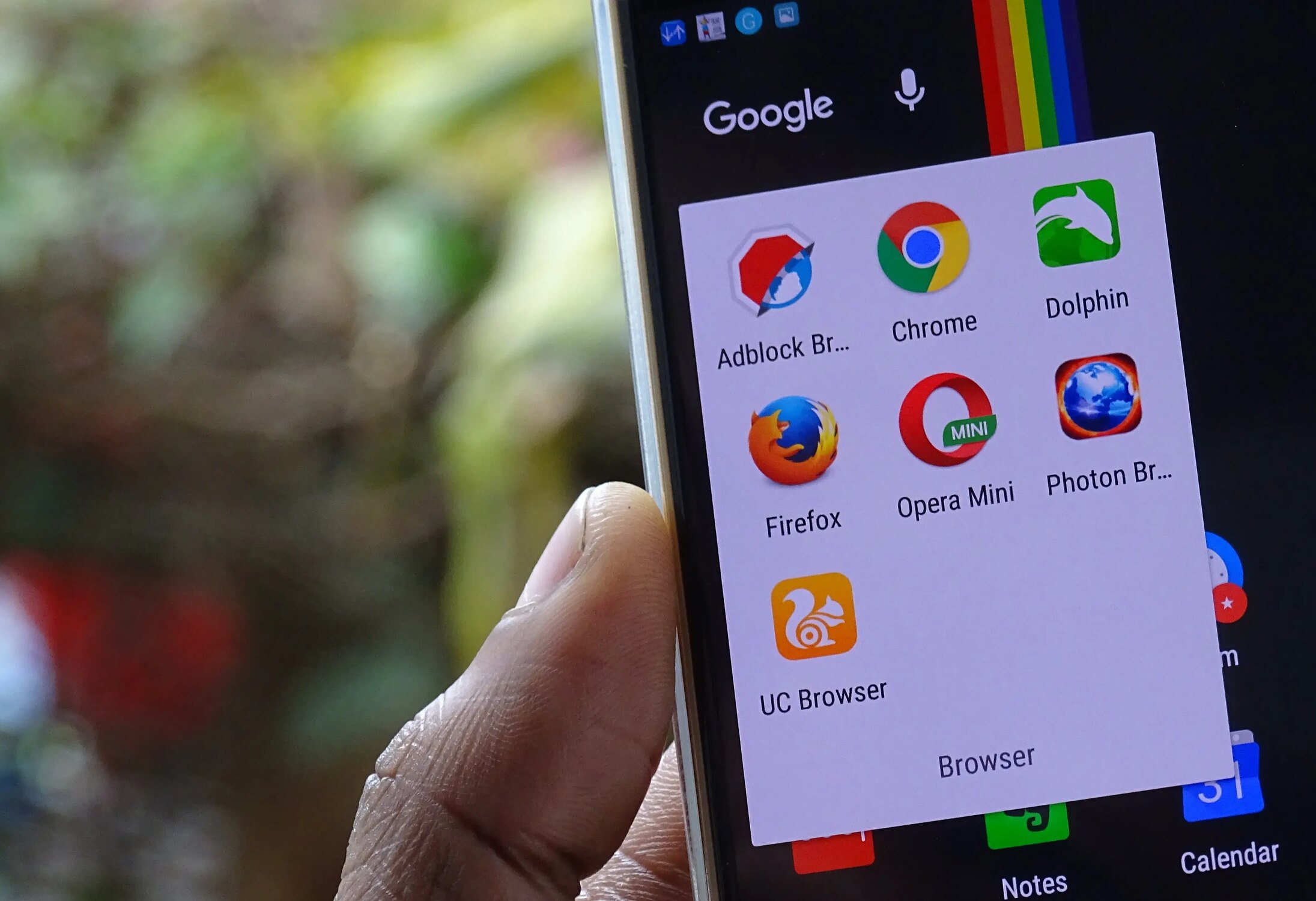
Having more than one browser installed is a practical way to separate work, personal life, or stubborn websites without losing your main setup, which links to an article about can I have more than one browser installed. You might keep Chrome for everyday browsing and a second browser like Firefox or Edge specifically for sites that behave oddly in your main one. This creates no security risk as long as you keep both updated; each browser runs in its own sandbox, so one cannot infect the other. A second browser also gives you a quick way to test whether a problem is with the site or with your primary browser's settings. Your default browser is the one that opens when you click a link, you can change this in your system settings whenever you like. Every major browser is free, so the only real cost of installing an extra one is a few megabytes of disk space.
- websites looking broken or asking to update — why do some websites look broken or ask me to update my browser
- having more than one browser installed — can I have more than one browser installed