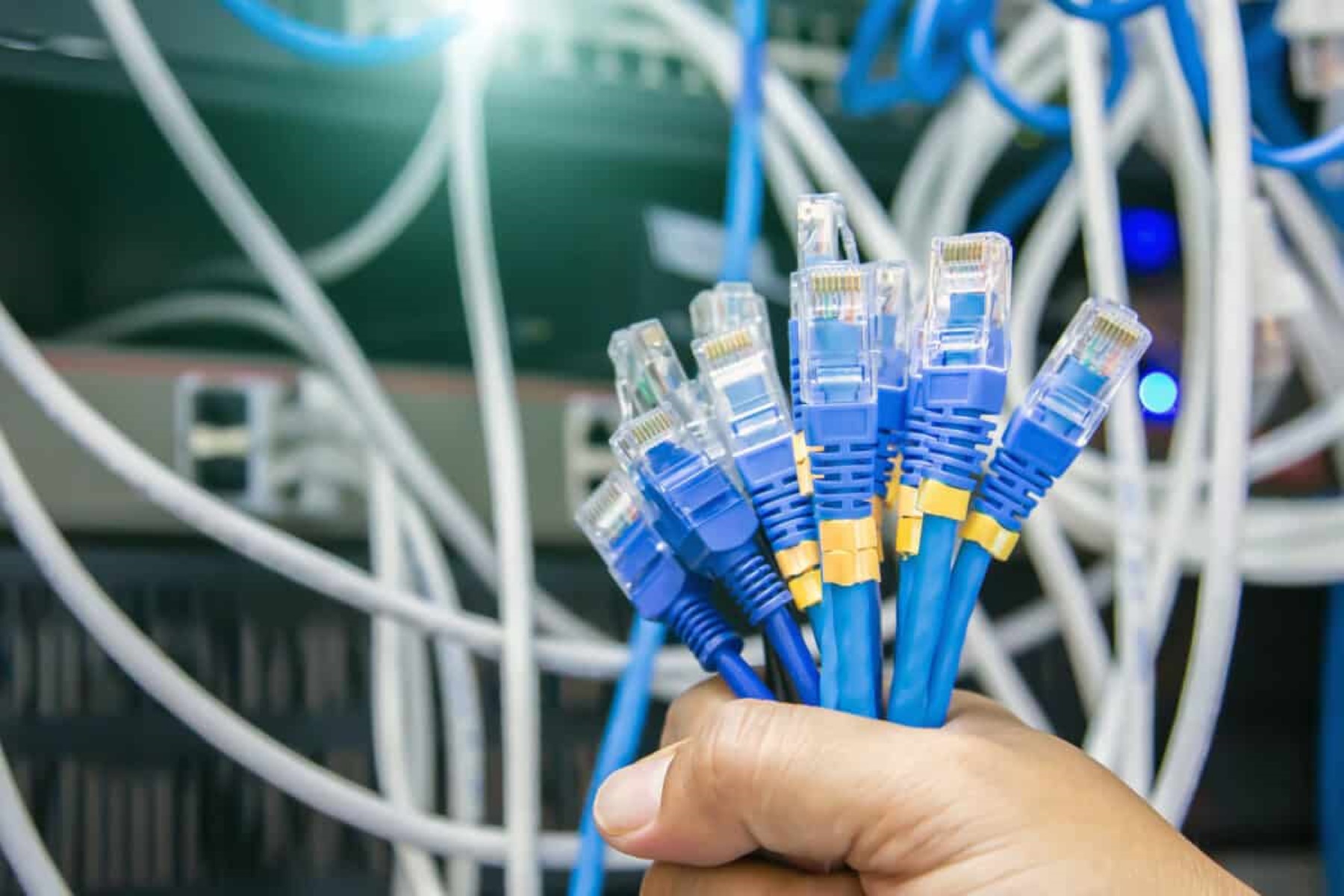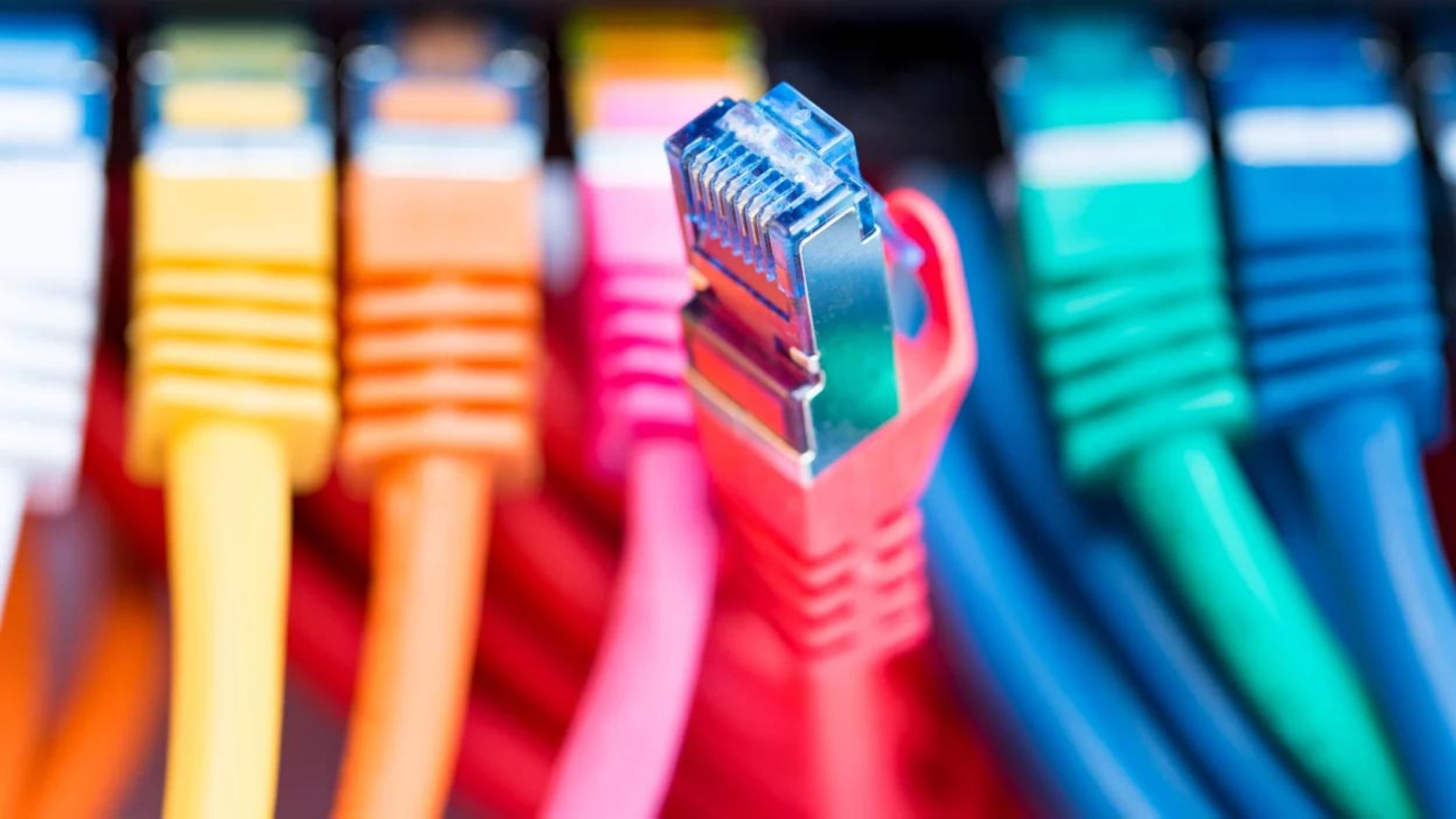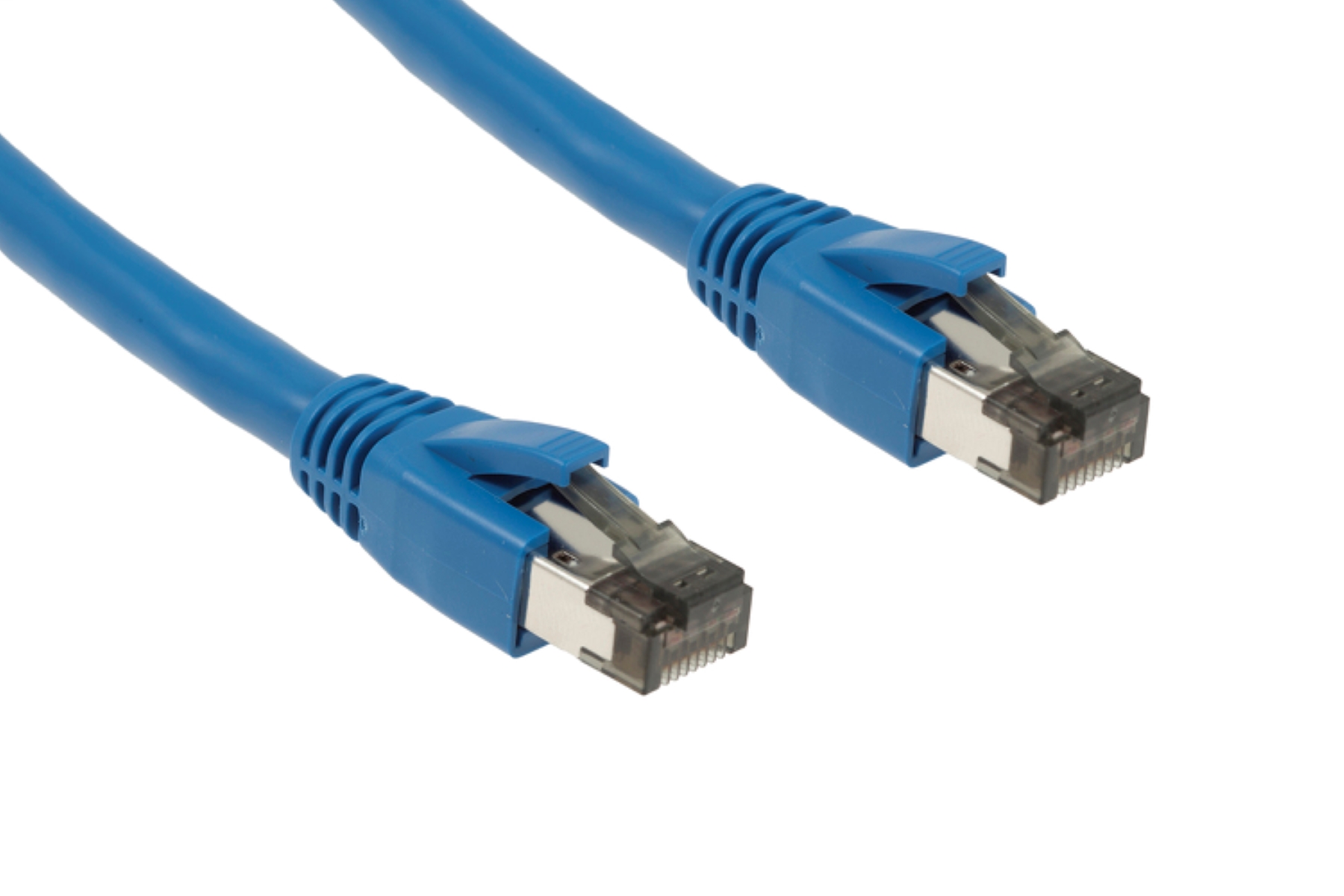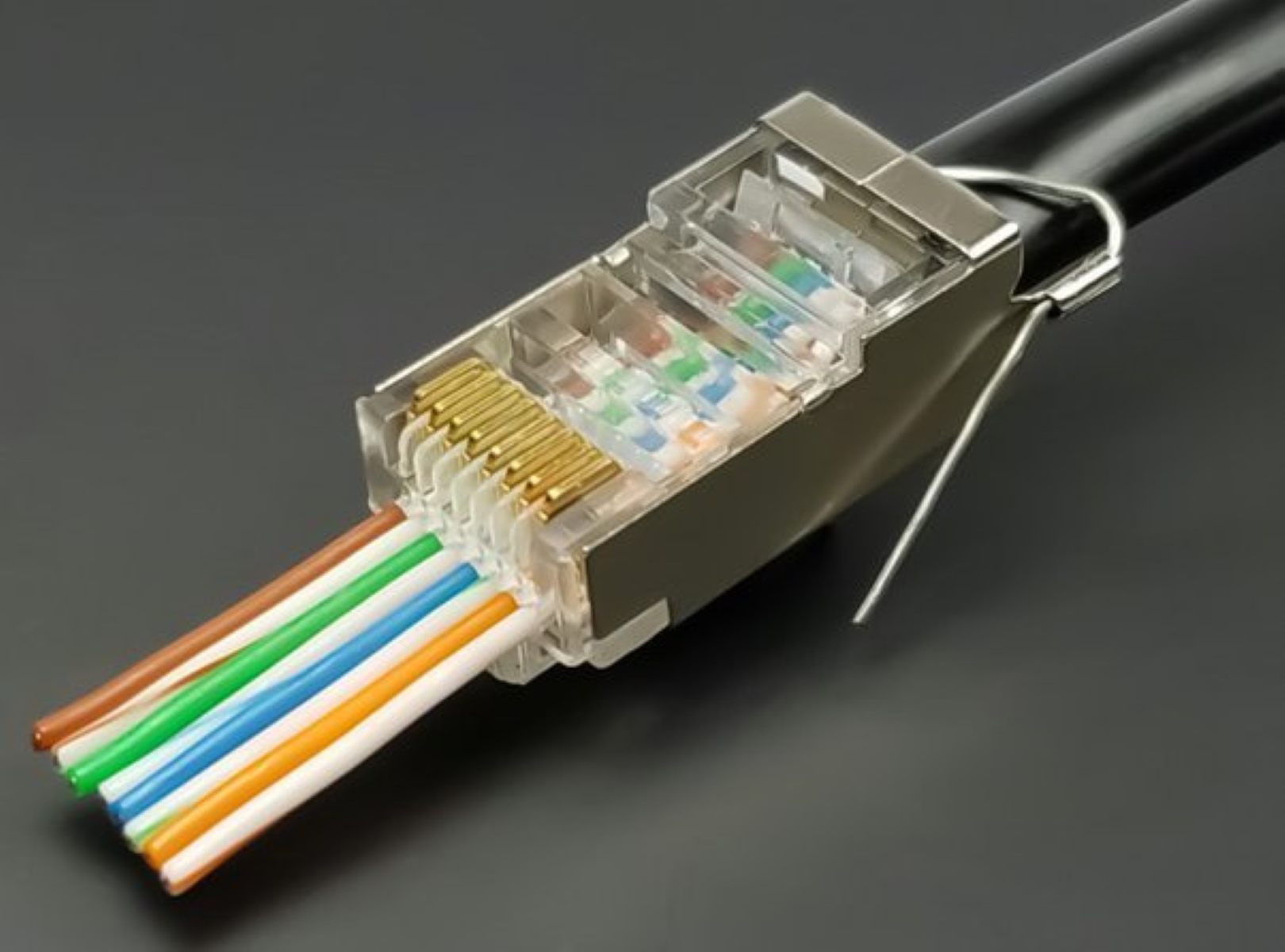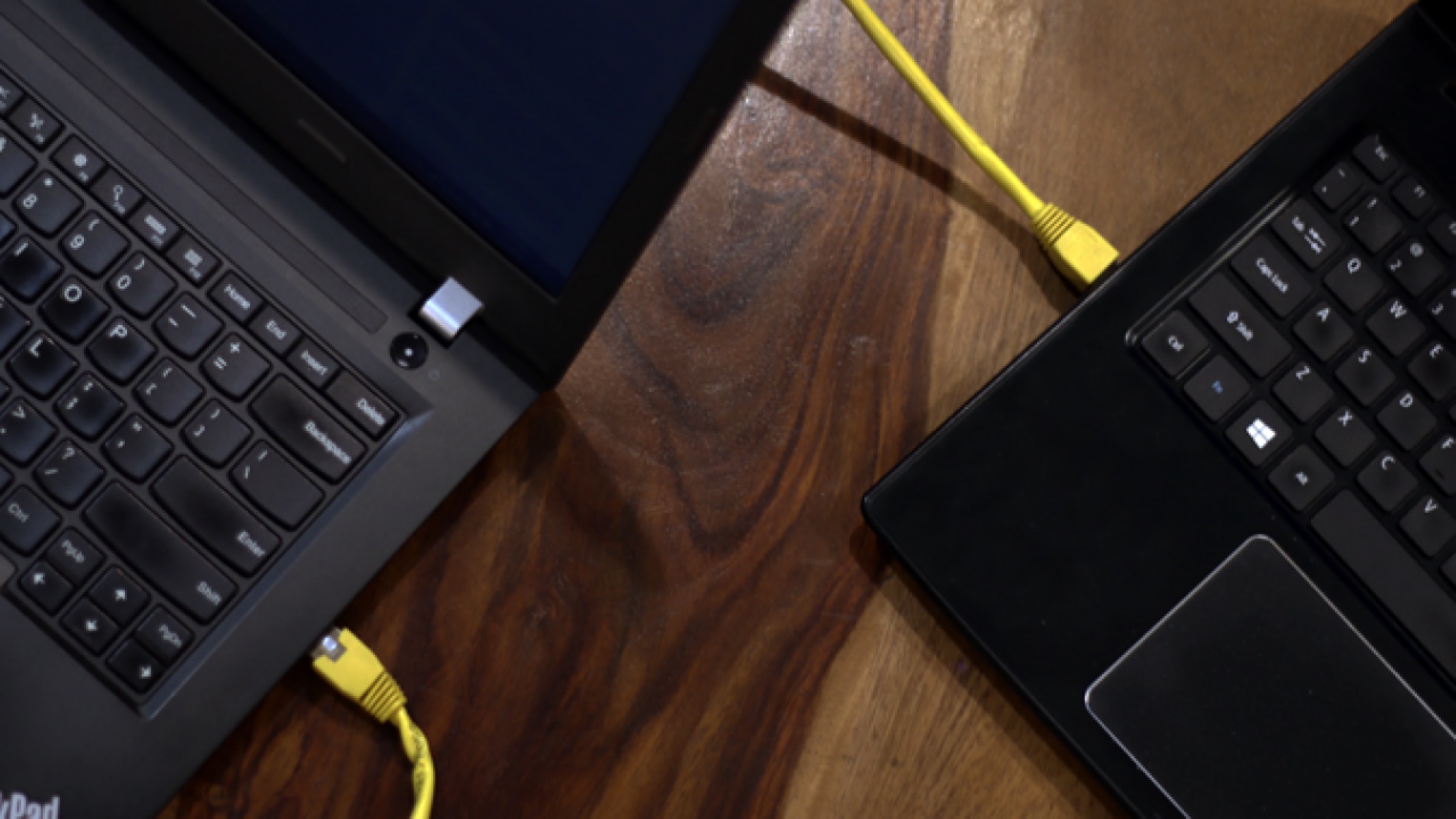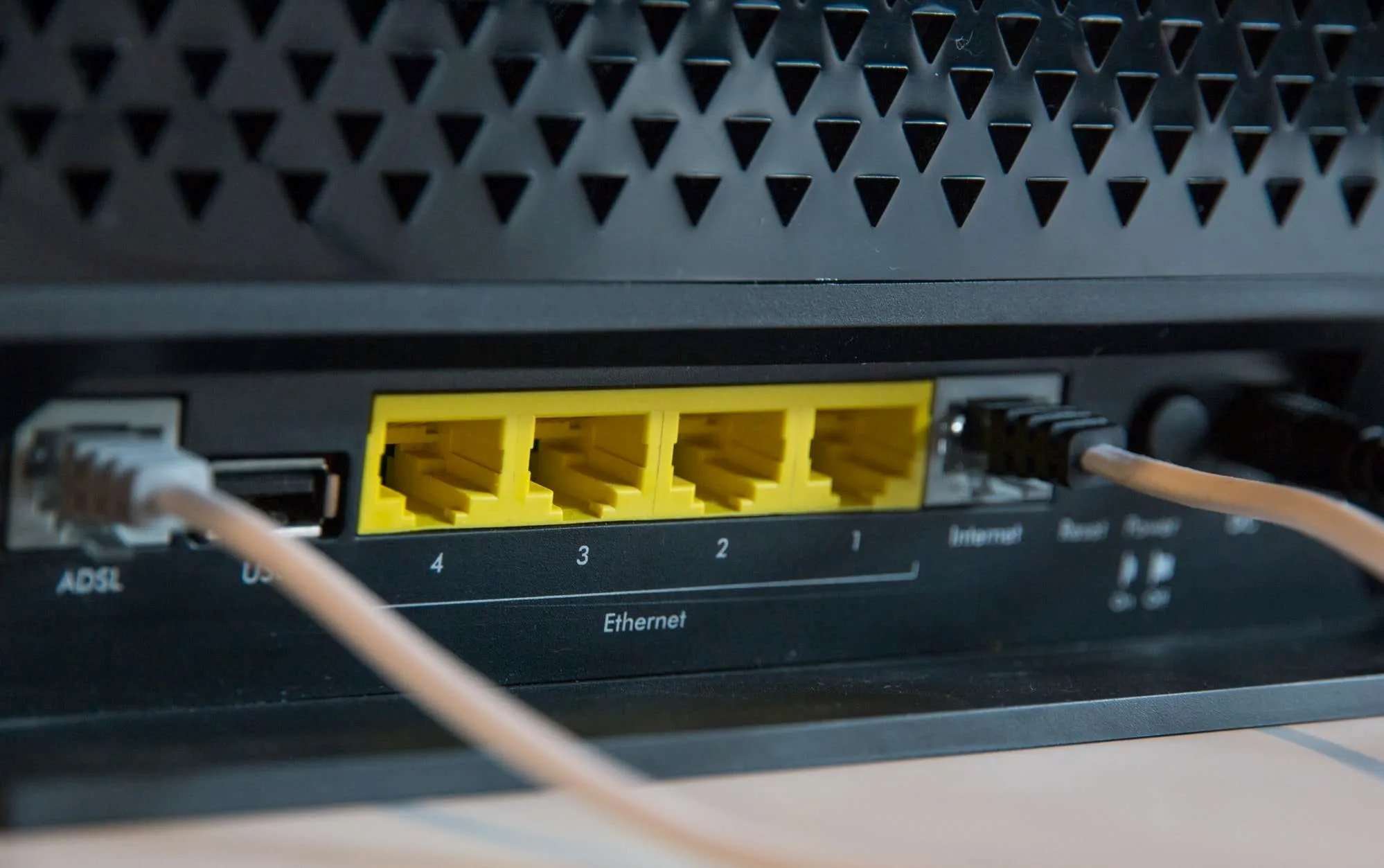
Ethernet cables plug into a rectangular port called an RJ45 port, also known as a LAN port or network jack. This is the physical, eight-pin connector found on the back or side of most networking devices, and it is where you establish a wired connection.
Where do Ethernet cables plug into: identifying the RJ45 port
The RJ45 port is the standard connection point for any Ethernet cable. It is slightly wider than a telephone jack (RJ11) and contains eight small metal contacts inside. When you insert the connector, the plastic clip on the cable should snap into place with an audible click, securing the connection. This click confirms the cable is fully seated and ready to transmit data, and with an active wired link you can even find out wifi password through Ethernet cable on your computer.
Common devices with Ethernet ports
You will find Ethernet ports on a wide range of devices that benefit from a stable, wired network connection. These include routers, modems, network switches, desktop computers, some laptops, smart TVs, and gaming consoles. Knowing where to look on each device helps you quickly set up a wired network.
Plugging into a router: WAN vs. LAN ports
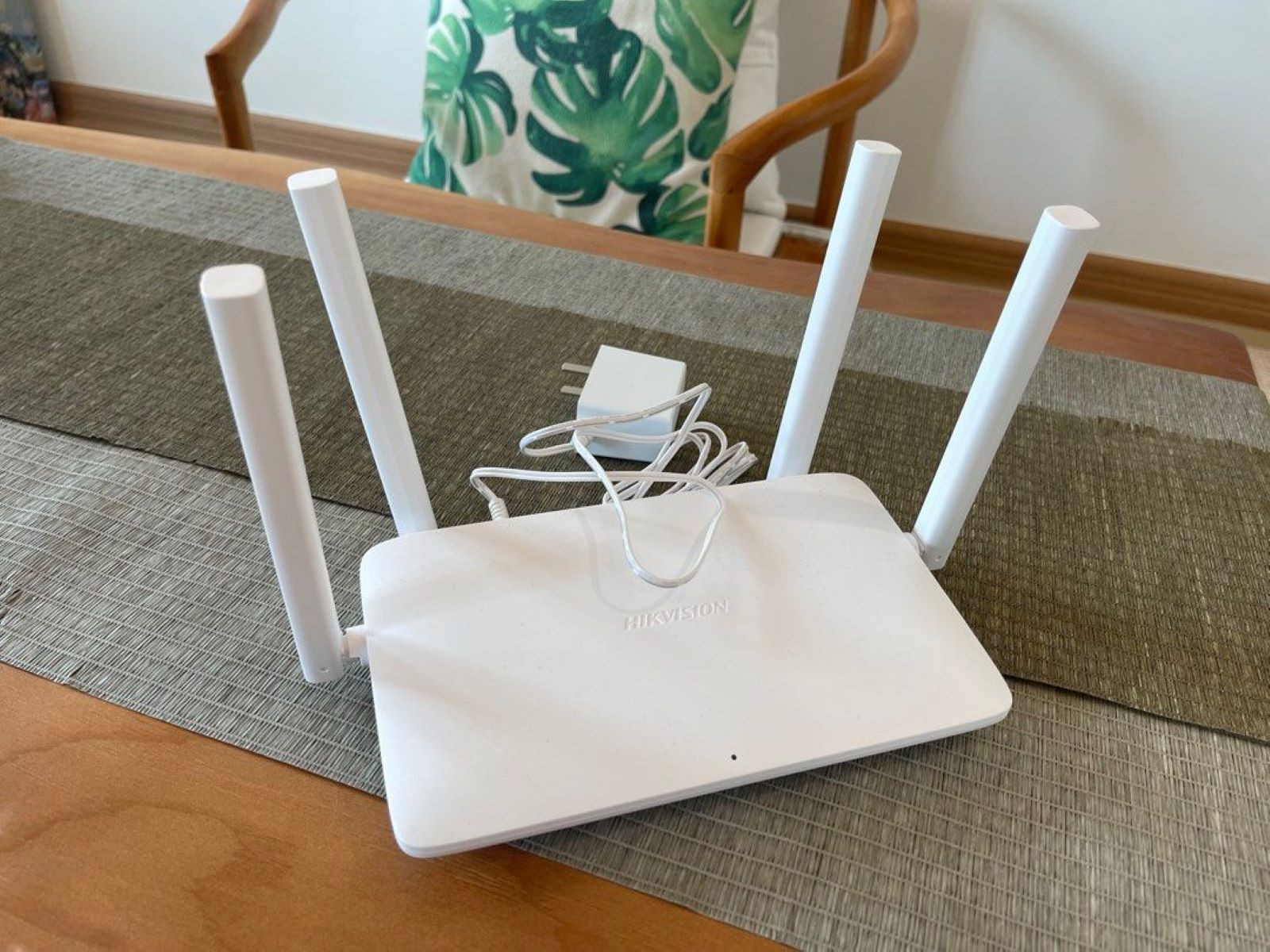
Routers typically have two types of Ethernet ports. The first is a single WAN (Wide Area Network) or Internet port, often a different color from the others, which connects to your modem. The remaining ports are LAN (Local Area Network) ports, usually numbered 1 through 4, which connect your devices like computers, consoles, and smart TVs. Plug your devices into the numbered LAN ports to give them network access.
Plugging into a modem
A standalone modem generally has only one Ethernet port. This port is designed to connect directly to your router's WAN port using an Ethernet cable. If you do not use a router, you can plug a computer directly into this single modem port, though this limits your network to one device.
Plugging into a desktop computer or laptop
On a desktop computer, the Ethernet port is typically located on the back panel, near the USB, HDMI, and audio ports. On some laptops, it is on the side edge. Most modern devices automatically detect and configure the network connection when you plug in the cable, so no manual setup is required. Simply insert the cable until it clicks, and your device should connect.
Plugging into a network switch or wall socket
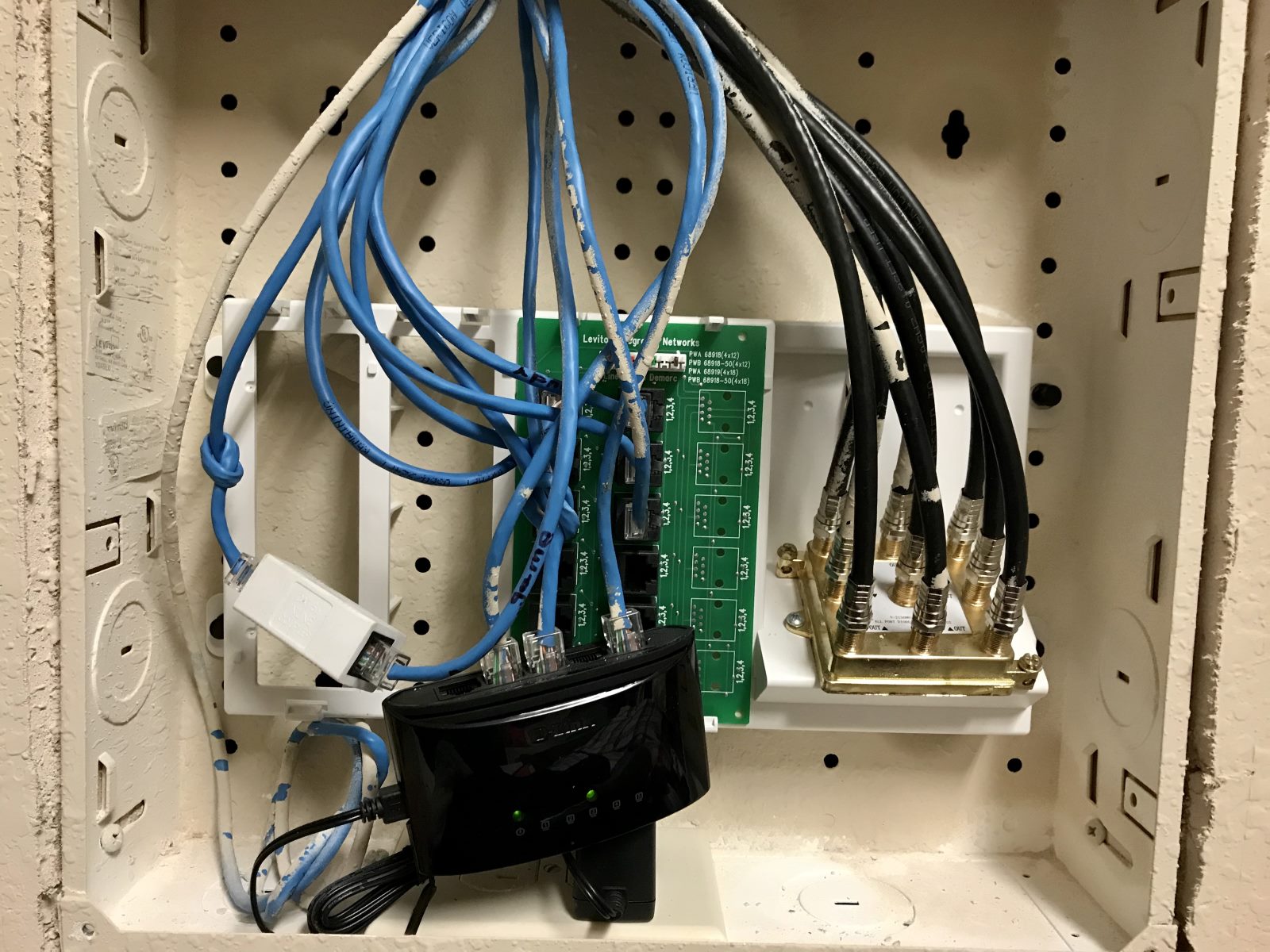
If you need more ports than your router provides, you can use a network switch. Plug an Ethernet cable from one of your router's LAN ports into any port on the switch, then connect your devices to the remaining switch ports. For a clean, permanent connection, look for an in-wall RJ45 network jack. These wall sockets are connected to your home's structured cabling and let you plug a device directly into the wall for a tidy setup, but avoid the mistake of plugging an Ethernet cable into a phone jack even with an adapter, as the smaller RJ11 port can damage your connector. You will want to know how to unplug Ethernet cable correctly: always press down on the plastic clip to release it before pulling the connector out, which prevents damage to the port or cable.
Troubleshooting a connection that isn't working
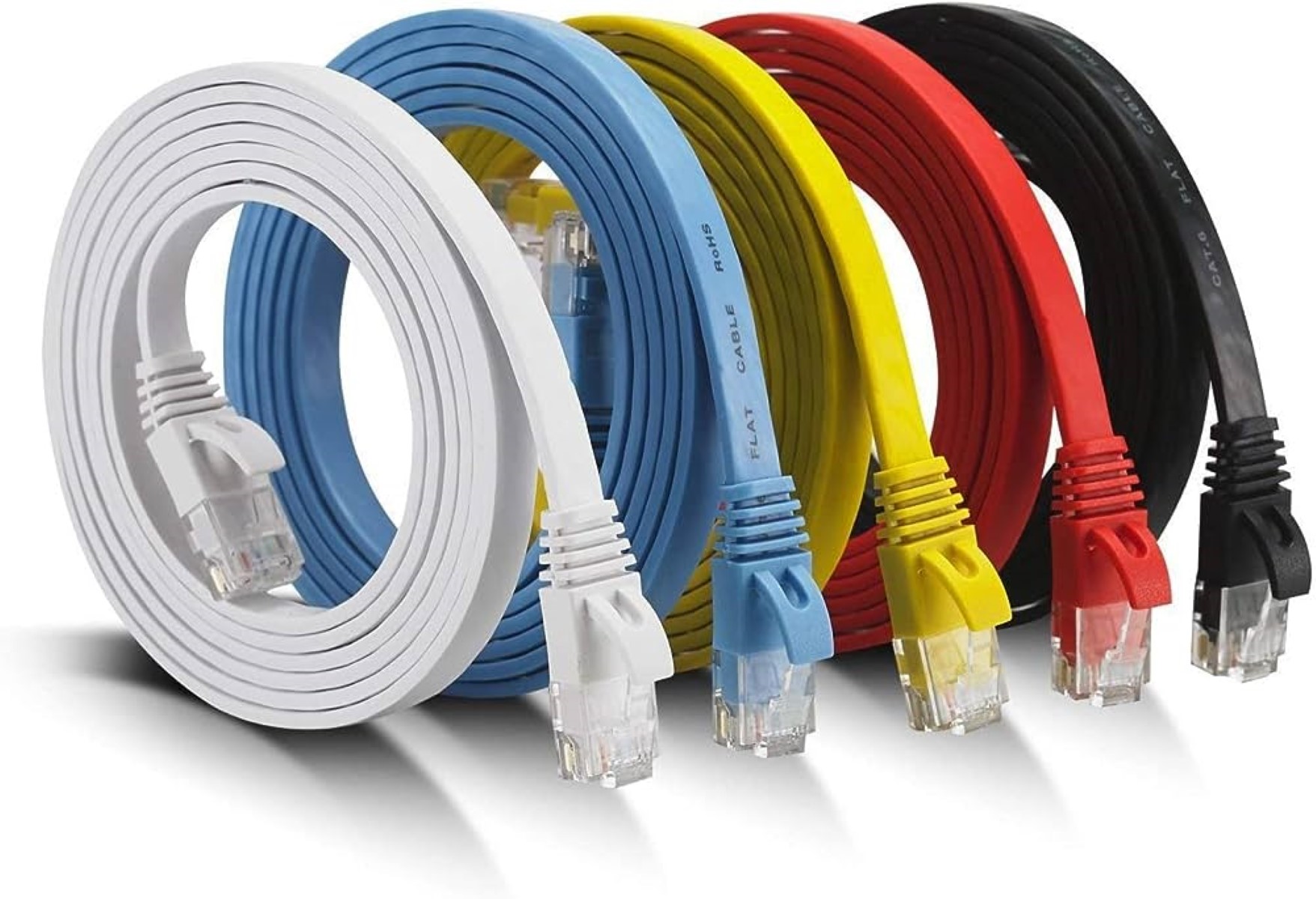
If your wired connection fails, start with quick checks. Ensure the cable is fully inserted and the plastic clip has clicked into place. Inspect the cable for damage, such as frayed wires or a broken clip. Try restarting your router, modem, and the device you are connecting. Test a different port on the router or switch, and try a different Ethernet cable if available. If you are choosing a new cable, Cat6 supports speeds up to 10 Gbps over typical home distances, while Cat8 is the fastest standard, supporting 25 or 40 Gbps over a maximum distance of 30 meters, primarily for data centers. For most home networks, Cat5e cables support speeds up to 1 Gbps over 100 meters, which is sufficient for standard use. The maximum reliable length for most copper Ethernet cables (Cat5e, Cat6, Cat6a) is 100 meters; exceeding this can cause signal degradation and slower speeds.