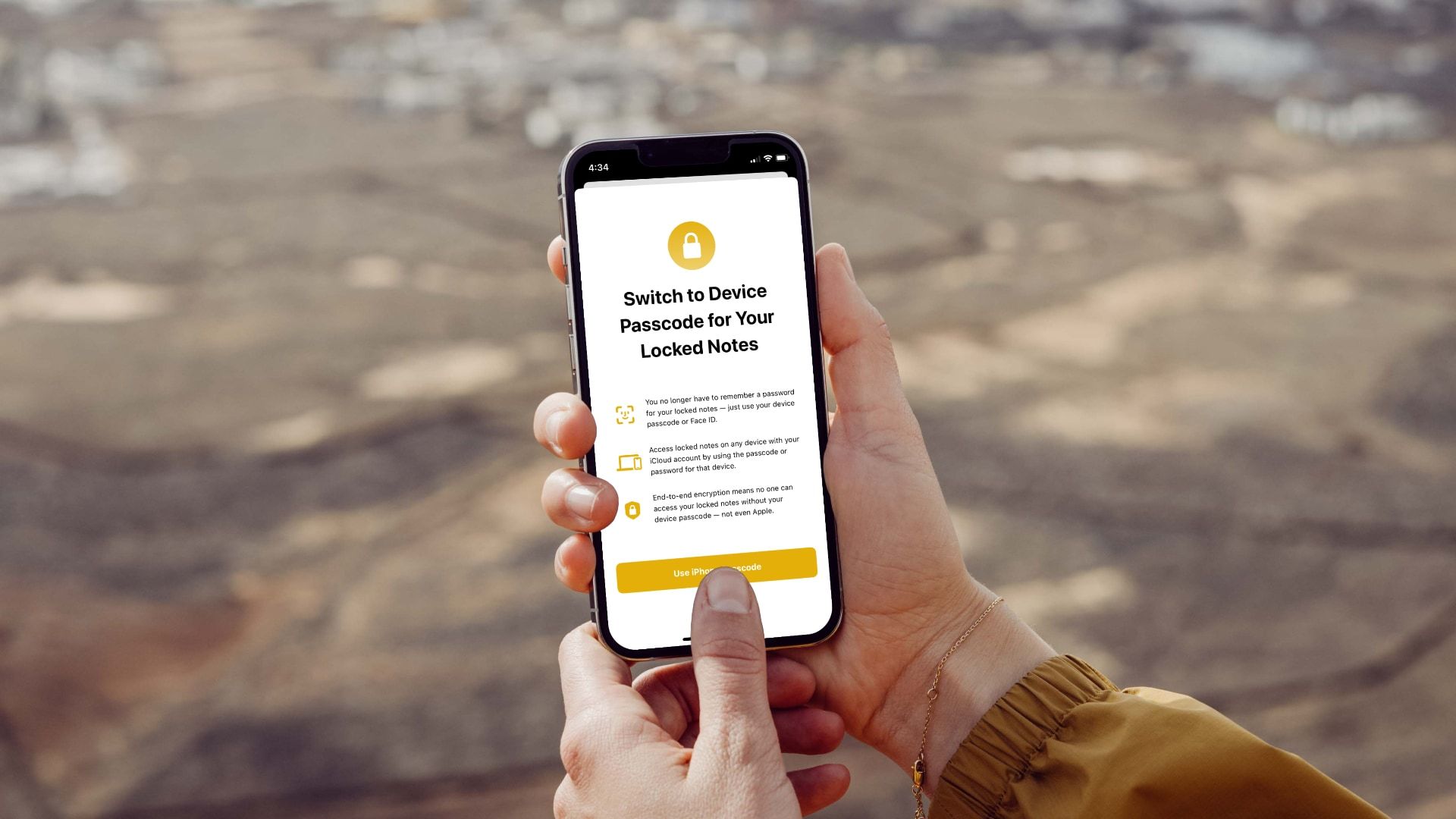
There is no separate Face ID password to find. The "face id passcode" is simply your device passcode, the same numeric or alphanumeric code you use to unlock your iPhone or iPad, which serves as a fallback for Face ID and is required to set up and manage the feature.
Does Face ID have a passcode?
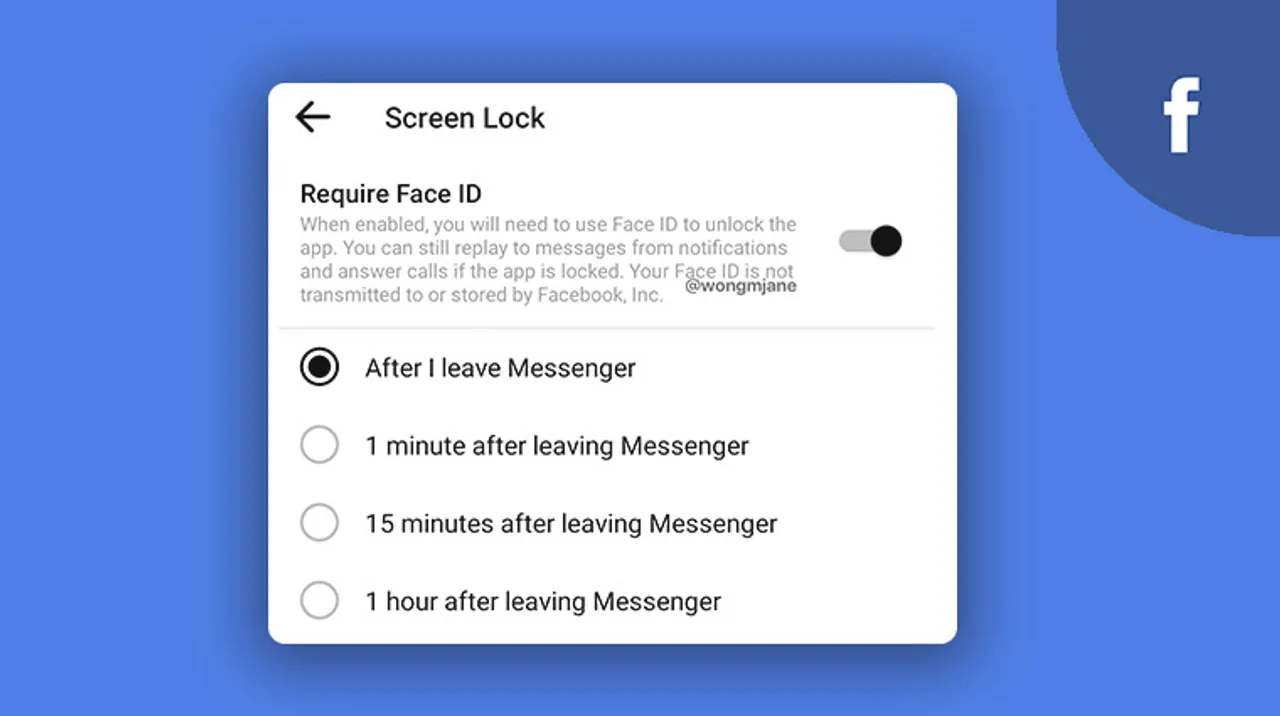
Face ID itself does not have a password that can be found; it is a biometric authentication system that uses your unique facial features to unlock your device. The only password associated with Face ID is your device passcode, which you create when you first set up your iPhone or iPad. This passcode is always required as a fallback, meaning you will need it any time Face ID cannot or should not be used. You can also use the same facial recognition to put a face id on Snapchat for an extra layer of app privacy.
What is the Face ID passcode used for?
Your device passcode is used in several specific scenarios, all of which are built into how Face ID works. You must enter it after the device has been turned on or restarted, and if it hasn't been unlocked for more than 48 hours. You will also need it after five unsuccessful Face ID attempts, when you are setting up or managing Face ID, and whenever you want to use Apple Pay or make purchases from the App Store. The passcode forms the foundation of your device's data protection, with Face ID providing convenient access within thoughtful boundaries and time constraints.
How to set up Face ID and your passcode
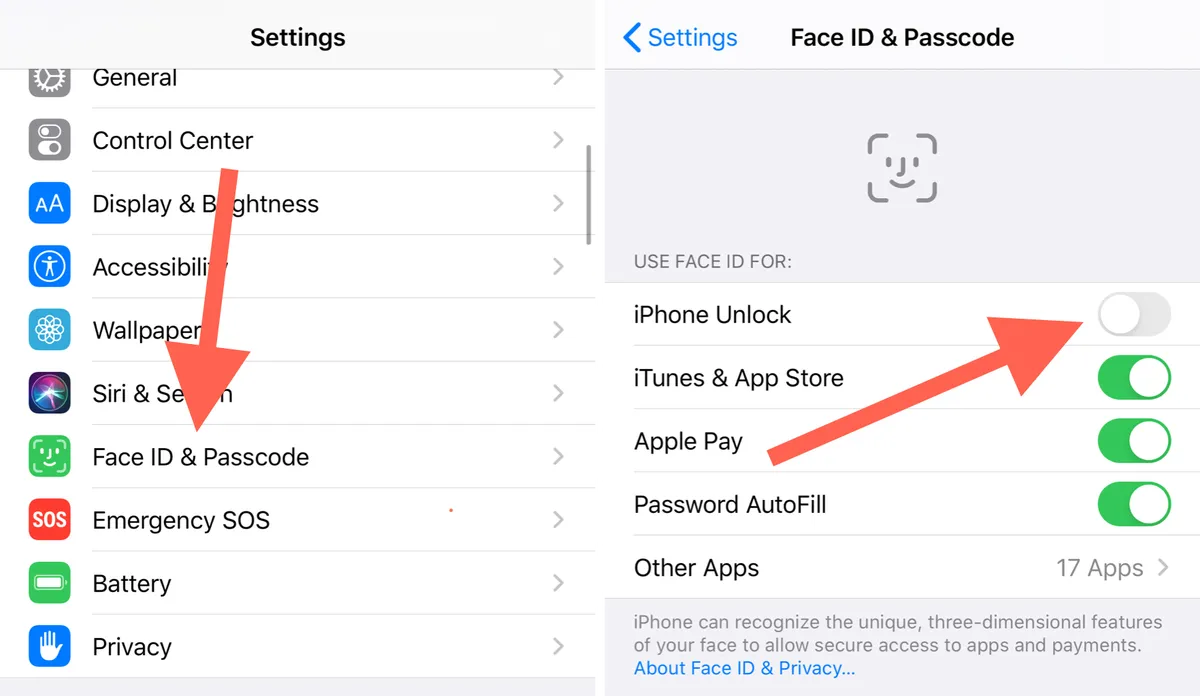
- Open Settings and tap Face ID & Passcode.
- Enter your device passcode when prompted.
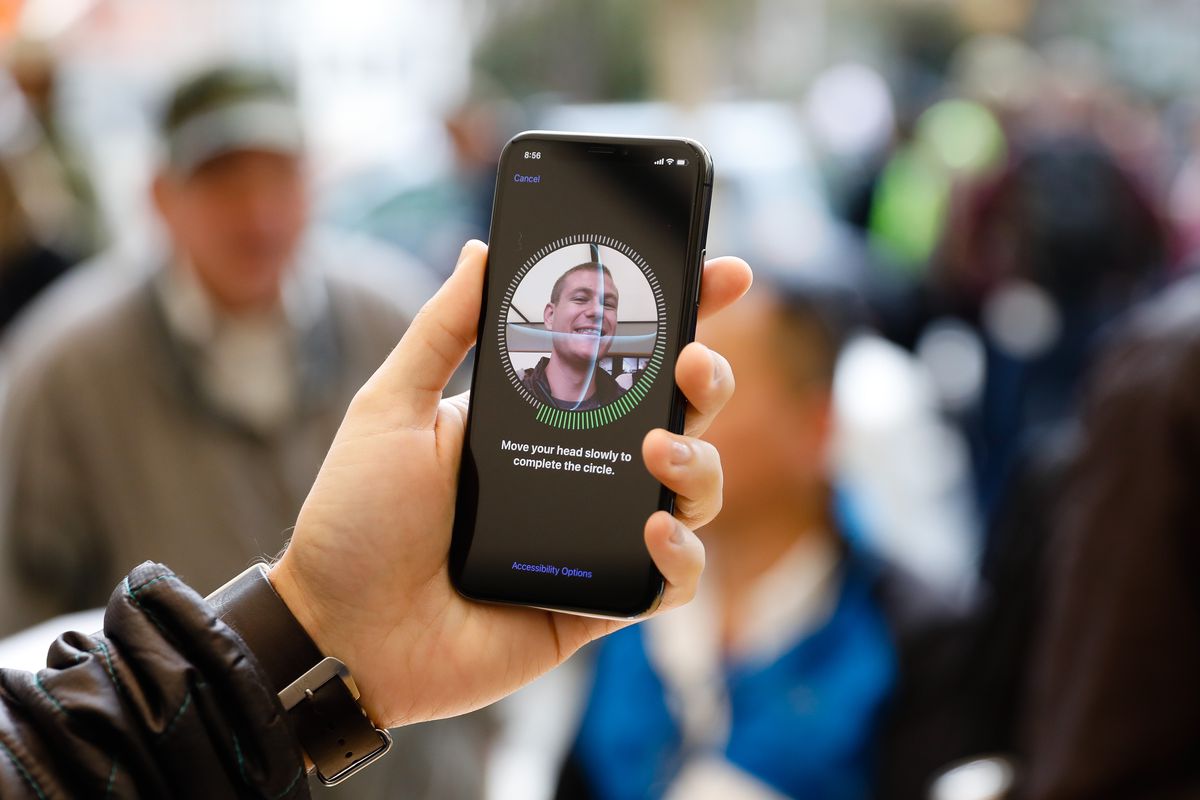
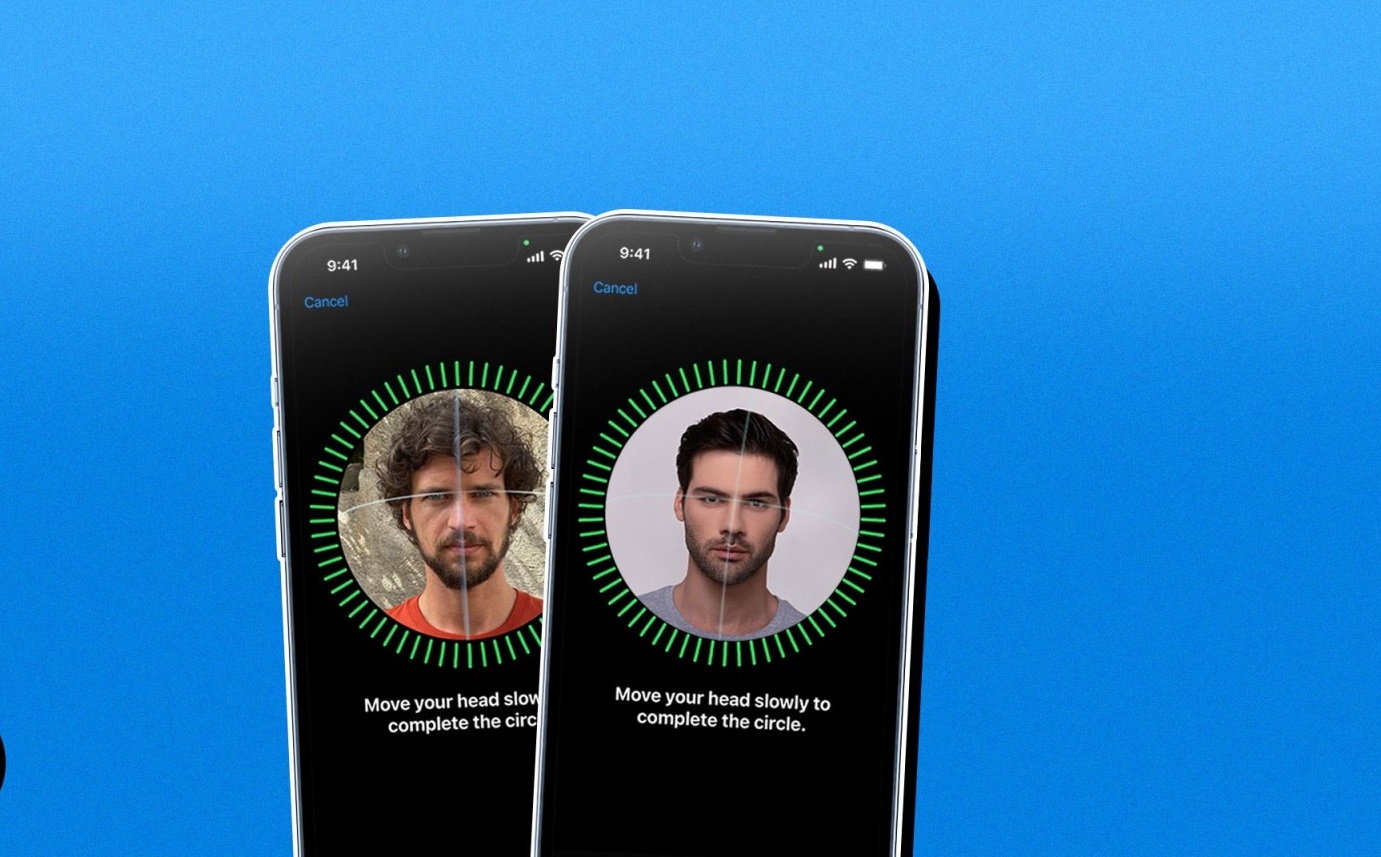
- Tap Set Up Face ID and follow the onscreen instructions, which will guide you through scanning your face with the TrueDepth camera.
During setup, the TrueDepth camera projects and analyzes thousands of invisible dots on your face to create a detailed 3D facial map. Face ID automatically adapts to changes in your appearance, such as wearing cosmetic makeup or growing facial hair. For significant changes, like shaving a full beard, Face ID will confirm your identity using your passcode before updating your face data.
How to manage Face ID settings
To adjust what Face ID is used for, go to Settings > Face ID & Passcode, enter your passcode, and you can turn off Face ID for specific functions such as unlocking your iPhone, Apple Pay, App Store purchases, or password autofill. If you need to disable Face ID entirely, tap Reset Face ID. On iPhone 12 or later running iOS 15.4 or later, you can enable Face ID with a Mask, which allows your device to recognize you even when your mouth and nose are covered. Face ID is designed to be attention-aware, meaning it requires your eyes to be open and directed at the device to unlock, though this can be disabled for accessibility if needed.
What to do if you forget your device passcode
If you forget your device passcode, Apple requires that you erase the device to regain access. There is no legitimate way to find or bypass the passcode without erasing the device. You can use your Apple ID and password to restore your data from a backup after the erase, but the passcode itself cannot be recovered. Apple does not provide any password recovery option for the device passcode, and any method claiming otherwise is not legitimate.
How Face ID protects your data
Face ID data, including mathematical representations of your face, is encrypted and protected by the Secure Enclave on your device. This data never leaves your device and is never backed up to iCloud or anywhere else. The probability of a false match is approximately 1 in 1,000,000 for a single enrolled appearance, though this probability is higher for twins, siblings who look like you, and children under 13. If you are concerned about a false match, Apple recommends using a passcode to authenticate. Understanding how Face ID works helps you make informed decisions about using and managing Face ID, and knowing that your face data stays on-device means you can confidently use Face ID instead of your passcode for everyday unlocks. If you ever need to remove someones face id from your phone, you can do so by going to Settings > Face ID & Passcode, entering your passcode, and tapping Reset Face ID.