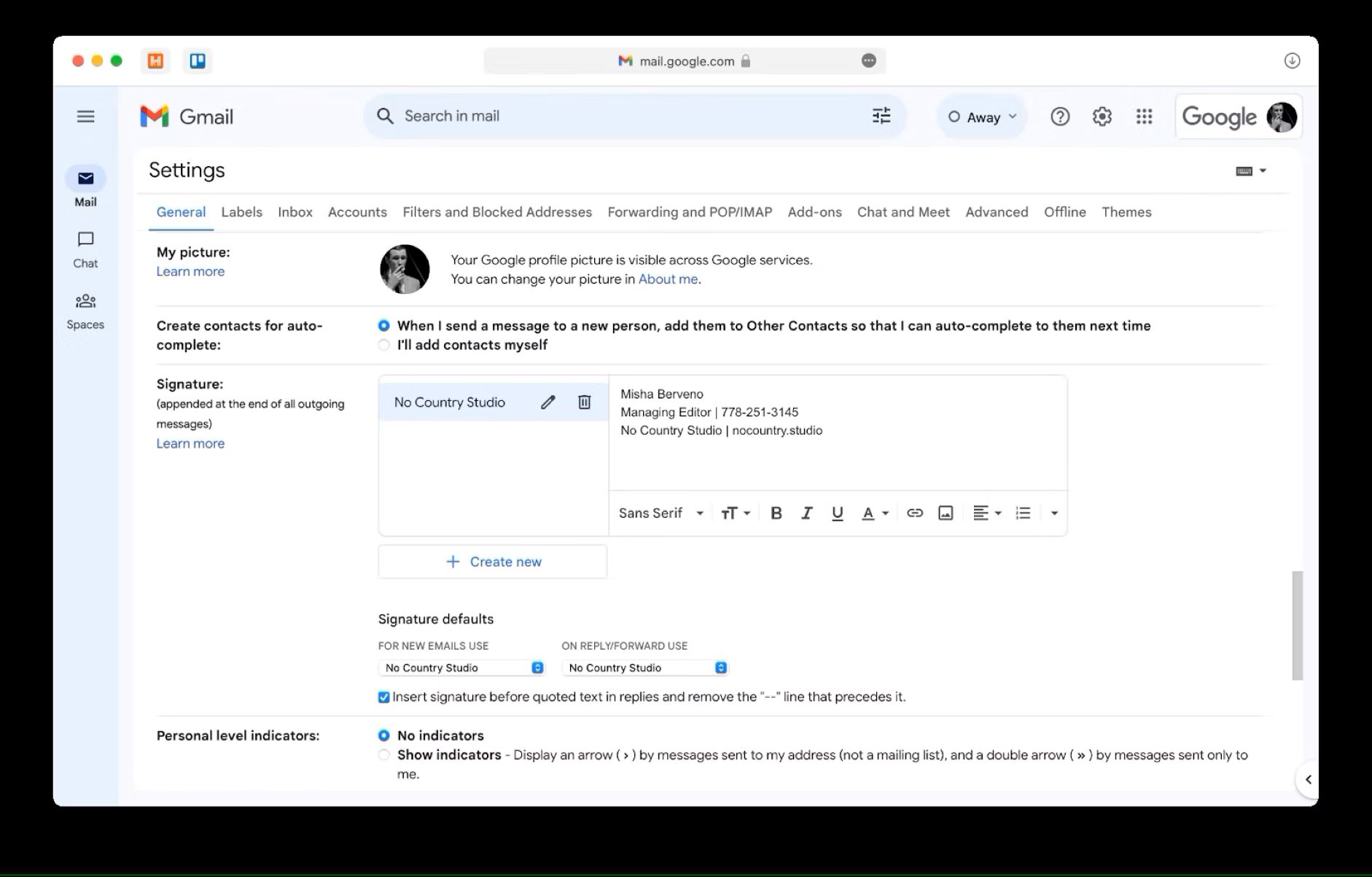
To change your email signature in Gmail, open Gmail in a web browser, click the Settings gear icon in the top-right corner, and select "See all settings." From there, scroll to the Signature section in the General tab, edit or create your signature, and click Save Changes at the bottom of the page.
How to change your email signature in Gmail
Editing your Gmail signature takes less than a minute once you know where to look. Follow these five steps to update your contact details, add a professional sign-off, or fix formatting issues.
- Open mail.google.com in your web browser and log in if needed.
- Click the gear icon in the top-right corner, then select "See all settings."
- Scroll down to the "Signature" section in the General tab.
- Click the name of the signature you want to edit, or create a new one, and make your changes in the text box.
- Scroll to the bottom of the page and click "Save Changes."
Your updated signature will automatically apply to all new emails you compose. If you have a draft open while editing, refresh the page or reopen the draft to see the changes. Previously sent emails are never altered.
Fix a signature that isn't displaying correctly
If your signature looks broken, odd spacing, missing images, or garbled text, the most common cause is hidden formatting from copied text. The verified fix is to select all text in the signature box and click the "Remove formatting" button in the formatting toolbar. This strips away invisible HTML codes while keeping your visible text intact. After removing formatting, reapply bold, italics, or colors as needed, then save your changes.
This works for signatures that appear fine in the editor but render incorrectly in sent emails. If the issue persists, check that your signature doesn't contain unsupported elements like tables or excessive line breaks, which Gmail may strip out.
Gmail signature limits and image tips
Gmail caps signatures at 10,000 characters, and that limit includes all visible text, hidden HTML formatting, and image code. If you hit the limit, you'll see an error when trying to save. The fastest fix is to shorten your text or reduce the number of images.
Images count toward the character limit, so a large logo can eat up hundreds of characters in code. To avoid errors, keep images around 80 pixels high and up to 200 pixels wide, and use PNG format for the best quality-to-size ratio. If you need a wider banner, stay within 300-400 pixels wide and no more than 100 pixels high. When you get an error, try resizing the image before saving.
Set up multiple signatures for different addresses
If you use the "Send mail as" feature to send from multiple addresses, you can assign a unique signature to each one. Select an address, then create or edit a signature for that specific sender. Repeat for each address you use.
This is especially useful if you have separate personal and work email addresses in the same Gmail account. Each signature stays tied to its sending address, so you never have to manually switch them. You can also set different defaults for new emails versus replies and forwards for each address using the "Signature defaults" dropdowns below the text box.
\nRelated reading: How To Tell If Someone Read Your Email On Gmail, How To Unarchive An Email, and How To Move An Email From Promotions To Primary.