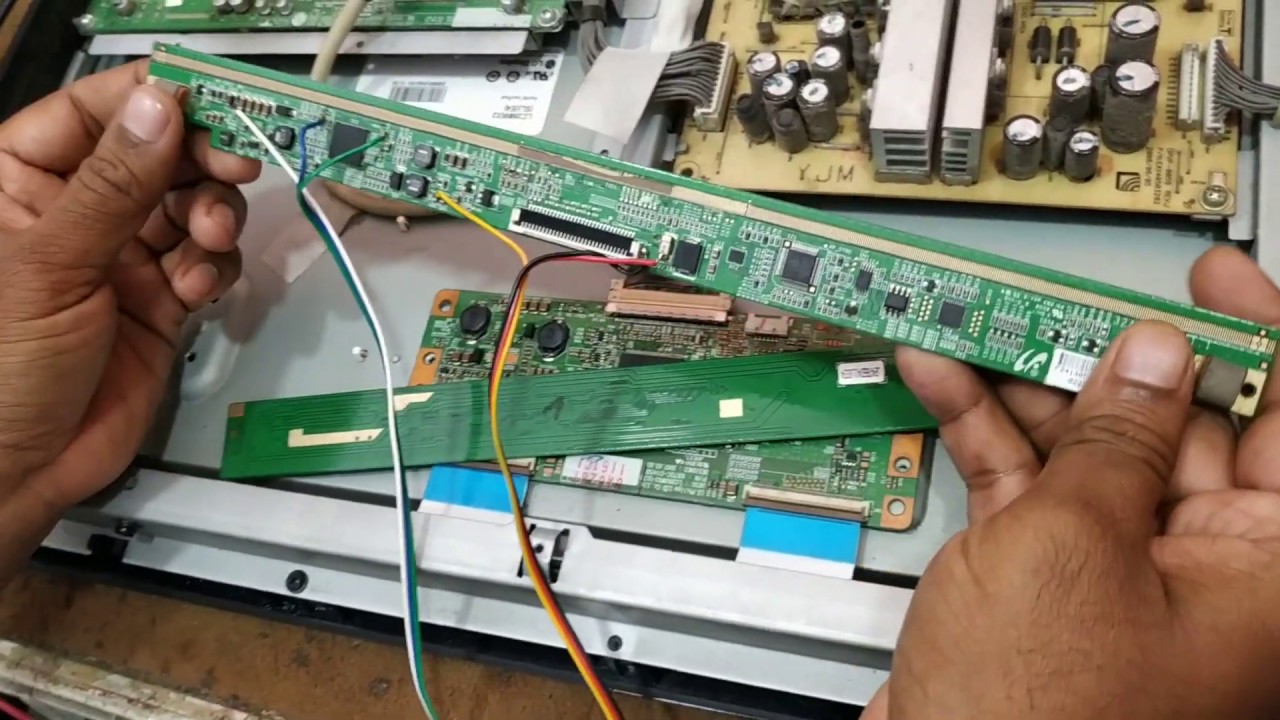
To fix a fading screen LED TV, start by turning off any energy-saving or auto-dimming features, as these are the most common culprits behind a screen that dims on its own. If the issue persists after disabling those settings, you can work through cable checks, software updates, and a factory reset before considering hardware repair, which often involves a T-Con board do in an LED TV failing to drive the panel correctly. If your picture also shows blurry trails alongside the dimming, you may need to fix ghosting on LED TV to address a separate motion-handling fault.
Fix a fading screen LED TV by turning off auto-dimming first
Most modern LED TVs automatically adjust brightness based on room lighting or inactivity, which can make the screen appear to fade even when nothing is wrong with the hardware. These features are usually enabled by default and are the first thing to check when your screen looks dimmer than it should. Disabling them takes less than a minute and often resolves the issue completely.
On Samsung TVs, navigate to Picture > Expert Settings and turn off "Contrast Enhancer." Then go to General & Privacy > Power and Energy Saving and disable both "Brightness Optimization" and "Brightness Reduction." For LG TVs, look for "Power saving" or "Energy Saving" in the settings menu and switch it off. On TCL TVs, press the Settings button on your remote, go to Picture, select Eye Health Protection, and set Adaptive Brightness to Off.
Adjust your LED TV backlight and brightness settings
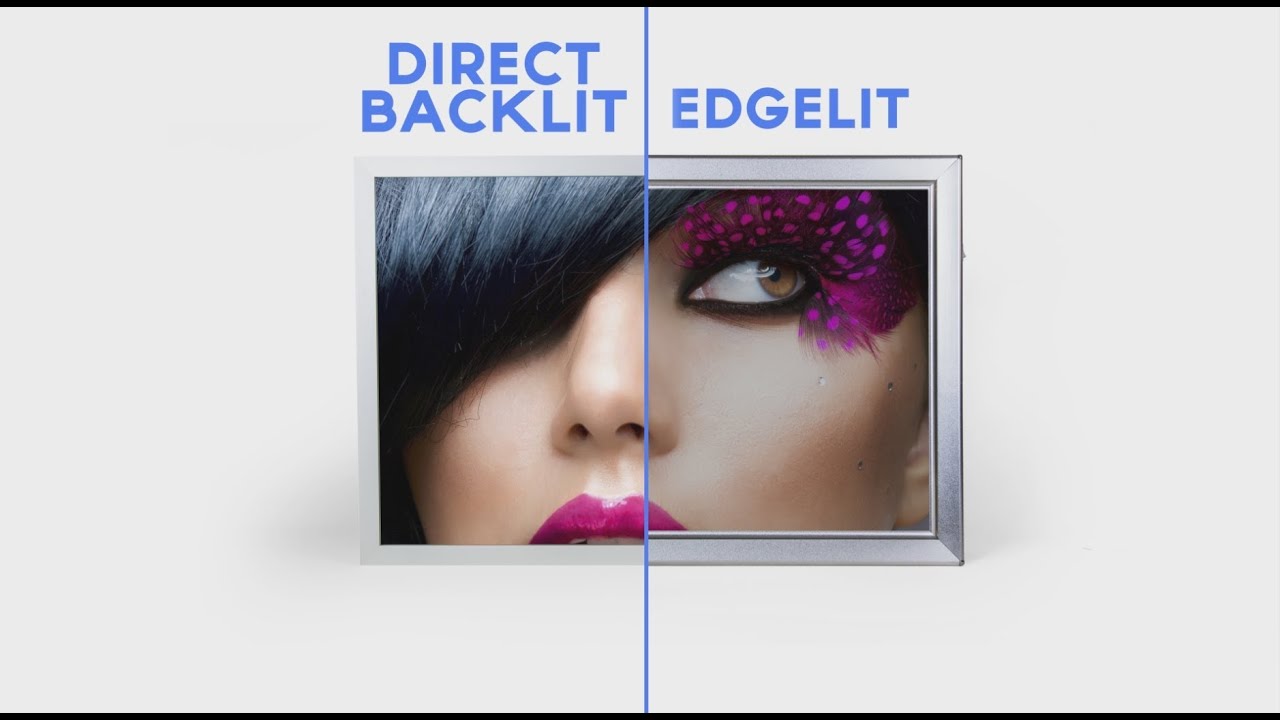
If auto-dimming is already off but the screen still looks faded, the backlight setting itself may be set too low. The backlight controls the intensity of the LED lights behind the panel, and a low setting will make the entire picture look dim and washed out.
- Open the TV's settings menu using the remote control.
- Navigate to the Picture or Display section.
- Locate the backlight slider, this is separate from the brightness setting, which adjusts black levels rather than overall light output.
- Increase the backlight level gradually while watching a normal program.
- Stop when the picture looks bright and vibrant without appearing overly harsh.
If the screen is too bright and looks washed out, decrease the backlight instead. The optimal level depends on your room lighting, so make adjustments during the time of day you typically watch TV. Remember that brightness and backlight are two different settings; adjusting smart TV picture settings correctly means changing both to achieve a balanced image.
Check and replace faulty HDMI or AV cables
A damaged or loose cable can cause the video signal to degrade, which often appears as a fading or flickering picture. This is especially common if the fading happens intermittently or when you move the TV or cables.
- Turn off the TV and unplug all HDMI and AV cables from both the TV and connected devices.
- Inspect each cable for visible damage, including frayed ends, bent pins, or kinks in the cable body.
- Check the ports on the TV for dust or debris that might prevent a secure connection.
- Reconnect each cable firmly, ensuring it clicks into place.
- If any cable shows signs of wear, replace it with a high-quality new one.
- Test the TV with each connected device to see if the fading issue is isolated to one input.
If the problem only occurs with a specific device, the cable connecting that device is likely the culprit. Swapping in a known-good cable is the quickest way to confirm this. Even if cables look fine, a loose connection can cause intermittent signal loss, so reseating them is always worth trying.
Update your TV software to fix display problems
Outdated firmware can cause a variety of display issues, including a fading screen. Manufacturers regularly release updates that fix bugs affecting picture quality, so ensuring your TV runs the latest software is an important step in troubleshooting.
- Press the Home or Settings button on your remote.
- Navigate to Support, About, or General settings.
- Select Software Update or System Update.
- If an update is available, follow the on-screen prompts to install it.
- Allow the TV to restart after the update completes.
If your TV cannot connect to the internet, you can update the firmware manually using a USB drive. Visit the manufacturer's support website, search for your exact model number, and download the latest firmware file. This method works even when the network update fails.
Reset your TV to factory settings
If you have tried all the above steps and the screen still fades, a software glitch may be causing the problem. Resetting the TV to factory settings clears all customized configurations and returns the display to its default state, which can eliminate any corrupted settings that are affecting brightness.
- Open the Settings menu on your TV.
- Navigate to General, System, or Support, depending on your brand.
- Look for Reset, Factory Reset, or Initialize.
- Select the option and confirm when prompted.
- Wait for the TV to restart and go through the initial setup process.
After the reset, you will need to reconfigure your network connection, re-login to streaming apps, and adjust picture settings to your preference. This is a last-resort software fix, so only do it after confirming that auto-dimming, backlight settings, cables, and firmware are not the cause. If the fading screen persists after a factory reset, the problem is almost certainly hardware-related.
When to consult a professional for repairs
Persistent fading after all software and cable fixes points to a hardware fault, such as failing LED backlights, a defective power supply, or a damaged display panel. These issues require specialized tools and expertise to diagnose and repair safely. Attempting to open the TV yourself can void the warranty and risk electric shock, as LED TVs contain high-voltage components even when unplugged.
Contact the manufacturer's customer support first, especially if the TV is still under warranty. They can guide you through additional troubleshooting or arrange for service. If the TV is out of warranty, search for a certified TV repair technician in your area. A professional can test the backlight strips, power board, and other internal components to pinpoint the exact failure. While professional repair costs money, it is often far less expensive than replacing the entire TV, particularly for larger models.