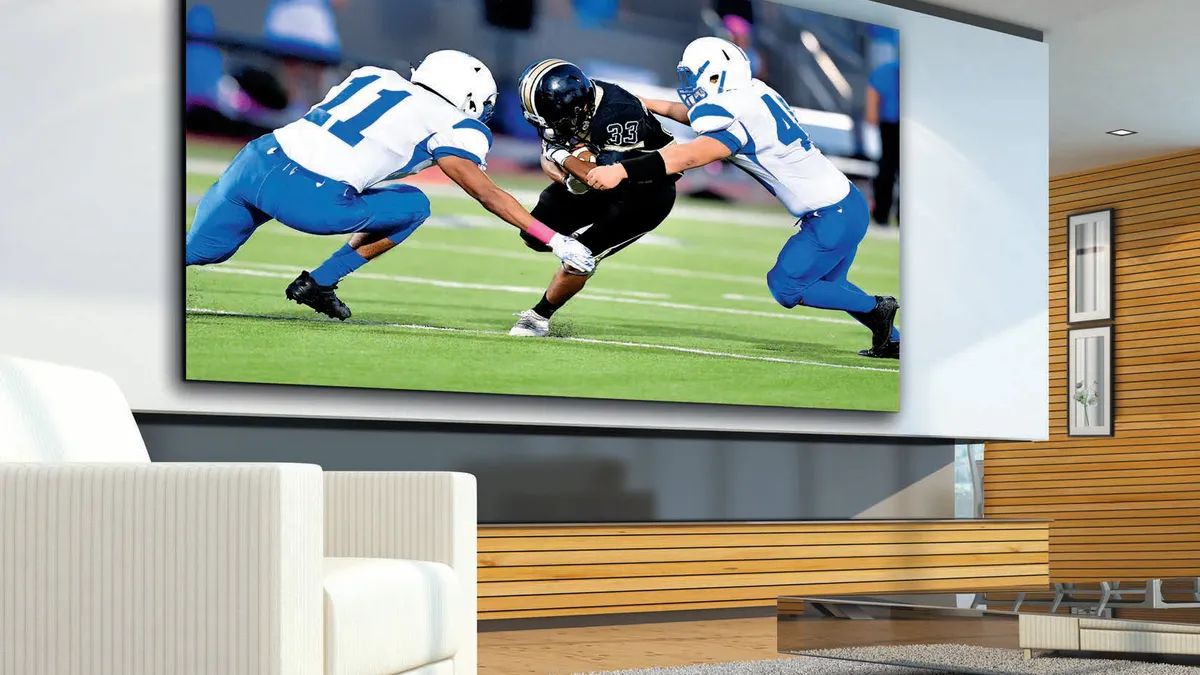
To watch the Super Bowl on a smart TV, the easiest method is to install the official app from the network broadcasting the game that year and stream it directly. This approach works on any modern smart TV platform and requires no extra hardware.
How to watch the Super Bowl on a smart TV: the quick answer
Find the official broadcaster's app for the current year's Super Bowl, install it on your smart TV, and sign in with your cable or streaming subscription. If your TV's platform is outdated or the app isn't available, you can use a streaming device like Roku or Fire TV, or cast the stream from your phone or tablet.
Before you start: find the official broadcaster
Each year, the Super Bowl airs on one of the major U.S. networks: Fox, CBS, or NBC. To determine which network is carrying the game, check the NFL's official schedule or a trusted sports news site a few weeks before kickoff. Once you know the broadcaster, you know which app you need. For example, if Fox is broadcasting, you'll install the Fox Sports app. If NBC, you'll use Peacock or the NBC Sports app. The Fox Sports app includes FS1 programming, so you can watch FS1 content alongside the main broadcast if needed. If the game lands on CBS, you can also watch sec plus through the same Paramount+ app for even more college sports coverage.
Method 1: install the official app directly on your smart TV
Follow the steps below for your specific smart TV platform. These instructions are verified for the most common brands.
Samsung smart TV
- Press the "Home" button on your remote.
- Select "APPS".
- Select the "Search" icon in the top-right corner.
- Enter the app name (e.g., "Fox Sports" or "Paramount+").
- Select "Install".
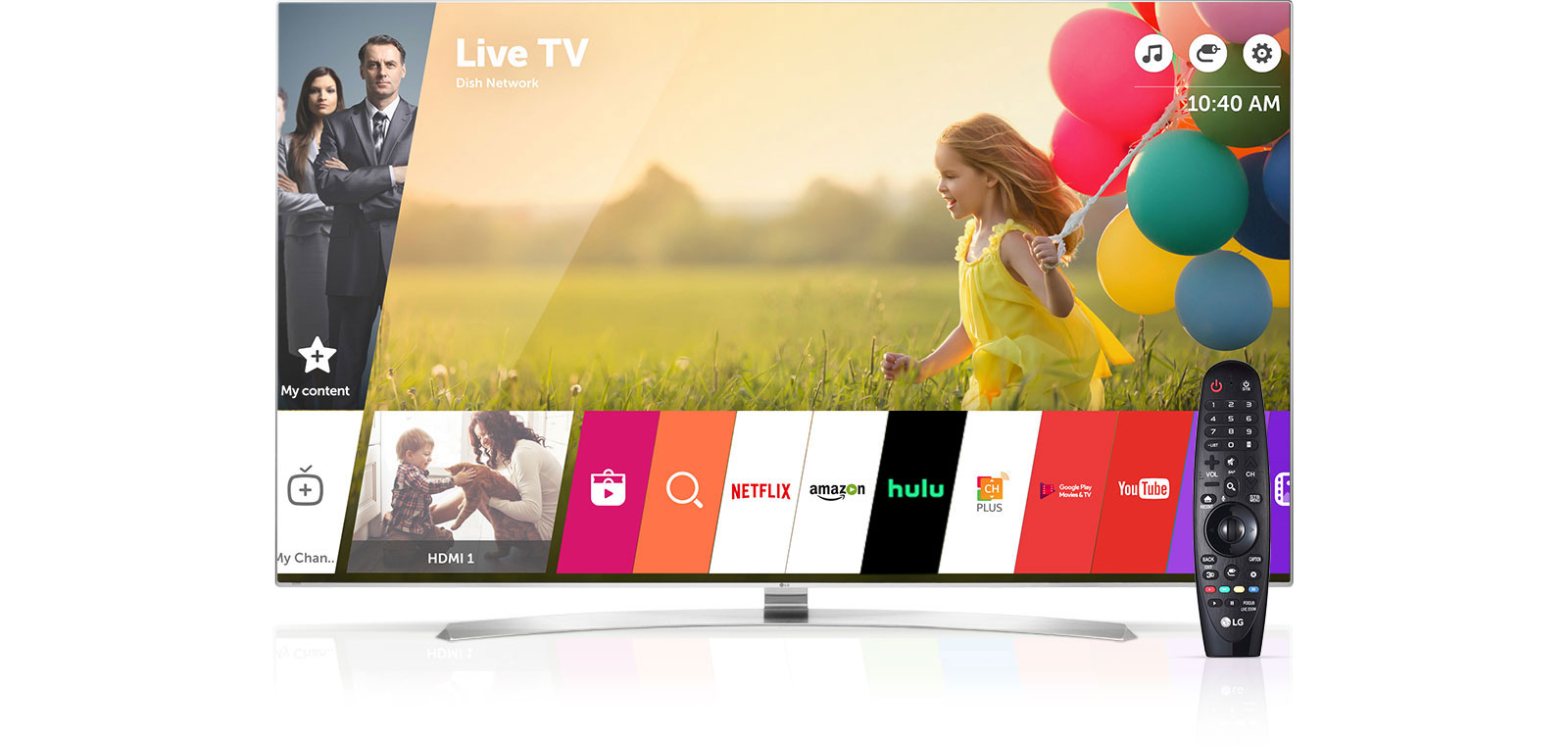
LG smart TV
- Press the "Home" button on your remote.
- Select "LG Content Store" (or "Apps").
- Use the "Search" icon to find the app.
- Enter the app name and select "Install".
Google TV / Android TV
- From the home screen, go to the "Apps" tab.
- Use the Assistant button or Search icon.
- Say or type the app name.
- Select "Install".
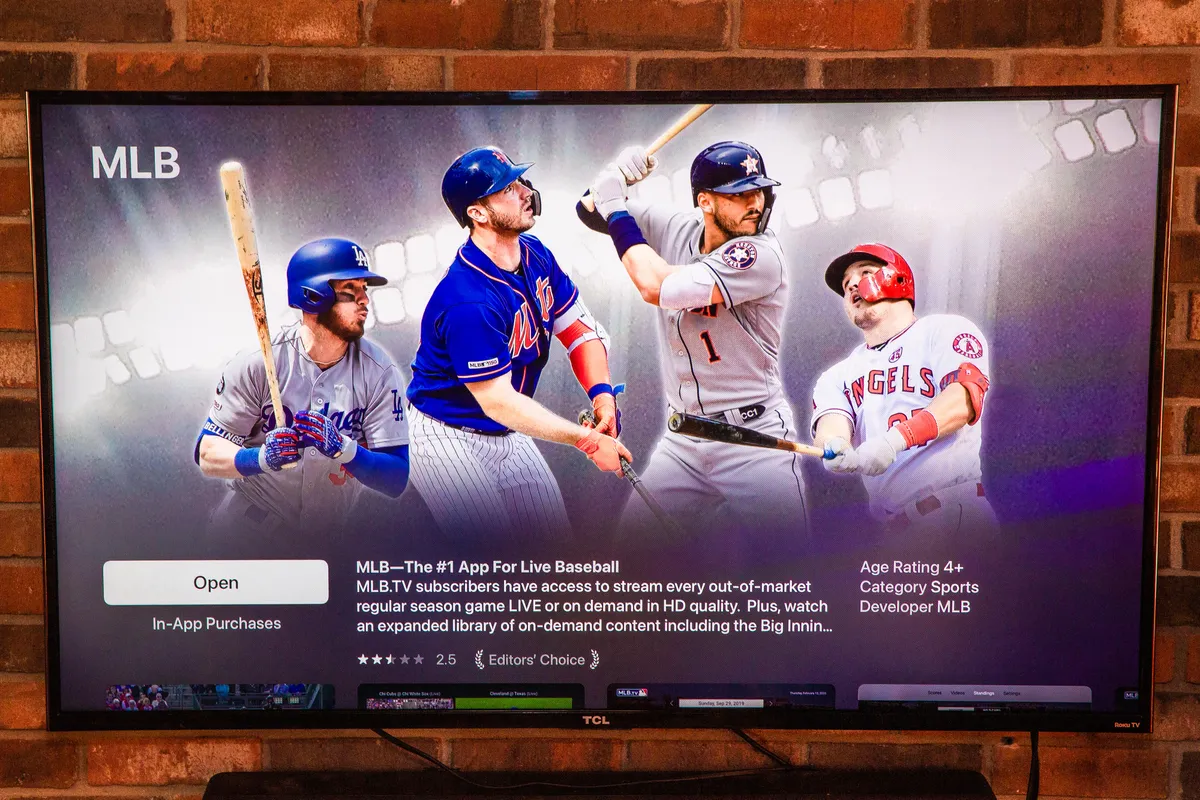
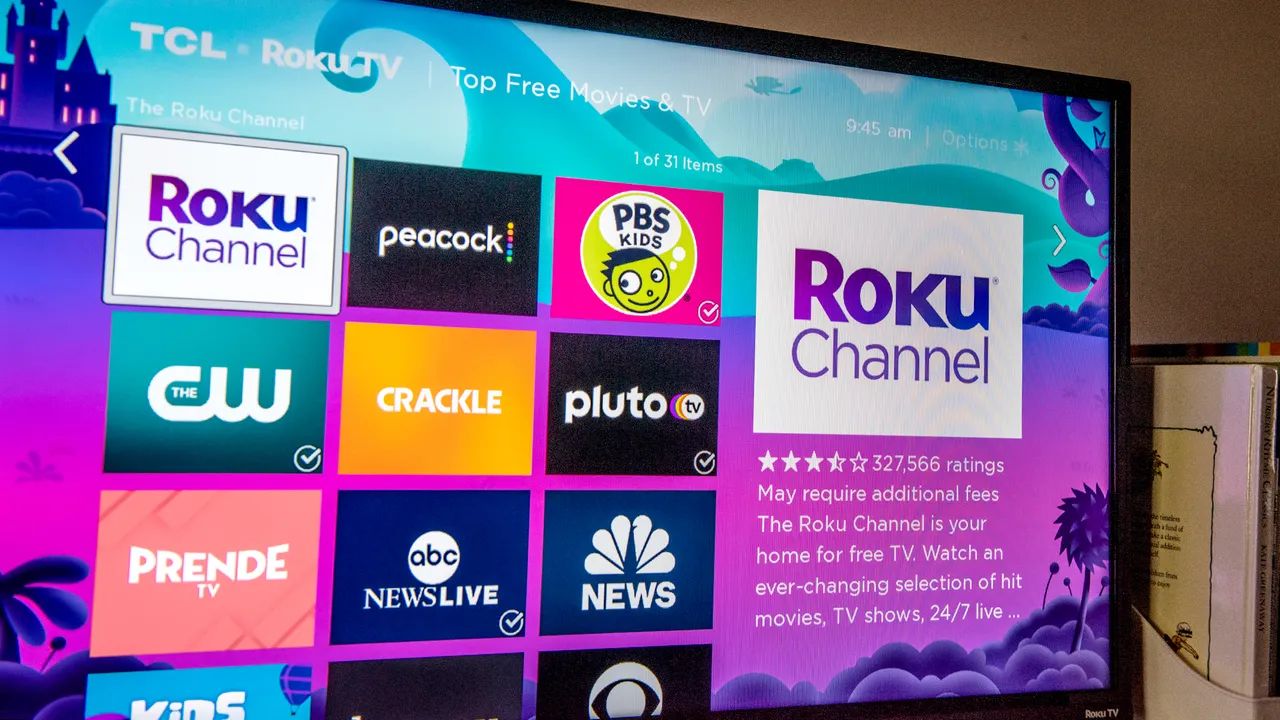
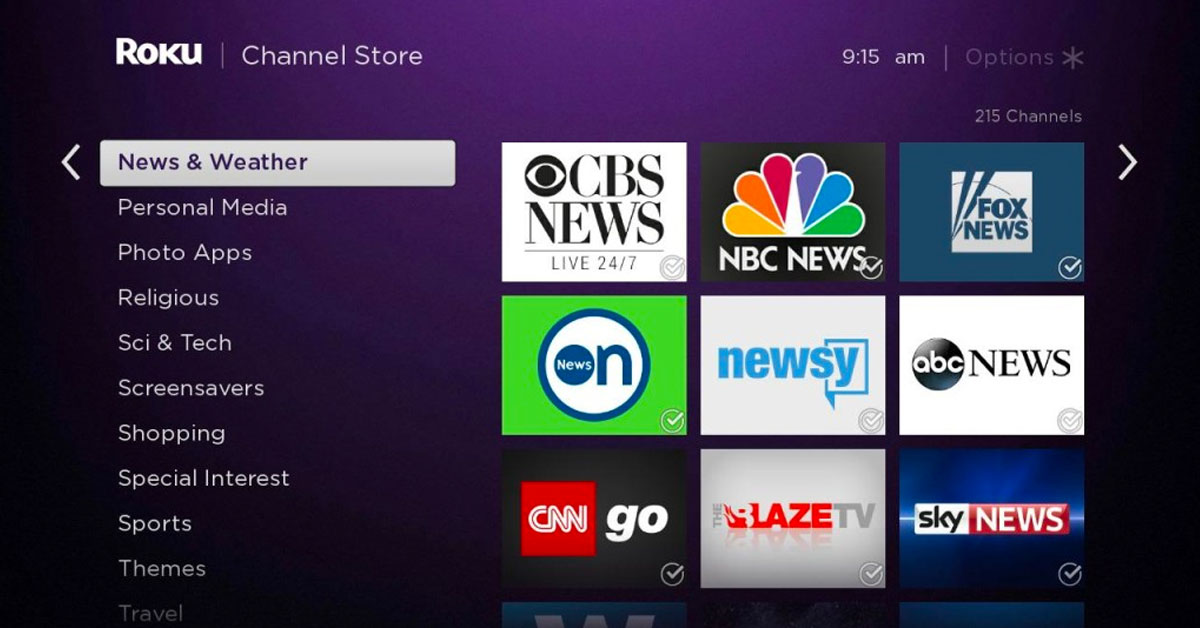
Roku TV
- Press the "Home" button on your remote.
- Select "Streaming Channels" (or "Store").
- Browse or search for the app.
- Select "Add Channel" (or "Add app").
Method 2: use a streaming device
If your smart TV's built-in platform is outdated, lacks the required app, or runs slowly, a streaming device is a reliable alternative. Devices like Roku, Amazon Fire TV, or Apple TV connect via HDMI and give you access to the same app stores. Simply plug the device into an available HDMI port, connect it to your Wi-Fi, and install the broadcaster's app from its channel store. This method ensures you have the latest app versions and a smooth streaming experience.
Method 3: cast or mirror from your phone or tablet
As a backup option, you can send the stream from your phone or tablet to your smart TV. Both your mobile device and TV must be on the same Wi-Fi network. For iPhones and iPads, use AirPlay by tapping the AirPlay icon in the broadcaster's app and selecting your TV. For Android phones or tablets, use Chromecast built-in by tapping the Cast icon and choosing your TV. This method works well if the app is not available on your TV but is on your mobile device.
Final tips for a smooth stream
Update your smart TV's software in the settings menu a day before the game to ensure compatibility with the latest apps. Finally, test the stream by opening the broadcaster's app and playing a live or on-demand video at least an hour before kickoff. This gives you time to troubleshoot any login or buffering issues.
\nRelated reading: How To Watch Live TV On LG Smart TV.