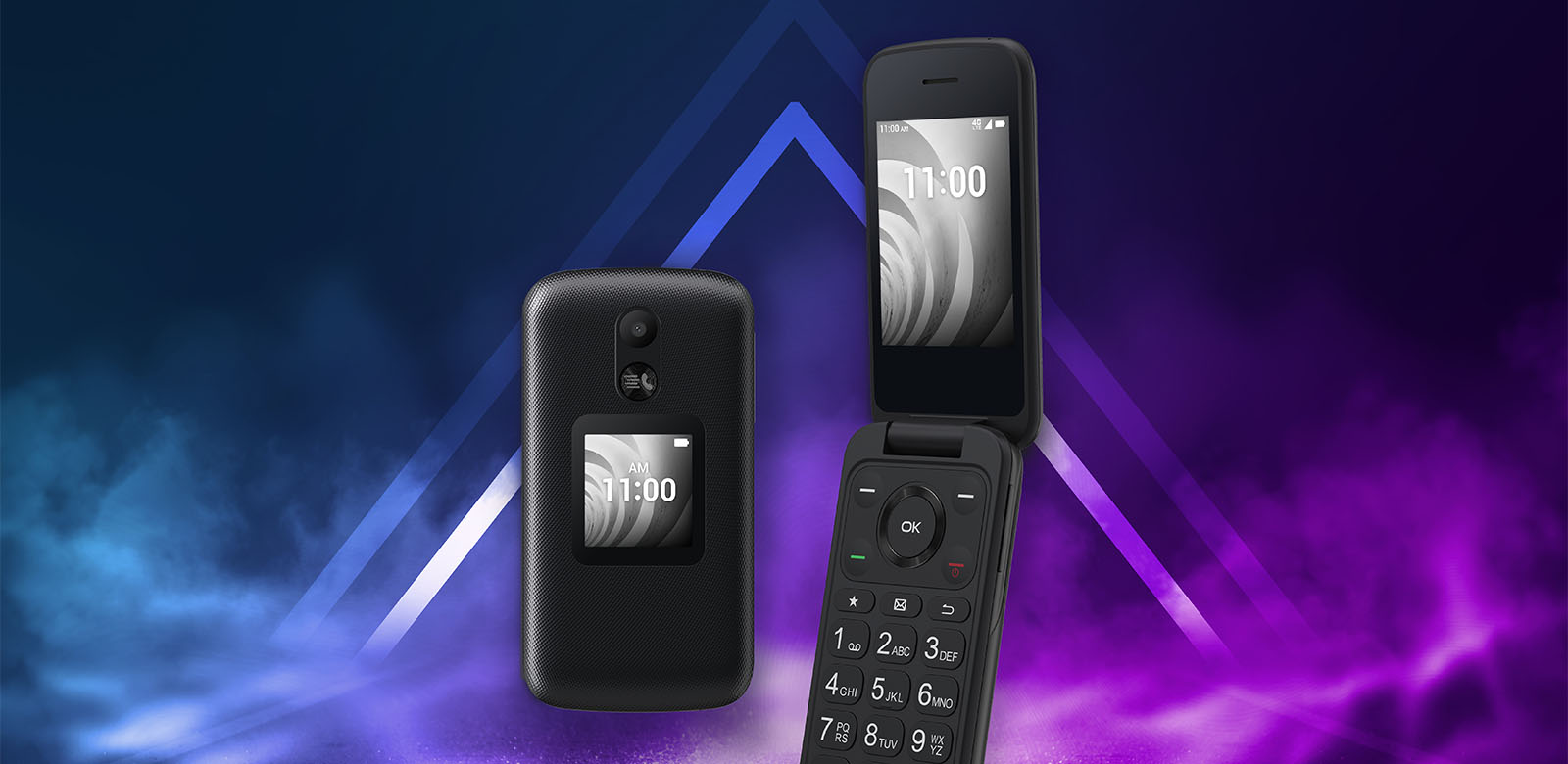
Enabling speaker mode on TCL flip phones is done by pressing the center OK button during a call, no need to dig through settings menus. This simple action instantly switches your call to the speakerphone, letting you talk hands-free while multitasking, driving, or sharing a conversation with others nearby.
Which TCL flip phone models support speaker mode
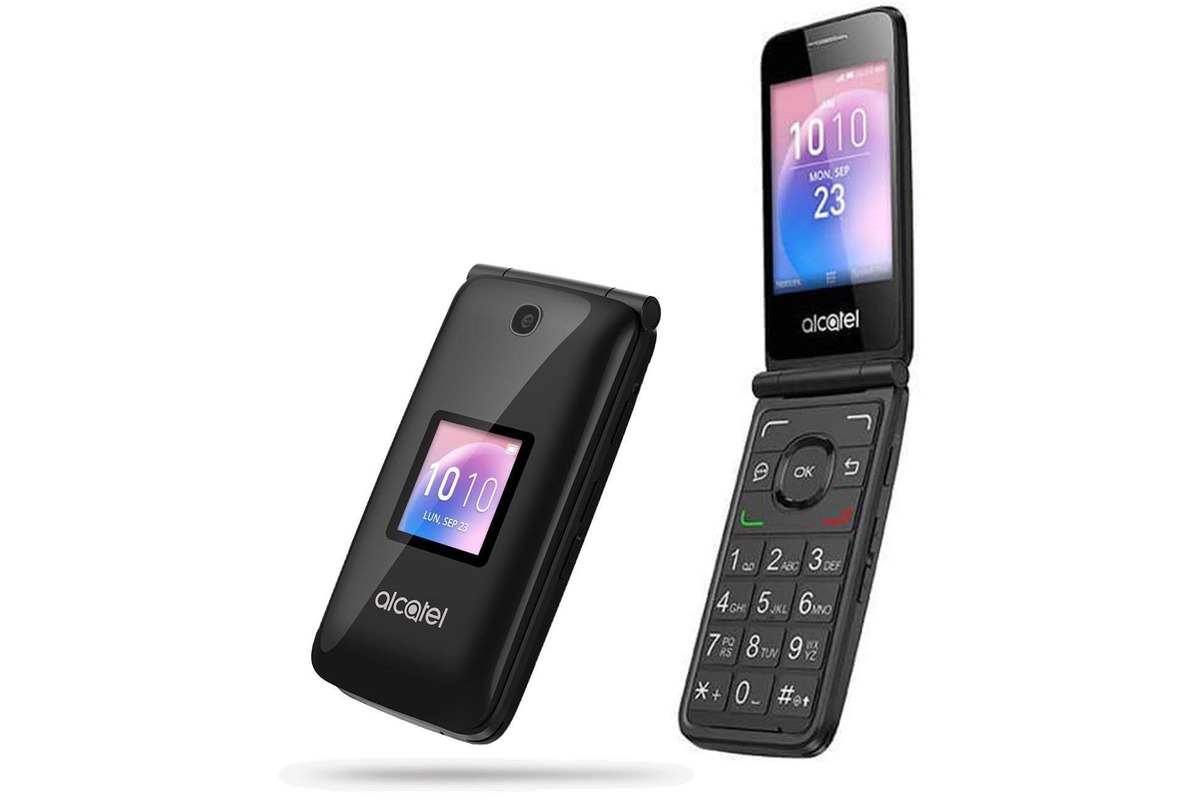
The method for enabling speaker mode applies to several TCL flip phone models, including the TCL FLIP Pro, TCL FLIP 3, TCL FLIP Go, and TCL Flip 4 5G. All of these devices use the same straightforward process, so you can follow the steps below regardless of which model you own.
How to activate speaker mode during a call
- Initiate or receive a call on your TCL flip phone. The call must be active before you can enable the speakerphone.
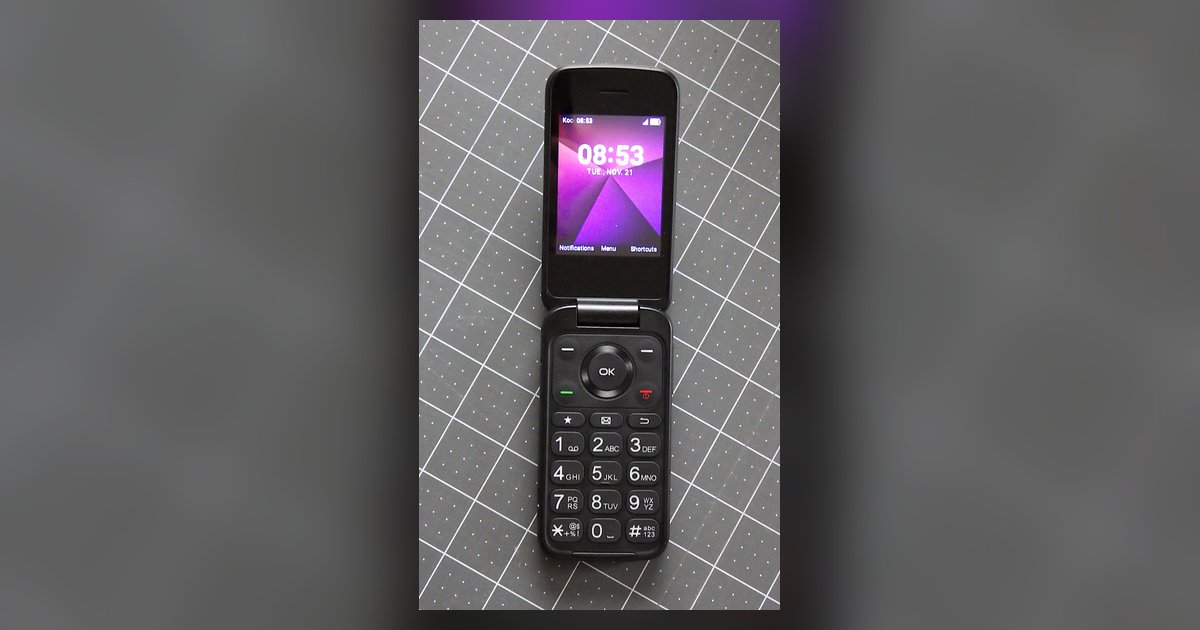
- During the active call, locate the 5-way Navigation Pad on the keypad. This is the circular directional pad with a button in the center.
- Press the center OK button on the Navigation Pad to turn on the speakerphone. You will hear the call audio switch to the phone’s external speaker, and a visual indicator may appear on the screen.
How to turn off speaker mode
To disable speakerphone and return to handset mode, press the OK button again during the call. This toggles the audio back to the earpiece, allowing you to hold the phone to your ear as usual. The process for turning speaker mode on and off is identical, making it easy to switch between hands-free and private listening as needed.
Testing your speaker mode
After enabling speaker mode, make a test call to a friend or a voicemail service. Speak at a normal volume and listen for clear audio coming through the speaker. If the sound is too low or distorted, adjust the volume using the side keys during the call. Confirm that both you and the other person can hear each other clearly before relying on the feature for important conversations. If you need a quick test line, you can also call your own number after setting up voicemail on Motorola razr.
Troubleshooting speaker mode issues
If you experience poor audio or no sound while using speaker mode, first check that you are in an area with a strong signal. Weak network coverage can cause crackling, echoes, or dropped audio. Additionally, regularly check that the speaker on your phone is clean. Dust, lint, or debris can block the speaker grille and reduce sound quality. Use a soft, dry cloth to gently wipe the speaker area if needed. If problems persist, restart your phone or contact your carrier for further support.
\nRelated reading: Step-by-Step Guide To Activating Speaker Mode On Android Phones.