This tag collects articles about Logitech hardware and software, aimed at everyday users, gamers, and home office workers who own or are considering Logitech peripherals. The content spans buying guides for speakers, controllers, mice, keyboards, headphones, and security cameras, alongside troubleshooting and setup guides for wireless devices. Whether you are pairing a new keyboard, replacing a lost USB receiver, or deciding which gaming microphone fits your streaming setup, these articles address common practical needs.

The articles fall into two broad themes. First, there are selection and comparison pieces that help readers choose the right gear for their budget and use case, such as the best computer speakers under $50, top PC controllers, or gaming mouse pads for avid players. Second, there are connectivity and maintenance guides that solve everyday problems: connecting a wireless mouse without a USB port, syncing a mouse to a new receiver, making a keyboard discoverable, or installing Logitech Unifying software. Some pieces also cover physical upkeep, like disassembling a G502 for cleaning, and security-minded topics, such as choosing a home security camera system for all-around safety.

Specific titles mentioned include “How To Connect Logitech Wireless Mouse,” “What Is Easy Switch Button On Logitech Keyboard,” and “How To Reset Logitech MX Keys Keyboard.” These articles help readers perform tasks like pairing a K520, printing the screen on an MX Keys, or reconnecting a K350 after a battery change, always with clear, legitimate steps for using the product as intended.

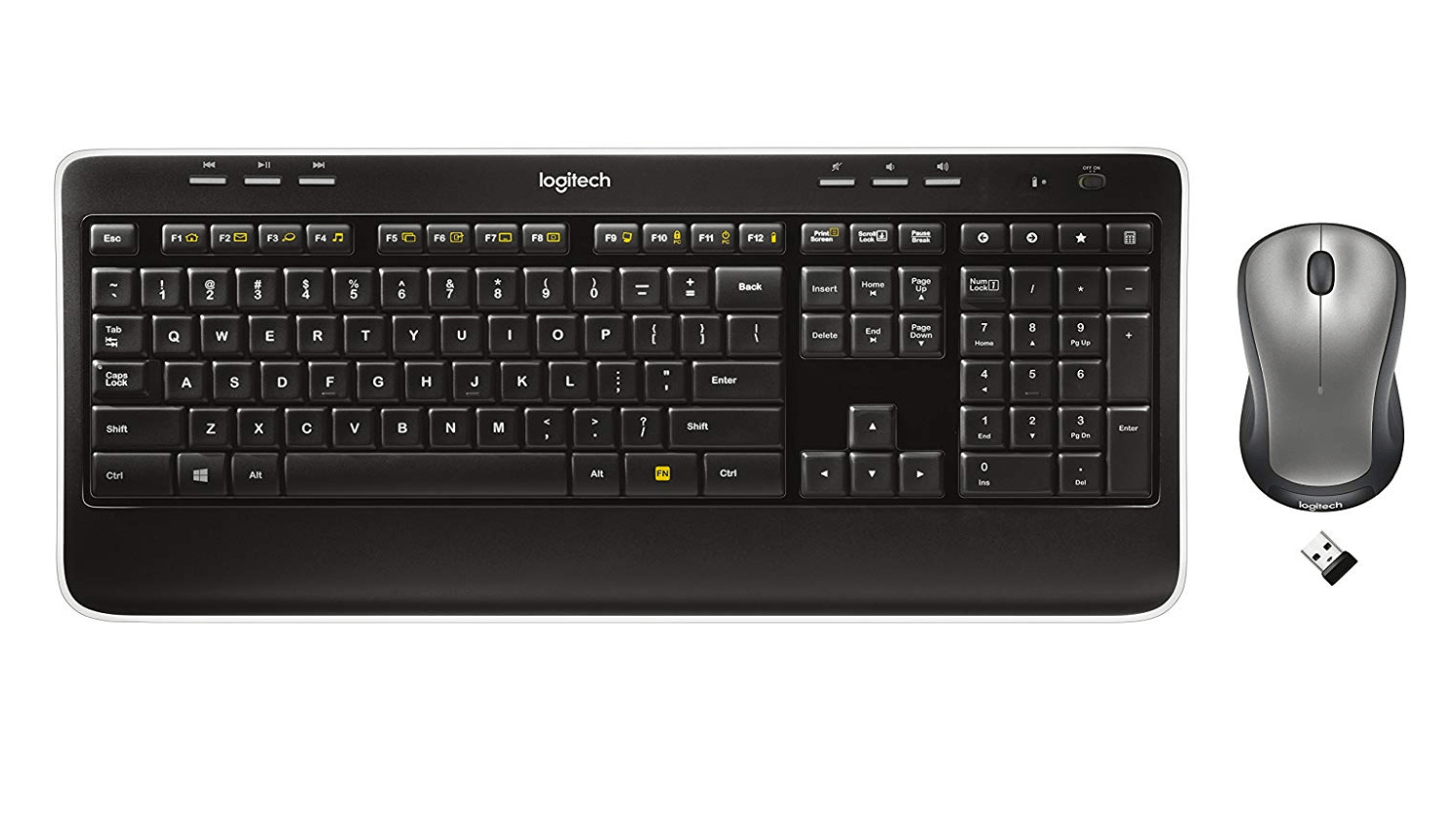
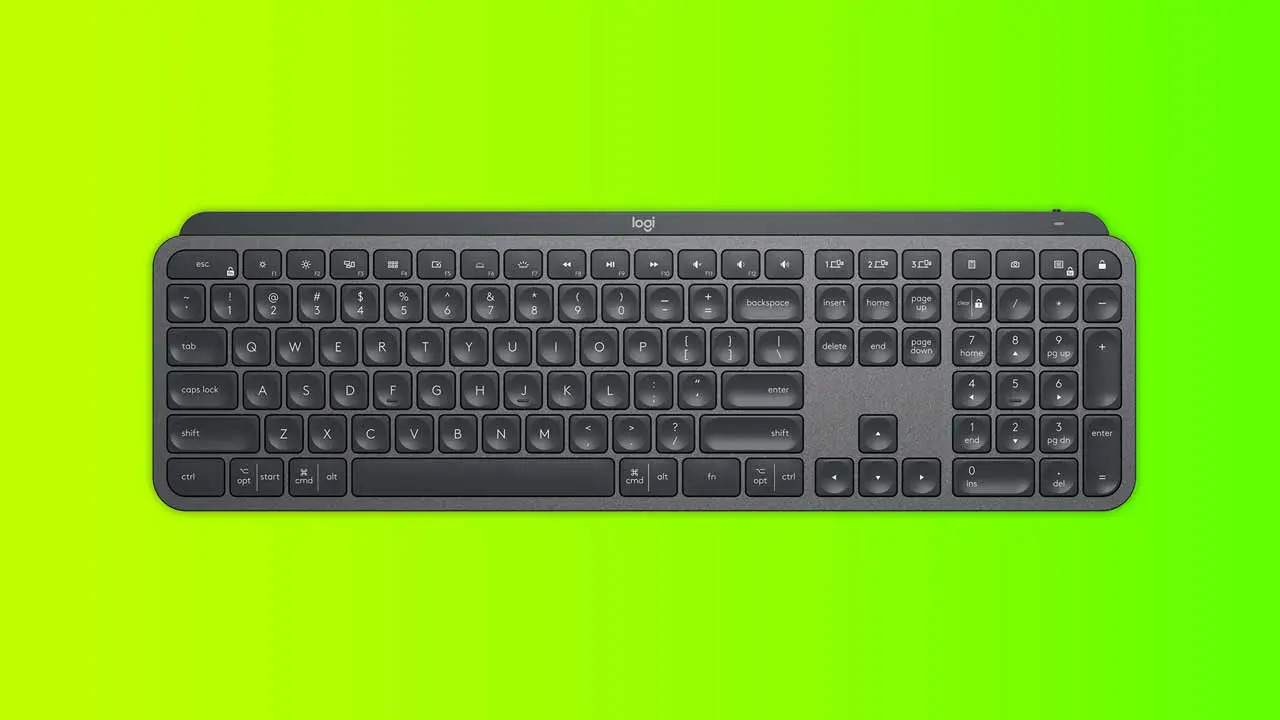
How To Pair Logitech Mx Keys Mini

Check Your Device Is Compatible with the Logitech MX Keys Mini To pair Logitech MX Keys Mini, you'll need a device with Bluetooth wireless capability, the keyboard connects via Bluetooth...

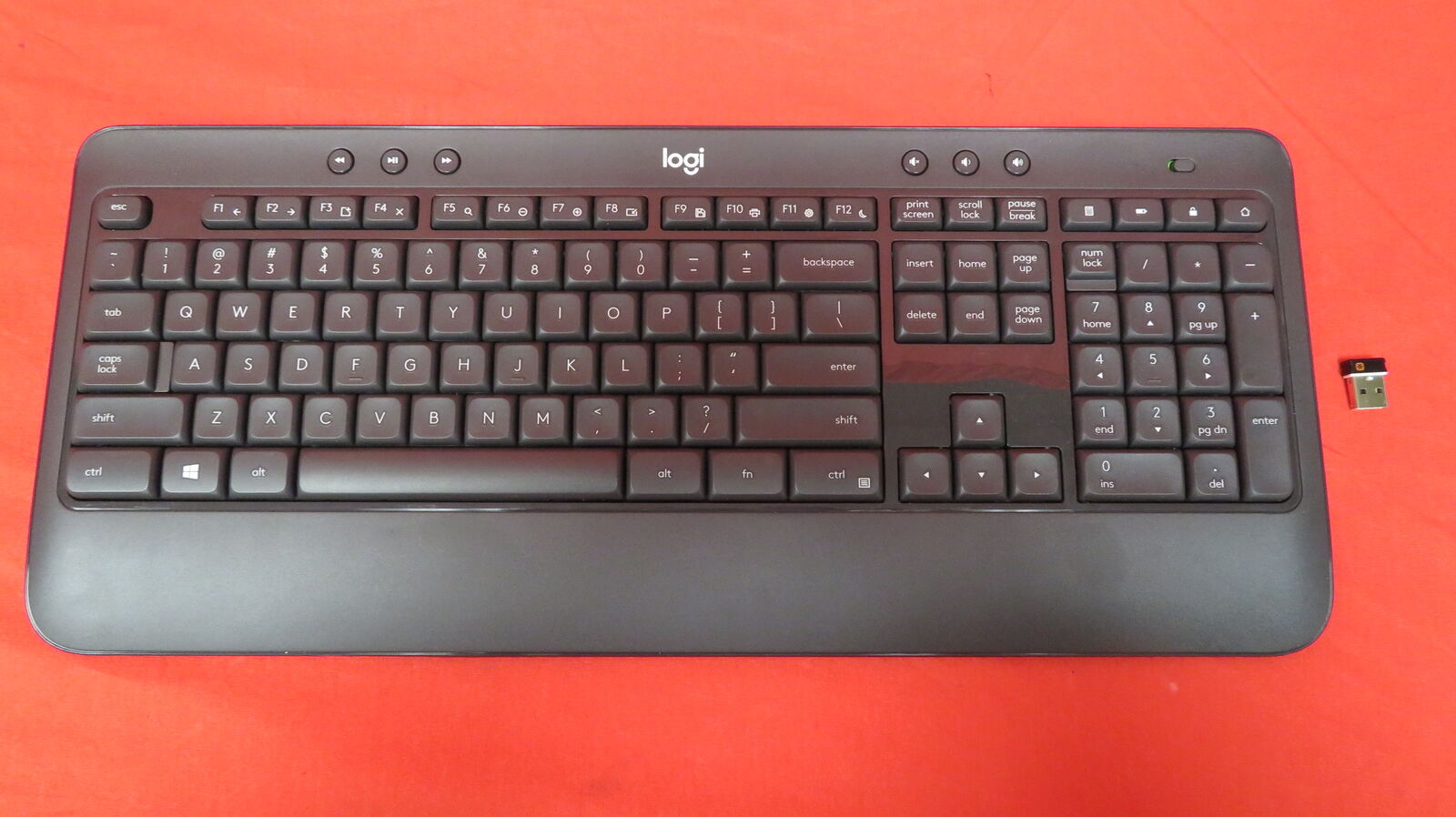
How To Pair Logitech K520 Keyboard

To pair your Logitech K520 keyboard, you must use the included Logitech Unifying USB receiver and Logitech software, as this keyboard does not support Bluetooth. The process involves plugging in...

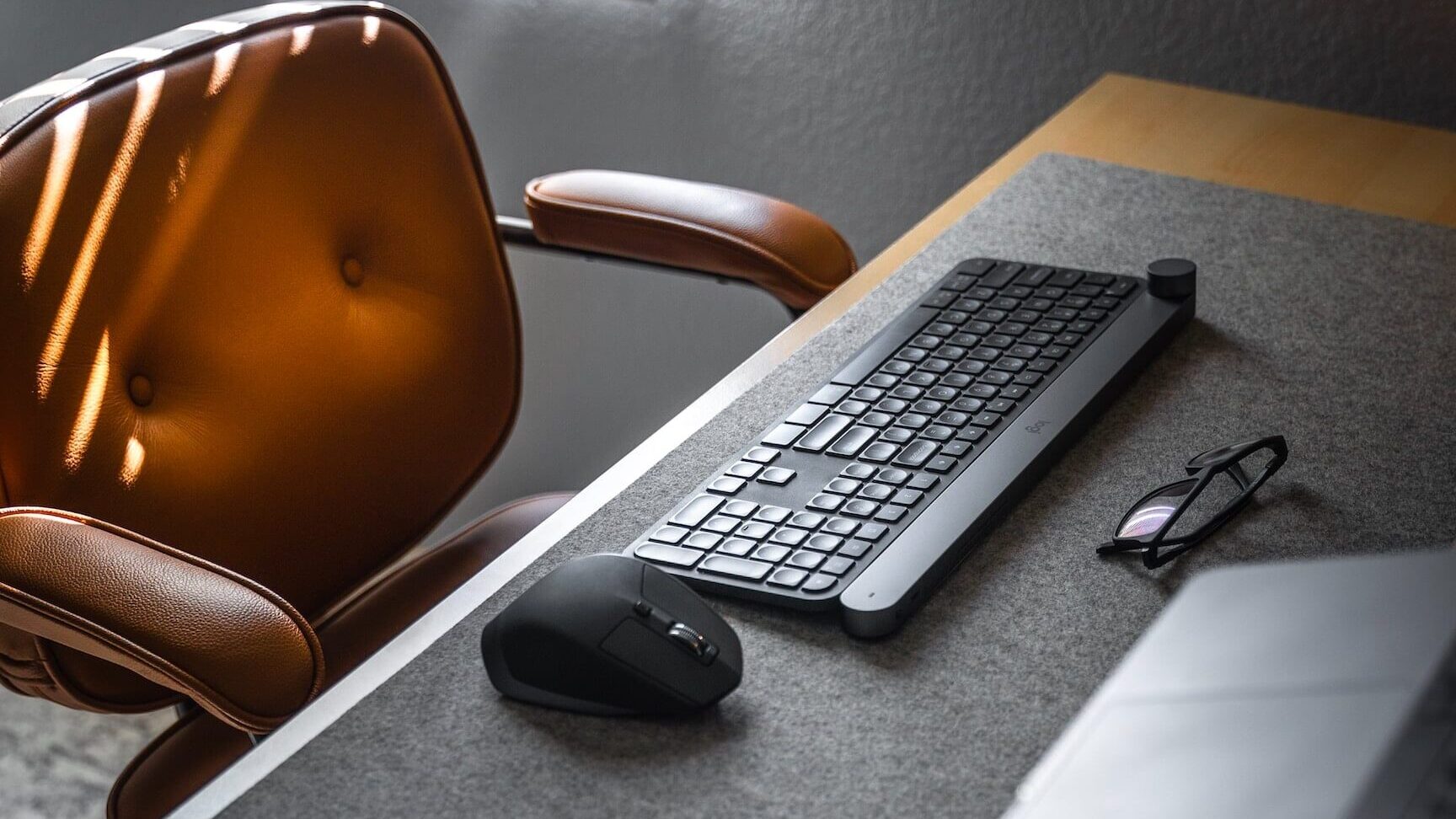
How To Connect Logitech Mx Keys

To connect Logitech MX Keys, you can use either Bluetooth Low Energy or a Logi Bolt USB receiver. This keyboard features Easy-Switch buttons that let you pair it with up...

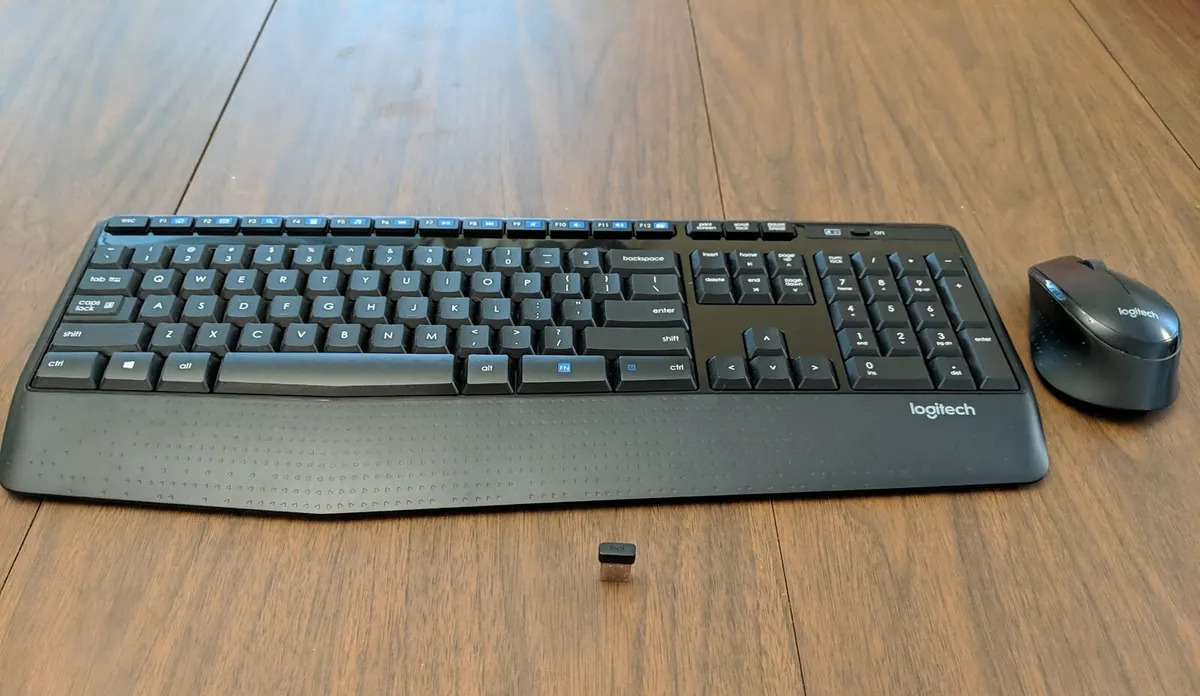
How To Connect Logitech Keyboard K345

To connect your Logitech keyboard K345, you must use the included USB receiver, as the keyboard does not support Bluetooth. This guide provides the exact steps to establish a reliable...

How To Connect Logitech Keyboard K540

To connect Logitech Keyboard K540, insert the included Unifying USB receiver into your computer's USB port, then turn on the keyboard, the two are pre-paired and will connect automatically. This...

How To Connect Logitech K350 Keyboard

To connect your Logitech K350 keyboard, simply insert the included Unifying Receiver into a USB port on your computer. This guide covers the instant setup that usually works automatically, and...

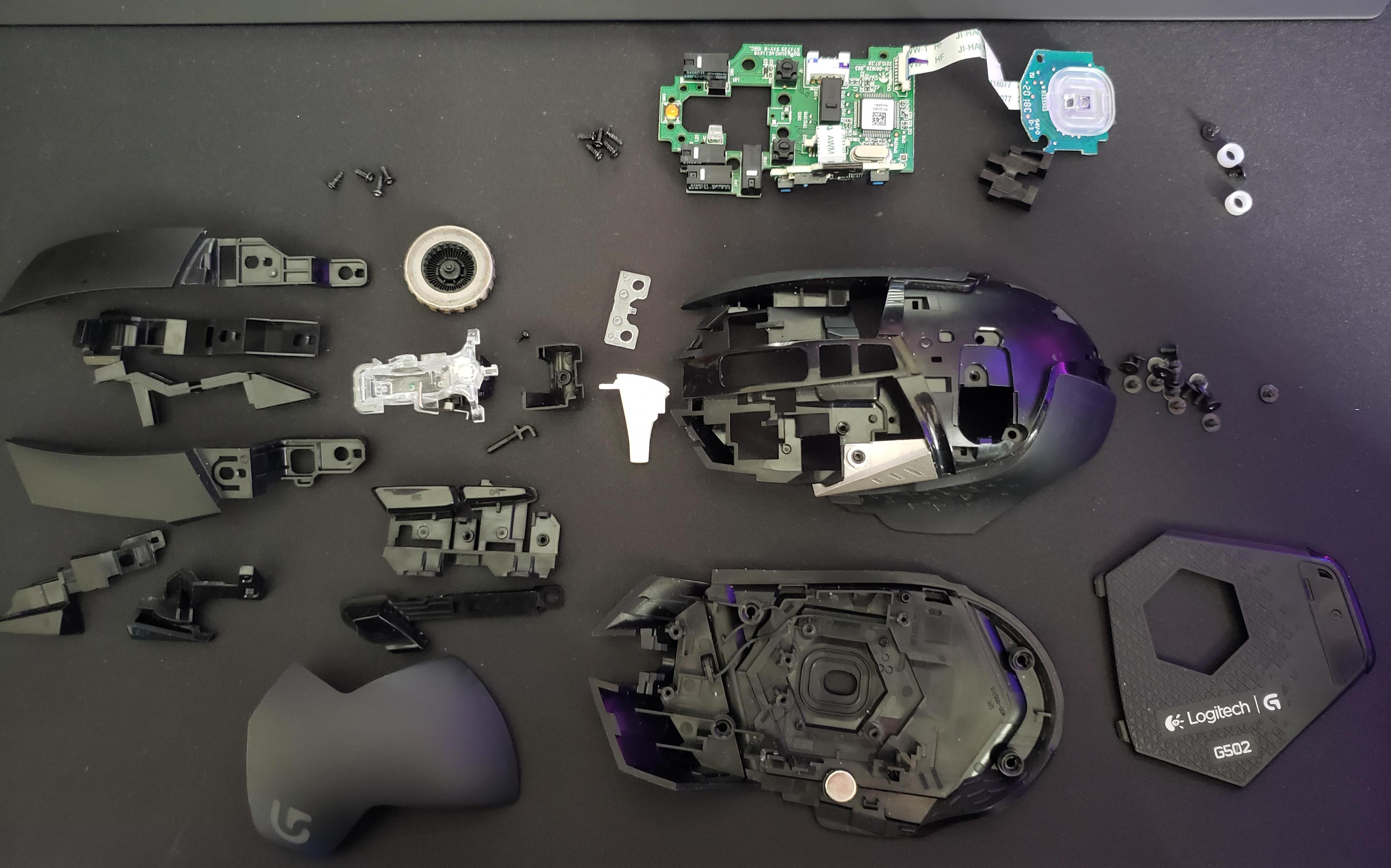
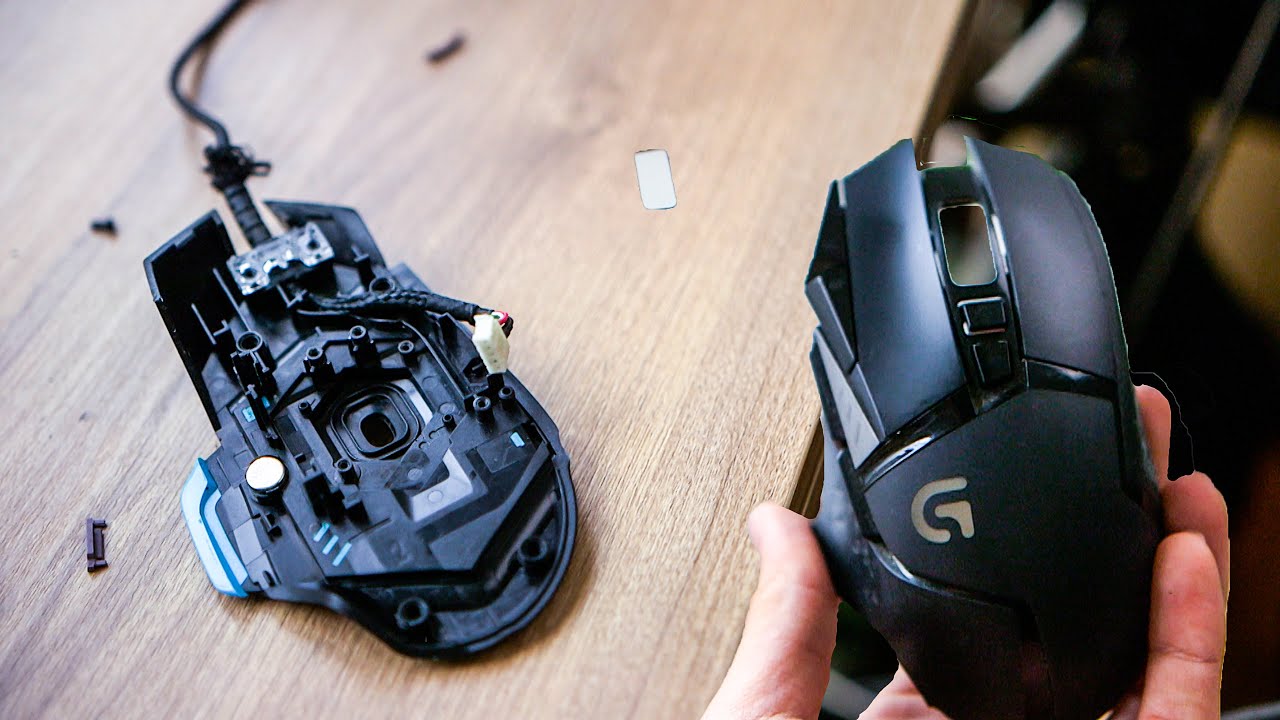
How To Take Apart A Logitech G502

This guide walks you through every step to take apart your Logitech G502, from heating the adhesive pads to disconnecting internal cables, so you can clean or repair your mouse...

How To Open A Logitech Mouse

To open a Logitech mouse safely, you need to power it down, remove the battery if it’s wireless, and then locate the hidden screws beneath the feet or stickers. The...

How To Disassemble Logitech Mouse

To disassemble a Logitech mouse, you must first locate and remove all hidden screws, then carefully separate the casing without damaging internal ribbon cables. This step-by-step guide will walk you...

How To Connect Logitech Mouse Without Usb

To connect a Logitech mouse without a USB receiver, use your computer's built-in Bluetooth to pair directly. This guide walks you through connecting a Logitech mouse without USB for any...

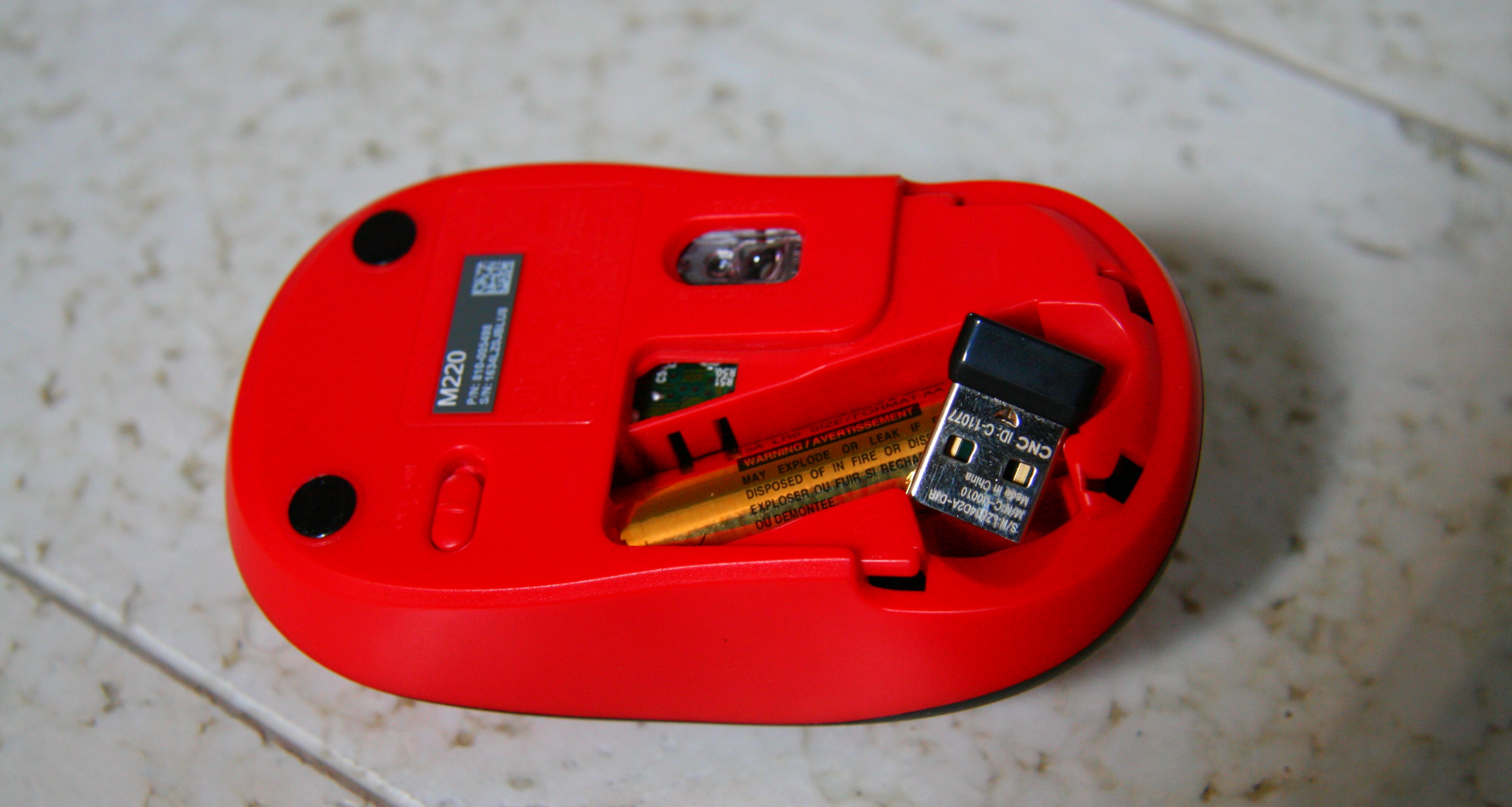
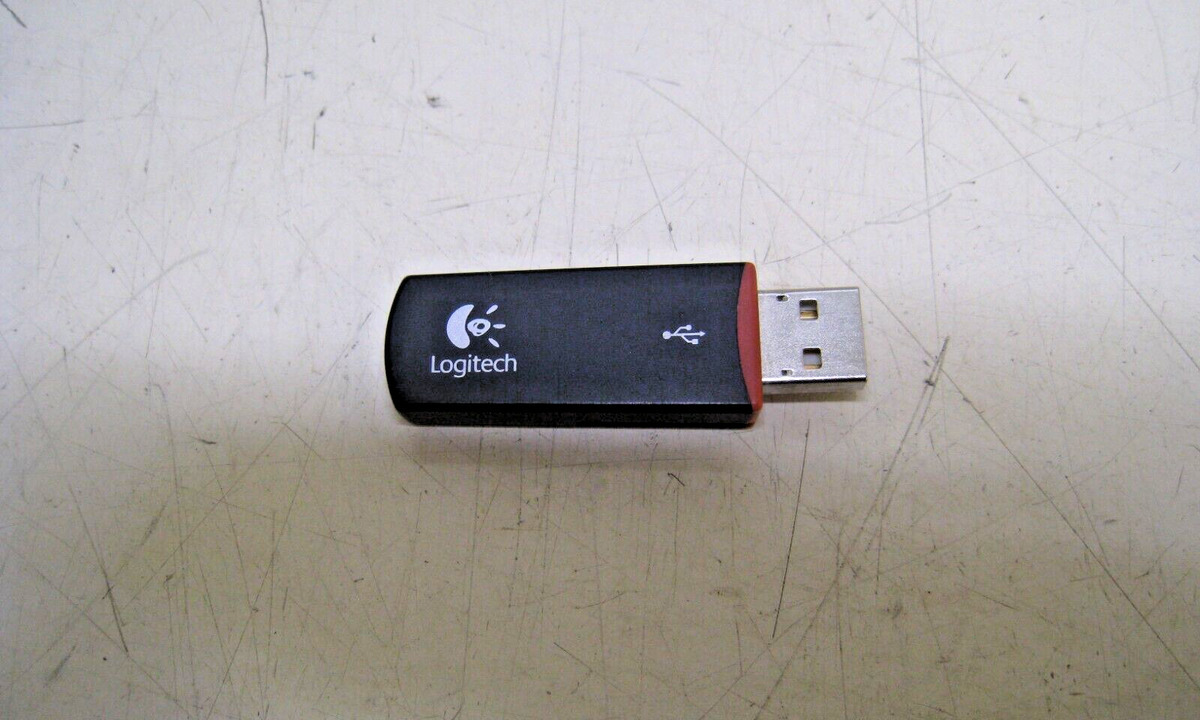
What To Do If I Lost My Logitech Usb

If you lost your Logitech USB receiver, the first thing to do is check whether your device uses a Unifying receiver or a dedicated non-Unifying receiver. Look for the orange...