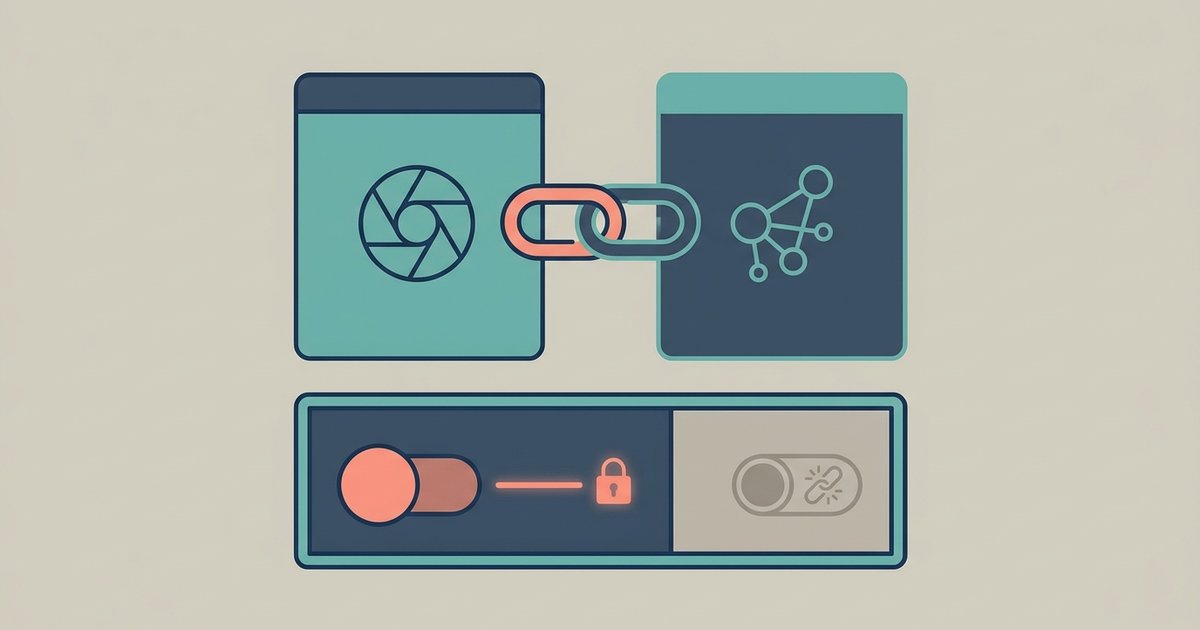
Instagram and Facebook are connected through Accounts Center, which is where Meta keeps the settings that span its apps. Adding both accounts to one Accounts Center lets you cross-post, log in to one account with the other and sync some profile details. Removing an account from Accounts Center is how you unlink, and it is reversible, though a few things do not revert cleanly.
What Accounts Center actually is
Meta describes Accounts Center as the place to manage connected experiences across your Facebook, Instagram, WhatsApp and Meta accounts. It replaced the older per-app settings, so the option that used to sit inside Instagram now lives in one shared panel that looks the same whichever app you open it from.
The important idea is that linking is a choice per feature, not a single switch. Once two accounts sit in the same Accounts Center, each connected experience has its own control: you can have cross-app login turned on and cross-posting turned off, or the reverse. Meta states that using Accounts Center and connected experiences is optional.
Link an Instagram account to a Facebook account
Open Instagram, go to your profile, open the menu (three horizontal lines), and find Accounts Center near the top. It is usually labeled with your name and shown as the shared settings area for Meta's apps.
- Tap Accounts Center.
- Tap Profiles, or the equivalent listing of accounts already in the Accounts Center.
- Tap Add accounts and choose Facebook.
- Log in to the Facebook account you want to connect, if you are not already signed in on the device.
- Confirm. The Facebook account now appears alongside your Instagram account in the same Accounts Center.
You can do the same thing starting from Facebook, and the end result is identical. If you manage several Instagram accounts, each one is added separately, and a single Accounts Center can hold more than one profile from the same app.
Turn on cross-posting
Adding the accounts does not by itself start sharing posts. Cross-posting is its own setting, inside Accounts Center under Connected experiences, then Sharing across profiles. Pick the profile you want to share from, then the profile you want to share to, and use the toggle under the automatic sharing heading to switch it on or off for posts, stories or reels.
Automatic sharing is worth thinking about before you enable it. A caption written for Instagram, with its hashtags and its at-mentions of Instagram usernames, often reads badly on Facebook where those handles do not resolve. Many people leave automatic sharing off and instead use the option to share an individual post to Facebook from the same screen where they write the caption, which keeps the decision per post.
What linking actually shares
Three things change when two accounts sit in the same Accounts Center, and they are worth separating.
Cross-posting. Posts, stories and reels can be published to both apps at once, either automatically or per post. This is the visible, obvious part, and it is the easiest to turn off.
Logging in. Meta describes cross-account login as being able to log in across your accounts, which makes signing in and recovering an account easier. The trade-off is that the accounts share a recovery relationship, so compromising one gives an attacker a route toward the other.
Ads and suggestions. This is the part most people miss. Meta states that accounts in the same Accounts Center can use information across those accounts to deliver personalized ads, and that accounts may be suggested to other people across Facebook, Instagram and Meta Horizon. That means your activity on one app can influence what you are shown on the other, and it means the two profiles can be surfaced to the same people as suggestions. If your Instagram and Facebook presences are deliberately separate, this is the setting to look at, not cross-posting.
Meta also notes that a shared Accounts Center does not force a shared identity. You can keep different usernames on each app. You can, separately, choose to sync your name and profile photo so a change on one updates the other, but that is a setting rather than a consequence of linking.
Unlink safely
Before you remove anything, turn off the individual connected experiences first. Go to Accounts Center, then Connected experiences, then Sharing across profiles, and switch off automatic sharing in both directions. Do the same for any other connected experience you have enabled. Doing this first means you can confirm that cross-posting has actually stopped before you make a larger change.
Then remove the account. In Accounts Center, open the list of profiles, select the account you want to detach, and choose the option to remove it from this Accounts Center. Meta will ask you to confirm, and in some cases will ask you to log in to the account being removed, which is the safeguard that stops someone else detaching your account from a shared device.
Two cautions before you do it. First, make sure you can still log in to each account on its own. If you have been signing in to Instagram using Facebook and you have never set an Instagram password, set one, confirm the email address on the account and check that two-factor authentication is configured before you unlink. Otherwise you can remove your own way back in. Second, unlinking does not retroactively unpublish anything. Posts already cross-posted to Facebook stay on Facebook and have to be deleted there individually.
When it will not link
Two failures account for most of the trouble. The first is that the account you are trying to add already belongs to a different Accounts Center, often one created years ago on an old Facebook account. An account can only sit in one Accounts Center at a time, so it has to be removed from the old one before it can join the new one, and that requires logging in to the account that currently holds it.
The second is a mismatch between what you are linking. Connecting a personal Facebook profile to an Instagram account is an Accounts Center action. Connecting an Instagram professional account to a Facebook Page is not, and trying to do it from Accounts Center will not produce the business tools you are expecting. Work out which of the two you need before you start, because the menus look similar and the results are not.
Professional accounts and Pages
A professional Instagram account connected to a Facebook Page is a separate relationship from an Accounts Center link between two personal profiles. The Page connection is what feeds business tools, and it is managed from the professional account settings or from the Page rather than from Accounts Center. If you disconnect a Page, the business features that rely on it stop working, so check what depends on the connection before removing it.
The practical sequence is the same every time: confirm you can log in to each account independently, switch off the specific connected experiences you do not want, and only then add or remove an account from Accounts Center. Treat linking as several separate permissions rather than one, and check the ads and suggestions setting even if cross-posting is all you came for.
\nRelated reading: How to Download Your Facebook Data, Facebook Guide: Privacy, Payments and Settings, and Instagram Image Sizes for Posts, Stories and Reels.