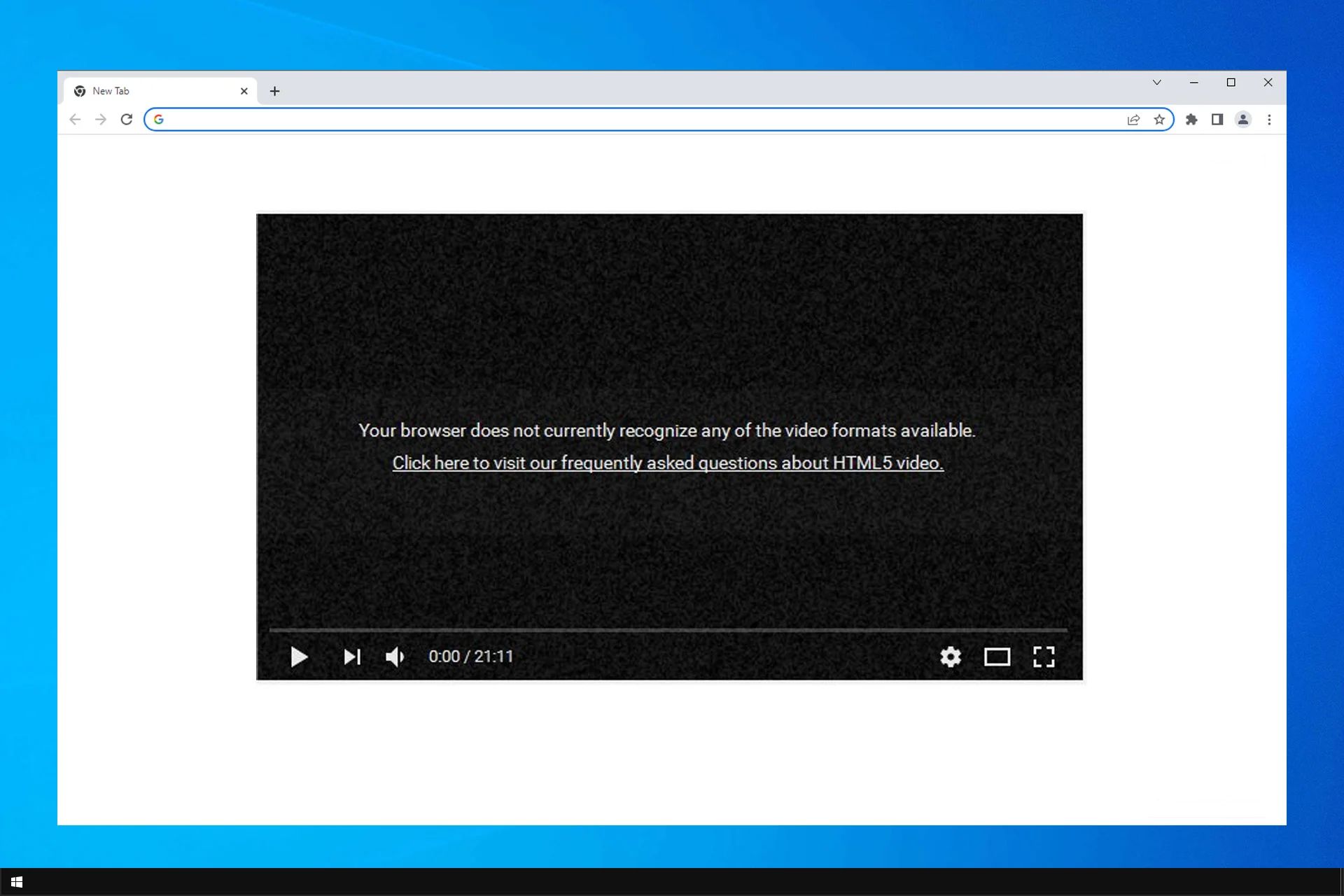
HTML5 is a core part of Chrome's rendering engine and there is no specific setting or button to "enable HTML5 in Chrome." You do not need to install any plugins or additional software to run HTML5 content, as it is built directly into the browser and cannot be manually turned on or off.
Is there a setting to enable HTML5 in Chrome?
No. HTML5 is not a feature that users can toggle on or off within Chrome. It is an inherent part of how the browser processes and displays modern web pages. If a website tells you that HTML5 needs to be enabled, the issue is almost always something else, such as an outdated browser, disabled JavaScript, or a conflicting extension, rather than a missing HTML5 setting.
Why you might see an 'enable HTML5' message
When a website displays a message asking you to enable HTML5, it is usually because the site relies on features that require a modern browser environment. The most common causes include:
- An outdated version of Chrome that does not fully support current HTML5 standards.
- JavaScript being disabled in your browser settings, as many HTML5 features depend on it.
- A browser extension that blocks or interferes with HTML5 content.
- Corrupted cache or cookies that prevent the site from loading correctly.
Checking your Chrome version
Keeping Chrome updated ensures you have the latest HTML5 support and security patches. To verify your version and update if needed:
- Open Chrome on your computer.
- Click the three-dot menu icon in the top-right corner, then select Settings.
- Scroll down and click About Chrome in the left sidebar.
- Chrome will automatically check for updates. If an update is available, it will begin downloading.
- After the update finishes, click Relaunch to apply it.
After the browser restarts, the version number will reflect the latest release. You can also confirm that automatic updates are enabled on this same page.
Ensuring JavaScript is allowed
JavaScript is essential for many HTML5 features, such as video playback and interactive content. To check browser settings in Google Chrome and confirm JavaScript is enabled:
- Open Chrome and click the three-dot menu, then go to Settings.
- Click Privacy and security on the left, then select Site settings.
- Scroll to the Content section and click JavaScript.
- Ensure the toggle is set to Sites can use JavaScript (recommended).
If you have previously blocked JavaScript for a specific site, you can remove that site from the "Block" list at the bottom of the page.
Troubleshooting with Incognito mode
If a website still shows an "enable HTML5" message, test it in an Incognito window. Incognito mode disables most Chrome extensions and uses a fresh session, which helps identify whether an extension or cached data is causing the problem.
- Click the three-dot menu and select New Incognito window (or press Ctrl+Shift+N on Windows / Cmd+Shift+N on Mac).
- Navigate to the website that displayed the message.
- If the site works correctly in Incognito mode, the issue is likely caused by a Chrome extension or corrupted cache. You can then disable extensions one by one or clear your browsing data from the main browser window.
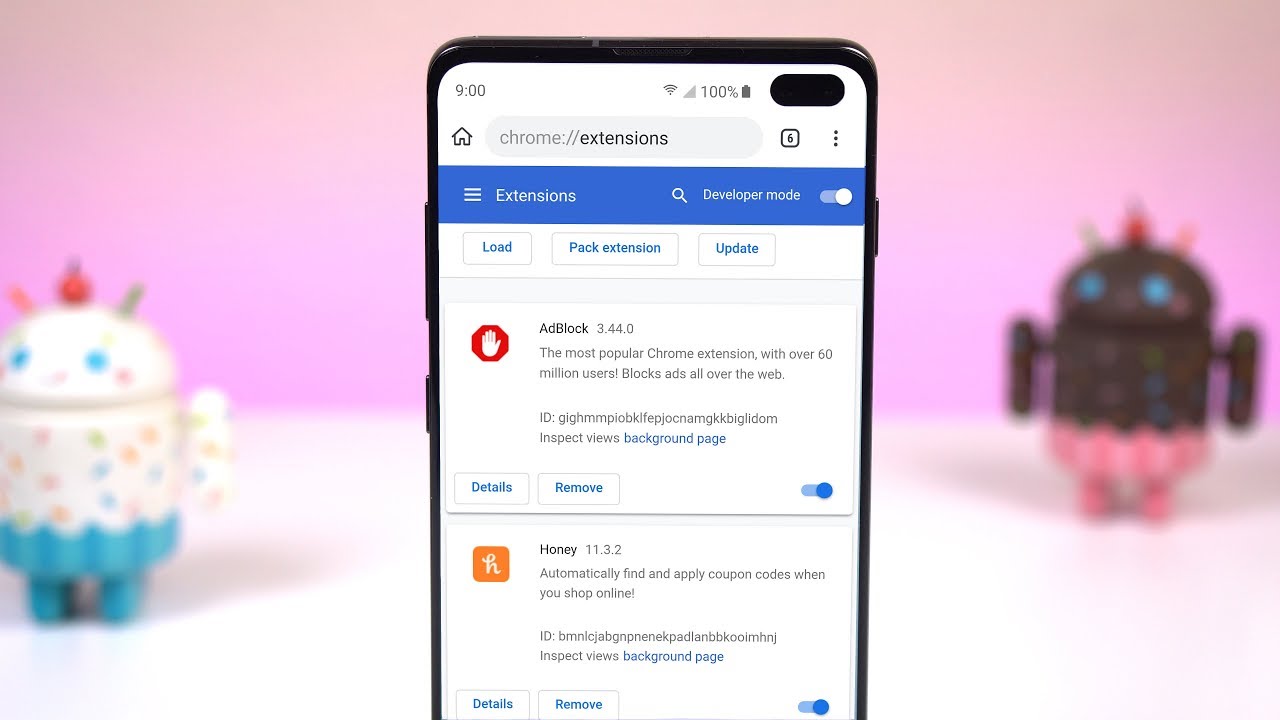
Chrome extensions and developer mode can sometimes interfere with how websites detect HTML5 support, so testing without them is a reliable troubleshooting step.
A note on HTML5 Multimedia Redirection for enterprises
In managed enterprise or virtual desktop environments, administrators can enable a feature called "HTML5 Multimedia Redirection" through Group Policy settings. This is designed to optimize multimedia playback for Google Chrome in remote desktop scenarios. However, this is not a general user setting, it applies only to organizations using specific virtual desktop infrastructure. For individual users, no such configuration exists, and HTML5 works automatically without any additional steps.
For the wider topic, see Chrome extensions and developer mode.