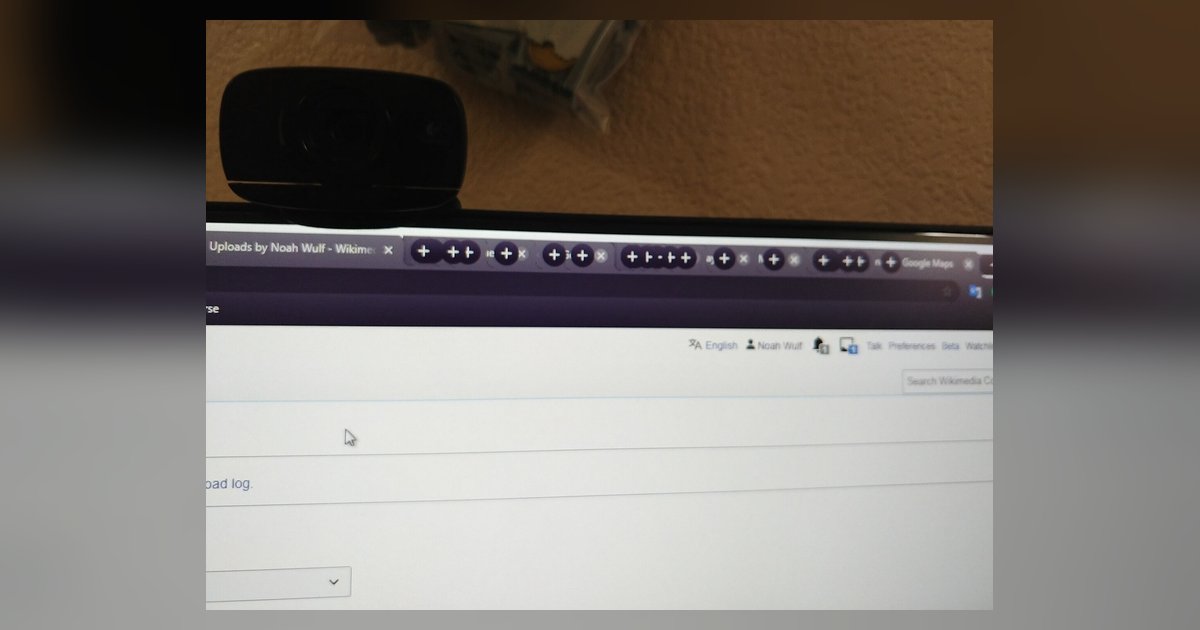
Chrome ignores system scaling for its own toolbar and tabs by default. To fix this, adjust your operating system's display scaling settings, which Chrome uses to size its toolbar and tabs.
Why chrome tabs too small happens on 4K
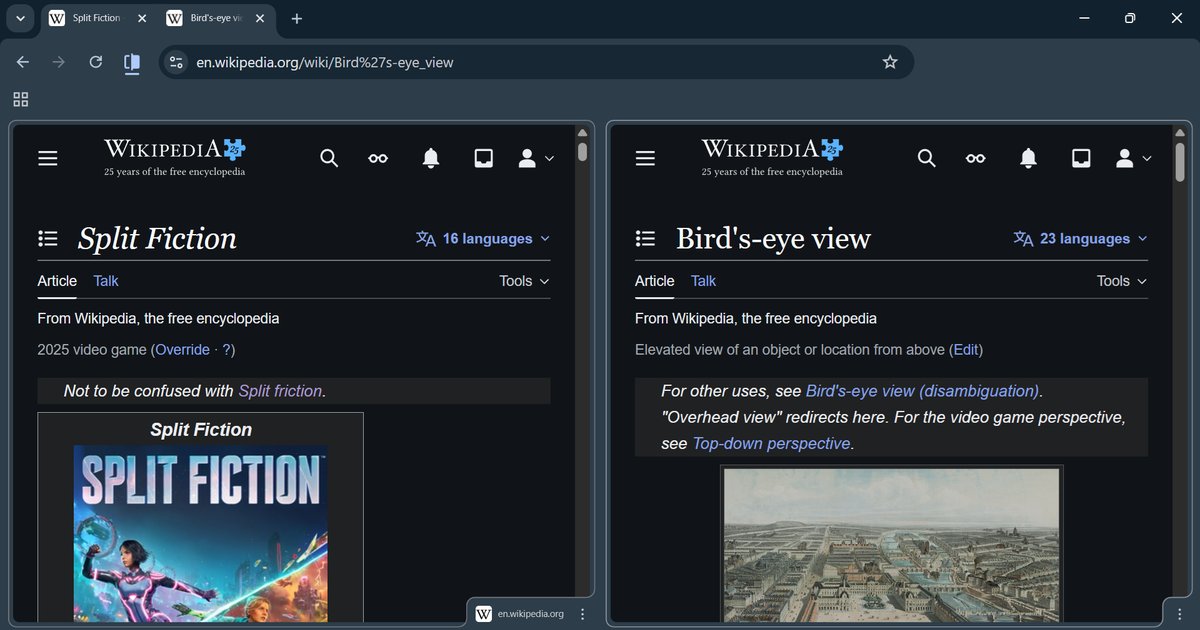
When you set Windows or macOS to 150% or 200% scaling on a 4K monitor, the operating system enlarges most applications. Chrome's toolbar, tabs, and bookmarks bar are sized according to your operating system's display scaling settings. This can happen due to mixed-resolution monitor configurations or other DPI/scaling issues. Web page content scales normally because it flows inside the viewport. If scaling issues occur, the tab strip, address bar, and bookmarks toolbar may appear tiny and difficult to click. The problem persists even if you zoom the page to 150% using Ctrl+Plus, because that only scales the page content, not the browser frame itself.
The quickest fix for most users
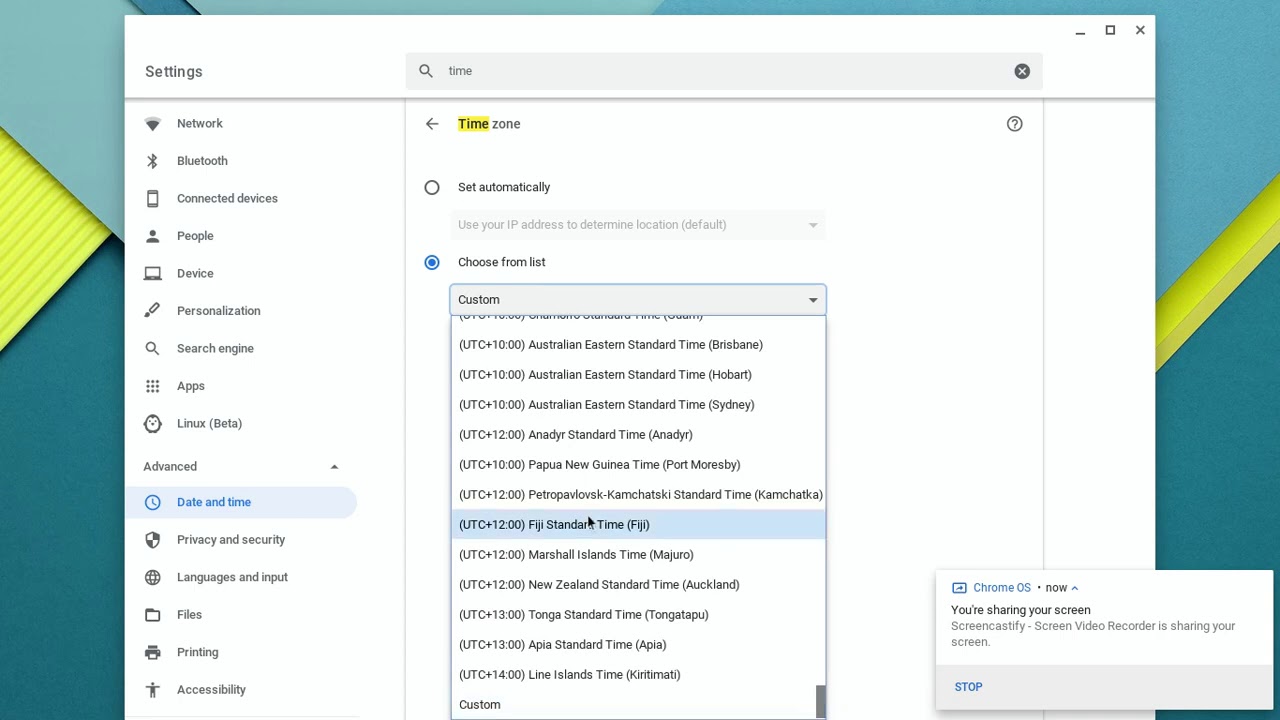
Adjust your operating system's display scaling settings to increase the size of Chrome's toolbar. Adjusting your operating system's display scaling can increase tab height, button padding, and the overall toolbar size without changing how web pages display. Adjusting your operating system's display scaling is the primary way to increase tab size in Google Chrome without modifying browser flags. If you later want to revert, adjust your operating system's display scaling back to its previous setting. This mode does not affect the bookmarks bar font size. For that, use a separate method to change the font size in the bookmarks toolbar.
When touch mode isn’t enough
If touch mode still leaves tabs too small for your preference, force Chrome to obey your system's exact DPI scaling. On Windows, right-click your Chrome desktop shortcut and select Properties. In the Target field, after the existing path ending in "chrome.exe," add a space and then: --force-device-scale-factor=1. Adjusting your Windows display scaling percentage affects all UI elements, including the tab strip and toolbar. On macOS, adjust your display scaling in System Settings to change the size of Chrome's UI elements. This approach also lets you adjust browser window size more precisely because the entire UI, including window controls, scales uniformly.
Why the flag method sometimes fails
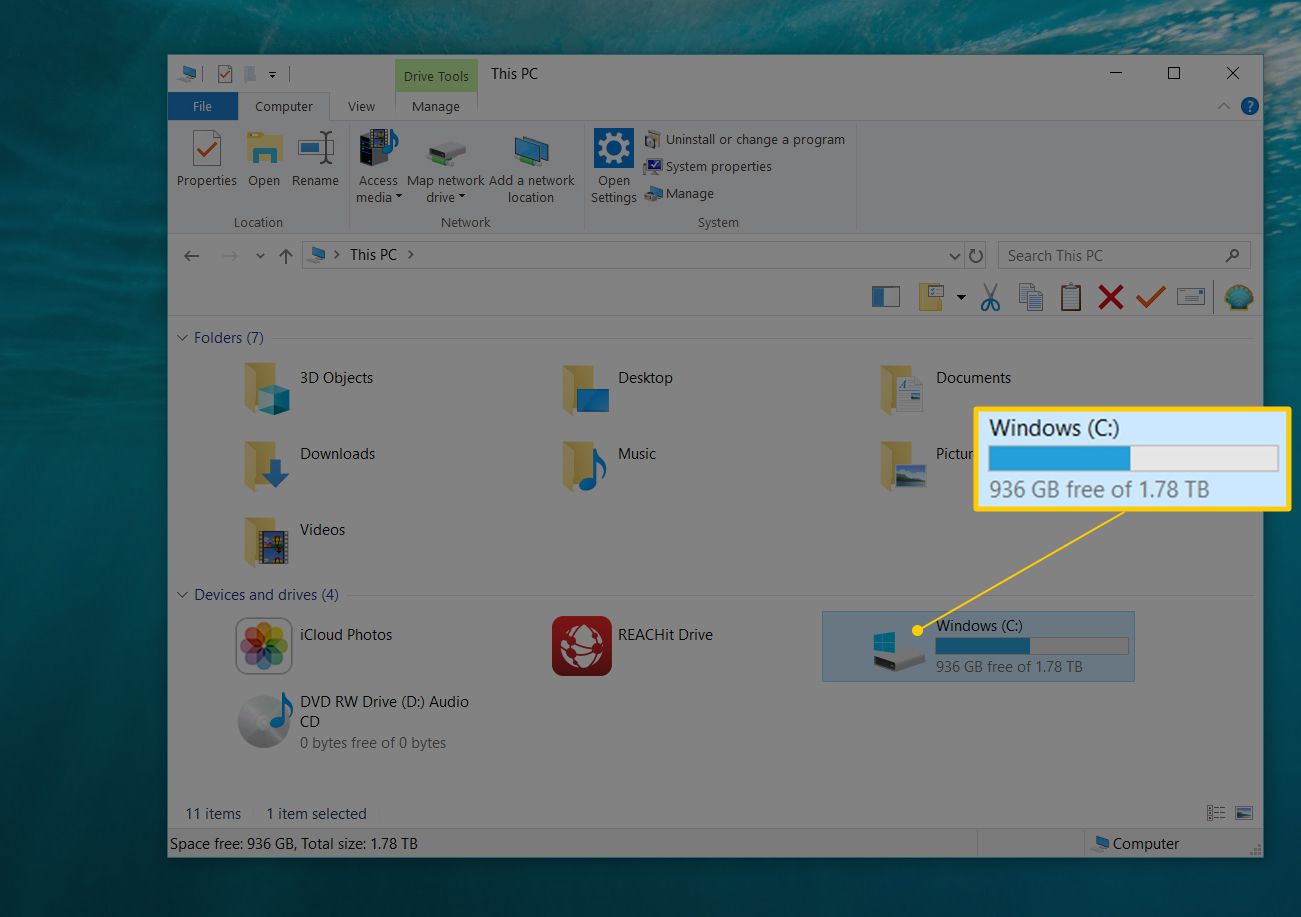
The most common error when using the flag method is forgetting to disable Windows' own high-DPI compatibility overrides on chrome.exe. Windows applies its own "application DPI awareness" setting that can conflict with Chrome's flags, resulting in either no change or blurry text. Fix this by navigating to C:\Program Files\Google\Chrome\Application\ in File Explorer. Right-click chrome.exe, go to Properties > Compatibility > Change high DPI settings, and check "Override high DPI scaling behavior" with the dropdown set to "Application." This tells Windows to leave DPI handling entirely to Chrome. Without this step, the flags may appear to do nothing, and you will still be searching for how to make my tabs bigger in Google Chrome. After applying both the flags and the compatibility override, restart Chrome completely. The tab strip now matches your system scaling percentage exactly.
Force Chrome into 'Touch Mode' by right-clicking the toolbar and selecting 'Touchable layout.' Alternatively, add the command-line flag '/high-dpi-support=1 /force-device-scale-factor=1' to your Chrome shortcut to make it respect your Windows scaling percentage. No other browser requires this extra step to match what your display already asks for. For a complete guide on resizing Chrome windows, tabs and fonts, explore the broader topic.