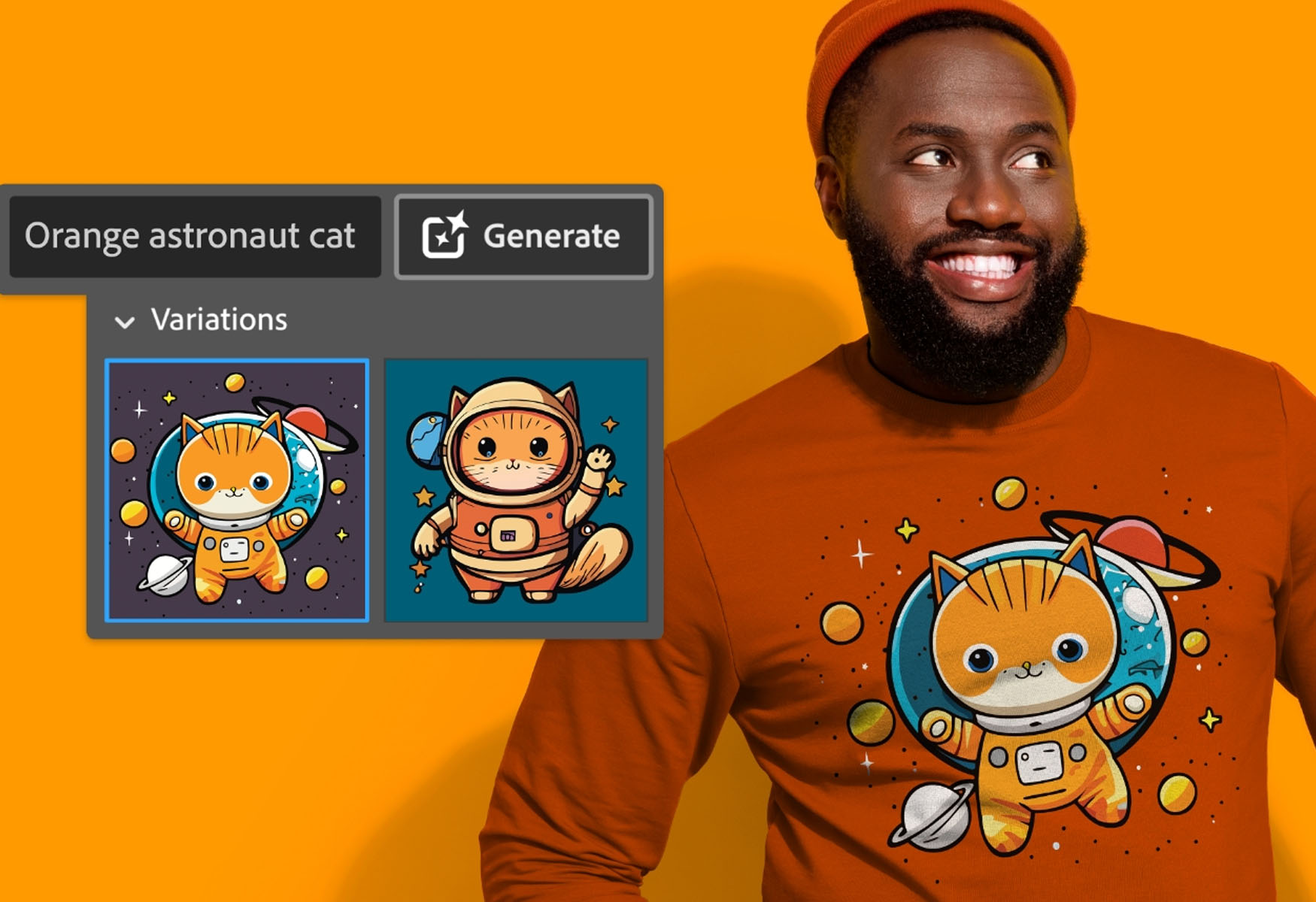
The Firefly Vector Model in Illustrator is a generative AI model that lets you create and edit scalable vector graphics directly from text prompts. This means you can turn ideas into polished icons, scenes, and patterns without manual drawing, making the Firefly Vector Model Illustrator the fastest way to generate production-ready vectors.
What is the Firefly Vector Model in Illustrator
The Firefly Vector Model is a generative AI model built specifically for vector graphics and integrated directly into Adobe Illustrator. It powers several key features: Text to Vector Graphic, Generative Expand, Generative Shape Fill, Text to Pattern, and Concept to Vector. Each feature uses the model's understanding of vector shapes, paths, and styles to create fully editable artwork that behaves like any other vector object in your document.
How to access generative AI features in Illustrator
You can access generative AI features in Illustrator through the Contextual Task Bar or the Generate Vectors option in the Properties panel. Both options open a modal where you can insert a text prompt and choose your output type, such as Scene, Subject, or Icon. Prompt inspiration is available within the modal to help you get started.
Creating vector graphics from text prompts
To create vector graphics from a text prompt, open the Text to Vector Graphic feature. Choose a Type to generate a subject, scene, or icon. You can use the prompt inspiration provided in the modal to refine your idea. Before generating, adjust the creative controls for generated outputs, which include the Detail Slider, Style Reference, Style Presets, and Color and Tone controls. Text to Vector Graphic automatically generates assets in the style of graphics on your artboard unless "Match active artboard style" is toggled off via the gear icon. To use a custom reference, activate Style Reference using the dropper icon and select "Reference Images" to create graphics in that specific style.
Editing and recoloring your generated graphics
After generation, thumbnails of graphic options will appear in the Properties panel. Select an option to view it on your canvas. Once you are satisfied, click Done in the taskbar to perform quick edits like grouping, ungrouping, duplicating objects, or recoloring. Selecting Recolor opens the Recolor panel for manual hue adjustments or the Generative Recolor option to explore new color palettes with text prompts. The Layers panel allows selection and editing of individual parts of the generated graphic, giving you full control over each element.
Using Generative Expand to extend your artwork
Generative Expand is an AI-powered capability that extends vector graphics in the style of your artwork. It can be used to resize graphics, add print bleeds, or explore new parts of an illustration. The newly generated content can be combined with existing artwork and is fully editable, so you can seamlessly integrate it into your design.
Filling shapes with Generative Shape Fill
Using Generative Shape Fill, powered by the Adobe Firefly Vector Model, you can quickly add detailed vectors to shapes. The generated fills can match the style and color of existing artwork, making it easy to enrich a composition without manually drawing every detail.
Converting images and sketches with Concept to Vector
Concept to Vector transforms raster images or unexpanded Image Trace objects into editable vector artwork, illustrations, and logos. It can generate refined vector outlines or fully colored artwork from a hand-drawn sketch. Customized prompts can be used to add or remove elements from the original image in the generated output. Photographs can be converted into stylized vector illustrations. If generating without a prompt and the input is a sketch, the output will be a cleaner, refined version of the sketch. If generating without a prompt and the input is an image, the output will be a refined raster.
Creating patterns with Text to Pattern
This feature allows you to start with a prompt and create endless patterns, now with improved output quality and new density controls. You can quickly generate repeating vector patterns that match your project's style without manual tiling or adjustment.
Generative credits and license requirements
To use Adobe Firefly generative AI features, a named user license or an Adobe Express license is required. Generative credits are used to power generative AI features across the Firefly web app, Photoshop, and Illustrator, so your usage is tracked across these applications under the same plan.
\nRelated reading: Why Does My Bitmoji Have A Halo On Snap Map, AI Writing: How It’s Changing the Way We Create Content, and How to Create Videos From Text Advanced Software and Online Tool.