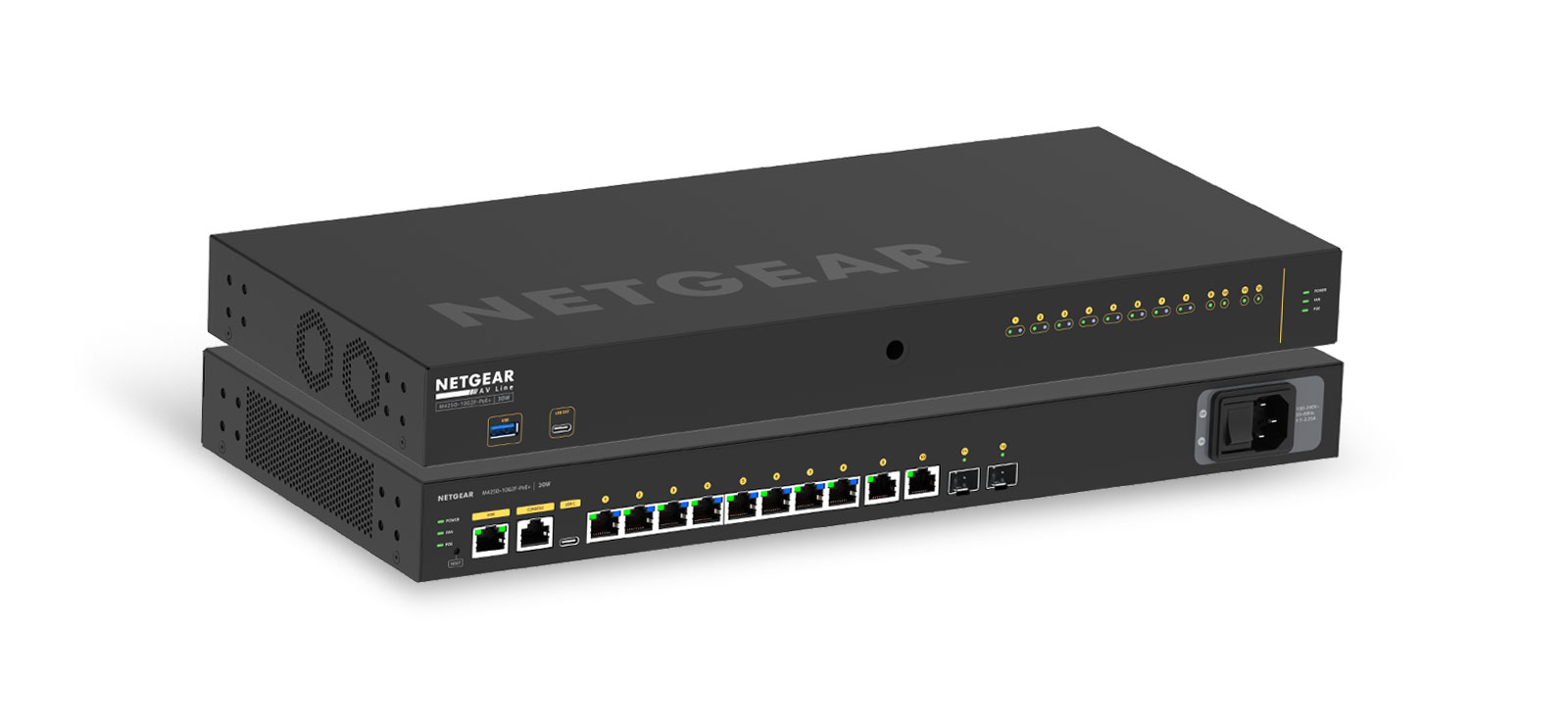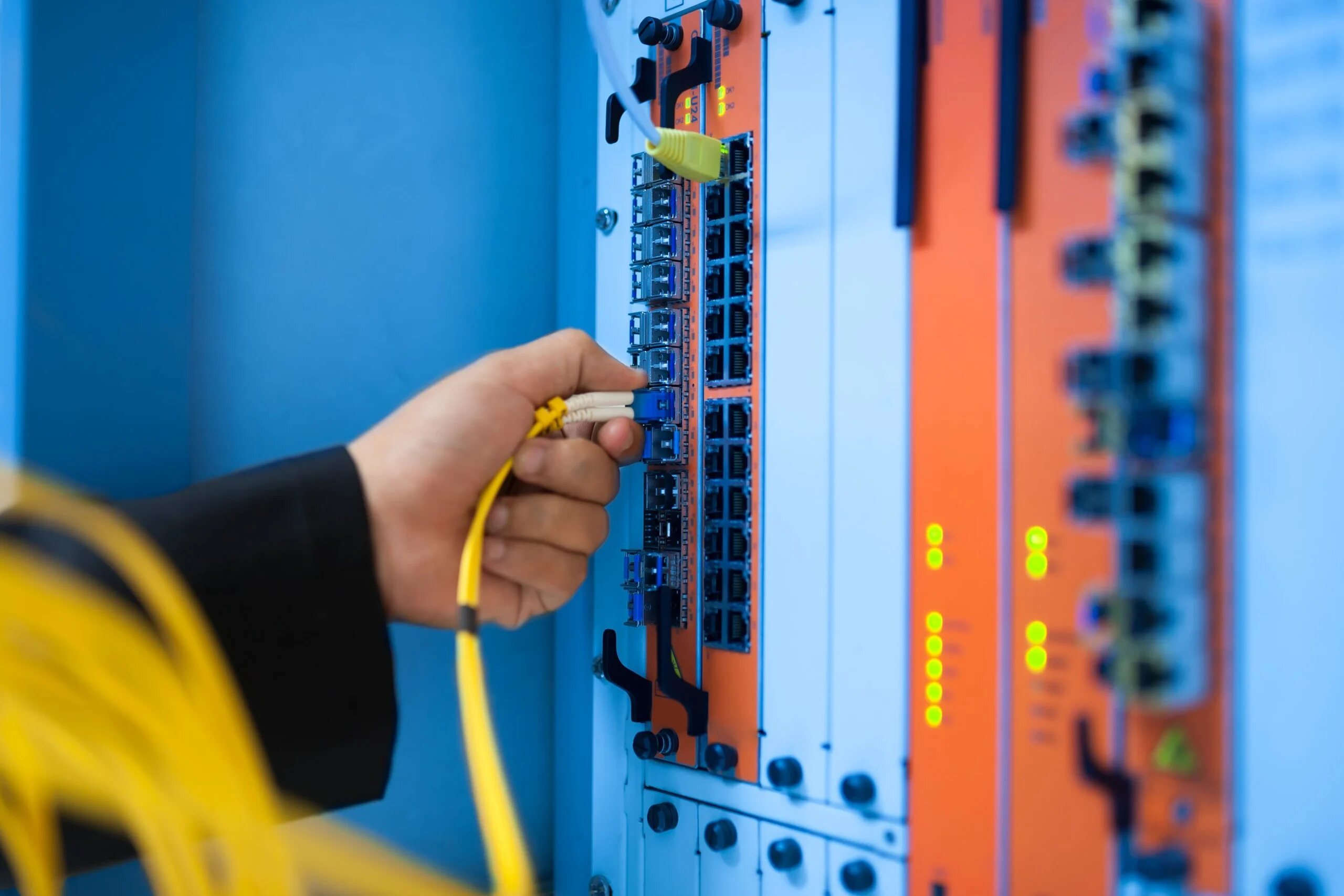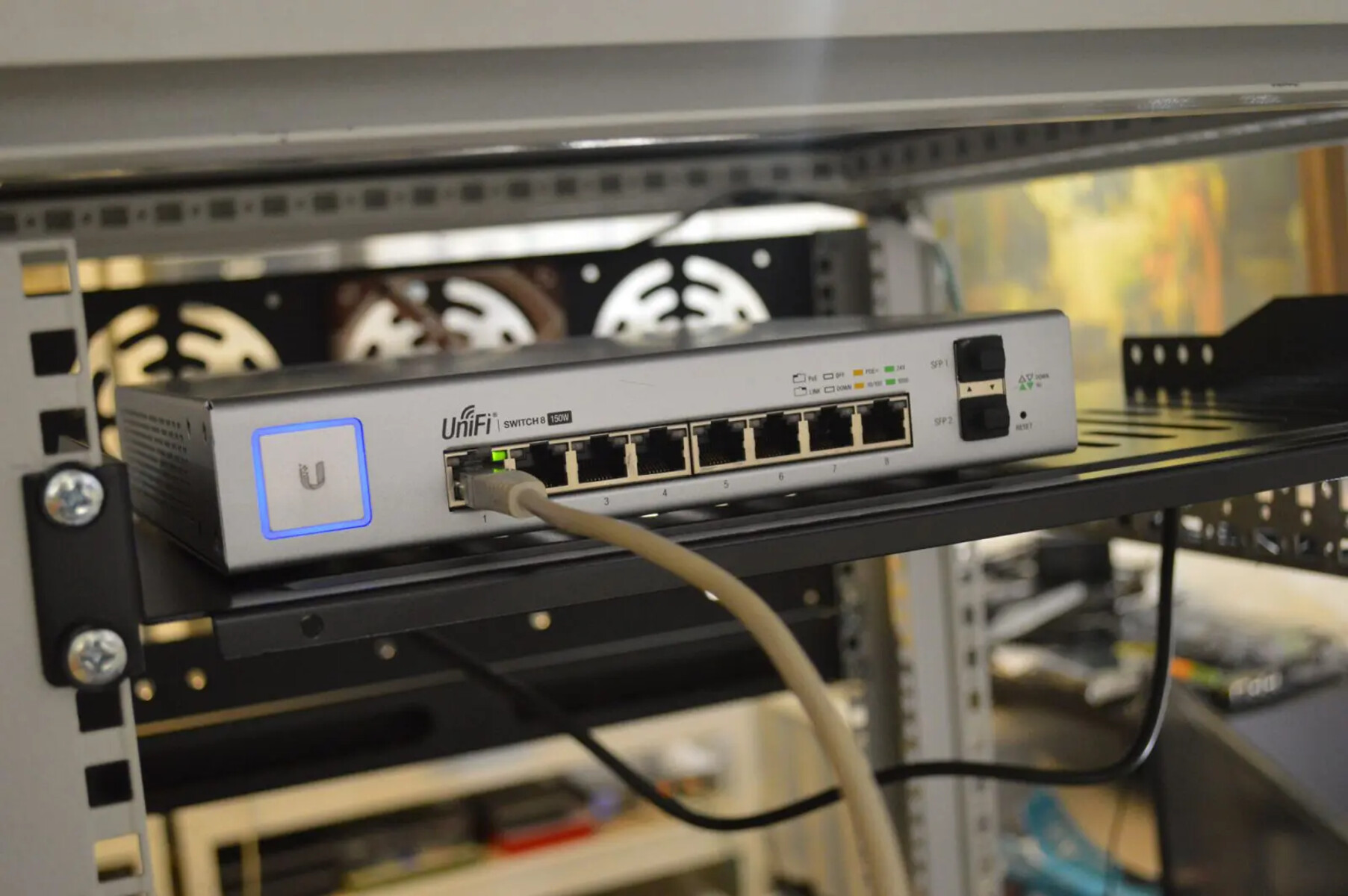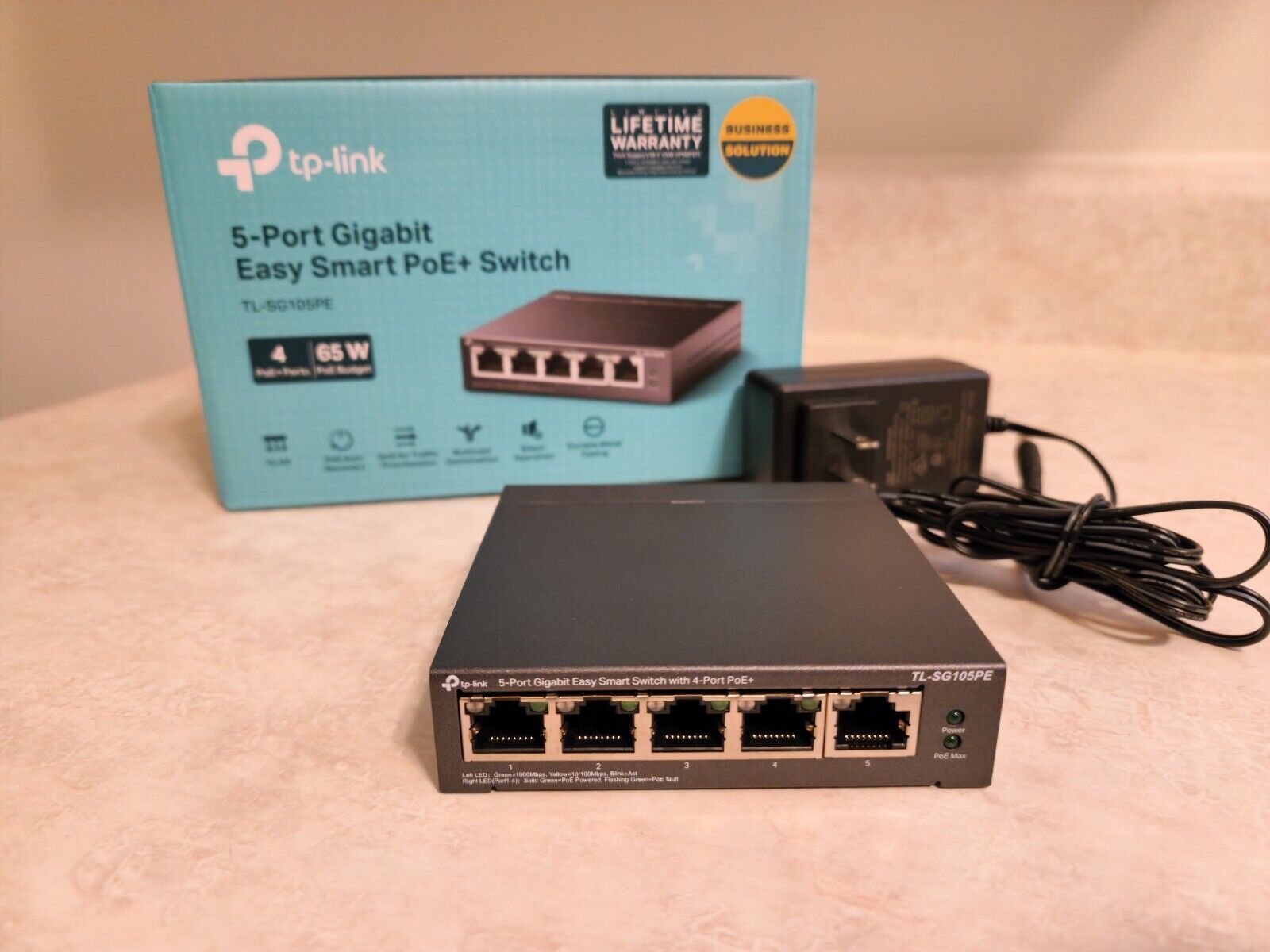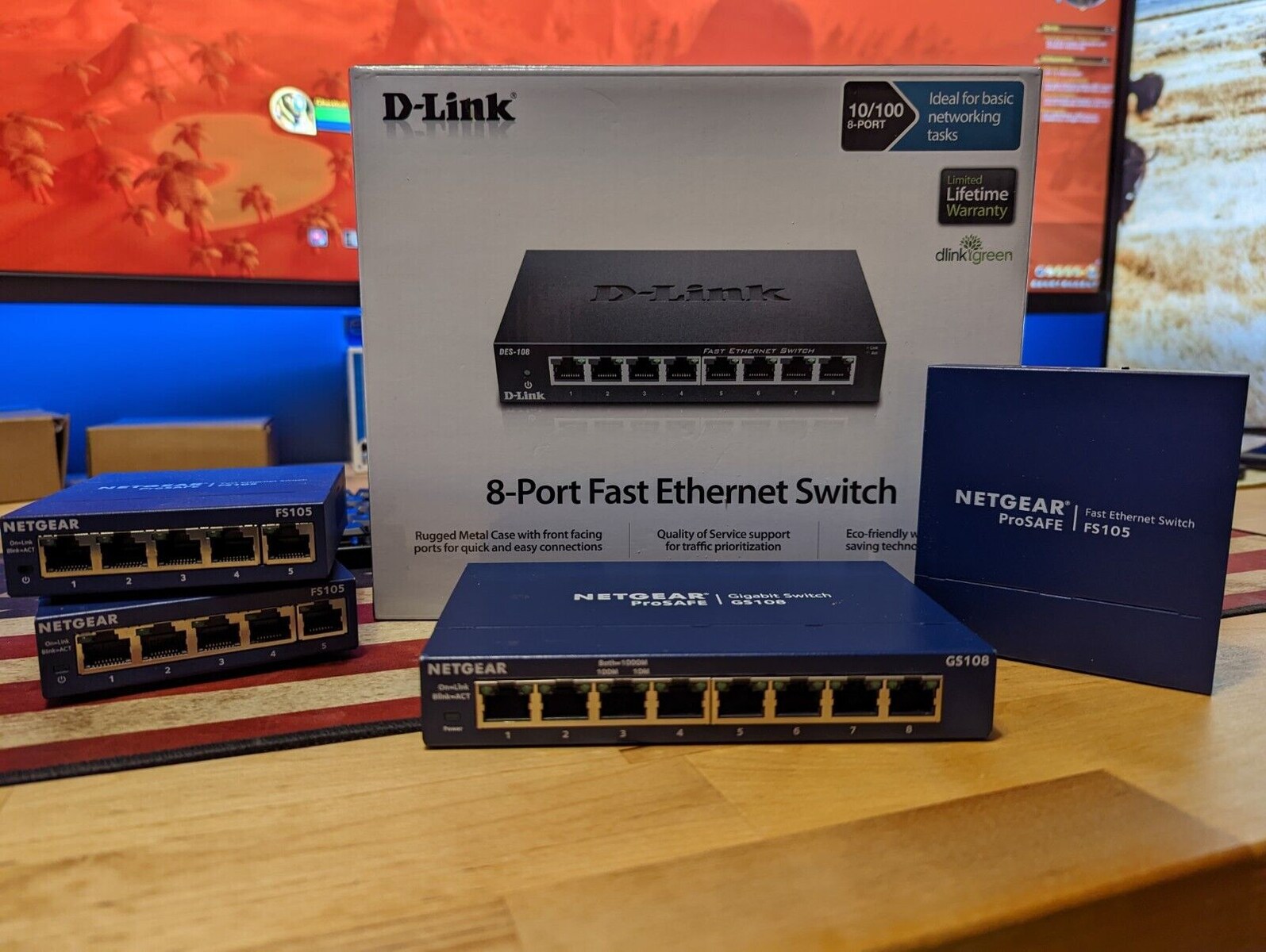
To connect two network switches, plug one end of a standard Ethernet cable into any available port on the first switch and the other end into any available port on the second switch. That single cable is all you need for a basic, working link between the two devices.
Before you connect two network switches: the one-cable rule
Connecting two switches with more than one cable creates a network loop, which can trigger a broadcast storm that floods the network and causes instability or a complete outage. On unmanaged switches, there is no built-in protection against loops, so you must use exactly one cable between the two switches. If you need redundancy or higher bandwidth, you will need managed switches that support Spanning Tree Protocol (STP), which automatically blocks redundant paths while keeping a backup link ready.
What you need to connect two network switches
You only need three things: two switches that are powered on and have at least one free port each, and one standard Cat5e or Cat6 Ethernet cable. No crossover cable is required, modern switches auto-negotiate the connection. Make sure the cable is not damaged and is long enough to reach between the two devices without tension.
Step-by-step physical connection
- Power on both switches and confirm they are running normally.
- Take one end of the Ethernet cable and insert it firmly into any available port on the first switch.
- Take the other end of the cable and insert it firmly into any available port on the second switch.
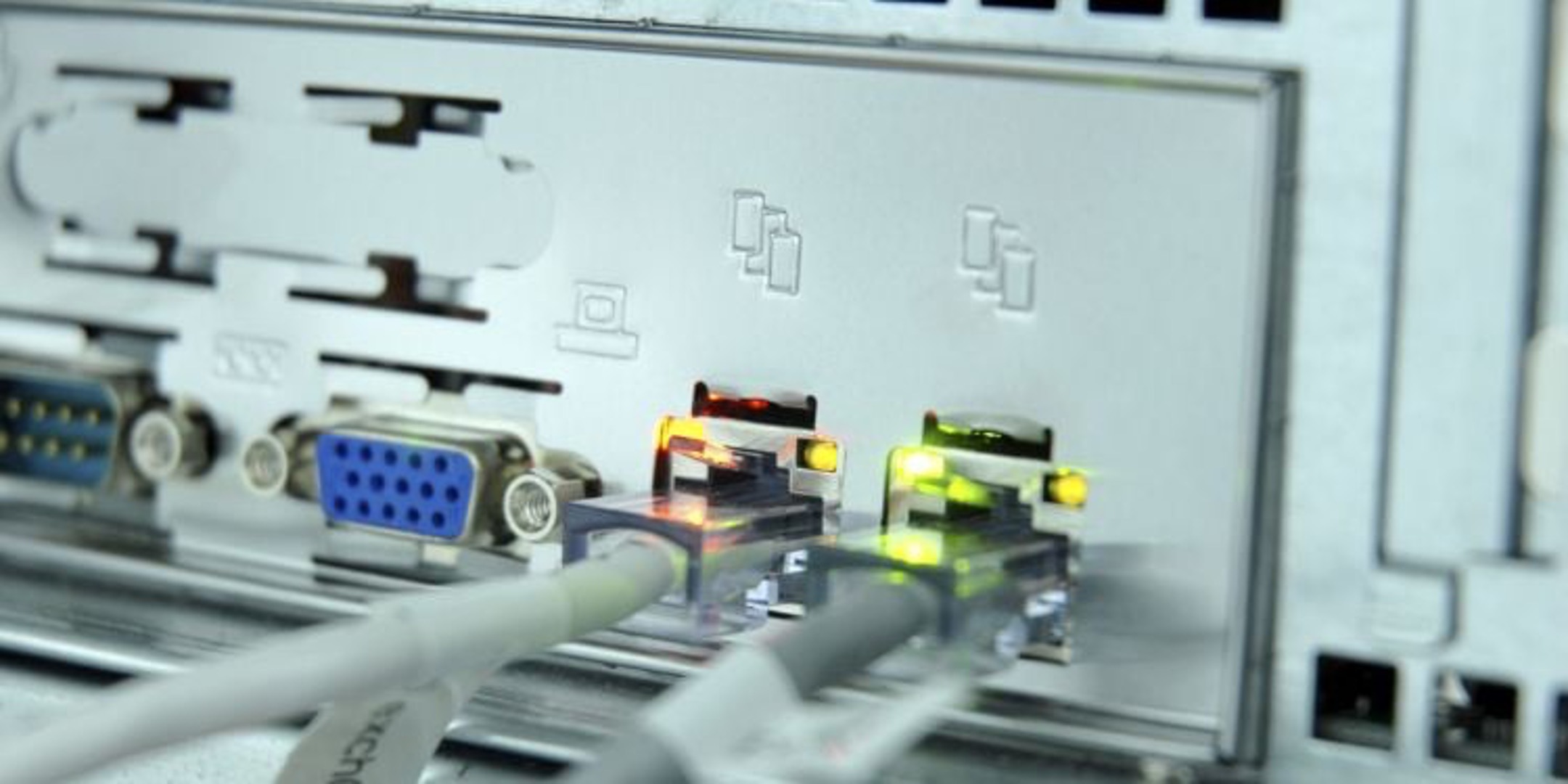
- Watch the Link/Act LED on both ports, it should light up or begin blinking to indicate an active connection.
That is the entire physical process. There is no need to configure anything on unmanaged switches; they will automatically establish the link and start forwarding traffic between the two devices.
How to check the connection is working
After plugging in the cable, look at the Link/Act LEDs on both switch ports. Check the LED indicators on both switch ports. A lit LED typically means a link is established, but the exact colors and meanings vary by manufacturer, consult your switch's documentation. If you suspect a loop (e.g., network instability), unplug one end of the cable immediately. To confirm data is actually flowing, perform a quick ping test between two wired devices, one connected to each switch. On the first device, open a command prompt or terminal and ping the IP address of the second device. If you receive replies, the connection is functioning correctly. If you get timeouts, check that both devices are on the same subnet and that the cable is seated properly. If you need to verify each switch's IP configuration directly, you can access netgear network switch settings through its web interface.
When you need more than one connection
If you need to connect two switches with multiple cables for redundancy or increased bandwidth, you must use managed switches that support STP. With STP enabled, the switches will automatically block all but one active path and keep the others as standby backups. This is exactly the scenario where you would use a network switch with 2 routers to segment traffic or provide failover paths. For setting up STP, VLANs, or link aggregation, you will need to configure a managed network switch through its management interface. The configuration process involves enabling STP, assigning port priorities, and optionally setting up link aggregation groups to combine multiple ports into a single logical link.