How to download photos from Pixieset when you receive a gallery link
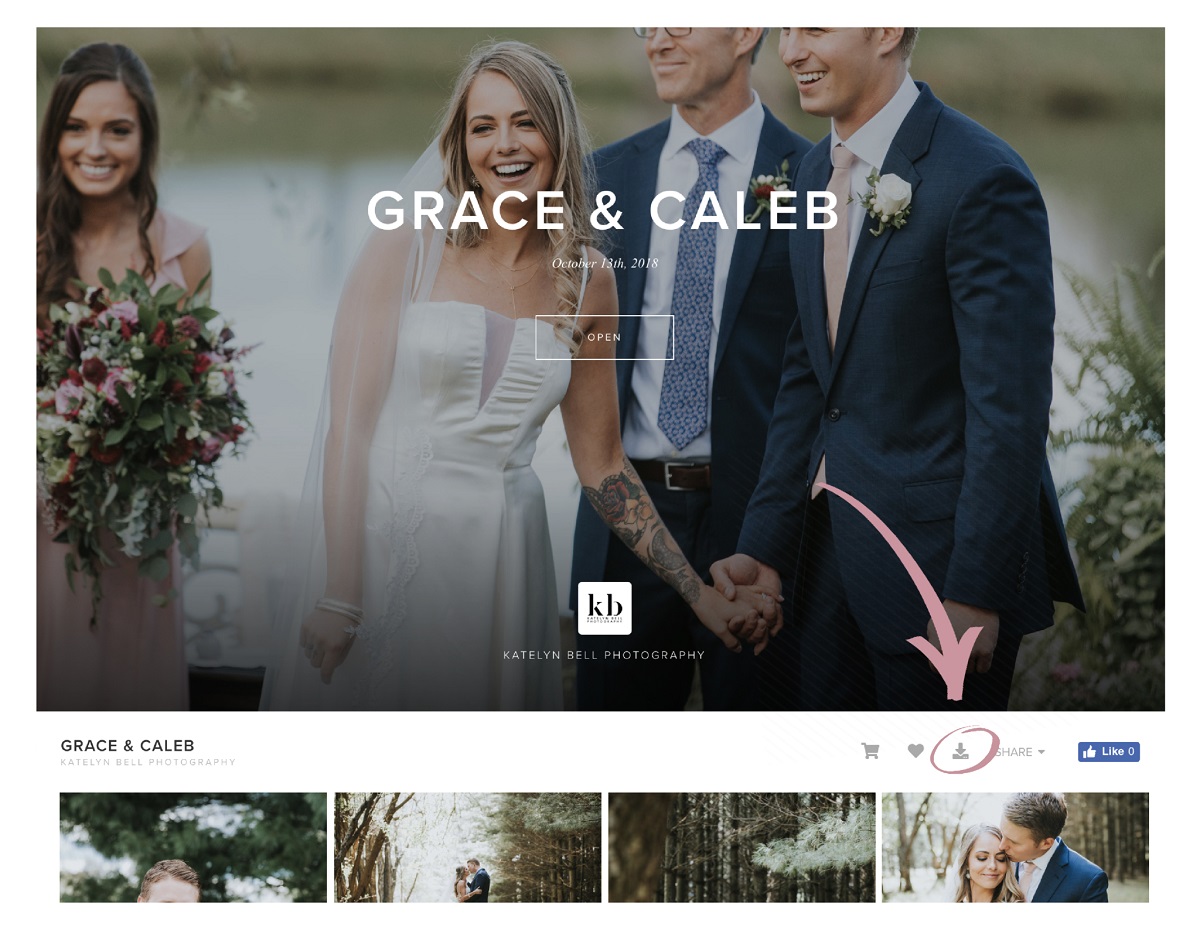
When a photographer shares a Pixieset gallery link with you, you can download photos from Pixieset immediately by clicking that link, no account creation or login is required. The gallery opens in your browser, and you’ll see a download icon in the top right corner; from there, you may be asked to enter your email and a 4-digit PIN if the photographer enabled that option, then you choose your preferred size and whether to grab one image or the whole set.
Most clients land here after a wedding, portrait session, or event, and the process is designed to be self-serve. You don’t need to install any software, and you can download to a computer, phone, or tablet. The exact steps vary slightly depending on whether you want everything at once or just a few favorites, and the photographer’s settings control what you’re allowed to do.
Download the full gallery at once
If you want every photo from the gallery, the fastest route is the full-gallery download. Click the Download icon in the top right corner of the gallery page, it looks like a downward arrow into a tray. A window will appear asking for your email address and, if the photographer set one, a 4-digit Download PIN. Enter both, then click Next.
You’ll then see a screen where you confirm the download size and destination. Choose between Web Size (available in 640px, 1024px, or 2048px on the width, ideal for social media sharing) or High Resolution (3600px on the long edge or Original resolution, which delivers the photo exactly as uploaded without compression or resizing). Original resolution is only available if the photographer’s plan supports it, and if the original file is smaller than the offered resolution, Pixieset delivers it at its actual pixel dimensions; it never upscales or enlarges.
After selecting the size, pick a destination: your computer, Dropbox, or Google Photos. Click Start Download, and Pixieset will prepare a .ZIP file containing all the photos. Depending on the gallery size, this can take a few seconds or several minutes; you’ll get a notification when it’s ready, then the zip file downloads to your chosen location.
Download individual photos you select
Maybe you only want a handful of shots, a favorite portrait, a candid moment, or a specific group photo. For that, hover over the photo you want and click the Download icon that appears on the image itself. This triggers the same email and PIN prompt if the photographer requires it; enter your details and click Sign in.
Next, you’ll see a Download Photo button with a size choice. Pick Web Size or High Resolution based on how you plan to use the image, web size is perfect for texting or posting, while high resolution is better for printing. Click the button, and the single photo downloads immediately to your device. Repeat this for each favorite; there’s no limit on individual downloads unless the photographer set one, and you can mix sizes across different photos.
Download photos on an iPhone or Android device
Mobile downloads work just as well as desktop, with a slightly different interface. To download the full gallery on a phone or tablet, tap the ⋮ (three-dot menu) in the top right corner of the gallery, then tap Download. You’ll go through the same email/PIN step, choose your size and destination (computer, Dropbox, or Google Photos), and tap Start Download, the zip file lands in your device’s downloads folder.
For a single photo on mobile, tap the image to open it full-screen, then tap the Download icon. On iPhones, a new browser window opens with instructions to long-press the photo to save it to your camera roll; on Android devices, the photo downloads immediately to your gallery or downloads folder. The same size options apply, so you can grab a web-size version for quick sharing or a high-resolution file for keeps.
What affects your download options
Your download experience depends entirely on how the photographer configured the gallery. Photographers can enable or disable downloads entirely, set a Download PIN for extra privacy, and track email addresses for every download on a per-collection basis. They can also set limits on the number of free photo downloads per gallery or per client, if you hit that limit, you may need to purchase additional downloads or ask the photographer to raise it.
Resolution availability is another factor. Web Size options (640px, 1024px, 2048px) are standard, but High Resolution at 3600px or Original resolution requires the photographer to be on an upgraded Client Gallery or Suite plan. If the photographer’s plan doesn’t include Original, you’ll only see the web sizes. And as noted, Pixieset never upscales, if a photo was uploaded at 2000px and you select 3600px, you’ll receive the 2000px file instead.
Finally, some photographers add watermarks or logos to web-size downloads, though this is a per-photographer setting, not a Pixieset default. If you see a logo on a preview but not on the high-res version, that’s intentional, check the gallery’s info or ask the photographer if you’re unsure.
After the download: find and back up your photos
Once the download finishes, locate the file on your device. If you downloaded the full gallery, you’ll have a .ZIP file, find it in your browser’s default download folder (usually “Downloads” on a computer, or the Files app on mobile). Double-click or tap the zip to extract its contents; on a computer, you’ll get a folder with all the photos inside, and on mobile, your device’s file manager will unpack it for you. If you need to save an entire collection from a different service, you can also download all photos from Disney memory maker in one batch. Single-photo downloads save directly as image files, so they’re ready to view immediately.
After extraction, back up your photos to avoid losing them. Copy the folder to an external hard drive, a cloud storage service like Google Drive or iCloud, or another device. This protects against data loss from a crashed computer, a lost phone, or accidental deletion. Organize the files into subfolders by event or date if you downloaded multiple galleries, this makes future searching much easier.
Finally, open a few photos to confirm they downloaded correctly and at the quality you selected. Check the file size and resolution in your image viewer; if something looks off, re-download that specific photo. With your photos safely stored and backed up, you can share them, print them, or simply enjoy the memories without worrying about the originals disappearing.
\nRelated reading: How To Download Pictures From Amazon Photos and How To Download Photos From Outlook Email.