To download a Pinterest board, you need to use a third-party browser extension or web tool since Pinterest does not offer a built-in "download all" button. This guide covers the most effective methods for saving all images and videos from a board to your device, from quick bulk downloads to manual alternatives. If you specifically want to save animated backgrounds, you can also download live wallpaper from Pinterest using similar tools.
Why there's no 'download all' button on Pinterest
Pinterest does not offer a built-in "download all" button or feature to download an entire board directly. This is by design, the platform is built for discovery and inspiration, not for bulk file export. To download an entire Pinterest board, users typically rely on third-party browser extensions or desktop applications. These tools fill the gap by enabling bulk downloading of images and videos from a Pinterest board, which is the only practical way to save an entire collection at once.
How to download a Pinterest board with a browser extension
Browser extensions are the most straightforward solution for downloading a Pinterest board as a ZIP file. These extensions are available for Chromium-based browsers like Chrome, Edge, and Brave, as well as Firefox. Examples of such extensions include "Image Downloader," "PinDown," "DownAlbum," "Unpinned," and "Pin Toolbox."
- Install a Pinterest board downloader extension from your browser's official extension store.
- Log in to your Pinterest account at Pinterest.com. Click on your profile picture in the top-right corner of the screen, then select "Saved" from the dropdown menu. Your profile page will display all your boards containing saved pins.
- Open the board you want to download in your browser. Let it fully load so all pins are visible.
- Click the extension icon in your browser toolbar to scan the board. The extension will detect all images and videos on the page.
- Downloaded board content is commonly provided as a single ZIP archive file.
If a Pinterest board has sections, many download tools will preserve this organization by creating separate folders for each section within the ZIP file. To download private or secret Pinterest boards, you typically need to install a browser extension and be logged into your Pinterest account in the same browser session. Some extensions can also export additional pin metadata, such as titles, descriptions, source URLs, and save dates, often in a CSV file. Certain downloaders also offer the option to export a Pinterest board as a printable PDF moodboard.
How to download a Pinterest board using a web tool
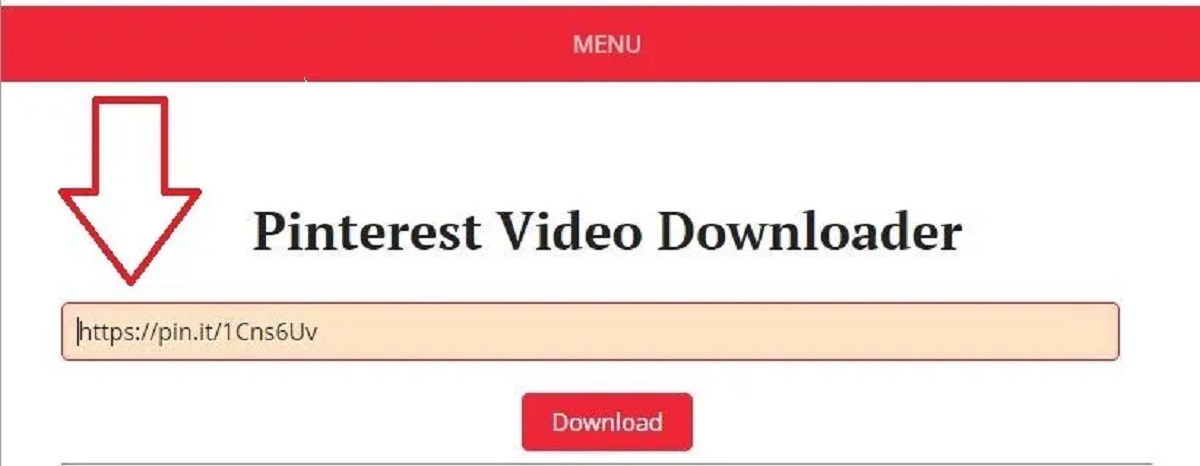
Web-based downloaders offer an alternative that doesn't require installing a browser extension. These tools work by pasting a board URL into a web form.
- Copy the URL of the public Pinterest board you want to download from your browser's address bar.
- Navigate to a reputable Pinterest board downloader website.
- Paste the board URL into the provided input field and start the download process.
- Wait for the tool to process the board. It will scan all pins and prepare them for download.
- Download the resulting ZIP file containing all images and videos in their original or highest available quality from Pinterest.
Most third-party downloaders support public Pinterest boards. Free versions of these tools often have limitations, such as a cap on the number of pins that can be downloaded per day or per board. Paid or "Pro" versions of these tools typically remove download limits, allowing for unlimited pin downloads. Web tools generally cannot access private boards because they cannot authenticate your Pinterest session.
How to manually save individual pins from a board
For users who only need a few specific images, the manual method is the official Pinterest approach. Users can manually download individual pins by opening the pin, clicking the three dots icon, and selecting "Download image." This is the official but slow method of downloading images one by one using the three-dot menu on each pin. It works for any board you can view, including other users' public boards, but is impractical for boards with more than a handful of pins.
What about Pinterest's official data export?
Pinterest does offer an official export of your account data, but it is not designed for downloading a single board. Pinterest's official export flow for account data is an asynchronous batch process. The download link for account data can take up to 48 hours to arrive by email. Pinterest's data export help is useful, but it is not the same as a board-specific archive. This method exports all your account data, including boards, pins, comments, and profile information, in a large, unstructured archive, making it impractical for quickly saving one board's images.
Tips for managing your downloaded Pinterest board files
After downloading, you will typically have a ZIP file. Extract it using your operating system's built-in tools or a utility like 7-Zip. If the board had sections, look for separate folders within the extracted directory, this organization helps maintain the original board structure. Images and videos are generally downloaded in their original or highest available quality from Pinterest, so file sizes may be large. Always respect image copyrights: only download boards for personal use or with proper permission from the board owner, and avoid redistributing or using images commercially without rights. For quick reference, you can also create a PDF of a Pinterest board using your browser's print function (Ctrl+P or Cmd+P) and selecting "Save as PDF" as the destination, though this captures the visual layout rather than the individual files.
\nRelated reading: How To Use Free Download Manager For SteamUnlocked.