If an MMS message won't download on your Android phone, the cause is almost always one of three things: a wrong APN setting, no default messaging app selected, or a corrupted app cache. To download MMS messages on Android, you need to fix the underlying configuration issue first, then manually trigger the download from the conversation screen.
Why your MMS messages won't download on Android
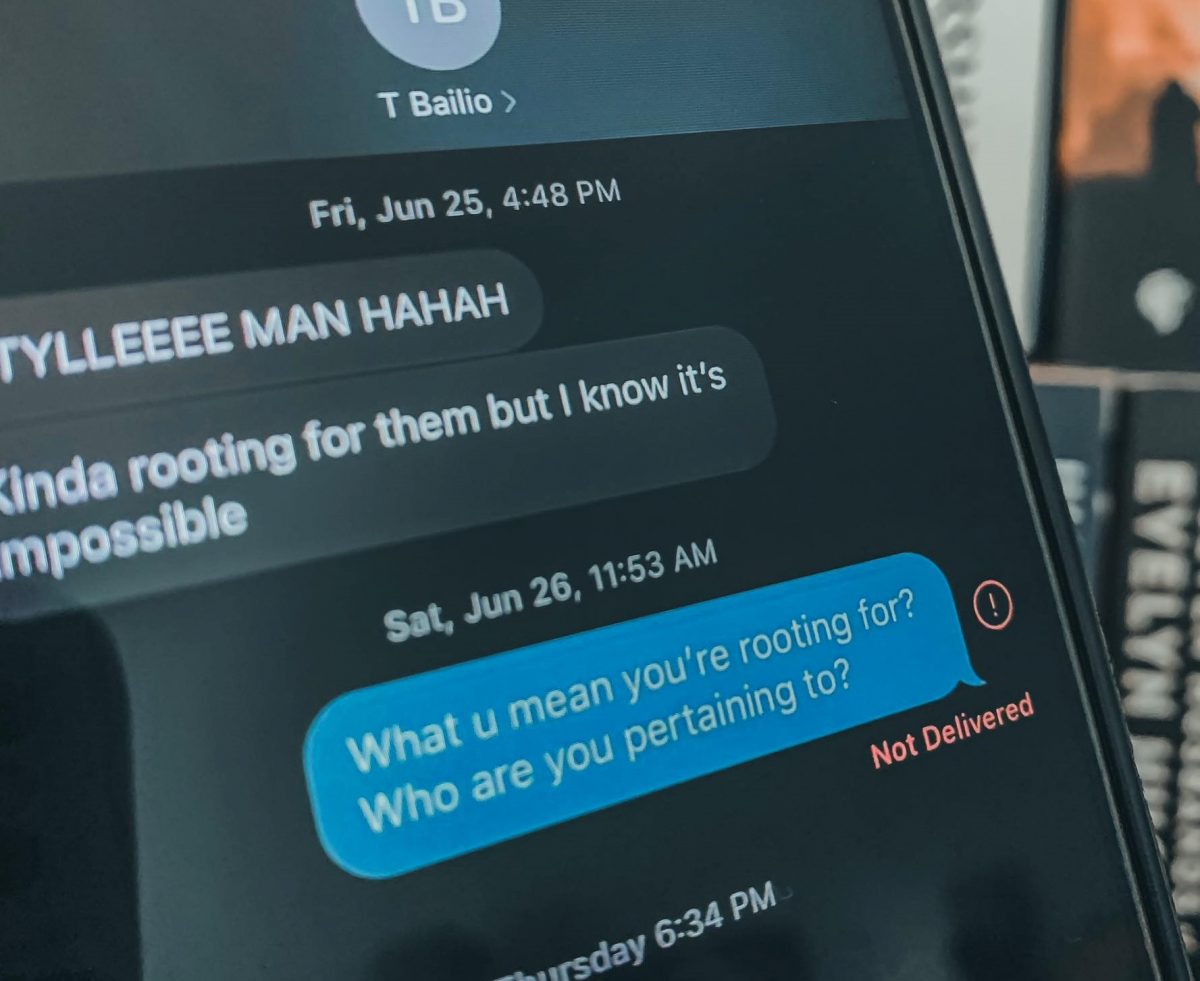
MMS relies on a cellular data connection and the correct Access Point Name (APN) configured by your carrier. When either is missing or misconfigured, the message arrives as a stuck "Download" button or a greyed-out attachment, if you need to troubleshoot that specific symptom, you can get a MMS message to download with a focused walkthrough. A third common culprit is the messaging app itself, if it isn't set as your default, or if its temporary files are corrupted, the download never starts. The fixes below address each of these in order of likelihood, so you can get the photo, video, or audio file without guessing.
Turn off Airplane Mode and enable mobile data
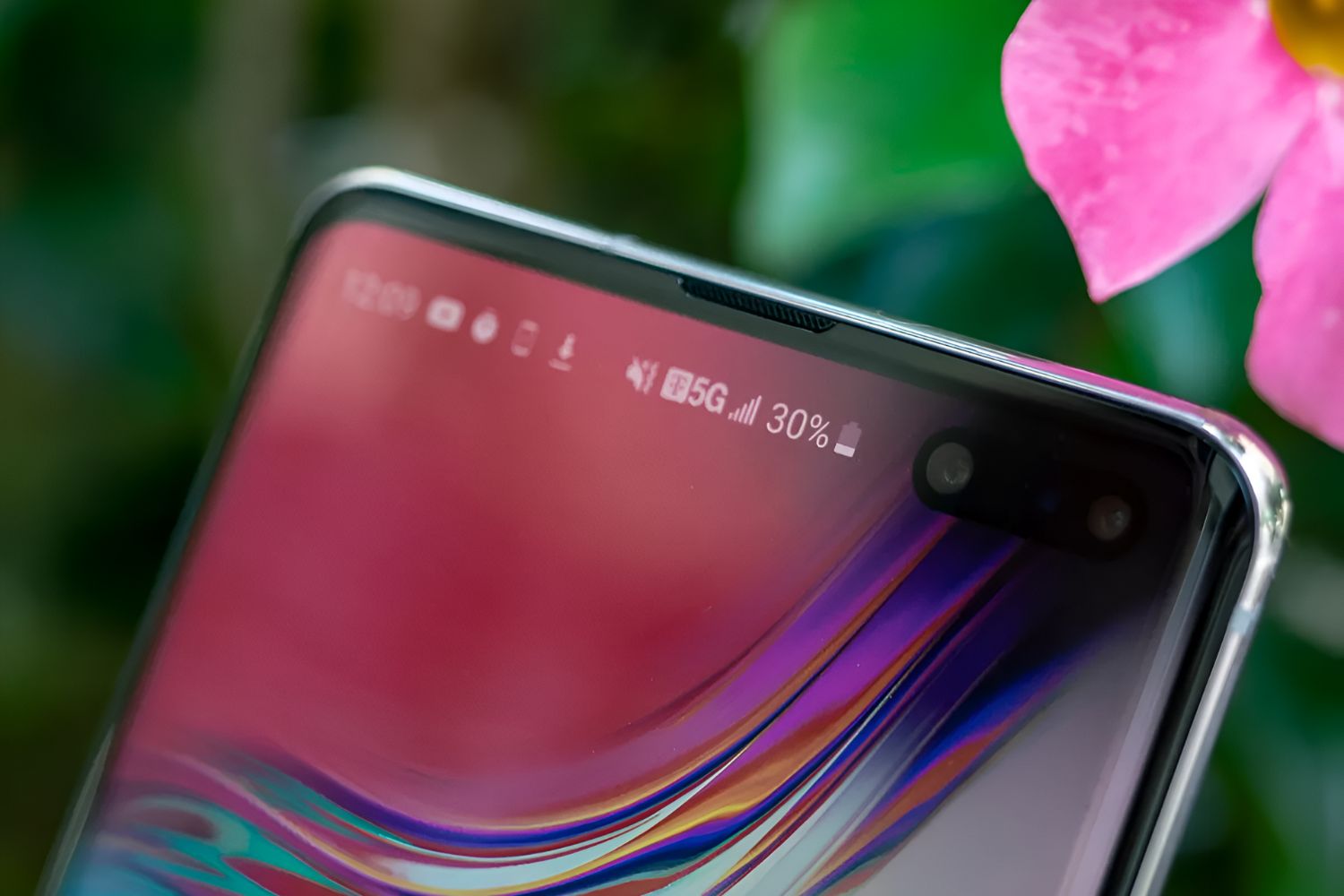
MMS cannot download over Wi-Fi alone; it requires a cellular data connection. Airplane Mode disables all radios, including mobile data, so it’s the first thing to check. Swipe down from the top of your screen and make sure the airplane icon is grey (not blue or orange). Then confirm the mobile data icon is active, it usually shows LTE, 4G, or 5G. If you’ve toggled both correctly but the message still won’t download, move to the next step.
Set your preferred app as the default messaging app
Android will not automatically download MMS in an app that isn’t set as the default SMS/MMS handler. Open your phone’s Settings, tap "Apps" or "Default apps," then select "Default SMS app." Choose the app you actually use, Google Messages, Samsung Messages, or another, and confirm. Once it’s the default, the app has the system permission to receive and download multimedia attachments. If you’ve never set a default, Android may be holding the message in a pending state.
Reset your APN settings to fix MMS downloads
An incorrect or outdated APN is the single most common reason MMS fails to download. Your carrier’s APN tells your phone how to route data and MMS traffic. To reset it, go to Settings > Network & internet > Mobile network > Access Point Names. Tap the three-dot menu in the top-right corner and choose "Reset to default." This restores the carrier-provided configuration. If you’ve manually edited the APN before, this clears those changes. After resetting, toggle mobile data off and on, then try downloading the message again.
Clear your messaging app's cache
Corrupted temporary files in your messaging app can block MMS downloads even when the network and APN are fine. Clearing the cache removes only these temporary files, it does not delete your messages. Go to Settings > Apps > [Your Messaging App] > Storage, then tap "Clear cache." Do not tap "Clear storage" or "Clear data," as that will erase your conversations. After clearing the cache, reopen the app and the stuck message should now show a working download button.
Manually download the MMS message
Once the configuration issues are resolved, you can manually retrieve the multimedia file. Open the conversation containing the stuck message. If you see a "Download" button or a greyed-out attachment icon, tap it. The message will show a progress spinner; wait for it to complete. On some Android versions, you may need to tap and hold the message, then select "Download" from the menu. After it finishes, the photo, video, or audio will appear inline in the conversation and be saved to your device’s storage.
Try a third-party app as a last resort
If your stock messaging app still refuses to download MMS after all the above steps, a third-party app can often bypass the issue. Textra is a reliable alternative that lets you configure MMS settings independently, including a "Force MMS" option and manual APN overrides. Install it from the Play Store, set it as your default SMS app, and open the stuck conversation. Textra will attempt the download with its own connection logic, which frequently succeeds where the default app fails. If it works, you can either stay with Textra or use it just to retrieve the file, then switch back.
\nRelated reading: How To Change Download Settings From Wi-Fi To Mobile Data and How To Download Files From Telegram.


![How to Connect and Use WhatsApp Web [Mac & Windows]](https://robots.net/wp-content/uploads/2020/09/WhatsApp-for-web.jpg)