If an MMS message not downloading is stuck on your phone, the quickest fix is usually enabling auto-download in your messaging app's settings. This article walks through the most common causes and solutions, from simple settings toggles to carrier-side issues.
1. Enable auto-download for your MMS message not downloading
The most common fix is navigating to your messaging app's settings and turning on automatic downloads. This ensures your phone automatically retrieves multimedia messages without you having to tap each one.
2. Turn on mobile data or connect to Wi-Fi
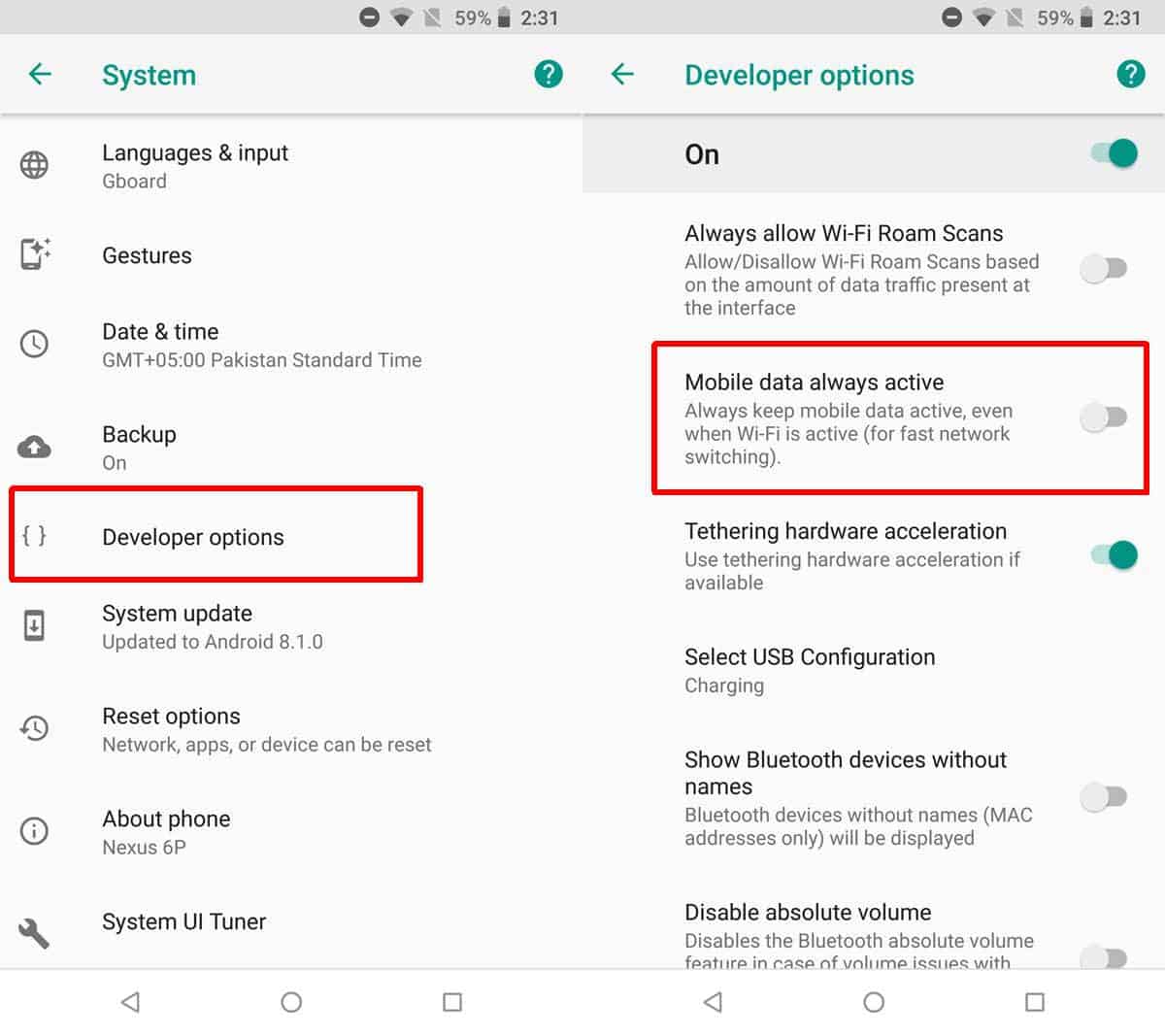
MMS requires an active internet connection, unlike standard text messages. Verify that mobile data is enabled in your phone's settings or that you're connected to a stable Wi-Fi network. Also check for any restrictive data saver settings that might block your messaging app from using data in the background, as these can prevent downloads from starting.
3. Check and reset your APN settings
Incorrect Access Point Name (APN) settings are a common cause for MMS download issues. To check yours, go to "Settings" > "Network & Internet" (or "Connections") > "Mobile Network" > "Access Point Names" (APN). Look for an option to "Reset to default" to restore your carrier's standard configuration. If that doesn't work, you can usually find the correct APN settings on your carrier's website or by contacting customer support to add a new APN manually.
4. Clear the messaging app's cache and data
Clearing the cache and data for your messaging app can fix issues caused by corrupted temporary files. Go to "Settings" > "Apps" > "[Your Messaging App]" > "Storage" > "Clear cache" first. If the problem persists, tap "Clear data" as well (note this may delete unsaved conversations or app settings). Afterward, restart your phone and try downloading the message again.
5. Ensure you have enough storage space
A full phone storage can block MMS downloads because the system has no room to save the media files. Check your available storage in "Settings" > "Storage" and free up space by deleting unnecessary files, old photos, videos, or unused apps. You can also move files to an SD card or cloud storage to create more room for incoming messages.
6. Update your messaging app and phone software
Keep your phone's operating system and messaging app updated to avoid compatibility issues with MMS protocols. Installing the latest versions often resolves bugs that prevent media from downloading.
7. Reset your network settings
Resetting network settings can resolve MMS downloading issues stemming from a corrupt network configuration. On Android, go to "Settings" > "System" > "Reset options" > "Reset Wi-Fi, mobile & Bluetooth" (or a similar option). On iPhone, go to "Settings" > "General" > "Transfer or Reset iPhone" > "Reset" > "Reset Network Settings." Note that this removes saved Wi-Fi passwords and Bluetooth pairings, so you'll need to reconnect to networks afterward.
8. Restart your phone and contact your carrier
If troubleshooting steps don't work, contact your mobile carrier, as the issue might be account-related, such as message blocking or incorrect plan settings. Before that, try a simple device restart to clear temporary files and refresh network connections. If the problem persists, your carrier can check for network-side problems or plan restrictions that prevent MMS from reaching your phone.
\nRelated reading: How To Download Mms Messages On Android, How To Download Files From Telegram, and How To Change Download Settings From Wi-Fi To Mobile Data.


![How to Connect and Use WhatsApp Web [Mac & Windows]](https://robots.net/wp-content/uploads/2020/09/WhatsApp-for-web.jpg)