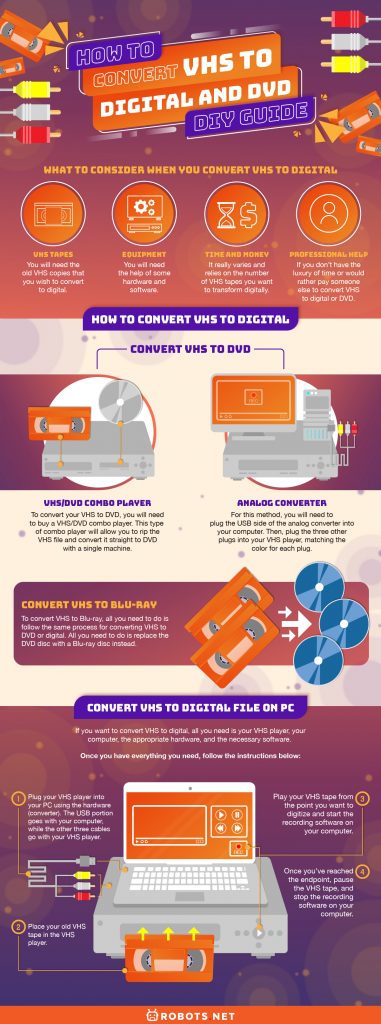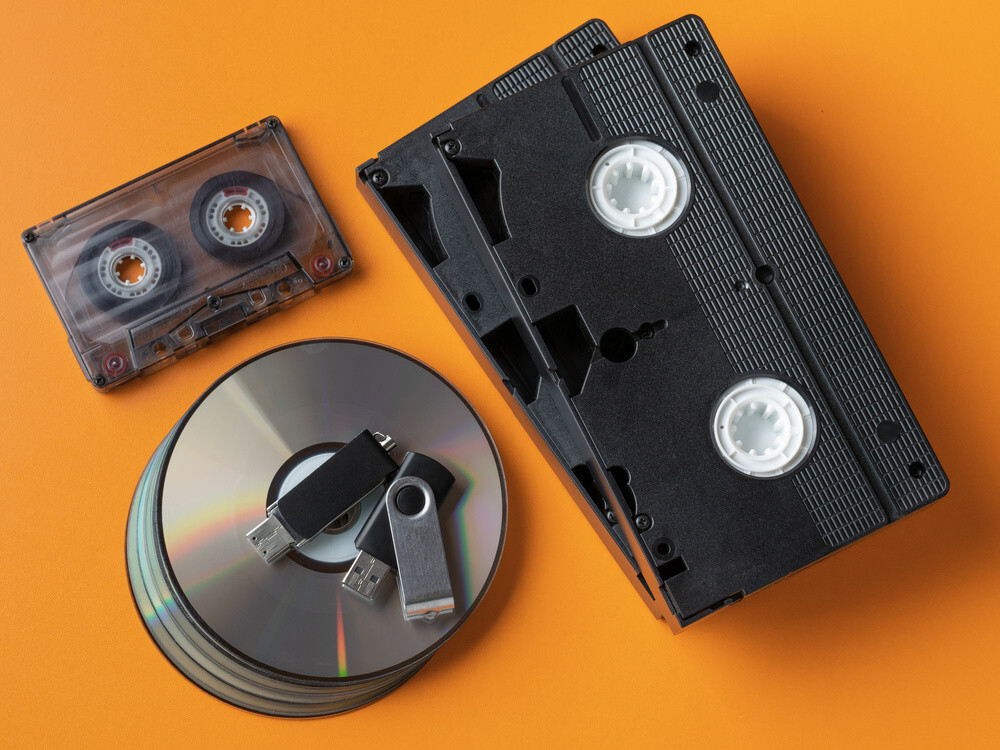
To convert VHS to digital, you need a working VCR, a USB video capture device, and a computer with the right cables and software. This DIY guide walks you through every step to preserve your old home videos before they are lost to time.
What you need to convert VHS to digital
Before you begin, gather this checklist of required equipment: a working VCR, a USB video capture device, RCA or S-Video cables, a computer meeting minimum system requirements, and capture software. For burning to DVD, you will also need a DVD writer drive on your computer and blank recordable DVDs. Your computer should run Windows 7 or newer (or macOS 10.6.8 or later), have at least a 1.6 GHz processor (Intel Core or Apple Silicon), 512 MB to 1 GB RAM, and an available USB 2.0 port. Having everything ready in advance prevents frustrating interruptions during the real-time capture process.
Why you should digitize your VHS tapes now
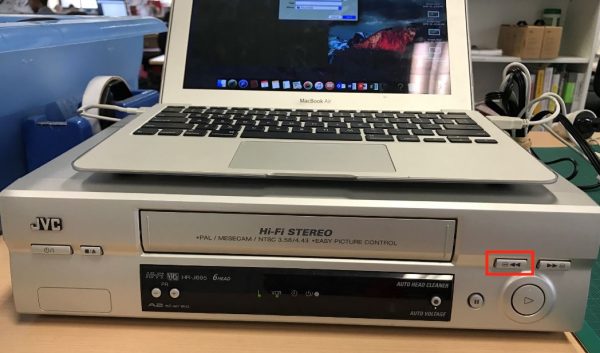
VHS tapes degrade over time, and every playback stresses the tape, so digitizing them sooner is recommended. Magnetic tape is fragile: each pass through the VCR’s playback heads can shed oxide particles, introduce dropouts, or even snap the tape. The longer you wait, the greater the risk that cherished family memories will become unplayable. Acting now ensures you capture the best possible quality before deterioration worsens.
How to connect your VCR to your computer
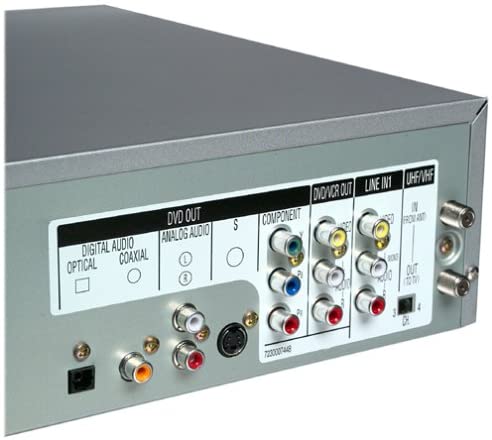
Connecting your VCR to your computer is straightforward. First, connect the VCR's video and audio output ports (typically yellow for composite video, red and white for stereo audio RCA cables) to the corresponding input ports on your USB video capture device. If your VCR supports it, use an S-Video cable for video connection instead of the yellow RCA composite cable, as S-Video provides higher quality. Then, plug the USB end of the video capture device into an available USB 2.0 port on your computer. This direct connection allows the capture device to receive the analog signal and convert it into a digital stream your computer can process.
How to install and set up the capture software
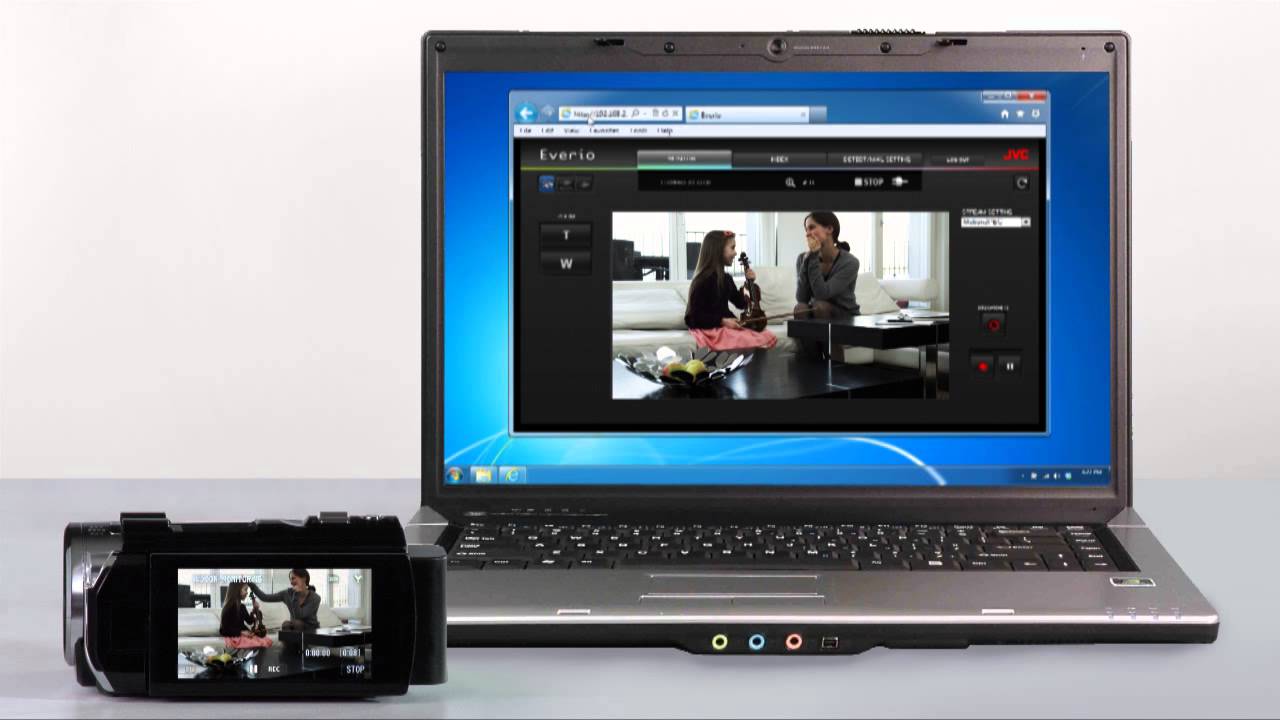
With the hardware connected, install the video capture software that comes with your device (e.g., Elgato Video Capture, Roxio Easy VHS to DVD, NCH Golden Videos for ClearClick). After installation, launch the software and locate the settings or preferences menu. In the capture software, select your USB capture device as the video and audio input source. This critical step tells the software where to receive the incoming signal; skipping it will result in no video or audio being recorded. Most programs will display a live preview once the correct source is selected, confirming the connection is working.
How to capture and save your digital video file
Now for the real-time recording process. Insert your VHS tape into the VCR and cue it to the point just before the content you want to capture. Start playing the VHS tape on your VCR and simultaneously click the "Record" or "Start Recording" button in your capture software. The video capture process occurs in real-time, meaning a two-hour VHS tape will take two hours to digitize. Once the tape ends or you reach your desired stopping point, stop the recording and save the file to your chosen destination folder. Common mistakes include using dirty VCR equipment, which can damage tapes or result in low-quality video, and choosing incorrect resolution or compression settings. Clean your VCR’s heads beforehand and select standard settings like 720x480 or 640x480 for best results.
How to burn your digital file to a DVD
If you want a physical DVD copy, you need additional steps. Use DVD authoring software (often included with capture kits like Roxio MyDVD or NCH Golden Videos) to create menus and chapters, then select "Create DVDs" or "Burn DVD" and insert a blank disc. First, import your saved digital video file into the authoring program. You can add a simple menu with titles and chapter points for easier navigation. When ready, insert a blank recordable DVD into your computer’s DVD writer drive and follow the software’s prompts to burn the disc. The result is a playable DVD that works in most standard DVD players.
When to seek professional VHS conversion services
For those without the time or equipment, retail services like Walmart or Costco offer an alternative. These stores typically use a third-party service (such as YesVideo) to handle the conversion for you. Simply drop off your tapes and pay a fee; the service returns digital files or DVDs. While this option costs more and gives you less control over quality settings, it removes the need to purchase hardware or learn the software. Consider it a secondary option to the main DIY guide if you have only a few tapes or lack a compatible computer. However, prices for VHS conversion have been increasing over time, so if you can manage the DIY route, you will save money and retain full control of your precious memories.