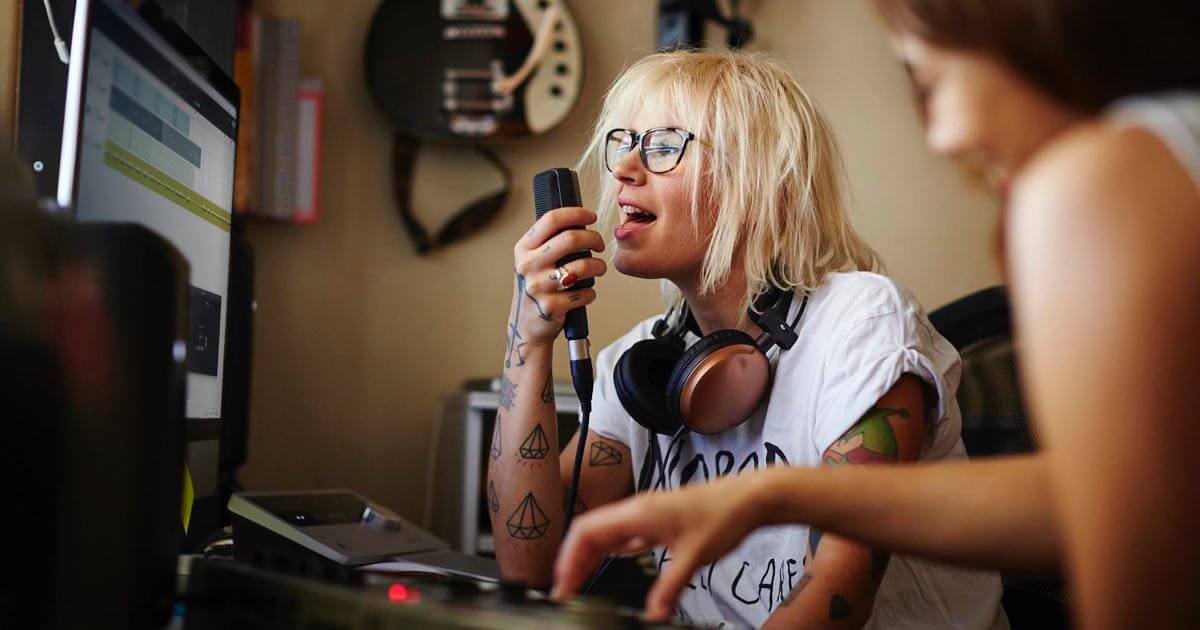
If your USB microphone is not working in BandLab, the two most likely causes are that the mic isn't selected as the input device in BandLab Studio, or the app lacks microphone permissions in your device's system settings.
Check system microphone permissions first
Before BandLab can use your microphone, your operating system must grant it permission. This is a common oversight that blocks audio input entirely.
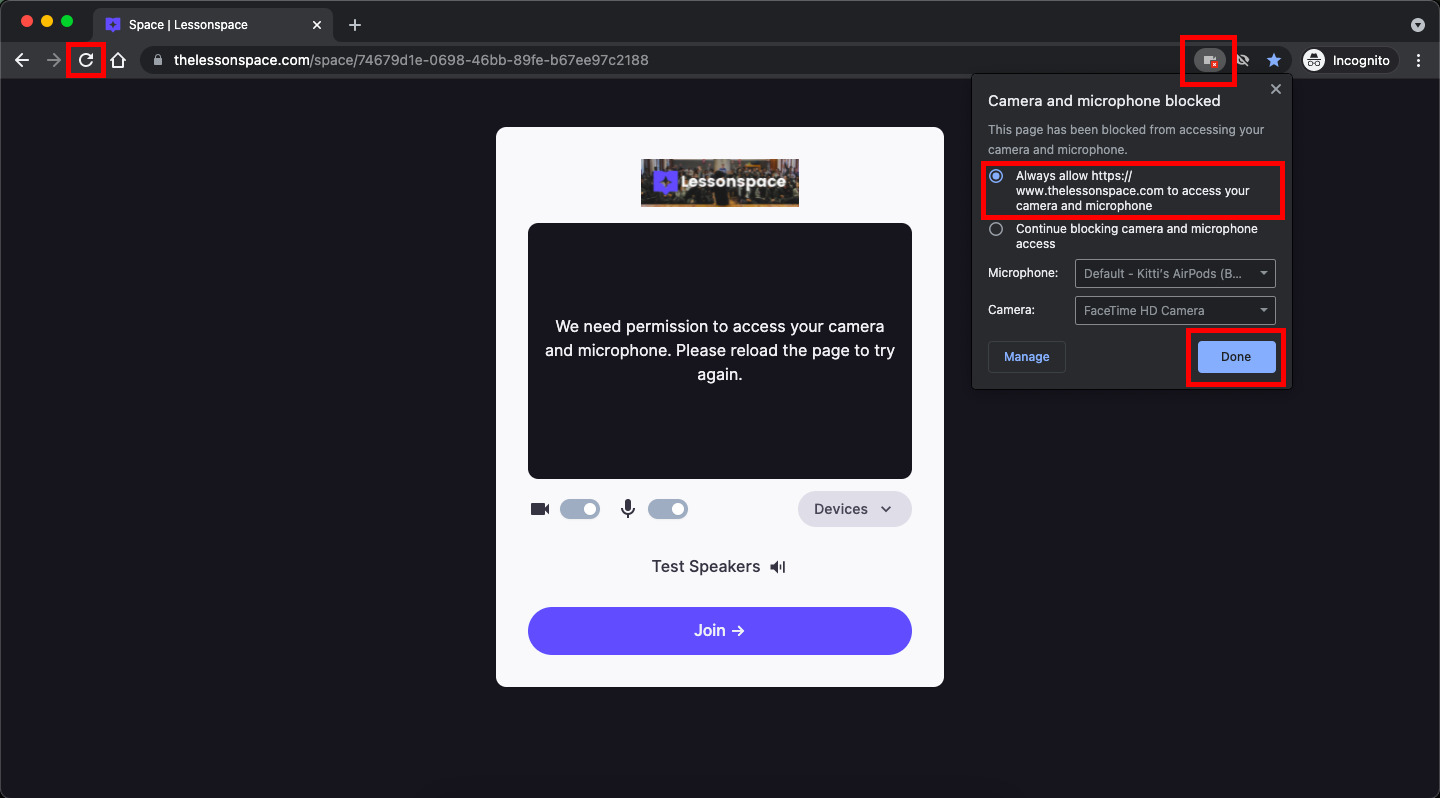
On iOS, open your iPhone or iPad Settings, tap Privacy & Security, then Microphone, and ensure BandLab is toggled ON. For Android, go to System Settings, tap Apps, find BandLab, select Permissions, then Microphone, and set it to Allow only while using the app. If you are using BandLab in a web browser (Google Chrome recommended), click the Lock or Slider Icon next to the URL in the address bar and ensure Microphone is toggled to Allow. You should also navigate to Chrome's Site Settings, then Privacy and Security, then USB devices, and set it to Ask to allow BandLab to access USB devices. If your mic still isn't detected, you can verify it works independently using a dedicated DAW, here’s how to record with a USB microphone in reaper.
Select your USB mic as the input device in BandLab
Even with system permissions granted, BandLab needs to know which microphone to use. In BandLab Studio, add a Voice/Audio, Guitar, or Bass track, then select your USB microphone as the Input Device in the Studio Settings. For iOS devices, open the Studio, tap Settings, and select your device under Input Device. A key distinction: for Android devices, BandLab Studio follows your device's main sound settings, and direct input device selection within the BandLab app is not available.
Verify the physical connection and power supply
A loose or faulty cable is a frequent culprit. Verify that your USB microphone is properly connected to your device via the correct USB-C or Lightning/USB-C cable, as some cables may not transfer data or provide sufficient power. Try a different USB port, clean the port gently with compressed air, and if using a mobile device, an external powered USB hub might be necessary if the device's power draw is insufficient.
Confirm your operating system recognizes the mic
Your computer must see the microphone before BandLab can. On desktop (PC), right-click the Speaker Icon in the taskbar, go to Sound settings, and under Input, select your USB microphone. On desktop (Mac), navigate to System Settings, Sound, then Input and select your microphone. Check if your USB microphone is recognized by your operating system's sound settings before opening BandLab.
Test the microphone in another app
To isolate the problem, test your USB microphone with another application (e.g., Voice Recorder on Android, Voice Memos on iOS, or a different recording software on desktop) to confirm it functions outside of BandLab. If it works elsewhere, the issue is within BandLab's settings. If it doesn't work anywhere, the microphone or its connection is likely faulty, and you may need to fix Logitech g pro x mic not working by checking its hardware permissions and drivers.
Fix driver, firmware, and sample rate conflicts
Software-level conflicts can prevent detection. Update your USB microphone's firmware if available. Verify that your USB microphone is Class Compliant and compatible with your operating system (iOS/Android) by checking the manufacturer's specifications. If experiencing crashes on Windows when opening the BandLab studio, change your system's sample rate to 44.1 kHz.
Check channel support and input levels
BandLab Web only supports up to 2 channels per track (Channel 1, Channel 2, Channel 1 + 2) for input. Ensure the input gain and levels are properly set on your USB microphone or audio interface, and check that input levels are within a healthy range in BandLab. A low gain setting can make it seem like the microphone isn't working when it actually is.
\nRelated reading: Logitech G HUB Print Screen Mapping Not Working After Update.