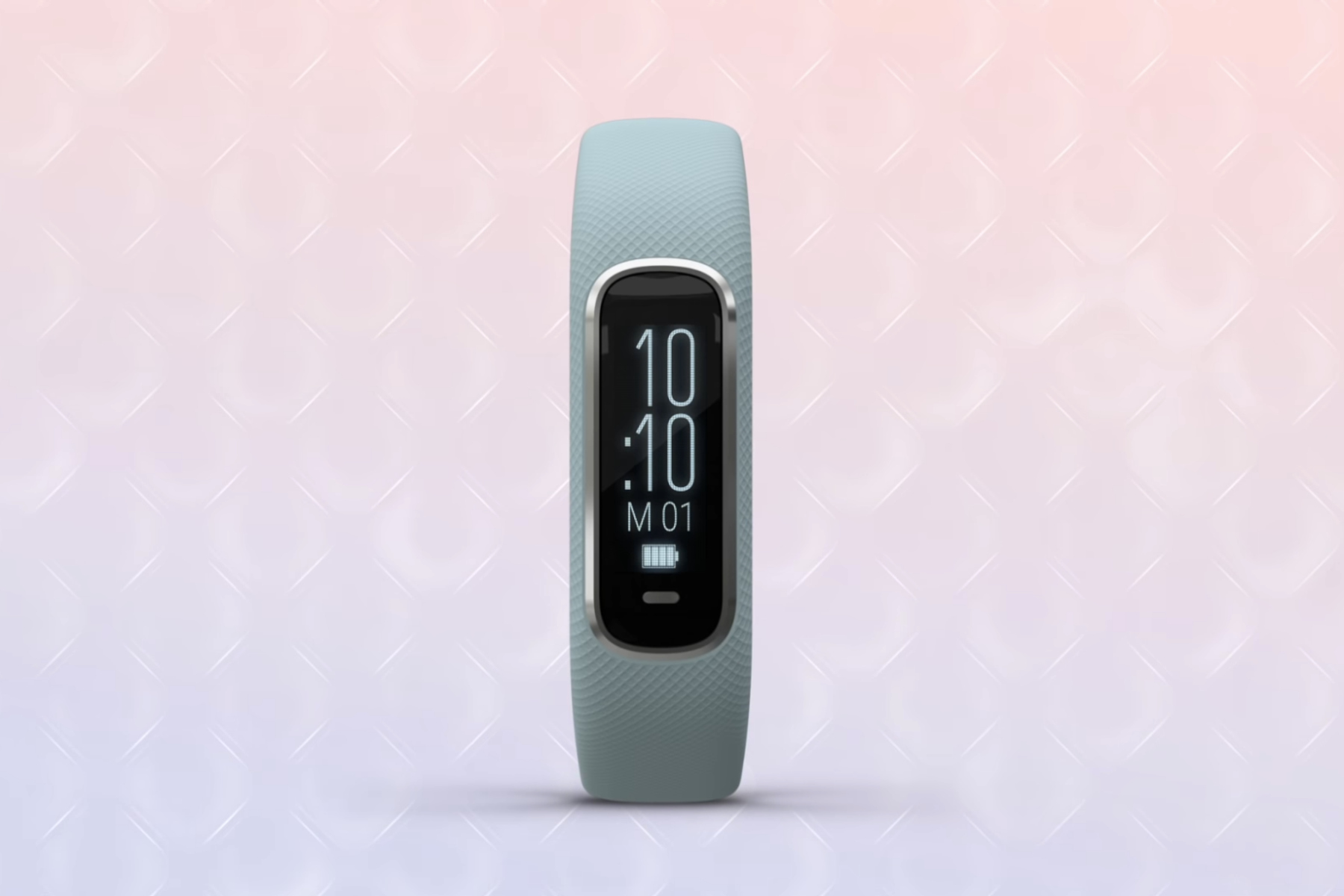
Fitbit does not have a built-in automatic water reminder feature, so if you want a true "Fitbit water reminder" that nudges you to drink, you will need to either log water manually in the Fitbit app or set up a third-party phone app that sends notifications to your wrist. The good news is that both approaches work, and this guide shows you exactly how to get hydration alerts on your Fitbit device, plus how to track your progress once you do. Before you can receive any third-party notifications, you must complete setting up your wallet in Fitbit to ensure your device has the proper app permissions enabled.
Does Fitbit have a water reminder?
No, Fitbit does not include a native automatic hydration reminder. Official documentation for models like the Inspire 2 and Charge 5 mentions "Reminders to Move" for hourly activity goals, but it does not list a built-in hydration reminder feature. The only water-related feature on some devices is called "Water Lock," and that is not a reminder, it is designed to prevent accidental screen taps during swimming or showering. So if you are looking for a prompt to drink water, you must either log water manually (which gives you a visual record but no alert) or use a third-party app on your phone that can mirror notifications to your Fitbit.
How to log water manually on your Fitbit app
Manual logging is the simplest built-in method, and it is useful because it creates a hydration history you can review later. Here is how to do it:
- Open the Fitbit app on your smartphone or tablet.
- On the main dashboard, scroll down until you find the "Water" tile, which shows a water droplet icon and your current water intake.
- Tap the tile, then tap the '+' button to add a serving of water. The app will ask you to confirm the amount in ounces.
- Enter your target daily ounces and save.
Once you set a goal, the Water tile will show your progress toward it each day. This manual method is ideal if you prefer to track without any notifications, but it does require you to remember to log every glass you drink.
How to get automatic hydration alerts with third-party apps
If you want actual alerts on your wrist, you will need to install a third-party hydration reminder app on your phone. Many such apps exist for both Android and iOS, and they work by sending a notification to your phone, which then gets mirrored to your Fitbit device. To set this up, follow these steps:
- Install a hydration reminder app of your choice from your phone's app store.
- Open the app and set your desired reminder intervals, such as every hour or every two hours.
- On your phone, go to the settings for notifications and ensure that notifications from the hydration app are allowed.
- On your Fitbit device, make sure that app notifications are enabled. You can do this through the Fitbit app under the device settings, usually in the "Notifications" section.
- Test the setup by triggering a reminder in the hydration app and checking that your Fitbit vibrates or shows the alert.
Before relying on this method, be aware of two limitations. First, notifications, including those from third-party apps, are generally turned off while your Fitbit is in sleep mode, so you will not get hydration alerts overnight. Second, the availability and functionality of notifications can vary depending on your Fitbit model and the mobile device you use, so what works on one setup may not work on another. If you run into issues, it is worth troubleshooting why your Fitbit does not vibrate when you get a message, since the same notification path is used for hydration alerts.
Also, keep in mind that third-party hydration apps do not sync their logged water back to the Fitbit app. You will see the reminder on your wrist, but the actual water intake data will remain in the third-party app unless you manually log it in Fitbit as well. This is a minor inconvenience, but it does not stop the reminders from working.
Checking your hydration stats and history
Whether you log manually or rely on third-party alerts, the Fitbit app gives you a clear picture of your hydration over time. To review your stats, open the Fitbit app and tap the Water tile. You will see today's total ounces, plus a graph showing your daily intake for the past week or month, depending on the app version. This graph lets you spot patterns, for example, you might notice you drink less in the afternoon or more on workout days. You can also compare your daily totals against the goal you set, which helps you decide whether to adjust your target or change your reminder frequency.
To dive deeper, tap on the graph to see a detailed breakdown by day. The app may also show average daily intake over a selected period, giving you a broader view of your hydration habits. If you are using a third-party app for reminders, remember that its history is separate, so you may need to check two places to get the full picture. For most people, the manual log in Fitbit is the more reliable record, since it is tied to the same app that tracks your steps, sleep, and other wellness metrics.
One final tip: if your Fitbit device supports it, you can also use the "Reminders to Move" feature as a rough hydration cue. While it is designed for activity, you can set it to go off hourly and use that vibration as a prompt to drink water. It is not a dedicated water reminder, but it is a built-in workaround that requires no third-party apps. Just remember that it is not tied to your water log, so you will still need to manually record your intake if you want accurate stats.
For the wider topic, see Fitbit setup and syncing.