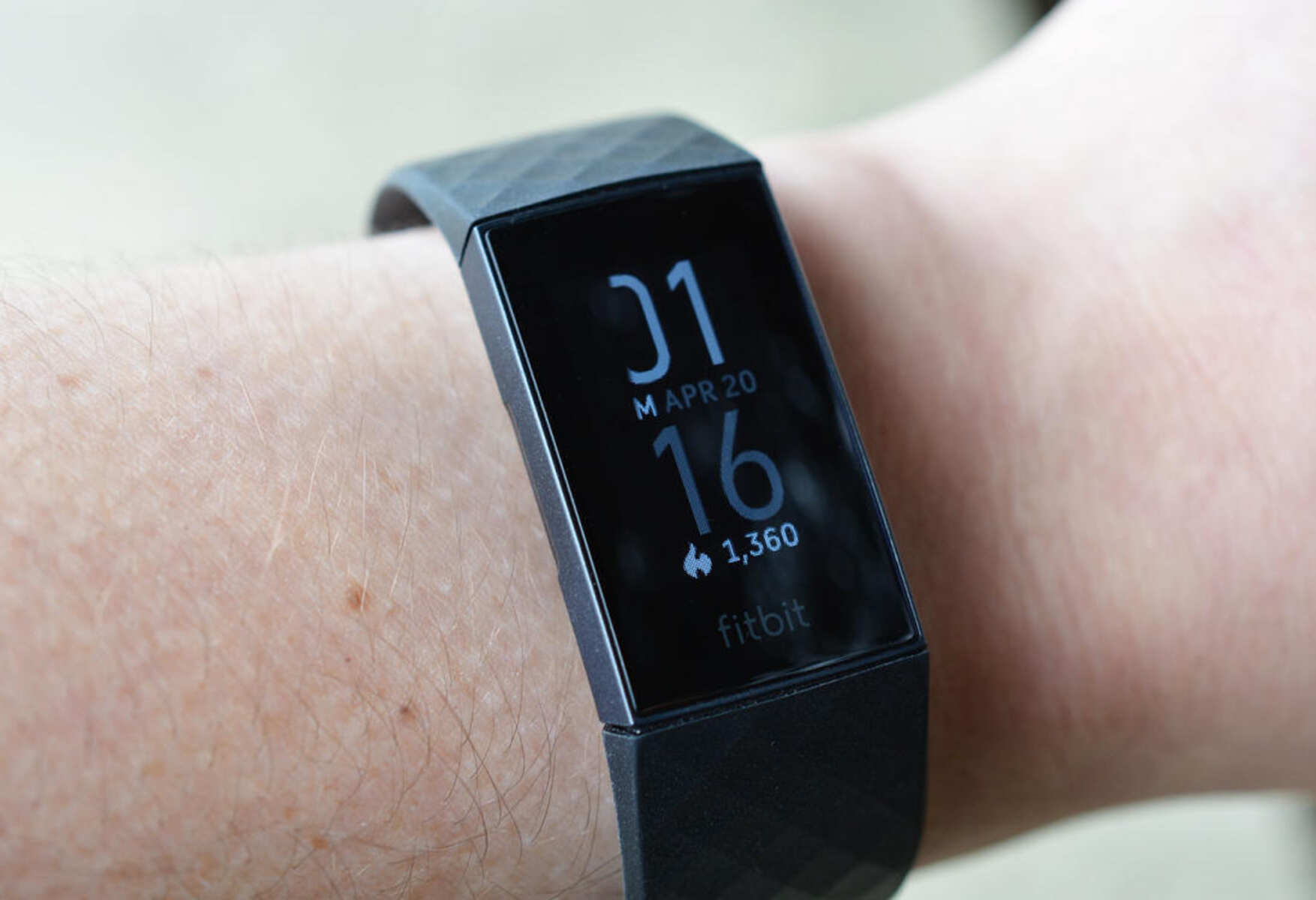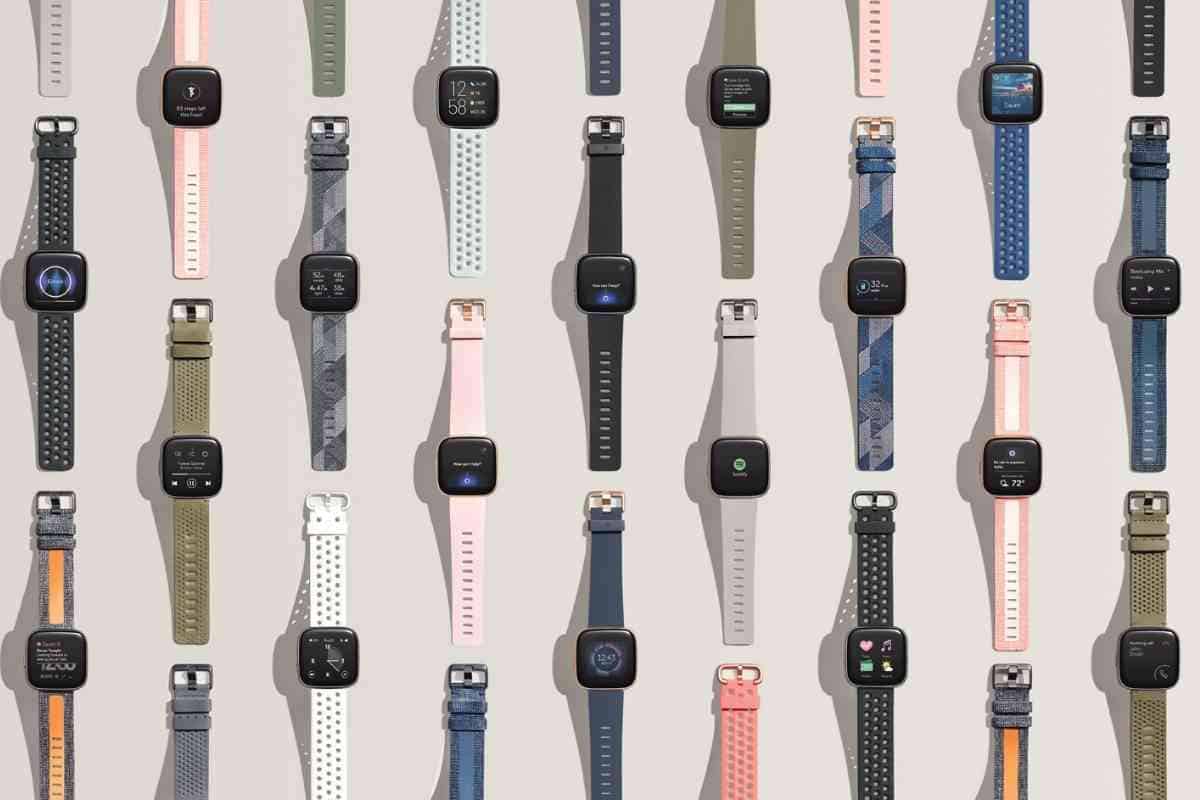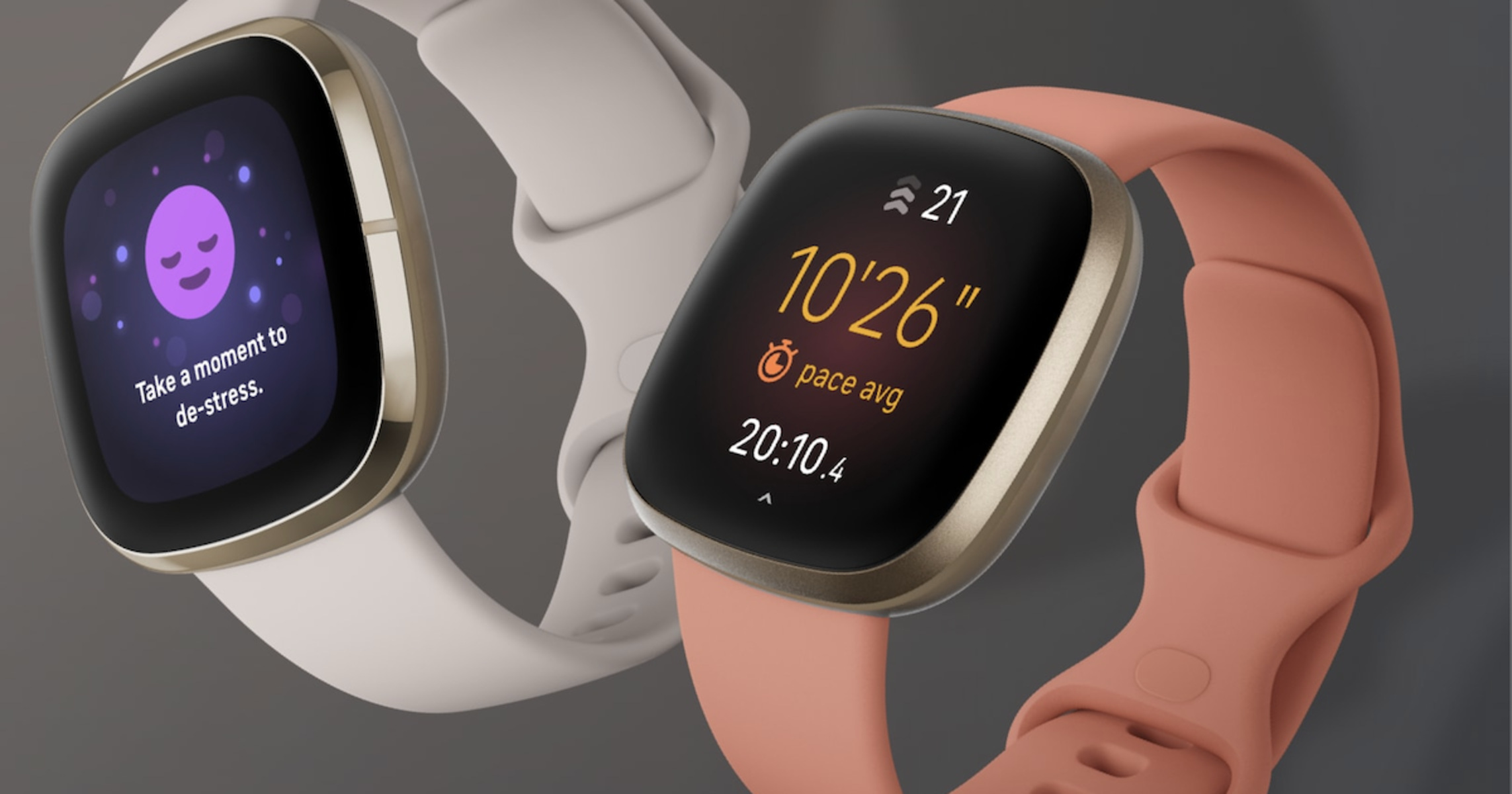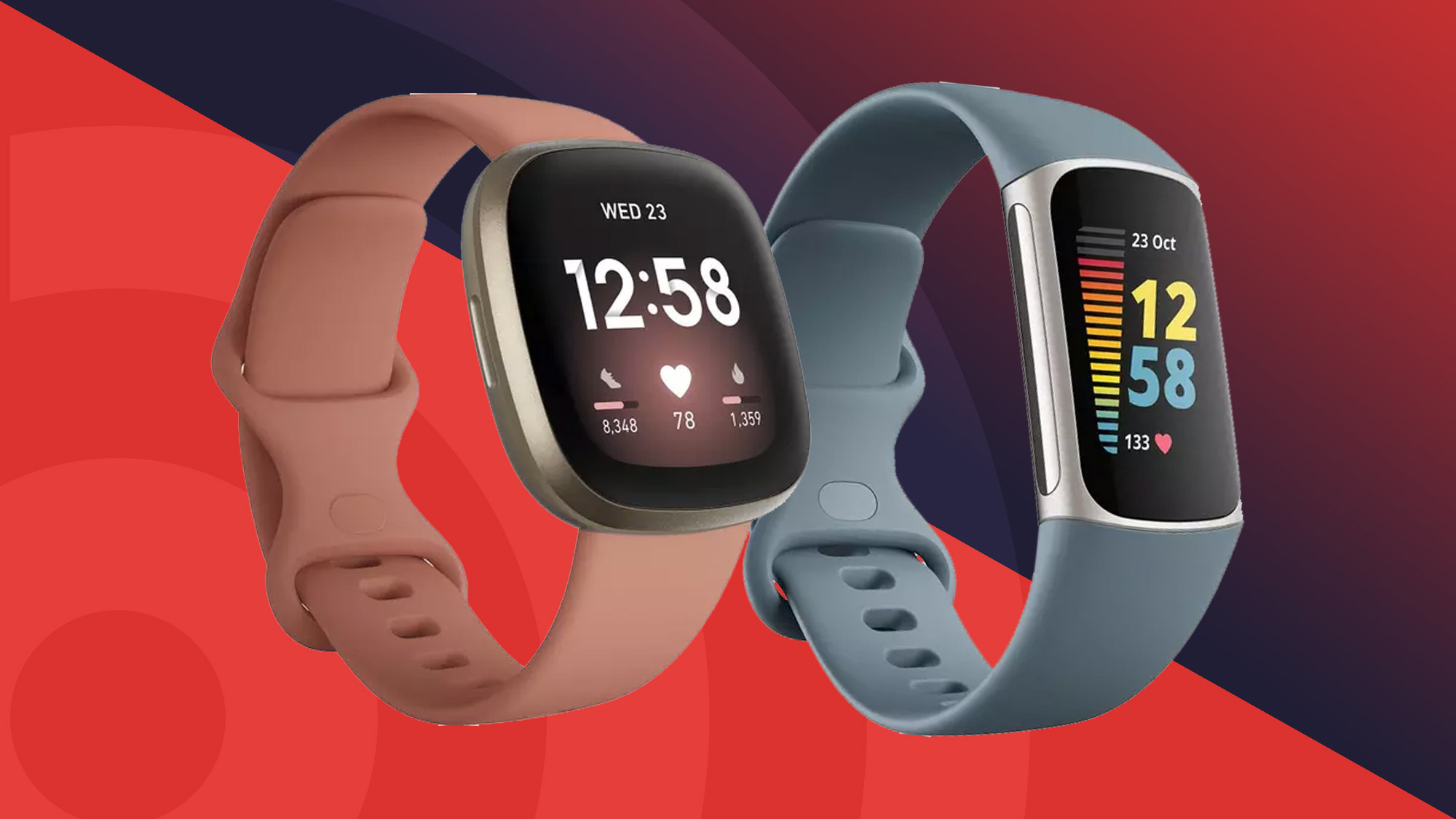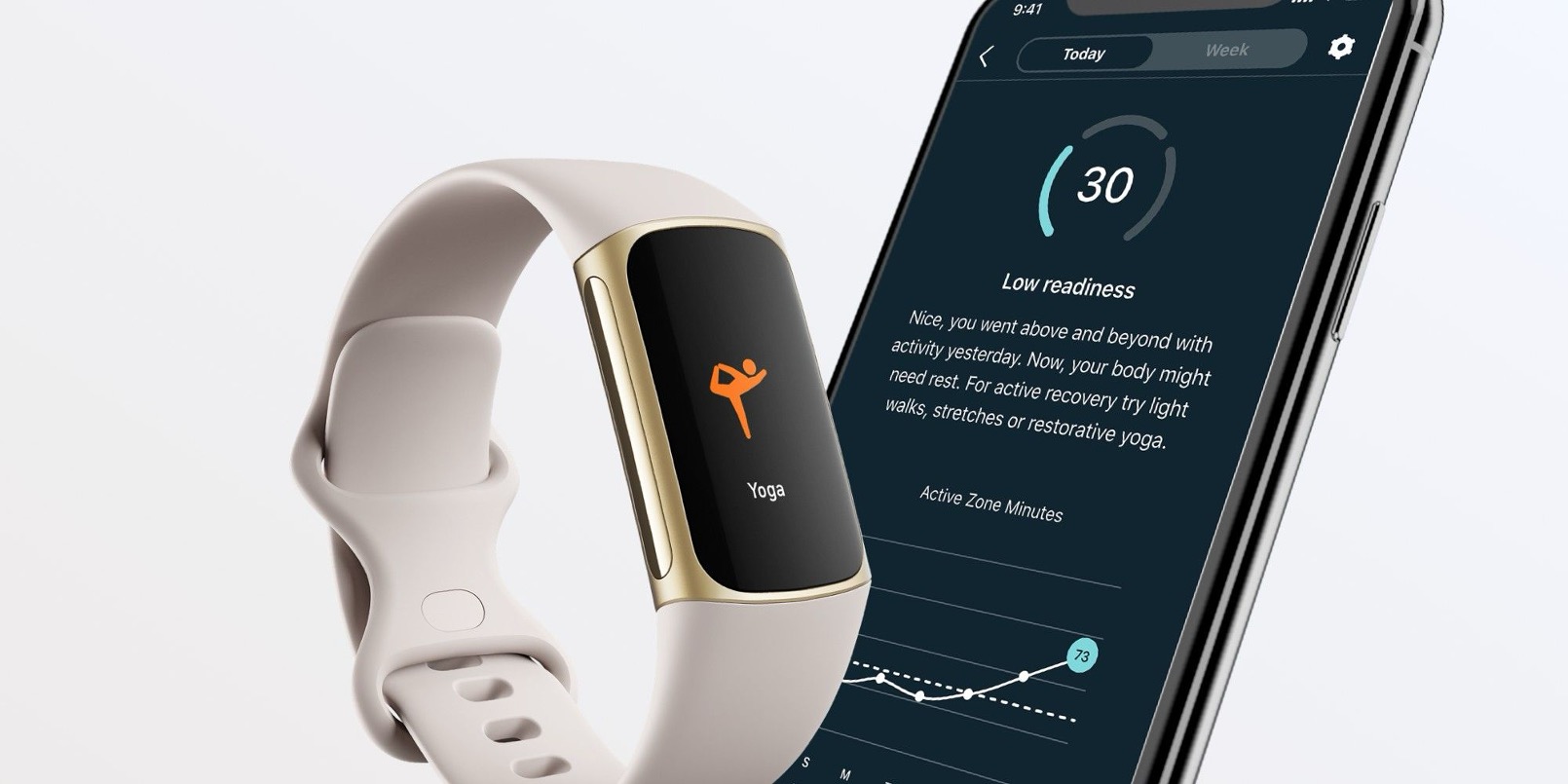
To make your Fitbit vibrate, you set silent alarms, enable notifications, and turn on reminders, all of which use the built-in vibration motor to alert you without sound. These features only work after pairing your Fitbit with your phone, so complete that setup first. Whether you need a wake-up nudge, a message alert, or a prompt to move, your Fitbit’s vibration is the quiet, reliable way to stay on schedule.
How to make your Fitbit vibrate for silent alarms
Silent alarms are the most direct way to make your Fitbit vibrate on command. These alarms use vibration only, no sound, so they’re ideal for waking up without disturbing others or for discreet reminders throughout the day. On Fitbit Sense, Versa, and Charge models, you can set an alarm directly on the device.
- Open the Alarms app on your Fitbit (look for the alarm clock icon).
- Tap “+ New Alarm” or the plus sign.
- Set the time using the on-screen controls.
- Choose repeat days if you want the alarm to recur (e.g., weekdays only).
- Save the alarm. Your Fitbit will vibrate at the set time.
You can also set a silent alarm from the Fitbit app on your phone. Open the app, tap the device icon at the top, then select “Silent Alarms.” From there, tap “+” to add a new alarm, set the time, and choose which days it repeats. The alarm will sync to your Fitbit automatically, so make sure your device is within range of your phone during Fitbit setup and syncing.
Making your Fitbit vibrate for notifications
Your Fitbit vibrates for calls, texts, and app alerts when notifications are enabled. This is the most common way people use vibration, to stay connected without checking their phone constantly. If you’re not feeling the buzz, the issue is usually in the notification settings.
- Open the Fitbit app on your phone.
- Select “Notifications.”
- Toggle on the types of alerts you want: calls, texts, calendar, and app notifications.
- Ensure your phone’s Bluetooth is on and your Fitbit is nearby.
Once enabled, your Fitbit will vibrate for each incoming alert. If you miss a notification, check the notification center on your watch by swiping down from the clock face. For persistent issues, the problem may be with your phone’s own notification settings, not your Fitbit. If you need help troubleshooting why your Fitbit does not vibrate when you get a message, start by confirming your phone allows Fitbit to access notifications, then re-sync the device.
Using vibration for reminders to move
Fitbit’s “Reminders to Move” feature uses vibration to prompt you to take at least 250 steps per hour. This is a gentle nudge to break up long periods of sitting, and it vibrates about 10 minutes before the hour if you haven’t hit your step target. It’s a great way to stay active without setting manual alarms.
- Open the Fitbit app on your phone.
- Select “Reminders to Move” (or “Movement Remind” on some models).
- Toggle the feature on, then set the start and end times for when you want reminders.
- Choose the days of the week you want reminders active.
- Save your changes.
If you find the hourly vibration too frequent or distracting, you can customize the schedule or disable the feature entirely by toggling it off in the same menu. The vibration strength is fixed, but the timing is fully under your control.
Managing do not disturb and sleep mode
Do Not Disturb (DND) and Sleep Mode are designed to silence vibrations during quiet times, but they can be configured so critical alarms still break through. However, alarms you set manually will still vibrate even when DND or Sleep Mode is active.
To use DND effectively, swipe down from the clock face on your Fitbit and tap the moon icon to toggle it on. This silences calls, texts, and app alerts. But your silent alarms will still go off, so you can sleep without message buzzes while still waking up on time. Sleep Mode works similarly but also dims the display, making it ideal for overnight wear.
If you want to ensure a specific alarm always vibrates, set it as a silent alarm (not a notification-based one). Notifications are silenced by DND, but alarms are not. This means your morning wake-up call will always come through, even if you’ve enabled DND before bed.
Quick tips for effective Fitbit vibrations
To get the most out of your Fitbit’s vibration, wear the band snugly against your wrist, not too tight, but not loose enough to slide around. A secure fit ensures the motor’s pulses transfer directly to your skin. If you’re in a noisy environment or moving a lot, check that your device is on the inside of your wrist for better contact.
If vibrations feel weak or absent, first confirm that the vibration motor is working by setting a test alarm. If it doesn’t buzz, restart your Fitbit by plugging it into the charger and pressing the button on the charging cable. Also, keep your device updated, as firmware updates can improve vibration performance. Finally, remember that some Fitbit models have a single vibration motor, so intensity isn’t adjustable, but you can compensate by ensuring the band is snug and the device is clean where it touches your skin.