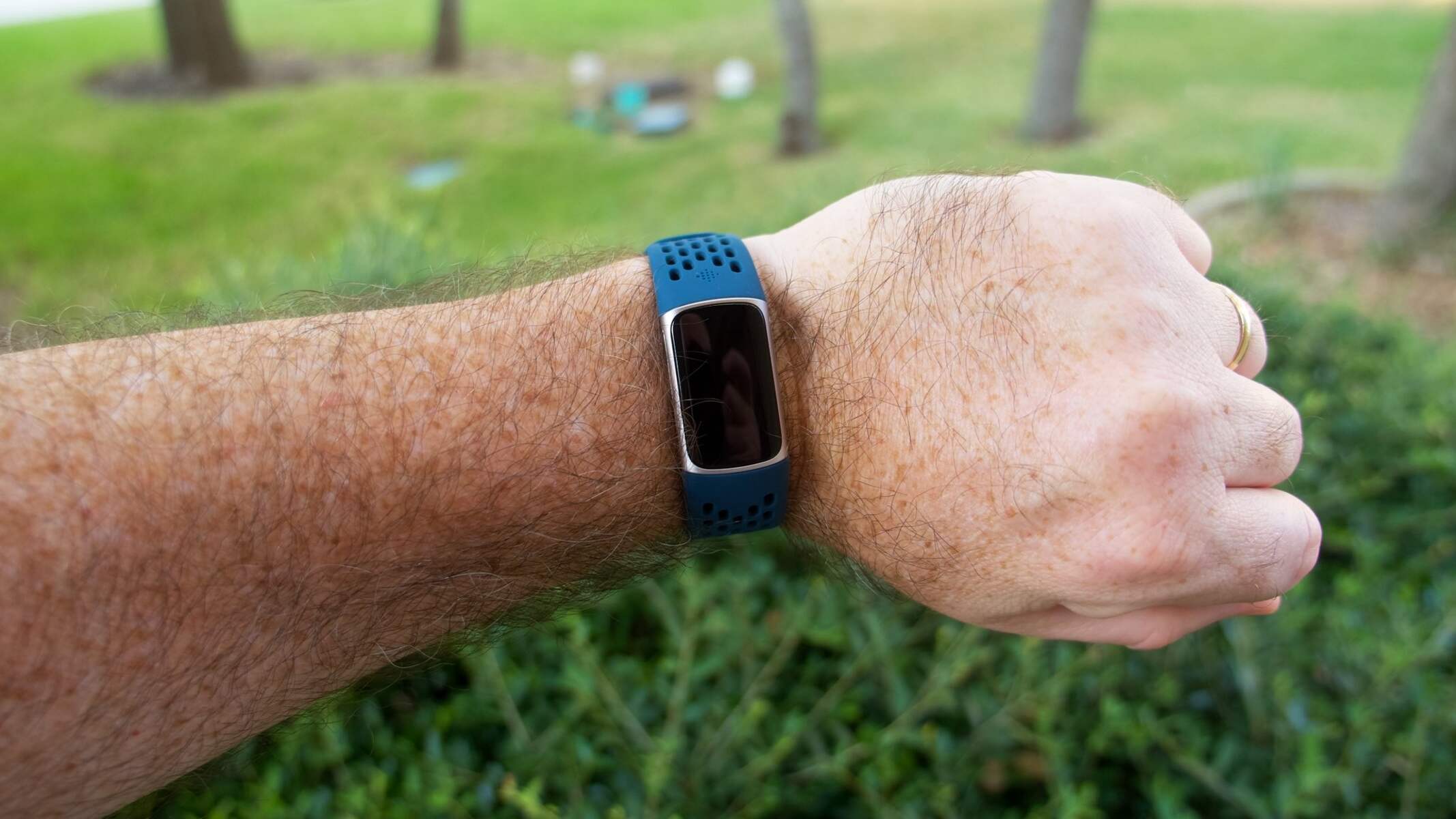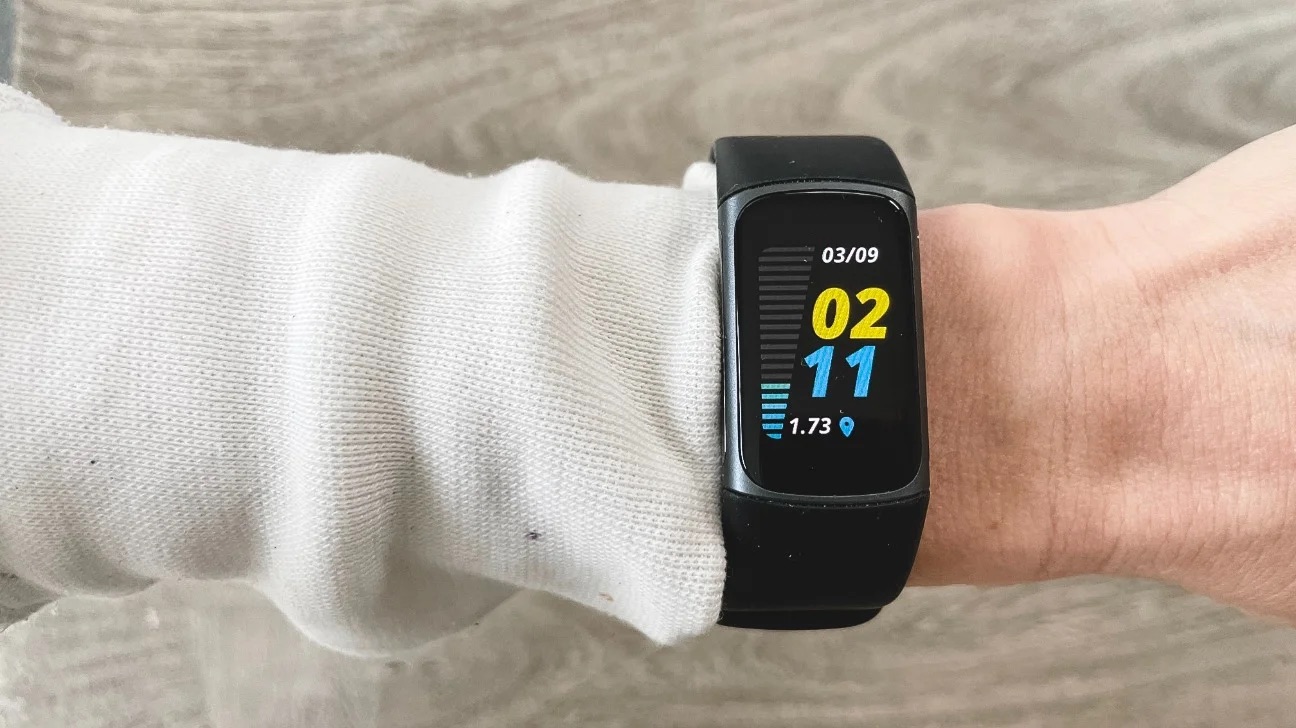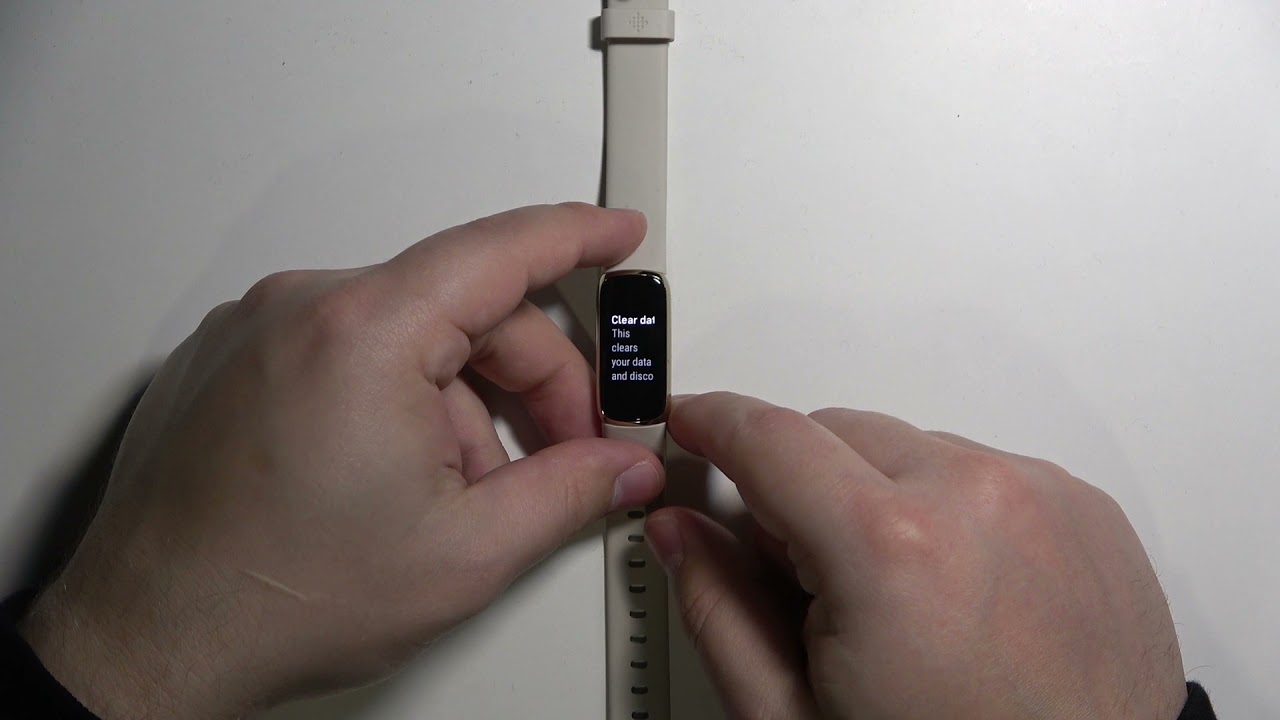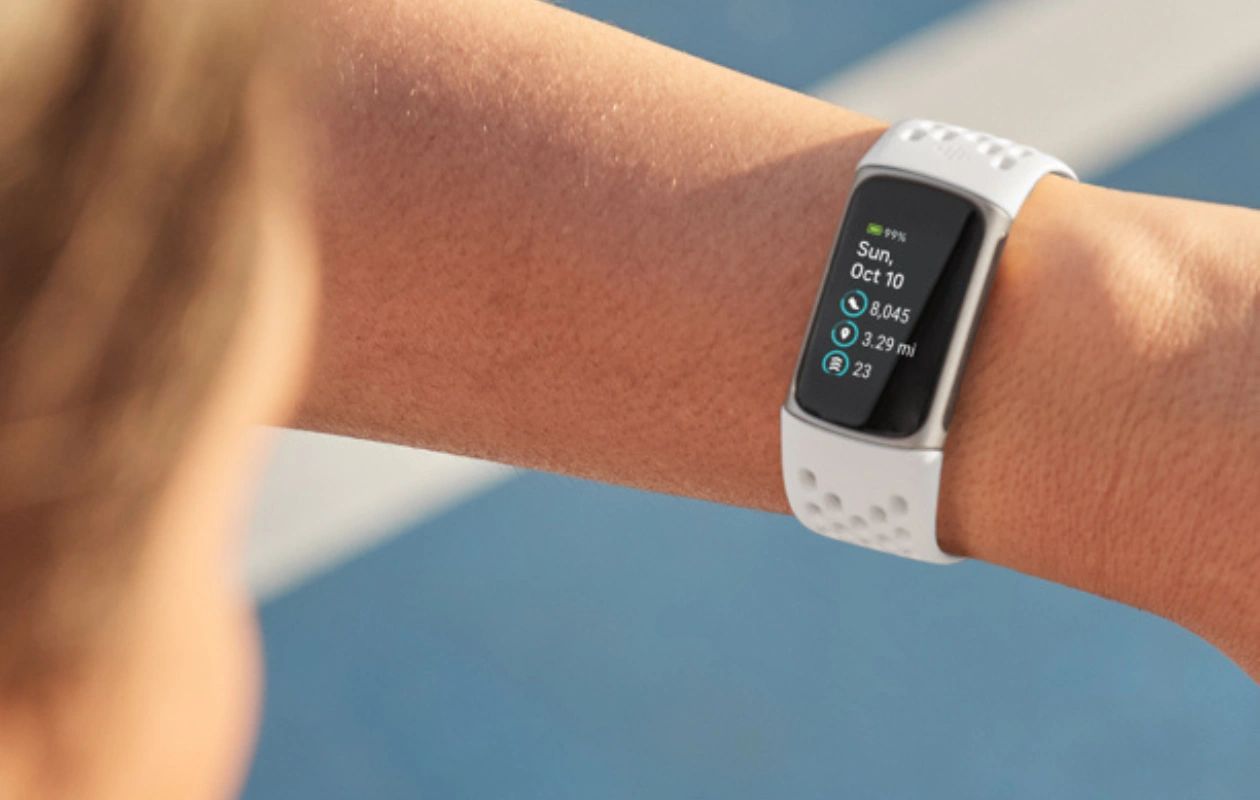
To perform a Fitbit Charge 5 reset, you can restart the device using either the button on the charging cable or the on-screen settings menu. A restart is the most effective way to fix common issues like a frozen screen, syncing problems, or unresponsiveness without losing your data.
When to perform a Fitbit charge 5 reset
Restarting your Fitbit Charge 5 is the recommended first step for troubleshooting several common problems. If your tracker has a blank or frozen display, is not registering data, or is having trouble syncing with your phone, a restart often resolves the issue. It can also help if the device becomes unresponsive to taps or swipes. Performing a restart clears temporary glitches and refreshes the device's operating state, making it a quick and safe fix before trying more advanced troubleshooting, and you may need to reference locating your Fitbit's serial number if you later contact support.
How to restart using the charging cable
The primary method to restart your Charge 5 uses the button built into the charging cable. This is the most reliable way to perform a Fitbit Charge 5 reset when the screen is frozen or unresponsive.
- Connect your Charge 5 to its charging cable.
- Plug the cable into a USB power source, such as a computer port or wall adapter.
- Press the button on the charging cable three times, ensuring a one-second pause between each press.
- After the third press, wait approximately 10 seconds until the Fitbit logo appears on the tracker's screen. This confirms a successful restart.
Once the logo appears, your device has been restarted and should begin operating normally. This method works even if the screen is completely blank or unresponsive, because the button on the cable bypasses the touchscreen.
How to restart from the device screen
If your Charge 5 screen is responsive and you can navigate the menus, you can also initiate a soft restart directly from the device. This is a convenient alternative when you don't have the charging cable handy.
- From the clock face, swipe down to access the quick settings menu.
- Tap "Settings."
- Scroll down and tap "Restart Device."
- Confirm by tapping "Restart."
Your tracker will restart and show the Fitbit logo. After this, your device will be ready for setup and syncing with your phone. This on-screen option is ideal for minor glitches where the screen is still functional.
Important precautions and what to avoid
When performing a Fitbit Charge 5 reset, do not attempt to restart the device by inserting objects into any small holes. The Charge 5 has no physical reset pinhole, and trying to use a paperclip, pin, or similar object can damage the device's internal components. Only use the charging cable button or the on-screen restart option described above.
After initiating a restart, allow sufficient time for the process to complete. Do not press buttons repeatedly or disconnect the cable while the Fitbit logo is showing. Interrupting the restart can cause the device to become stuck or require additional troubleshooting. If the restart does not fix your issue, try charging the device fully before attempting another restart, as low battery can sometimes prevent the process from completing properly.