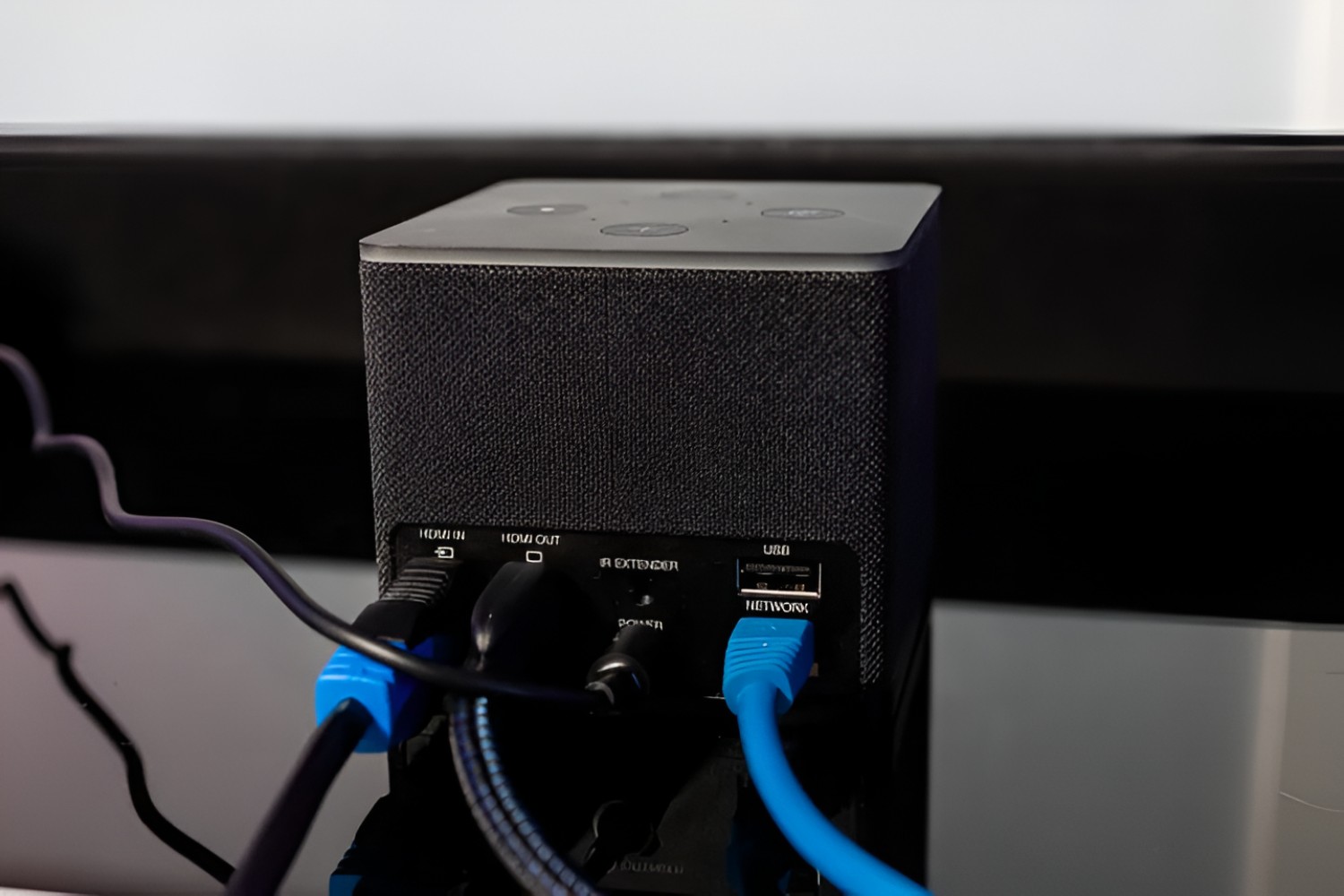
To connect a Fire Stick to a surround sound system, plug the Fire Stick into an HDMI port on your TV, then use an HDMI cable from the TV's HDMI-ARC or eARC port to the corresponding port on your AV receiver or soundbar. If you need help with the initial TV setup, you can connect my Fire Stick to my Samsung smart TV to ensure the HDMI input is properly configured. If your TV lacks an available HDMI port, you can connect Amazon Fire Stick to TV without HDMI using an adapter for older inputs. This is the standard way to get multi-channel audio from streaming apps, as it lets the TV pass surround sound to your audio system.
How to connect a Fire Stick to a surround sound system: the standard way
The most common setup for connecting a Fire Stick to surround sound is to plug the streaming device directly into your TV, rather than into the receiver. This is because most Fire Stick models are designed to output audio through their HDMI connection, and plugging them into the TV keeps the video path simple. The TV then sends the audio signal to your surround sound receiver or soundbar through a separate cable. This avoids the complexity of setting up a Firestick directly with an older receiver that may lack HDMI input, and it ensures you can still use your TV's smart features without switching inputs.
What you need
To set this up, you need the following equipment:
- An Amazon Fire TV Stick (any model except Fire TV Lite)
- A TV with an available HDMI port
- A surround sound receiver or soundbar with an HDMI-ARC/eARC port or an optical audio input
- Either an HDMI cable (for ARC/eARC) or an optical audio cable (for older systems)
No special audio cables connect directly to the Fire Stick itself; all audio passes through its HDMI connection to the TV.
Connect using HDMI-ARC or eARC (recommended)
This method supports the highest-quality audio, including Dolby Atmos and 7.1 surround sound.
- Plug your Fire Stick into any available HDMI port on your TV.
- Connect an HDMI cable from the TV's HDMI-ARC or HDMI-eARC port to the corresponding ARC/eARC port on your AV receiver or soundbar.
- Enable ARC/eARC in both your TV and receiver settings. On your TV, look for "HDMI ARC" or "eARC" in the audio or external device settings. On your receiver, ensure the HDMI control or ARC function is turned on.
Once enabled, your TV will send audio from the Fire Stick to the receiver automatically. This method works with Dolby Digital, Dolby Digital+, Dolby Atmos, DTS, DTS-HD, and MPEG-H formats.
Connect using optical audio (alternative)
For older surround sound systems without HDMI-ARC, optical audio is a reliable fallback.
- Plug your Fire Stick into any HDMI port on your TV.
- Connect an optical cable from the TV's optical audio output to the optical input on your receiver or soundbar.
Important warning: Optical audio cables do not fully support advanced surround sound formats such as Dolby Atmos, DTS-HD, or other high-bitrate codecs. You will get standard Dolby Digital or DTS surround sound, but not the object-based audio of Atmos.
Configure Fire Stick audio settings for surround sound
After connecting the hardware, adjust the Fire Stick's audio settings to match your system.
- From the Fire Stick home screen, go to Settings > Display & Sounds > Audio.
- Select Surround Sound.
- This lets the Fire Stick automatically pick the highest-quality format your equipment supports.
- Dolby Atmos is available on select content from Netflix, Prime Video, and Disney+.
You may also see options for Dolby Digital, Dolby Digital+, and HDMI Audio passthrough. Leave passthrough enabled if your receiver handles audio decoding, or disable it if you want the Fire Stick to process the audio first.
Test your surround sound
To confirm everything is working, play content with known surround audio, such as a movie on Netflix or Prime Video. Listen for sound coming from all speakers, including the rear channels. If you hear audio only from the front speakers, double-check your receiver's input source and speaker configuration. Most receivers have built-in test tones in their setup menu, use these to verify each speaker is active and balanced. Adjust your receiver's speaker levels as needed for even sound.