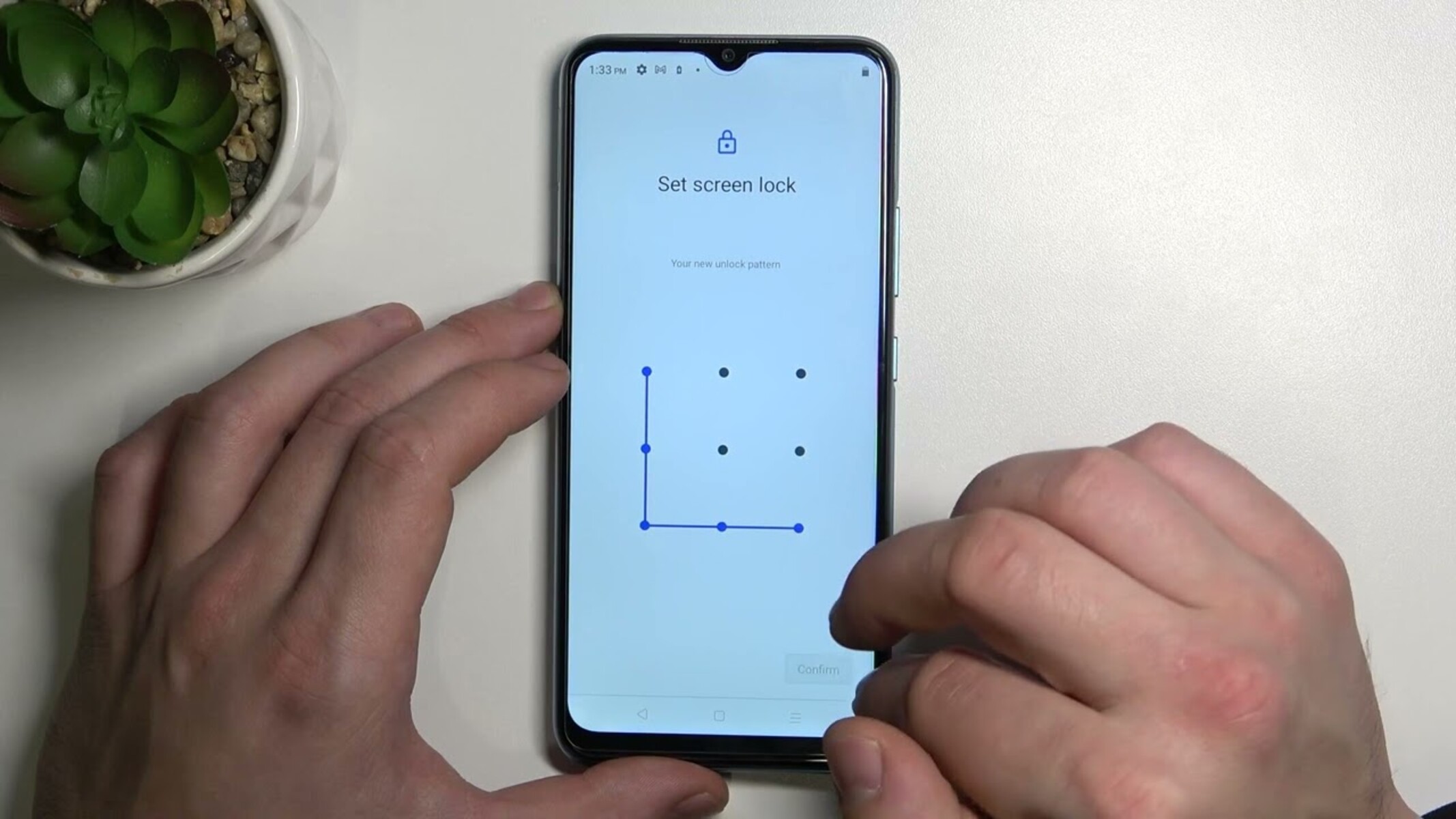
If your Realme phone is locked out by a forgotten pattern, the only reliable way to unlock Realme pattern lock on Android 10 and newer is a factory reset, which permanently wipes all data. Before that drastic step, try biometrics like fingerprint or face unlock, check if a sub-user account is active, and confirm you're entering the correct password type, these non-destructive options work for many users.
Before you reset: can you still unlock your Realme pattern lock without losing data?
Start with the least destructive options, as recommended by Realme's official support. If you previously enabled fingerprint or facial recognition, those biometric methods can bypass the pattern lock entirely. Also, verify that you are attempting the correct password type (pattern, numeric, or alphanumeric) and consider if the password might have been recently changed or if a sub-user account is currently active, as the primary user password will not unlock a sub-user interface. These simple checks often resolve the issue without any data loss.
Why a factory reset is the only way for most Realme phones
Realme's lock screen passwords, including pattern locks, are encrypted using an irreversible algorithm, meaning they cannot be recovered or retrieved if forgotten. For devices running Android 10 and above, a factory reset is the mandatory solution, there is no hidden backdoor or recovery method. This reset wipes all user data, including photos, messages, and apps, returning the phone to its out-of-box state. Accepting this data loss is the trade-off for regaining access to your device.
Method 1: factory reset your Realme phone using hardware keys
This is the most direct method and works on all Realme models. It requires no computer or internet connection, but it will erase everything on the device.
- Power off the phone completely. If the screen is frozen, press and hold the Power button for about 10 seconds until it shuts down.
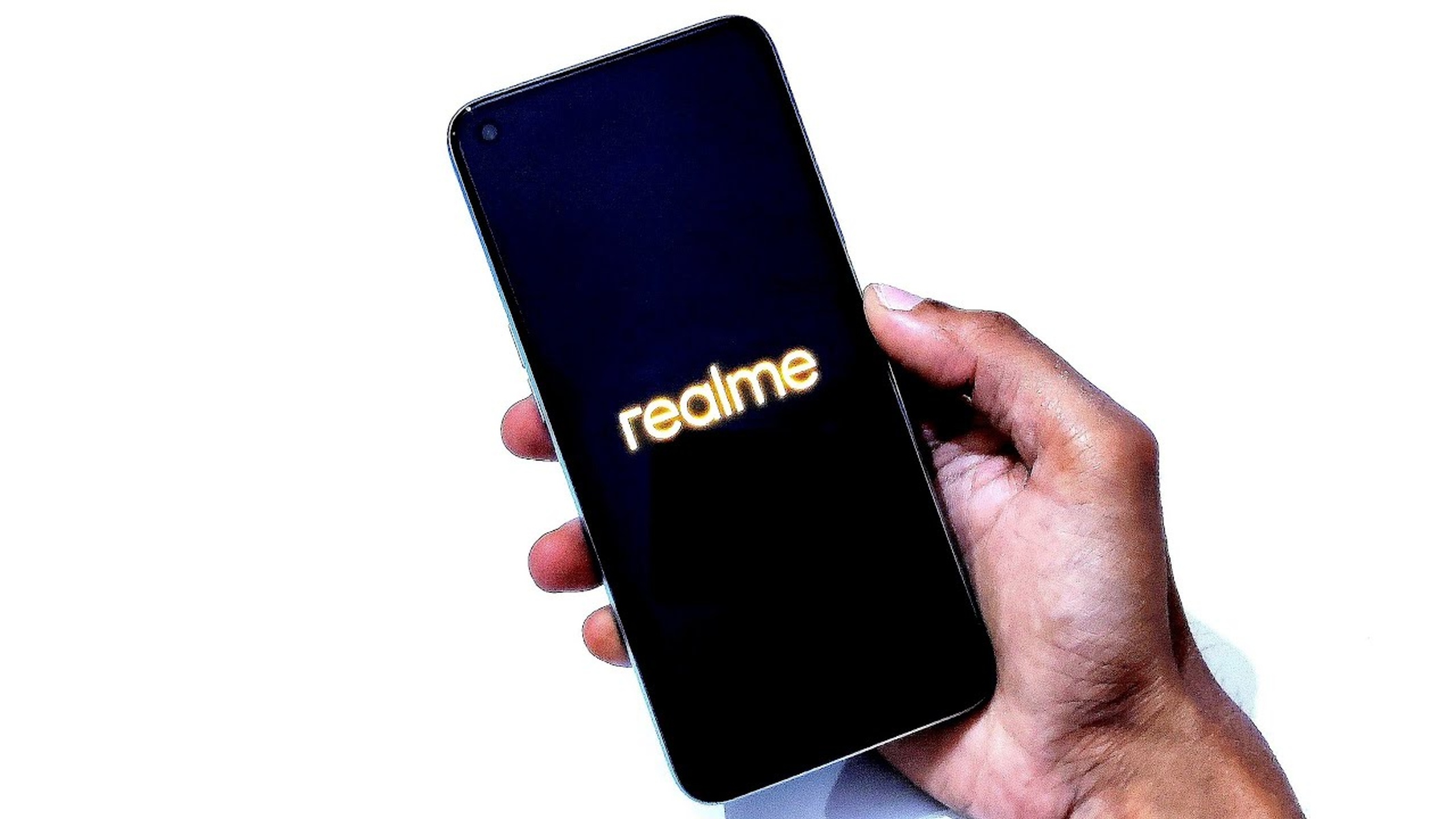
- Press and hold the Power and Volume Down buttons simultaneously for a few seconds until the Realme logo appears, then release both buttons. This boots you into Recovery Mode.
- Use the Volume keys to navigate through the menu and highlight “Wipe data/factory reset.” Press the Power button to select it.
- Once the reset completes, highlight “Reboot system now” and press Power. The phone will restart, and the pattern lock will be gone.
Method 2: factory reset your Realme phone remotely with Find My Device
If you have a Google account linked to your Realme and the phone is online, you can erase it remotely from a browser. This is useful if you don't want to use hardware keys or if the phone is not physically accessible at the moment.
- On a computer or another device, open a browser and go to the Find My Device service. Log in with the same Google account that is synced to your Realme.
- The service will locate your phone on a map. Select your Realme device from the list of linked devices.
- Confirm the action when prompted. This will remotely wipe the phone, removing the pattern lock along with all data.
- After the erase is complete, your Realme will restart and show the setup screen. The pattern lock will no longer be there.
What to do after the reset: bypassing Factory Reset Protection (FRP)
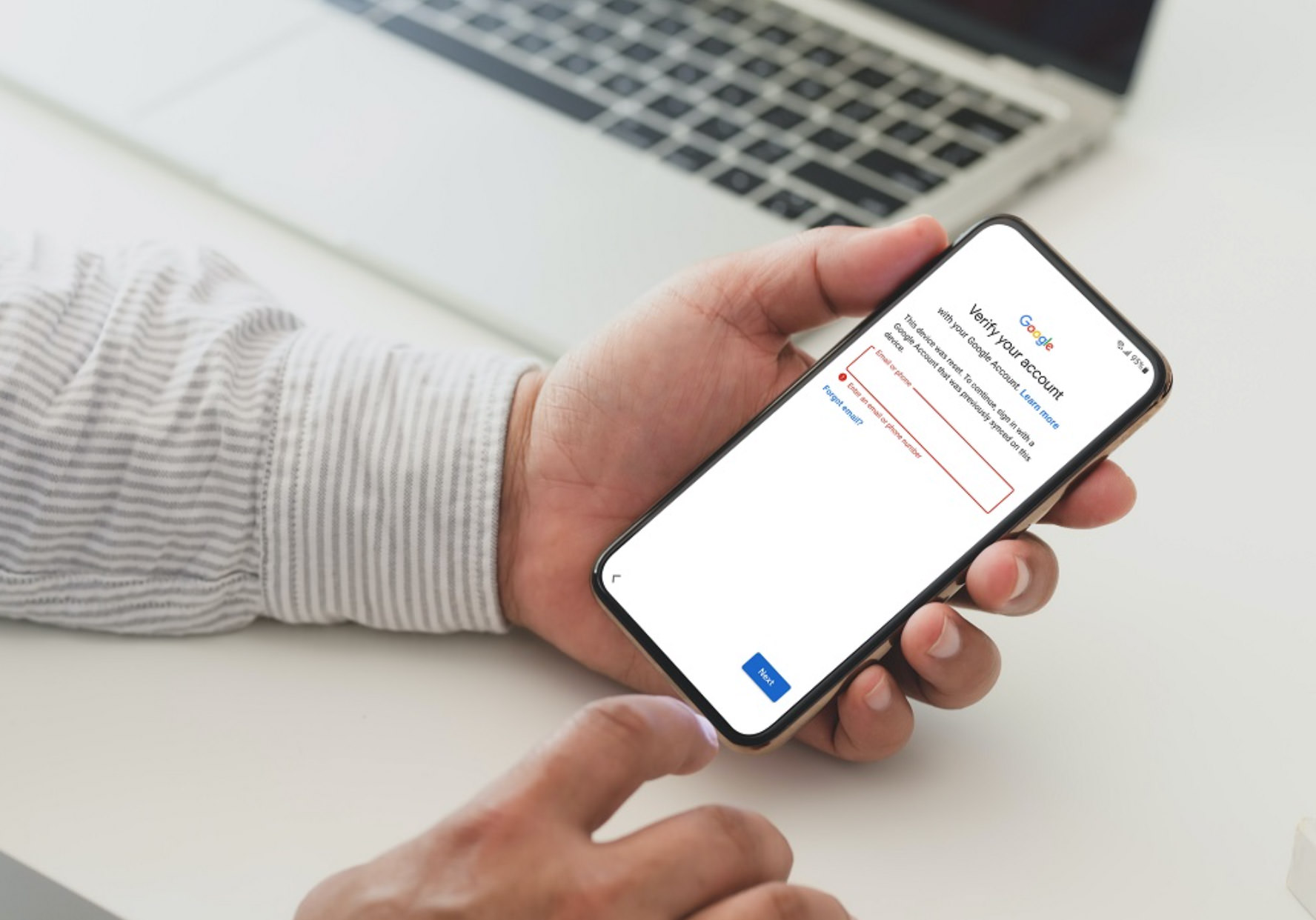
After a factory reset, your Realme will display a Google account verification screen. This is Factory Reset Protection (FRP), a security feature that requires the previously synced Google account password to proceed. If you remember that password, simply enter it to finish setup. If you've forgotten the Google account password too, you'll need to initiate a password reset through Google's official account recovery process. For a detailed walkthrough, see the [full guide] how to bypass Google account verification after reset, it covers the step-by-step recovery options.
When to contact Realme support instead
For devices running Realme UI 1.0 (Android 10) and specific models like Realme R, S, T, Go, U Edition, Realme Pad Mini, and Realme Pad, the official recommendation is to visit a Realme customer service center with valid proof of purchase. This is also the safer route if you're uncomfortable performing a factory reset yourself or if the reset methods fail. Additionally, if your phone has a hardware issue that prevents booting into recovery or accessing Find My Device, professional support is your best option. For those with older devices, the support team can provide model-specific guidance. If you're also facing a power button issue, check out the guide on restarting Realme phone without power button for alternative solutions before heading to a service center.
\nRelated reading: Unlocking Your Device: FRP Lock Bypass Methods Without Software Or OTG Cable.


![[Full Guide] How to Bypass Google Account Verification After Reset](https://robots.net/wp-content/uploads/2023/11/How-to-Bypass-Google-Account-Verification-After-Reset.png)