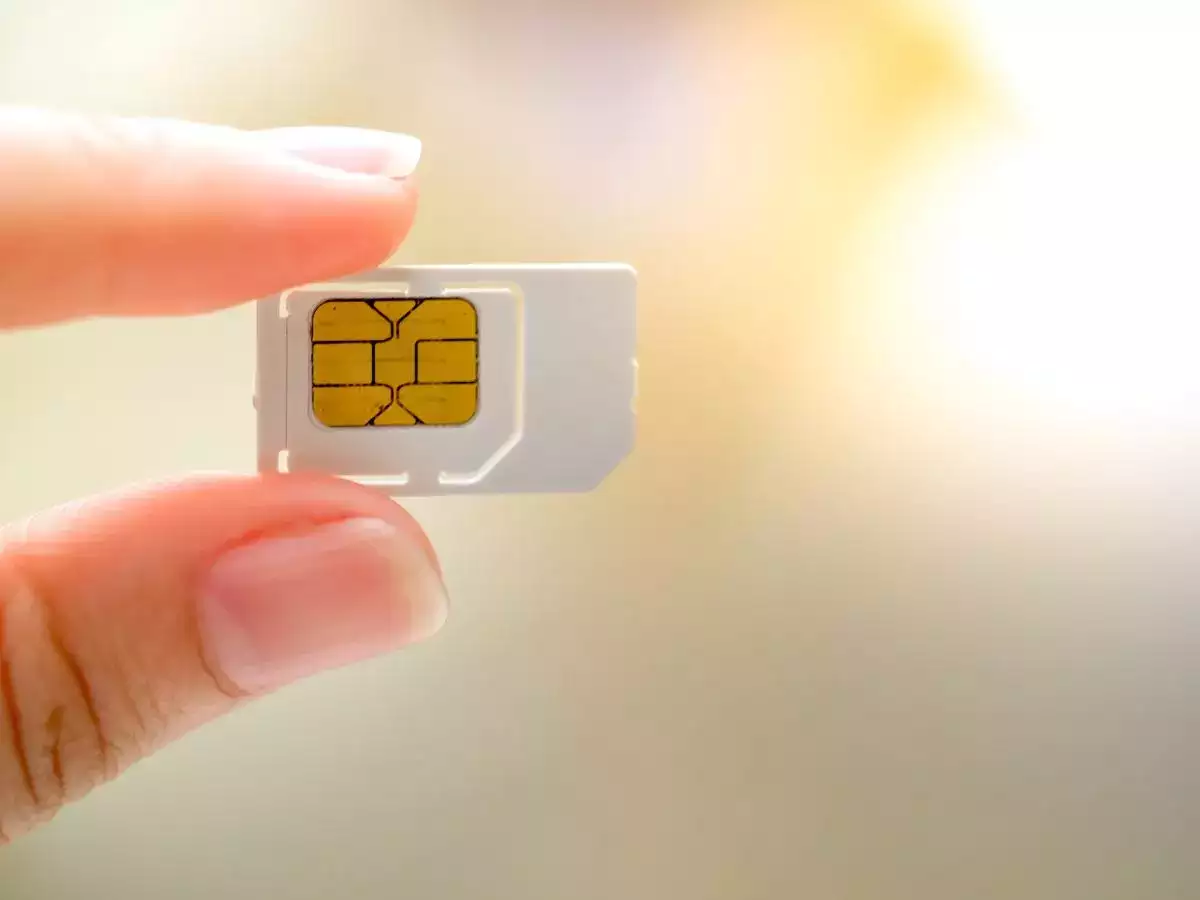
Activating your SIM card is the essential first step to making calls, sending texts, and using mobile data on your new phone. Whether you are using a physical SIM or an eSIM, this guide will walk you through the exact process to get your service up and running quickly.
What you need before activating your SIM card
Before you begin, gather the following items to ensure a smooth process:
- Your physical SIM card or eSIM details from your carrier.
- A SIM ejector tool or a small paperclip to open the tray.
- A charged phone with a stable internet connection (Wi-Fi or mobile data).
- Your carrier account information, if required.
How to activate a physical SIM card
Activating a physical SIM card is a straightforward three-part process: insert the card, power on the device, and complete activation with your carrier. Follow the steps below in order.
Locate and open your SIM card slot
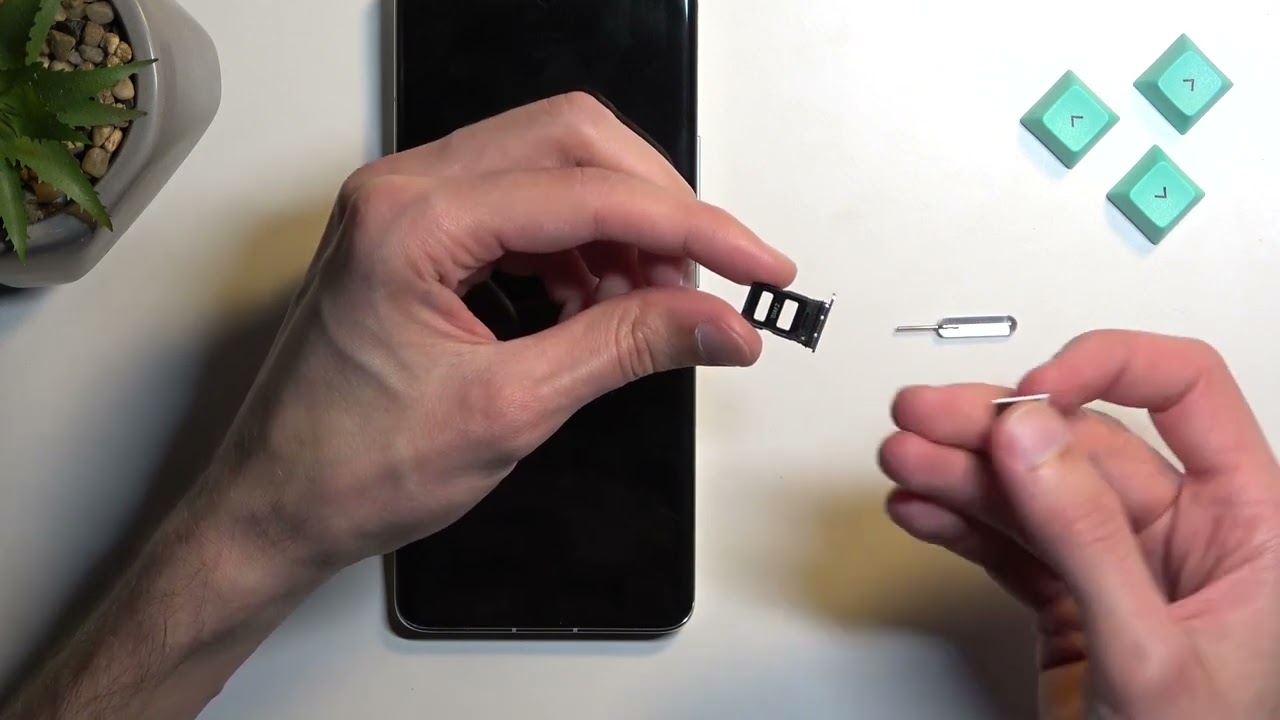
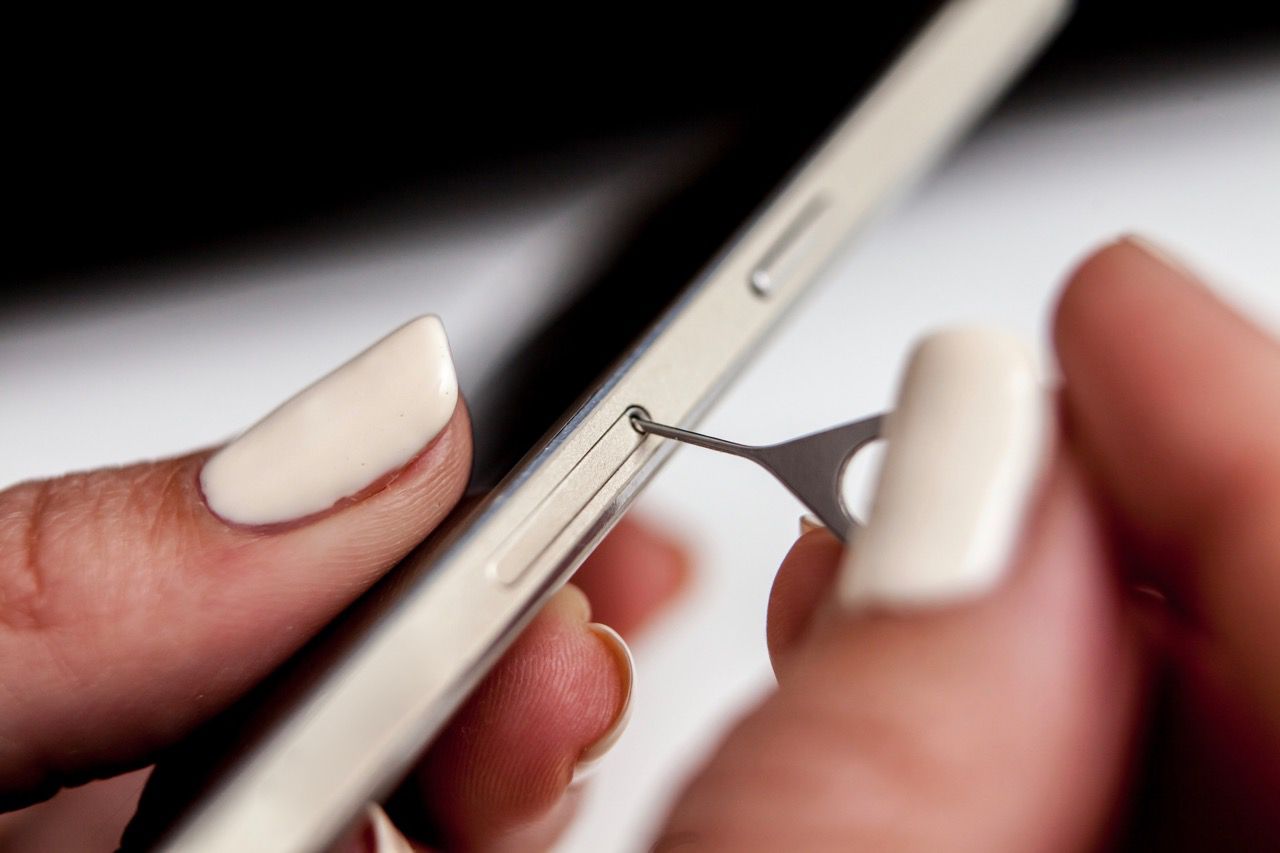
Find the SIM tray on the side, top, or bottom edge of your smartphone. Look for a small pinhole next to a removable tray. For detailed instructions on opening the SIM card slot, consult your device manual or the manufacturer’s support page. Use the ejector tool or paperclip to gently push into the pinhole until the tray pops out.
Insert the SIM card and power on your phone
- Power off your phone completely before handling the SIM card.
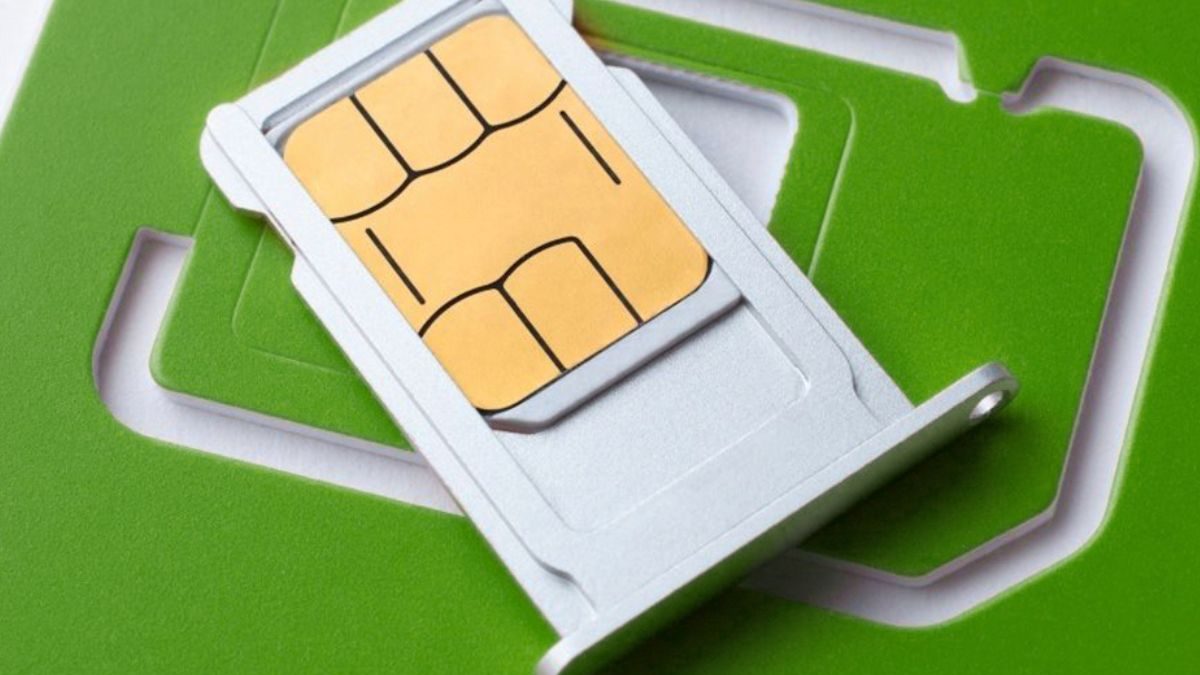
- Place the SIM card into the tray with the gold contacts facing down and the cut corner aligned as shown on the tray.
- Gently push the tray back into the slot until it clicks into place.
- Power on your phone. Wait for it to boot up and recognize the card. For a guide on inserting a SIM card correctly, refer to your carrier’s instructions.
Complete activation with your carrier
- Once the phone is on, go to your carrier’s official activation portal online (e.g., My Verizon, EE’s activate page, or AT&T’s activation page) or open their mobile app.
- You will need to enter the SIM card’s serial number (ICCID) and your phone’s IMEI. To find your IMEI, dial
*#06#on your phone. - Follow the on-screen prompts and provide any personal identification details your carrier requests.
- Service activation can take a few minutes but may officially take up to 24 hours for the network to fully register your SIM. If you are reactivating your old SIM card, the process may be faster if the number is still active on your account.
How to activate an eSIM
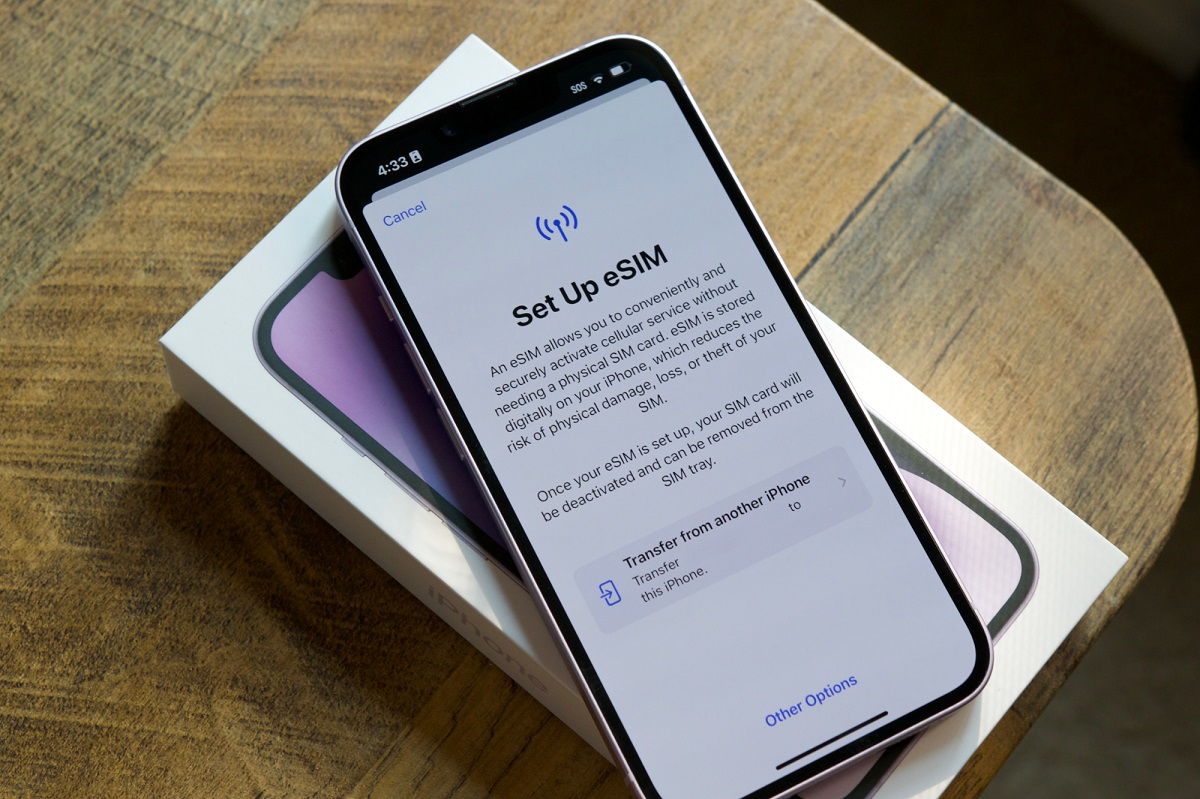
If your device supports eSIM, you can activate it without a physical card. Navigate to your phone’s settings: on an iPhone, go to Settings > Cellular > Add eSIM; on Android, go to Settings > Network & Internet > Mobile Network > Add eSIM. Scan the QR code provided by your carrier or follow the on-screen instructions to download the eSIM profile.
Troubleshooting a failed activation
If your service does not work after activation, try these steps:
- Wait the full 24 hours, as activation can sometimes take time to propagate across the network.
- Ensure your prepaid plan is topped up with an initial payment or plan purchase, as new Pay As You Go SIMs often require this to activate.
- If you are replacing a lost, stolen, or damaged SIM, log into your carrier account to perform a SIM swap; the replacement may be pre-activated but still needs to be linked to your number.
- For checking if your SIM card is working, try making a test call or sending a text. If nothing works, contact your carrier’s customer support for assistance.
For the wider topic, see inserting a SIM card.