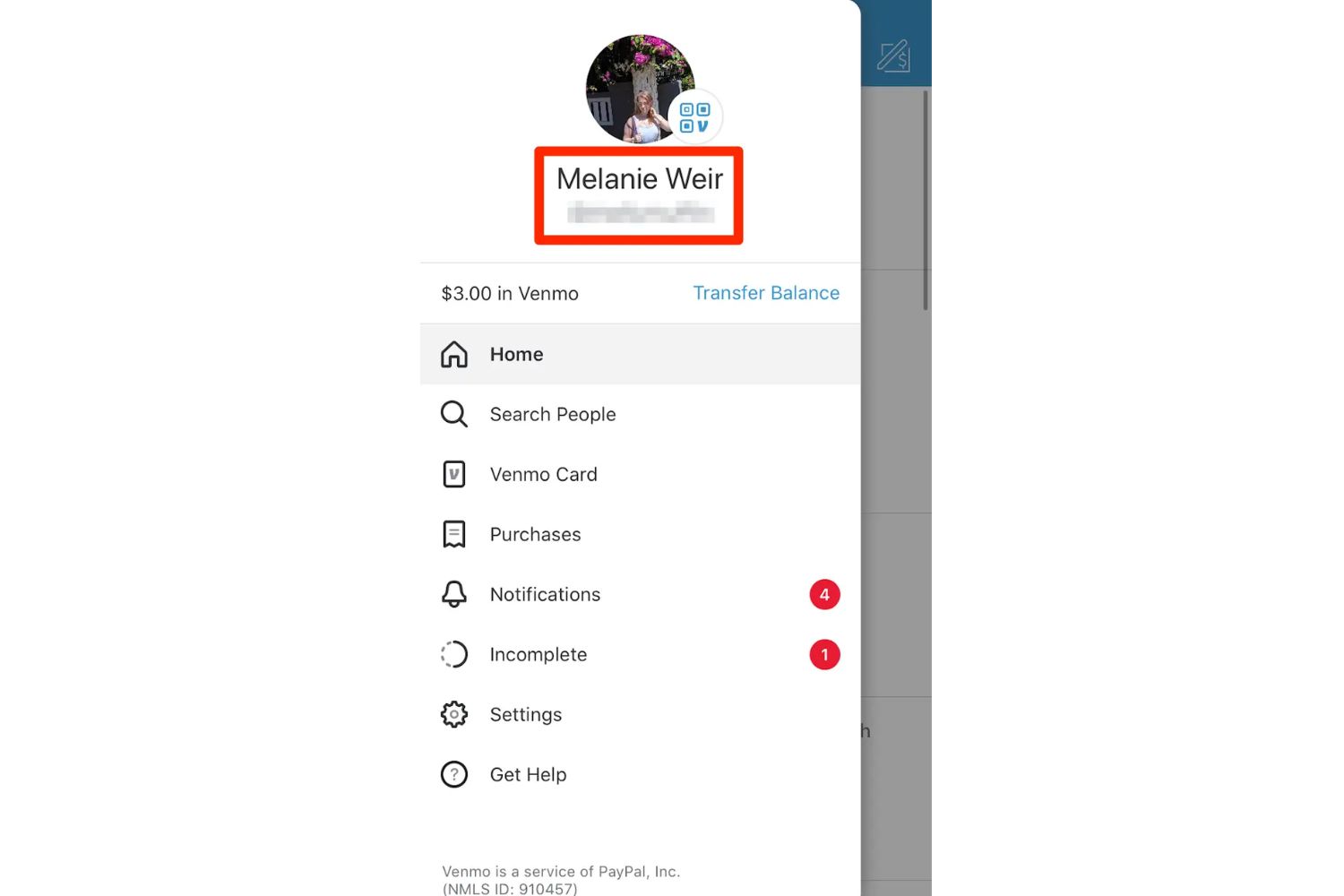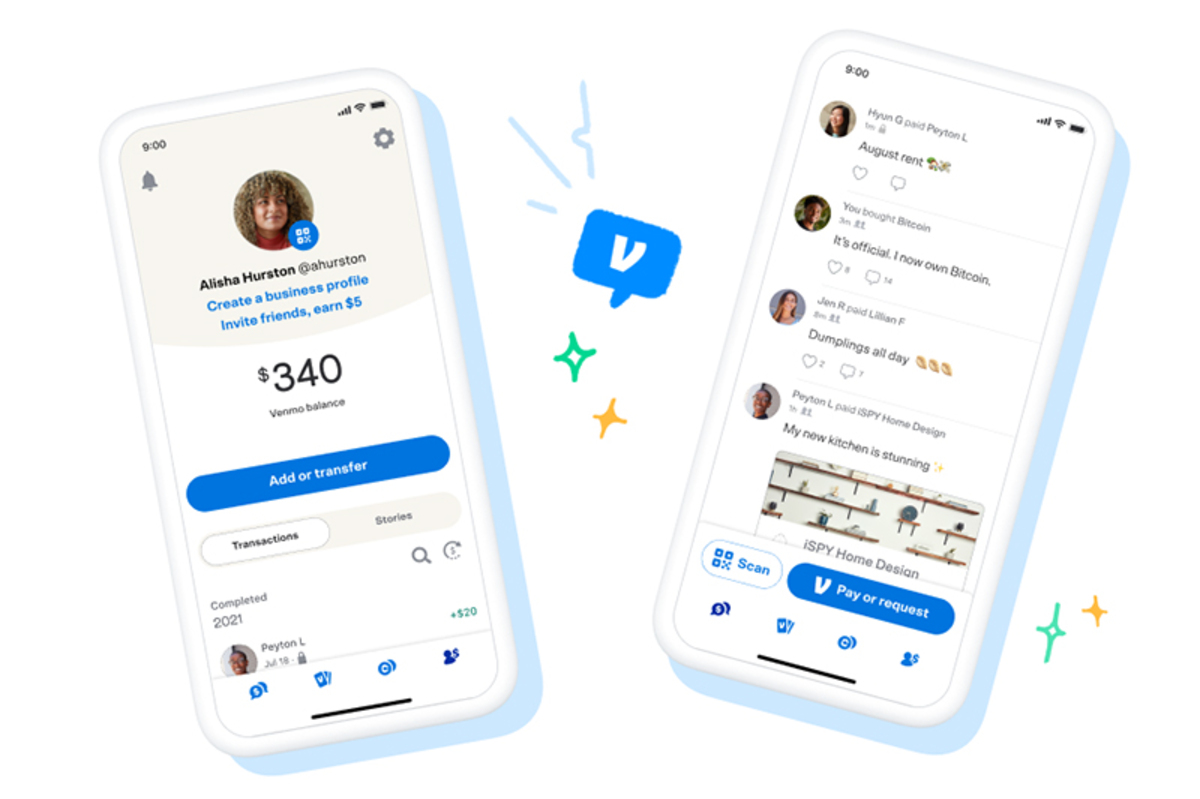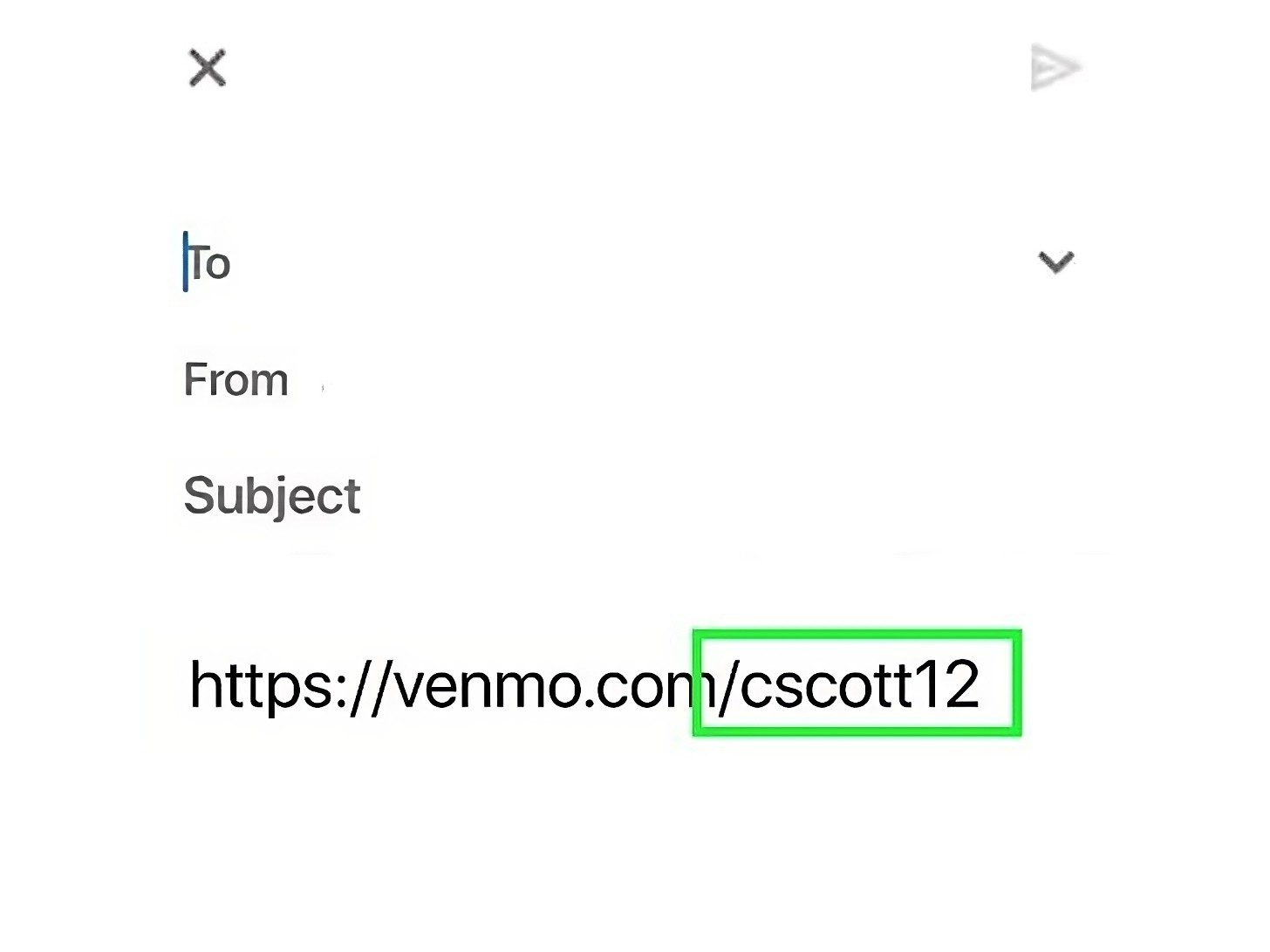
Your Venmo link is the quickest way to get paid: open the Venmo app, tap the "Me" icon in the bottom right, and you'll see your personal URL right under your name, it always looks like Venmo.com/@yourusername. To send Venmo link to someone, just tap the share icon next to that URL and choose text, email, or any app you prefer; the recipient opens it and lands directly on your profile, ready to pay. If you need to find your link from a computer instead, you can share my Venmo link using the web version.
How to find and send your Venmo link
Finding your link takes about ten seconds, and it's the most reliable method because it works on any device. Open the Venmo app and tap the "Me" icon in the bottom-right corner of the screen, this is your profile tab. Your Venmo link is displayed prominently near the top, directly under your display name and profile picture.
- Tap the share icon (the square with an upward arrow) located next to your Venmo link.
- Choose where to send it: a text message, email, or any messaging app you have installed.
- Alternatively, tap the link itself to copy it to your clipboard, then paste it manually anywhere you like.
The copied link works exactly like the shared one, anyone who taps it will be taken straight to your Venmo profile where they can enter an amount and hit "Pay." This method is ideal when you're in a conversation and want to avoid switching apps.
Sharing your personal QR code instead
If you're meeting someone in person or want a visual option, your Venmo QR code acts as an image-based link that people can scan with their phone camera. To access it, open the Venmo app, tap the "Me" icon, then select the QR code button next to your profile picture.
- From the QR code screen, tap the "Venmo me" tab at the top.
- Tap the share button in the corner to copy the QR code image or send it directly through your apps.
- When someone scans it with their device's camera or the Venmo app, they're automatically directed to your Venmo profile.
The QR code is especially useful for in-person situations like splitting a restaurant bill, at a yard sale, or when you're accepting payment from a customer standing in front of you. You can also save the QR code to your phone's photo library and pull it up anytime without opening Venmo.
Where to share your link effectively
Knowing where to place your link makes the difference between getting paid quickly and having it ignored. The most effective spots are the ones people already check regularly for payment requests.
Texting the URL is the fastest method, just paste it into a conversation and add a short note like "here's my Venmo for the tickets." For professional or recurring payments, embed the link in your email signature so every message you send carries your payment info automatically. If you're a creator or freelancer, add the link to your Instagram bio; it's one tap for followers who want to support you or settle a transaction. And if you run a personal website, place a "Pay with Venmo" button on your contact page or checkout area so visitors don't have to hunt for your username.
When you share your link, always pair it with context, say what the payment is for. A bare link can feel random, but "here's my Venmo for the group dinner" makes it clear and prompts action.
Making your Venmo link easy to remember
Your default Venmo link is based on the username you picked when you first set up Venmo, but you can change it to something shorter and more memorable. Open the app, go to your profile, tap the gear icon for settings, then select "Edit Profile" and tap on "Username." Enter your preferred handle and save, your link updates instantly to Venmo.com/@newname.
Before you change it, though, keep this in mind: your Venmo handle is what people type into the search bar to find you. If you've already shared your old username with people, they won't be able to locate you by that name anymore. Choose something simple, like your first and last name combined or your business name, and make sure it's easy to spell out loud.
Just remember that the old link stops working, so update any printed materials, website buttons, or saved signatures that still use the previous version.