To sign into Apple TV with T-Mobile, you must first redeem the T-Mobile Apple TV+ subscription offer through your T-Mobile account and link it to an Apple ID. This process does not involve signing into a T-Mobile app on your Apple TV hardware; instead, it activates the Apple TV+ streaming service as a benefit of your T-Mobile plan.
What 'sign into Apple TV with T-Mobile' really means
When T-Mobile customers search for how to sign into Apple TV with T-Mobile, they are typically looking to redeem a free or discounted Apple TV+ subscription, not to log into a T-Mobile-branded app on an Apple TV device. The correct process involves activating the Apple TV+ offer through your T-Mobile account and then linking that offer to your Apple ID. Once completed, you access Apple TV+ content through the Apple TV app on any supported device, using your Apple ID rather than T-Mobile credentials.
Check your T-Mobile plan eligibility
Before you begin, confirm that your T-Mobile plan includes Apple TV+. Eligible plans may offer the service as a standard monthly discount valued at $9.99 per month, while some plans still provide 6 months of Apple TV+ "On Us," after which it auto-renews at the then-current rate of $12.99 per month unless canceled. T-Mobile for Business customers with a Social Security Number (SSN) are eligible for Apple TV+ offers, but those who opened their account with a Tax ID are not. You can verify your plan's eligibility by logging into your T-Mobile account and reviewing your plan details.
Redeem the Apple TV+ offer in your T-Mobile account
The redemption process begins by logging into your T-Mobile account via the T-Mobile app or T-Mobile.com. Follow these steps to add the Apple TV+ feature to your line:
- In the T-Mobile app, navigate to "Account," then "See plans on any line," then "Plan Details," and select "Manage Add-ons."
- On T-Mobile.com, select "View details" for a line, then "Manage Add-Ons" in the "Active Add-Ons" section.
- Select the Apple TV option or service to add or redeem the offer.
After adding the feature, T-Mobile will prompt you to activate your subscription with Apple, often sending a redemption text message or email with a link.
Activate your Apple TV+ subscription
Once you have added the Apple TV+ feature to your T-Mobile account, you must activate it through Apple. The activation method depends on the device you are using:
- If using an iOS device, select the redemption link from T-Mobile's text or email. This will launch the Apple TV app, where you will choose "Activate Apple TV" and verify your mobile number.
- If using a web browser or Android device, the link will open the Apple TV web page. Select "Activate Apple TV," then "Sign in" (or create an Apple ID if you don't have one), and verify your mobile number.
You will need an Apple ID to access Apple TV+. If you don't have one, you can create it during the redemption process. After successful activation, your T-Mobile offer will be linked to your Apple ID.
What if you already have an Apple TV+ subscription?
If you are already an Apple TV+ subscriber paying through Apple, redeeming the T-Mobile offer will pause your existing subscription, and the T-Mobile offer will take over. You do not need to cancel your existing subscription manually; the transition happens automatically once you complete the T-Mobile redemption and activation process.
Devices that support Apple TV+
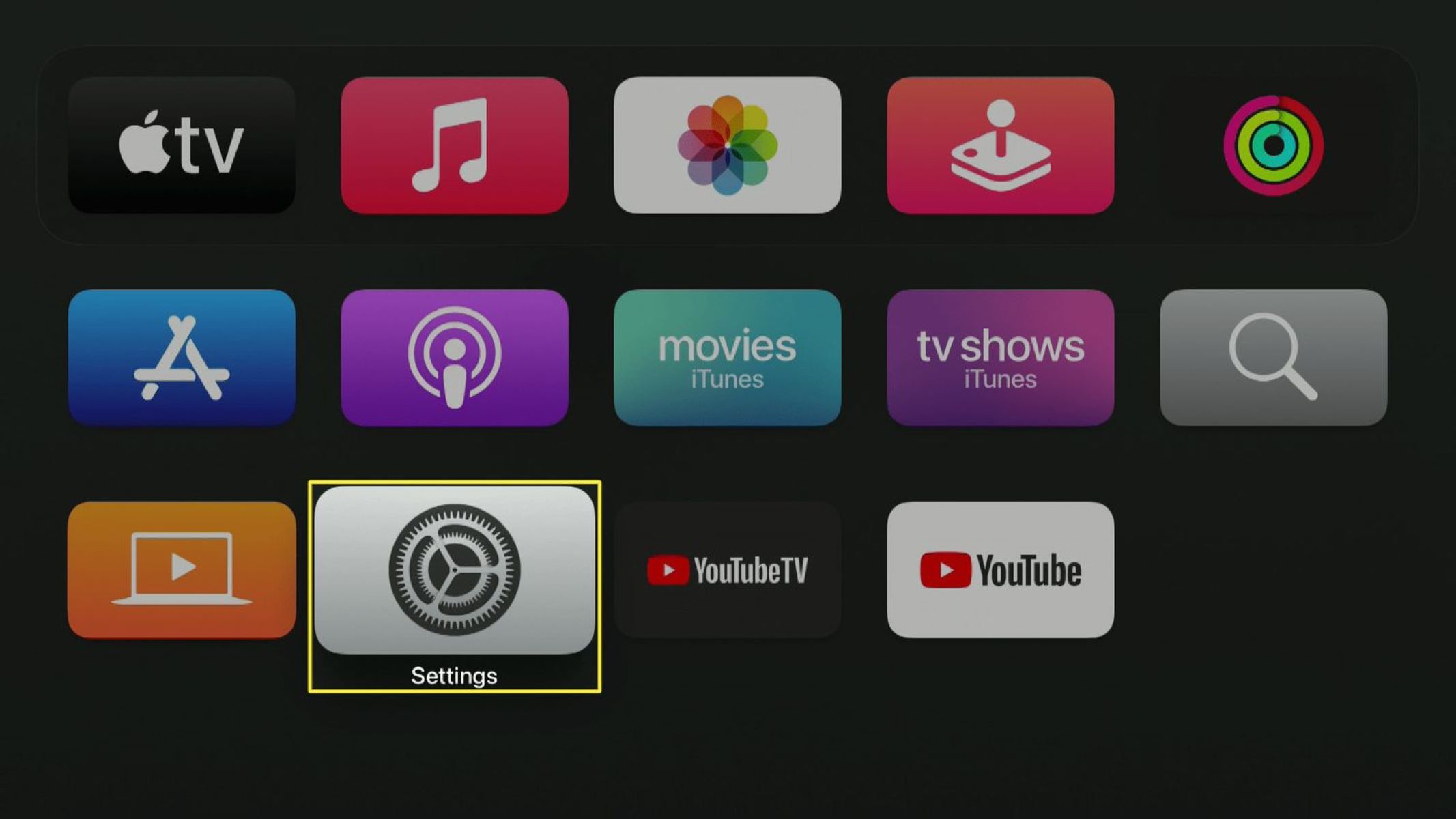
Once your subscription is active, you can watch Apple TV+ on a wide range of devices beyond Apple TV hardware. The Apple TV app is available on iPhones, iPads, Apple TV devices, Macs, popular smart TVs (Samsung, LG, Sony, VIZIO, TCL), Roku, Amazon Fire TV, Chromecast with Google TV, PlayStation, and Xbox gaming consoles. To get started on your Apple TV device, you will need to get to settings on Apple TV to sign in with the Apple ID linked to your T-Mobile offer. You can also add users to Apple TV app to share your subscription with up to five family members.
\nRelated reading: How To Watch Hbo Max.