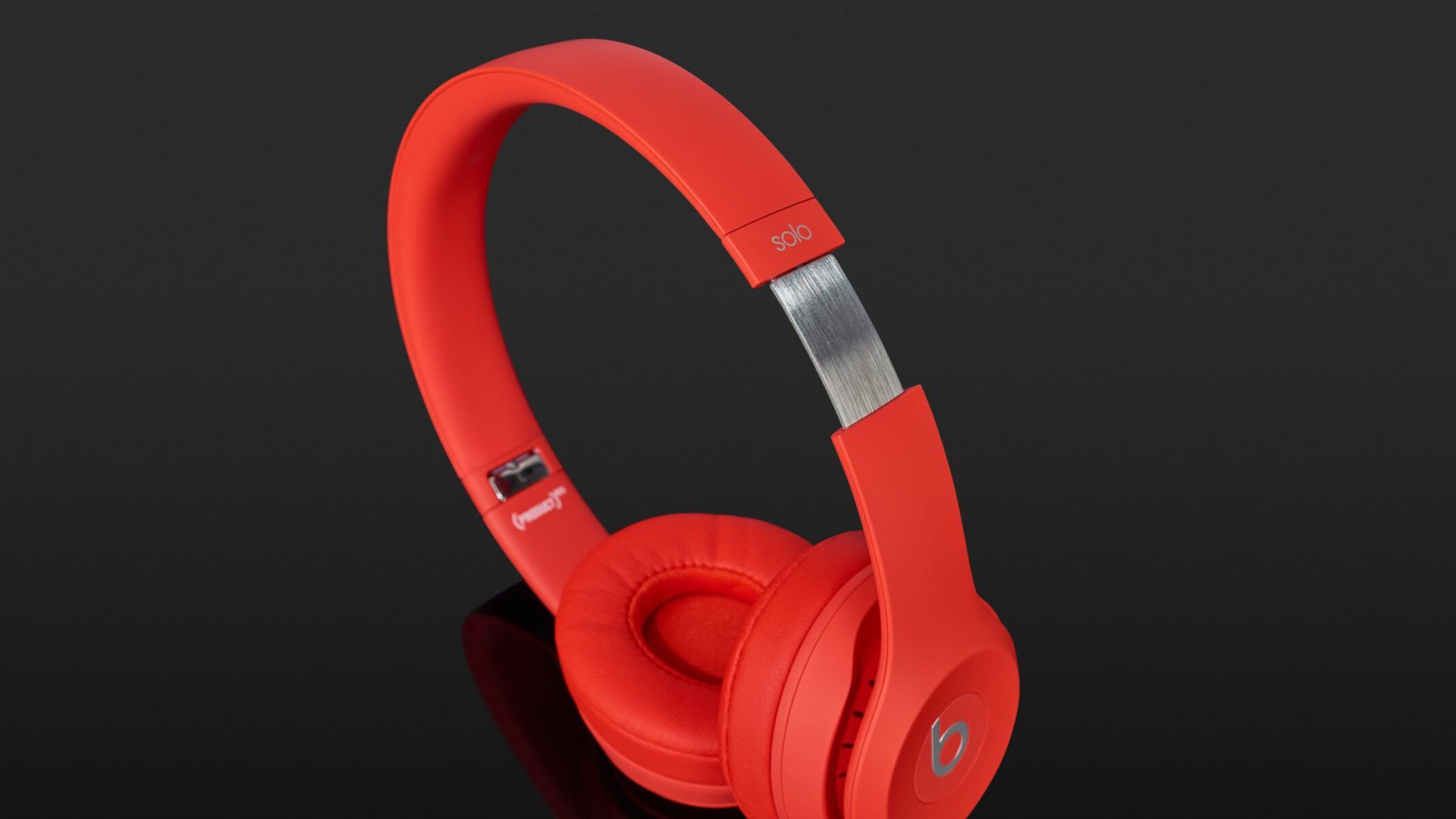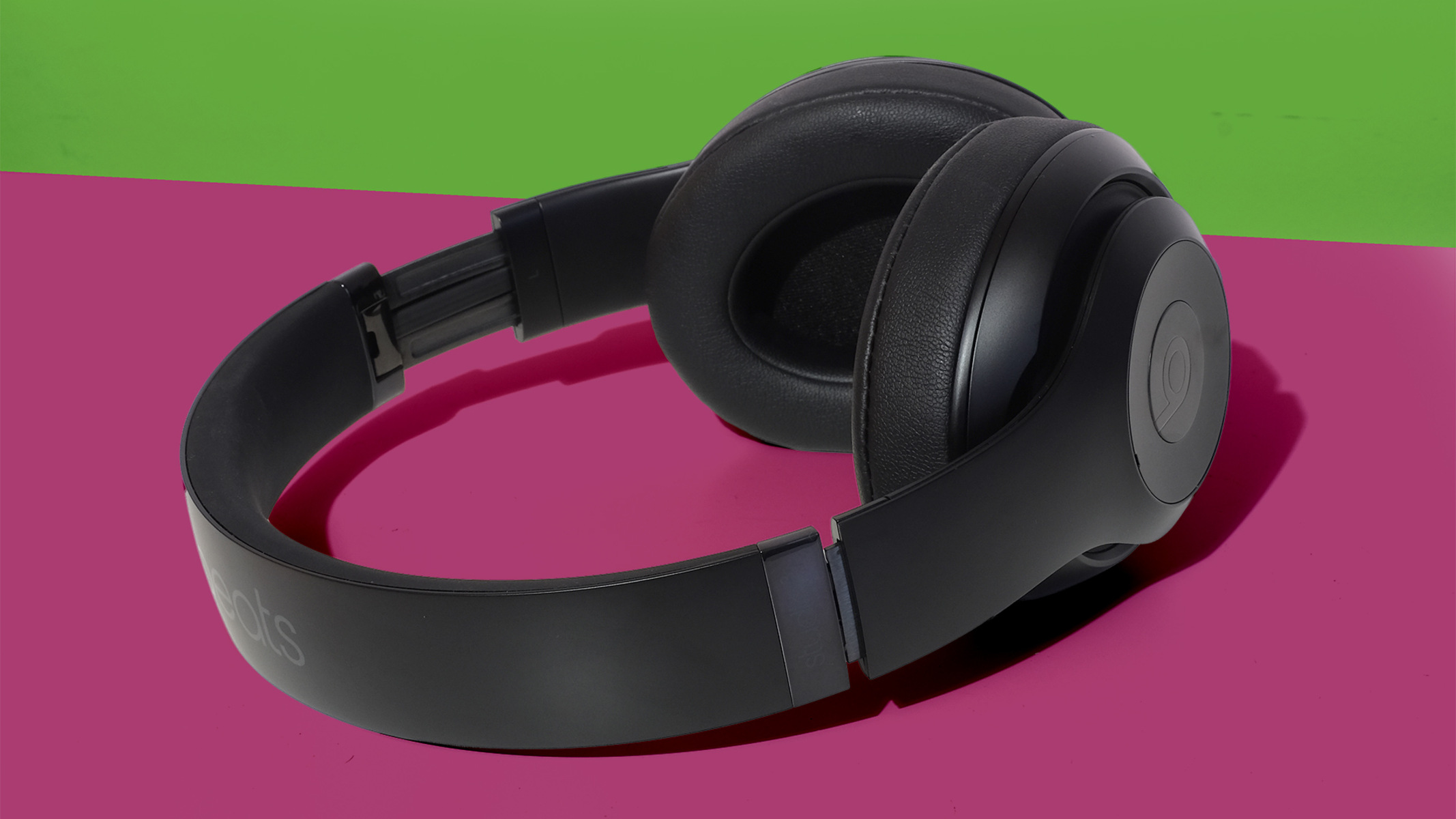
To turn noise cancelling on Beats headphones or earbuds, press and hold the "b" button on the device. This toggles between Active Noise Cancelling (ANC) and Transparency mode on supported models.
Turn noise cancelling on Beats with the 'b' button
The primary physical control method is using the "b" button on your Beats. On supported models like Beats Studio Pro, Beats Studio Buds+, Beats Fit Pro, and Powerbeats Pro, simply press and hold the "b" button to switch between Active Noise Cancelling and Transparency mode. This is the fastest way to block out external noise without needing to look at a screen.
Switch listening modes on your iPhone or iPad
You can also control listening modes directly from your iPhone or iPad. Wear your Beats and ensure they are connected to your device.
- Go to "Settings" on your iPhone or iPad, then tap the name of your Beats near the top of the screen.
- Under "Listening Mode," tap "Noise Cancellation" to block external noise. To hear your surroundings, tap "Transparency." To turn off all listening modes, tap "Off."
Alternatively, open "Control Center," then touch and hold the volume control. Tap the "Listening Mode" button at the bottom left, then choose a listening mode. This provides quick access without navigating through Settings.
Control noise cancelling on your Android device
For Android users, the Beats app provides full control. Before you begin, ensure you have installed the Beats app and your Beats are connected to it.
- In the Beats app for Android, tap the menu button, then tap "My Beats" to display the device screen.
- Tap the "Noise Cancellation on" button to turn noise cancellation on. Tap the "Noise Cancellation off" button to turn noise cancellation off. You can also tap the "Transparency" button to turn transparency on.
A Beats app widget can be used to quickly switch between noise control modes on your Android device's Home Screen, giving you one-tap access to change modes.
Change listening modes on a Mac or Apple TV
On a Mac, click the Beats icon in the menu bar, then choose a listening mode. You can also choose Apple menu > System Settings, click the name of your Beats in the sidebar, then select a listening mode. Alternatively, choose Apple menu > System Settings, click "Bluetooth" in the sidebar, click the info button next to your Beats in the list of devices, then click "[device] Settings" and select a listening mode.
On an Apple TV, wear your Beats and ensure they are connected. Press and hold the TV button to open "Control Center." Navigate to the Beats icon (such as the headphones button or the earphones button). Select your Beats, then choose a listening mode.
Customize the press-and-hold action
You can change which earbud controls noise cancellation and how the press-and-hold function works. To change which earbud controls noise cancellation and transparency, tap "Press and Hold," tap "Left" or "Right" to assign an action to that earbud, then select "Noise Control." This lets you decide which earbud triggers the mode switch. For certain connected devices, you can scroll down to "Noise Control," then tap an option to customize the cycle between Off, Transparency, and Noise Cancellation.
\nRelated reading: How Do I Turn Noise Cancelling On, How To Turn On Noise Cancelling On Airpods On Android, and What Is The Difference Between Noise Cancelling And Ambient Sound.