If the other person can't hear you in speaker mode, the fastest fix is usually a blocked microphone or a Bluetooth connection stealing your audio, not a broken phone. The speaker mode microphone not working is almost always caused by something you can clear or disable in under a minute, so start with the physical and connection checks below before you assume a hardware failure like fixing a broken phone speaker.
Why your speaker mode microphone isn't working
Your phone has two microphones for a reason. The bottom mic picks up your voice during a normal call, while the top mic is dedicated to speakerphone and video recording. When you switch to speaker mode, the phone switches audio input to that top mic. If that top opening is blocked by a case, covered by a screen protector, or clogged with pocket lint, your voice never reaches the other person, even though the speaker itself works fine. Knowing this distinction is the key to targeted troubleshooting, because a bottom mic that works perfectly in regular calls tells you the problem is isolated to the top mic.
Quick checks to fix the speaker mode issue now
These three checks solve the majority of speaker mode microphone failures in seconds. Try them in order before anything else.
- Remove your phone case and any screen protector that might overlap the top edge of the phone. Many cases extend slightly past the top microphone hole, muffling or fully blocking it.
- Clean the top microphone opening with a soft-bristled toothbrush or a short burst of compressed air. Gently brush outward, never poke inward, to dislodge dust and debris without pushing it deeper.
- Turn off Bluetooth from your quick settings. If your phone is connected to headphones, a car system, or a smartwatch, your voice may be routing there instead of the phone's top mic, so the call recipient hears nothing from speaker mode.
If these don't restore your audio, restart your phone. A simple reboot clears minor software glitches that can temporarily disable the top microphone during speaker calls.
Test your speakerphone microphone with a video recording
This is the definitive diagnostic step that tells you whether your top mic is physically working. Open your camera app and switch to video mode, then speak directly into the top of your phone for about ten seconds. Play the video back and listen carefully. If you hear your voice clearly, the top microphone is functional and the problem is software-related. If your voice is faint, muffled, or absent, the top mic itself is the culprit. Because video recording uses the same top microphone as speaker mode, this test isolates the hardware issue from any call-specific settings. A voice memo, by contrast, uses the bottom mic, so it won't help you diagnose speaker mode.
Software fixes for Android speaker mode problems
If the video test passes, the issue is in your phone's software. These Android-specific steps address the most common culprits.
- Clear the Phone app's cache. Go to Settings > Apps > See all apps > Phone > Storage & cache > Clear cache. This wipes temporary data that may be corrupting call audio routing.
- In Safe Mode, all downloaded apps are disabled. Make a speakerphone test call. If the other person can hear you, a third-party app is interfering, uninstall recently downloaded apps to find the offender.
- Check the "Mute all sounds" accessibility setting. Go to Settings > Accessibility > Hearing enhancements and make sure this is off. When enabled, it can suppress all audio output, including your voice transmission in speaker mode.
After each step, test a speakerphone call before moving to the next. This narrows down exactly which software layer is causing the problem.
Check app permissions and system updates
Sometimes the issue is specific to one calling app rather than your phone overall. If speaker mode fails only in WhatsApp, Skype, or another VoIP app, check that app's microphone permission in your phone's privacy settings. Go to Settings > Privacy > Microphone and ensure the app has permission enabled. Revoking and re-granting permission can also reset a stuck audio session. Then update both the calling app and your phone's operating system to the latest versions. Software updates frequently include bug fixes for audio routing and microphone handling, so an outdated OS or app can be the exact reason your speaker mode mic stopped working.
When to seek a professional repair
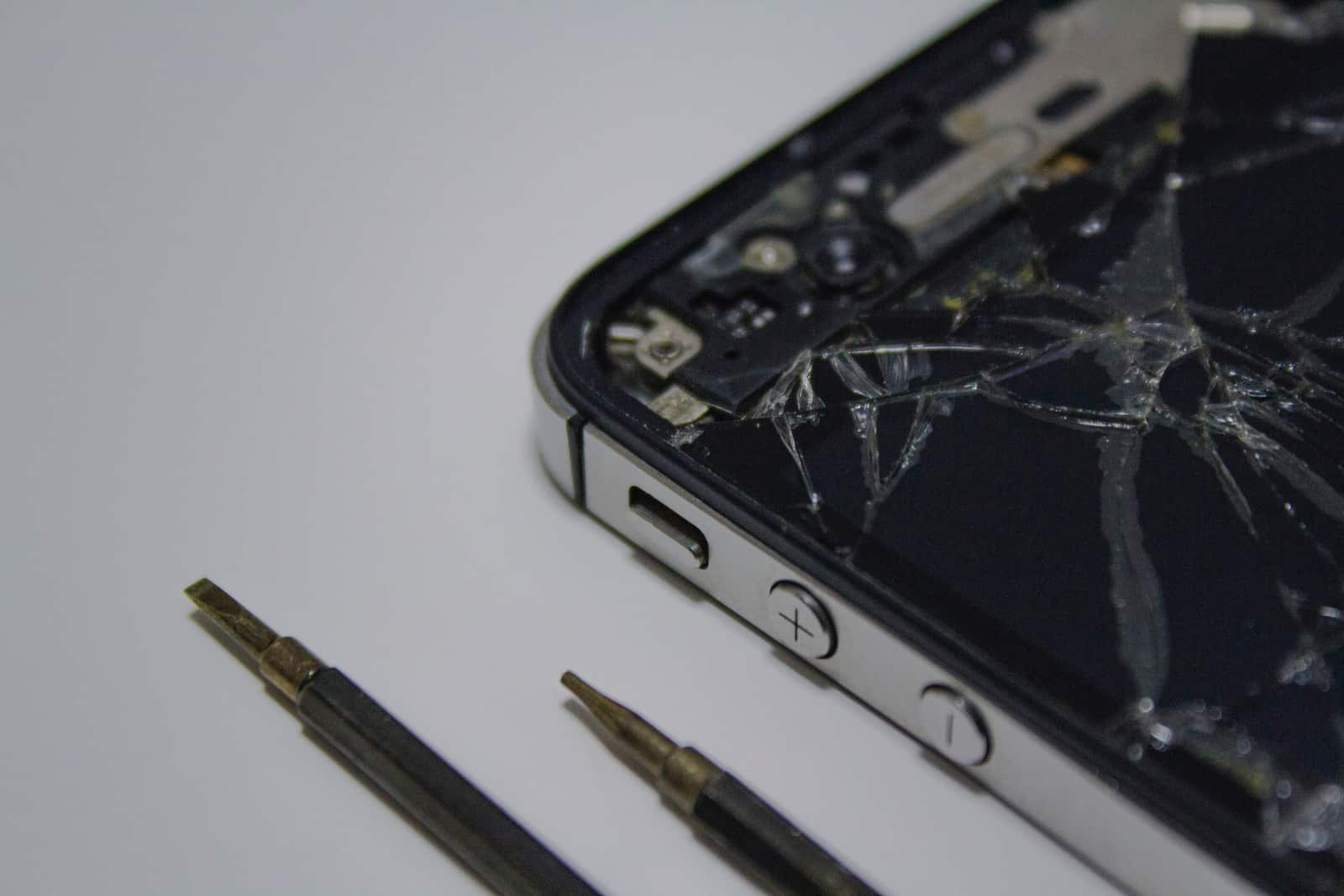
If the video recording test confirmed your top microphone is dead, meaning your voice was inaudible or severely muffled, and every software step above failed to restore it, the problem is hardware. A damaged or failed top microphone cannot be fixed by software updates or settings changes. Contact a certified technician or your device manufacturer's authorized service center. They can inspect the microphone connection, replace the component if necessary, and verify that no water damage or physical impact caused the failure. Attempting to open the phone yourself risks further damage, so leave the repair to professionals who have the proper tools and parts.
\nRelated reading: Step-by-Step Guide To Activating Speaker Mode On Android Phones and Enabling Speaker Mode On TCL Flip Phones: Step-by-Step Guide.