The Windows tag on robots.net collects practical, hands-on guides aimed at everyday computer users who want to get more done without calling a technician. Whether you are setting up a new PC, troubleshooting a frustrating error, or trying to connect your devices, these articles focus on clear steps and real-world solutions. The audience is broad: beginners who need a gentle introduction to basic tasks, and more experienced users looking for specific fixes or performance tweaks.

The articles cluster around a few recurring themes. One major theme is connectivity and hardware, you will find guides on connecting a PC to Wi‑Fi, finding an Ethernet IP address, transferring files between PCs using a cable, and using WhatsApp Web on a Mac or Windows machine. Another theme is system maintenance and performance: articles explain how to format a hard drive, check CPU temperature in Task Manager, allocate more CPU to a game, or clear out the Downloads folder. A third theme covers everyday input and display tasks, such as taking a screenshot, enabling keyboard backlights, typing a squared symbol, or switching to a Spanish keyboard layout.

Several articles also address topics from a safety, security, or legal-alternatives perspective. For example, the guide on recycling an old laptop focuses on proper disposal rather than data recovery, and the review of Hide.me evaluates a VPN service for privacy-conscious users. Similarly, articles about Android emulators, BeeTV, and Amazon Music downloads are framed around legitimate use, installing apps on a PC, using streaming services on a supported device, or downloading music you own, not circumventing protections. The tag is a practical resource for solving everyday Windows problems, with an emphasis on doing things correctly and safely.

How To Connect Controller To PC

Connecting a game controller to your PC is a simple process that works with both wired USB cables and wireless Bluetooth connections. Whether you own an Xbox or PlayStation controller,...

How To Make A Euro Sign On Keyboard

To type the euro sign on a keyboard, use Ctrl+Alt+E (or Ctrl+Alt+5) on a US Windows keyboard, or Option+Shift+2 on a US Mac keyboard. These shortcuts instantly insert the €...

How Do I Make My Keyboard Bigger

The fastest way to make my keyboard bigger is to adjust its height in a third-party keyboard app like Gboard or SwiftKey on your phone, or to resize the on-screen...

How To Undo On Keyboard

The universal keyboard shortcut to undo on keyboard is Ctrl+Z on Windows and Command+Z on Mac. Pressing this shortcut once reverses your last action, and pressing it repeatedly undoes multiple...

What Are The Function Keys On A Keyboard

Function keys on a keyboard are the row of keys labeled F1 through F12, typically located at the very top of the keyboard. Their primary purpose is to provide quick...

Where Is The Division Sign On A Keyboard

Wondering where the division sign is on a keyboard? Most keyboards lack a dedicated ÷ key, so you won't find it printed there. The quickest universal methods are to copy...

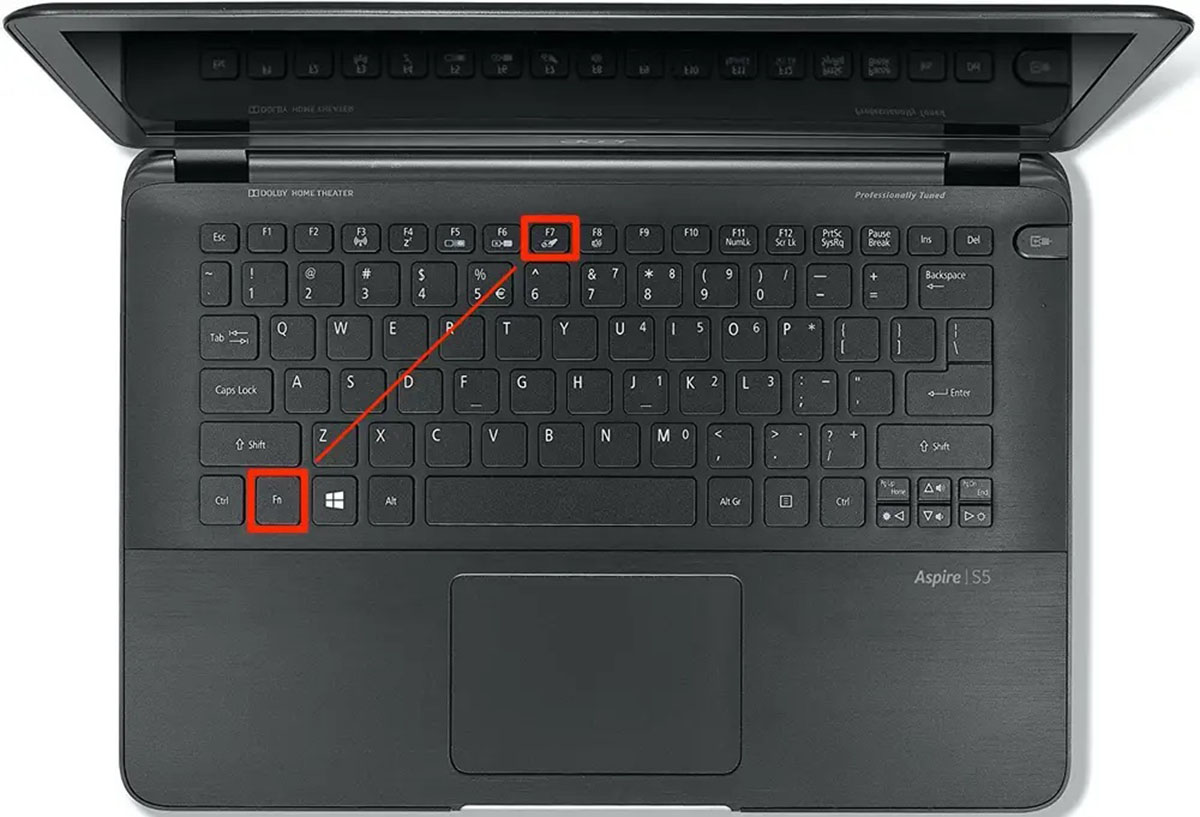
How To Turn On The Lights On My Keyboard

To turn on keyboard lights, press the dedicated backlight key, which is usually located on the top function (F) row or on the Spacebar, and it often features an icon...

Where Is The Apostrophe On The Keyboard

On a standard QWERTY keyboard, where is the apostrophe on the keyboard? It's located in the bottom row to the right of the semicolon key, sharing the same key as...

How To Get Spanish Keyboard

To get a Spanish keyboard, you don’t need to buy new hardware, you can change the keyboard layout in your device’s settings in a few minutes. This software-based approach works...