Facebook's ad controls live in Accounts Center under Ad preferences, and the phone-level controls live in iOS and Android settings. Between them you can cut down how much of your behavior feeds ad targeting, tell Facebook to show you less of specific topics, and stop apps handing over a device identifier. What none of them do is stop data collection or reduce the number of ads you see. Facebook says so directly: changing your ad preferences influences which ads appear, not how many.
Where the ad settings are
Click your profile picture in the top right, choose Settings and privacy, then Settings, then Accounts Center. Within Accounts Center, find Ad preferences. The screen splits into two tabs. The customize ads tab is where you shape what you see: your ad activity, your ad topics, ads you saved, and the advertisers whose ads you have been shown. The manage info tab is where the targeting inputs live: information from your profile used to show you ads, personalization based on your activity from other businesses, whether Meta shows you ads in other apps, and who can see your social interactions next to ads.
Settings here apply across the accounts linked in your Accounts Center, so a change made on Facebook carries to a linked Instagram account.
Ad topics
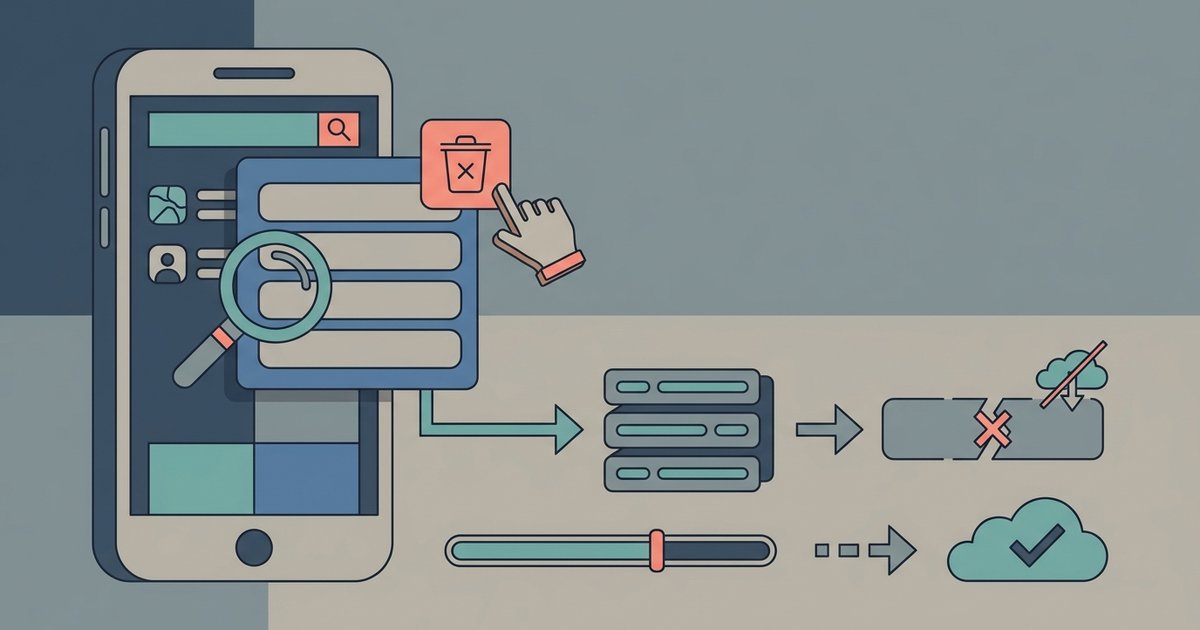
Ad topics is a list of subjects you can ask to see less of, covering things like alcohol, parenting, pets and social issues, elections or politics. Open the customize ads tab, find ad topics and choose see all, then select a topic and choose to see less of it. There is a search box for finding specific topics rather than scrolling.
Choosing to see less of a topic has two effects: you get fewer ads about it, and advertisers cannot target you based on an interest in it. Facebook is explicit that you may still see some ads related to a topic you asked to see less of, so treat it as a strong preference rather than a block.
Advertisers and ad activity
The same tab lets you review the advertisers whose ads you have seen and hide ads from specific ones. This is slow going if you only do it here, and the faster route is to use the menu on an individual ad in your feed when it appears, which offers options to hide it or see fewer like it. Both feed into the same preferences.
Your ad activity view shows what you have interacted with. It is worth a look mostly as a diagnostic: it tells you which of your behaviors Facebook has decided are commercially interesting, which is often more informative than the settings themselves.
Activity off Meta technologies
This is the big one, and it used to be called Off-Facebook Activity. Businesses that use Meta's advertising tools send Meta information about what you do on their websites, in their apps and sometimes in their stores. Meta then connects that activity to your account and uses it for targeting.
The control sits in Accounts Center, as the setting for activity from other businesses. Turning it off means Meta does not use that activity to show you ads and other content. There is usually also a way to disconnect past activity, which detaches the history already gathered from your account.
Be clear about the limits, because this setting is widely misunderstood. Turning it off does not stop businesses sending your activity to Meta. Meta says it may still anonymize that data or use it to improve its products. Content and ads can still be shaped by your activity on Facebook itself, by information you connected to Meta such as linked accounts and apps, and by a business uploading a list of customers that Meta matches to your profile. The setting stops one specific use of the data, not the flow of it.
Availability also varies. These screens are not offered identically in every region, so what you can reach depends partly on where your account is.
Information from your profile used for ads
In the manage info tab you can review which profile details are used for ad targeting, and remove some from that use. This is separate from the audience settings that control who can see those details. A field can be hidden from other people and still be used to target you, because the two systems are unrelated.
App tracking on iPhone and iPad
Apple's App Tracking Transparency gives you a device-level control that Facebook cannot override. Go to Settings, then Privacy & Security, then Tracking, and you will see the apps that have asked to track you. Choosing Ask App Not to Track means the developer cannot access the system advertising identifier, the IDFA, which is the main tool for linking your activity across apps.
If you would rather not be asked at all, turn off Allow Apps to Request to Track in the same screen. With it off you stop getting the prompts, and apps do not get the identifier. Do this before installing new apps rather than after, since a permission already granted has to be revoked app by app.
Ad tracking on Android
Android's equivalent is the advertising ID, provided by Google Play services. You can reset it, which replaces it with a new one and breaks the continuity of the profile built against the old one, or delete it outright. Deleting it means no new ID is assigned, and apps that ask for the identifier receive a string of zeros instead. The controls are in Settings under the privacy or ads section, and on newer versions they also appear through the Google entry in Settings, under ads privacy.
Android's ads privacy screens additionally cover ad topics that the system infers from your app use, app-suggested ads and ad measurement, each of which can be turned off separately. These are Android's own controls, not Facebook's, but Facebook is one of the apps they apply to.
What none of this stops
These controls limit targeting. They do not make you invisible. Everything you do inside Facebook itself is still recorded and still used. Businesses can still send Meta your activity. Advertisers can still upload customer lists that get matched to your profile. Websites can still identify you by other means, including your logged-in session and browser fingerprinting, neither of which any of these toggles touch. And you will see the same quantity of ads either way, just less precisely aimed.
If you want the effect these settings only partly deliver, you have to add things they cannot do: a browser that blocks third-party trackers, a separate browser or profile for logged-in Facebook use, and not using Facebook login to sign in to other services. Start with the account settings above because they are free and take ten minutes, then decide how much further you want to go. Set a reminder to check the ad preferences screen again in six months, since the menus are reorganized regularly and a setting occasionally reappears after an app update.
\nRelated reading: How to Use Messenger Without a Facebook Account, Deactivate vs Delete Your Facebook Account: What Actually Happens, and How to Download Your Facebook Data.