A rogue extension or a third-party search engine is overriding your startup preference. You need to scan for and remove suspicious extensions, then reset your search engine to stop the override.
Check for extensions overriding your Chrome homepage setting
The most common culprit is a browser extension that has silently claimed control over your startup behavior. Extensions that appear benign can contain hidden permissions. These include ad blockers, PDF tools, or even a toolbar you installed months ago. Such permissions let them modify the "On startup" setting. To find these, navigate to chrome://extensions in the address bar. Look for any extension you do not recognize or that you did not intentionally install. Toggle each suspicious extension off and restart Chrome. If your homepage holds, remove the extension entirely. Some malware disguises itself as a "security" or "shopping" helper. If you ever wanted to set MSN as your homepage but the extension keeps redirecting you elsewhere, that extension is the override. Once you disable it, you can lock in your preferred setup by customising the Chrome homepage and shortcuts so future changes are deliberate. Disable or delete it first.
Reset the search engine used on startup
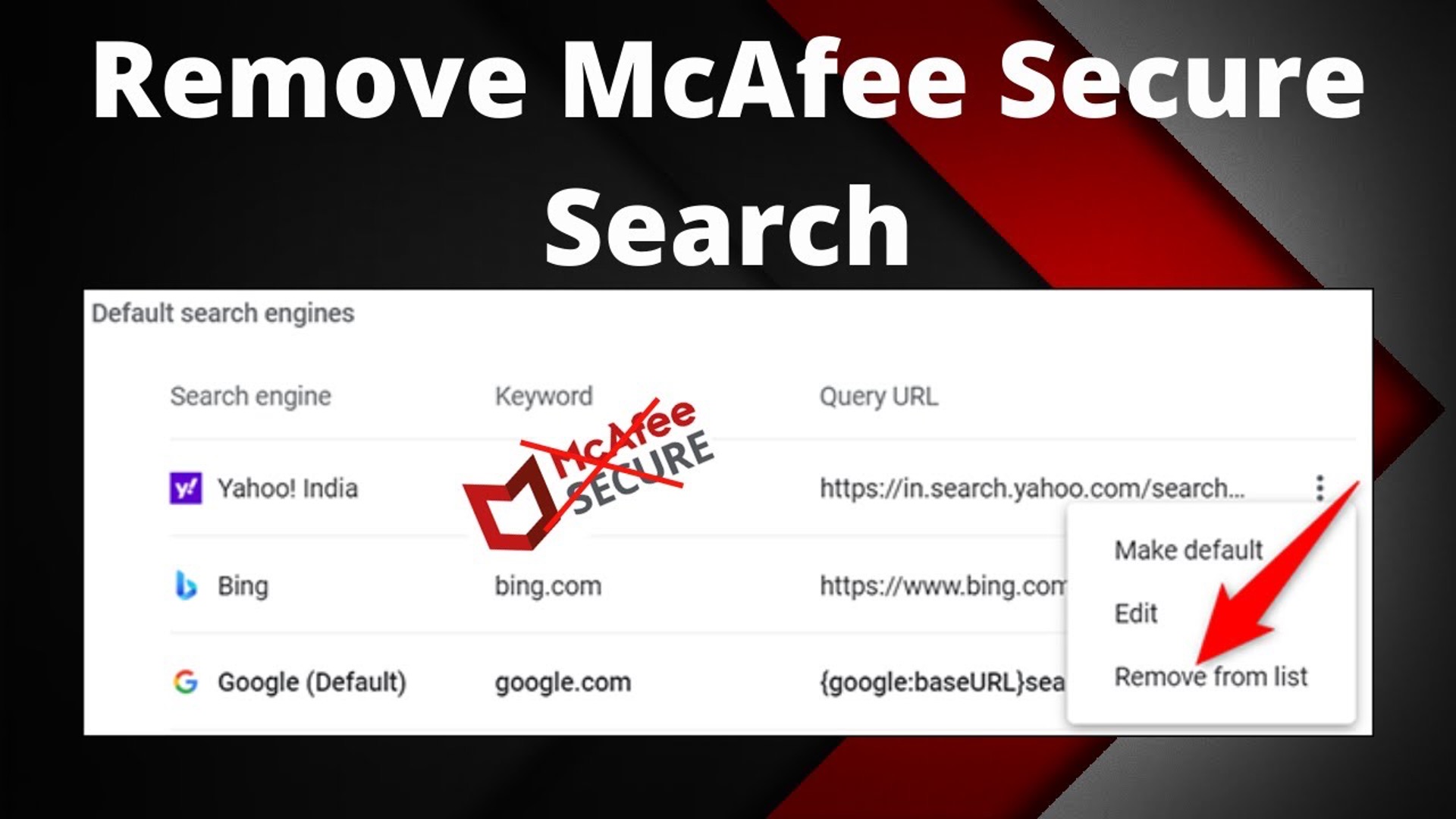
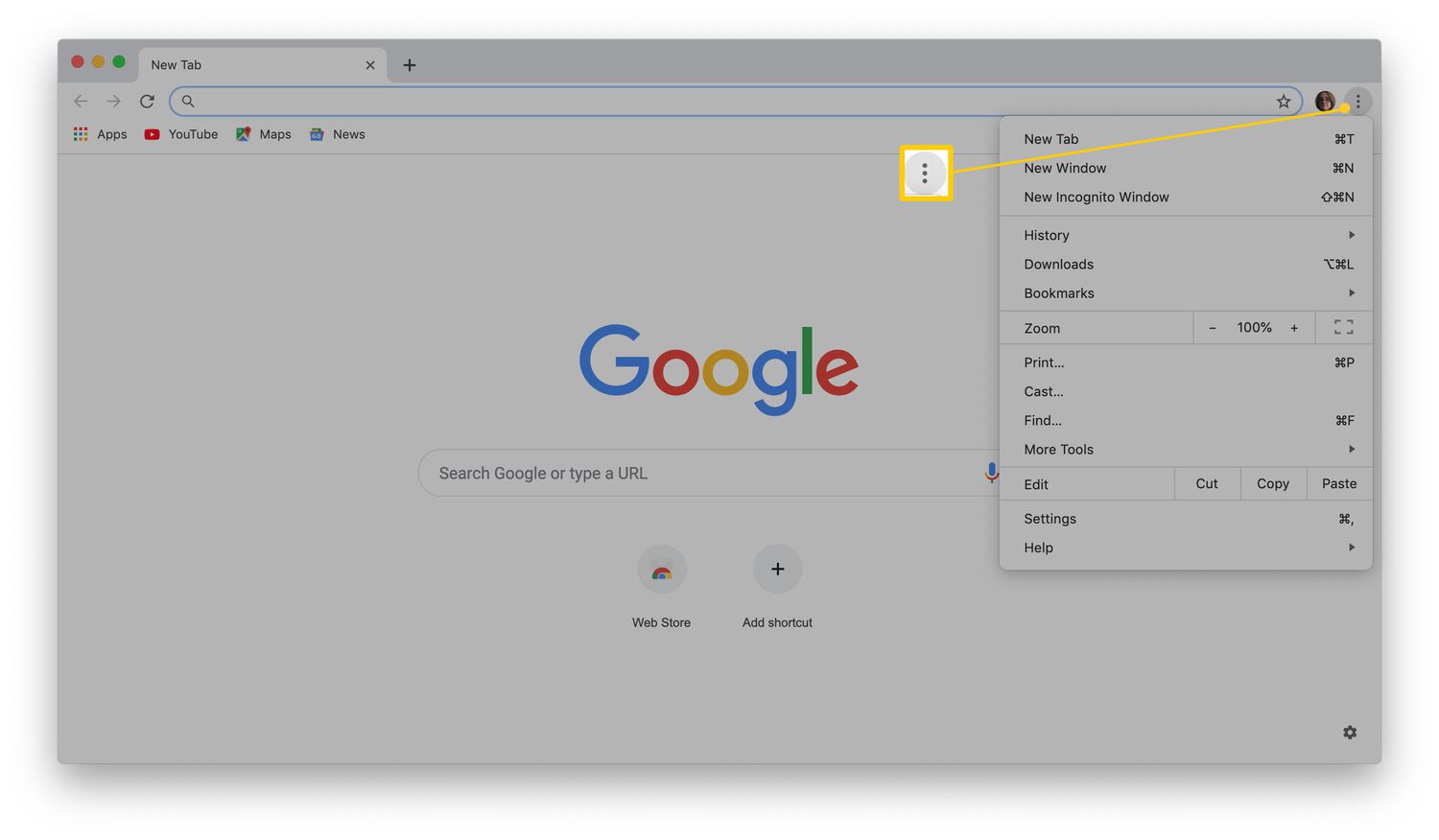
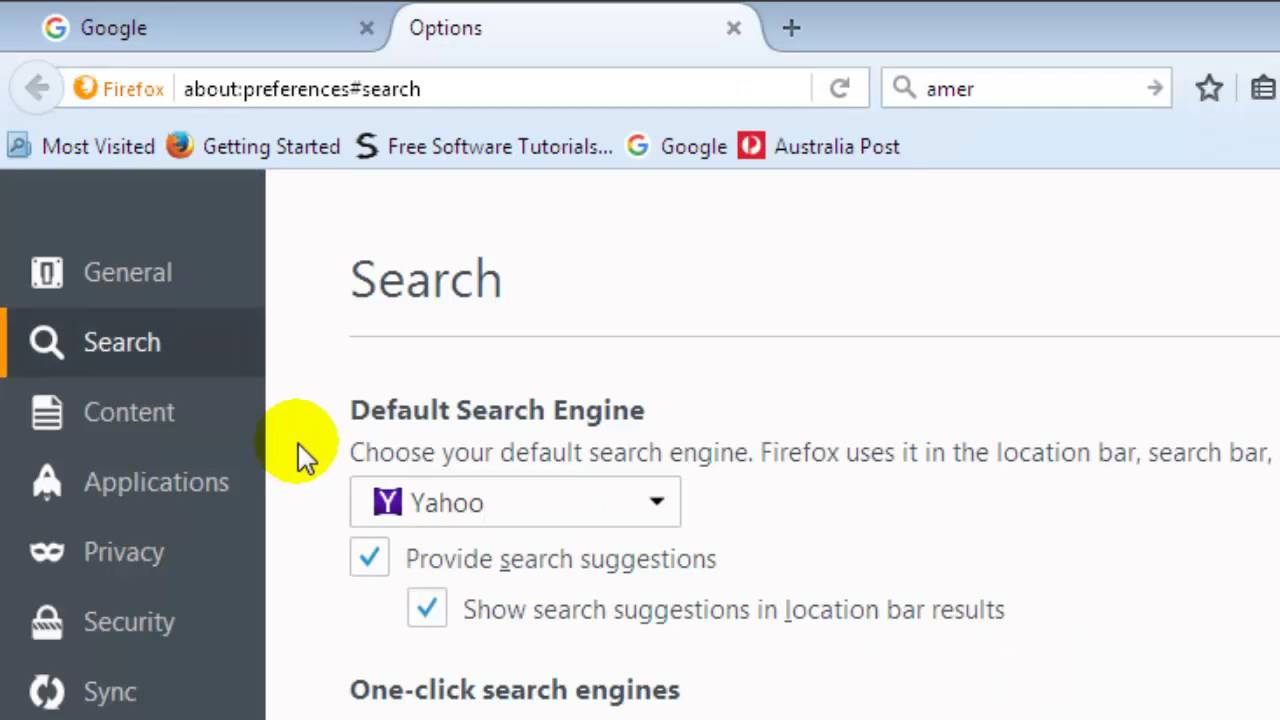
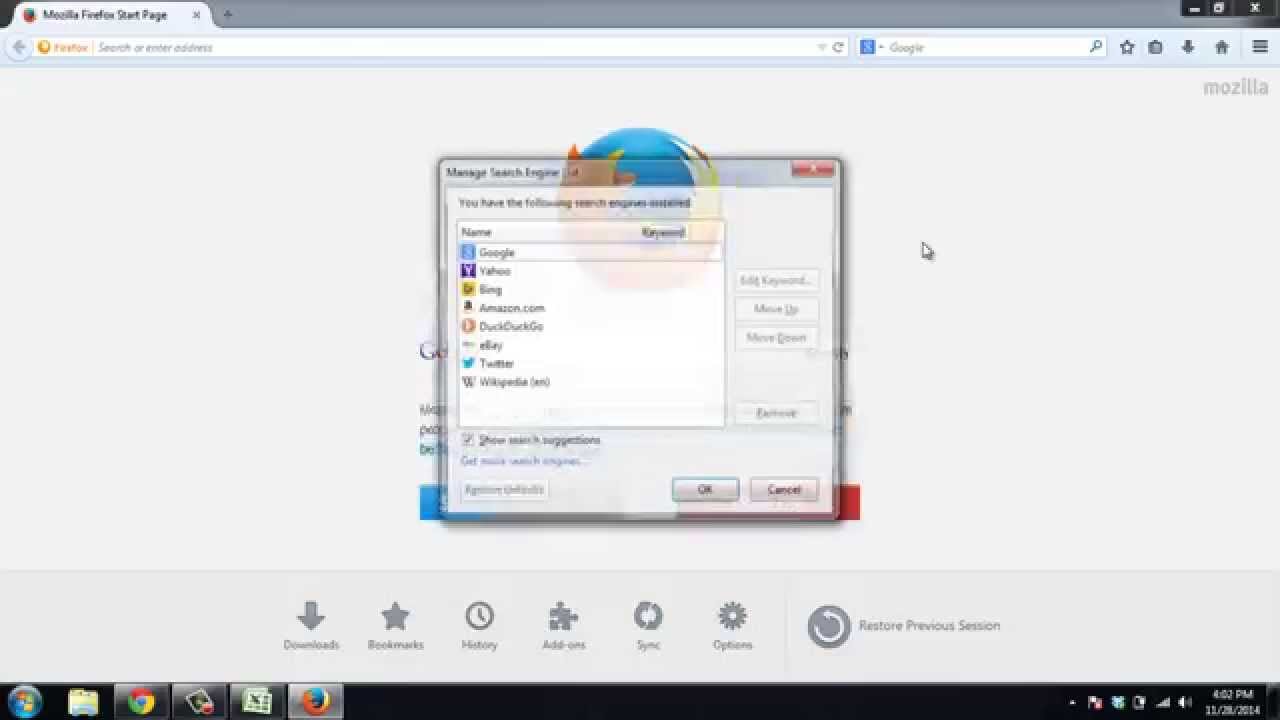
Your homepage may still revert after you remove a rogue extension. This happens because the default search engine has been hijacked. Chrome ties the "On startup" behavior to the search engine setting. A malicious default search engine can force the browser to open its own page instead of your chosen URL. To fix this, go to Chrome Settings and find the search engine management section. Find the entry labeled "Google" or a safe alternative like Bing or DuckDuckGo. Click the three dots next to it to set it as default. You may have previously tried to add webpages to Google Chrome homepage by typing a URL into the "Open a specific page or set of pages" box. If it kept failing, the hijacked search engine was intercepting that command. Reset the search engine to a known-safe default. Then re-enter your desired homepage URL in the "On startup" section. This step also prevents unwanted pages from appearing when you choose to add websites to your most visited list. The hijacked engine would otherwise replace those thumbnails with sponsored links.
When Chrome Cleanup Tool is the only fix
You have disabled all suspicious extensions and reset your search engine. Yet the homepage still reverts after restart. A persistent policy or hidden malware script is likely at work. This scenario occurs when an infected program installs a system-level policy that Chrome cannot override from its own settings. The solution is the Chrome Cleanup Tool. It scans for software that manipulates browser settings without your knowledge. Open Chrome Settings, then "Reset and clean up," and select "Clean up computer." Run the scan. It will detect and remove any underlying malware. If the tool finds nothing but the problem persists, perform a full settings reset. Choose "Restore settings to their original defaults" in the same menu. This wipes all customizations, including any policy that forced the homepage to revert. After the reset, you can safely add a shortcut on Chromebook or any other device by manually setting your homepage again. You will know no hidden script will overwrite it. As a last resort, uninstall Chrome entirely. Then uninstall Chrome and reinstall a fresh copy.