Firefox can feel slow and bloated because of a few specific, fixable causes, not because the browser itself is broken. If you're wondering why is Firefox so slow, the usual culprits are resource-hungry extensions, the demands of its multi-process architecture, and privacy features that can interfere with how sites load. The good news is that you can diagnose and fix most of these issues yourself, and this guide shows you exactly how.
Why is Firefox so slow now?
Many long-time users have noticed Firefox becoming more sluggish and memory-hungry over the years. The common performance complaints, high CPU usage, laggy scrolling, and tabs that freeze, often trace back to a handful of technical changes. Firefox now runs multiple processes to improve stability and security, but this comes at the cost of higher memory use. Additionally, modern extensions and default privacy protections can create extra work for your computer. Instead of accepting a slow browser, you can take direct action to identify and fix the specific causes on your system. The following steps and explanations will help you restore Firefox to a responsive state.
Check what's using memory with the Firefox Task Manager
The built-in Firefox Task Manager is your first tool for diagnosing slowdowns. It shows you exactly which tabs, extensions, and processes are consuming CPU and memory in real time. To open it, type `about:processes` into your address bar and press Enter. You'll see a list of active items, sorted by their resource usage.
- Look for tabs with high "Memory" or "CPU" values. These are the ones likely causing the lag.
- Identify any extensions listed that are using significant resources. You can click the trash icon next to an extension to disable it temporarily.
- Close or disable the worst offenders. For tabs, simply close them.
This process gives you a clear, real-time picture of what's slowing things down. By regularly checking this view, you can prevent a single runaway tab or extension from hogging your system's resources.
How Firefox's multi-process architecture affects performance
Firefox's shift to a multi-process architecture, known as Electrolysis (e10s), was a major change. In older versions, the entire browser ran in one process, which meant one crashed tab could take down everything. Now, Firefox uses separate processes for the main browser, the user interface, and each tab (or group of tabs). This isolation improves stability and security, a crash in one tab doesn't freeze the whole browser. However, the trade-off is higher memory usage. Each process needs its own chunk of RAM. If you have many tabs open, each one has its own process, which can add up quickly. This is why Firefox might use more memory than it did a decade ago. The benefit is that when a site misbehaves, you can often force close that specific process without losing your other tabs. While this architecture uses more resources, it's a deliberate design choice that prevents many catastrophic failures.
Extensions: the legacy add-on transition and resource drain
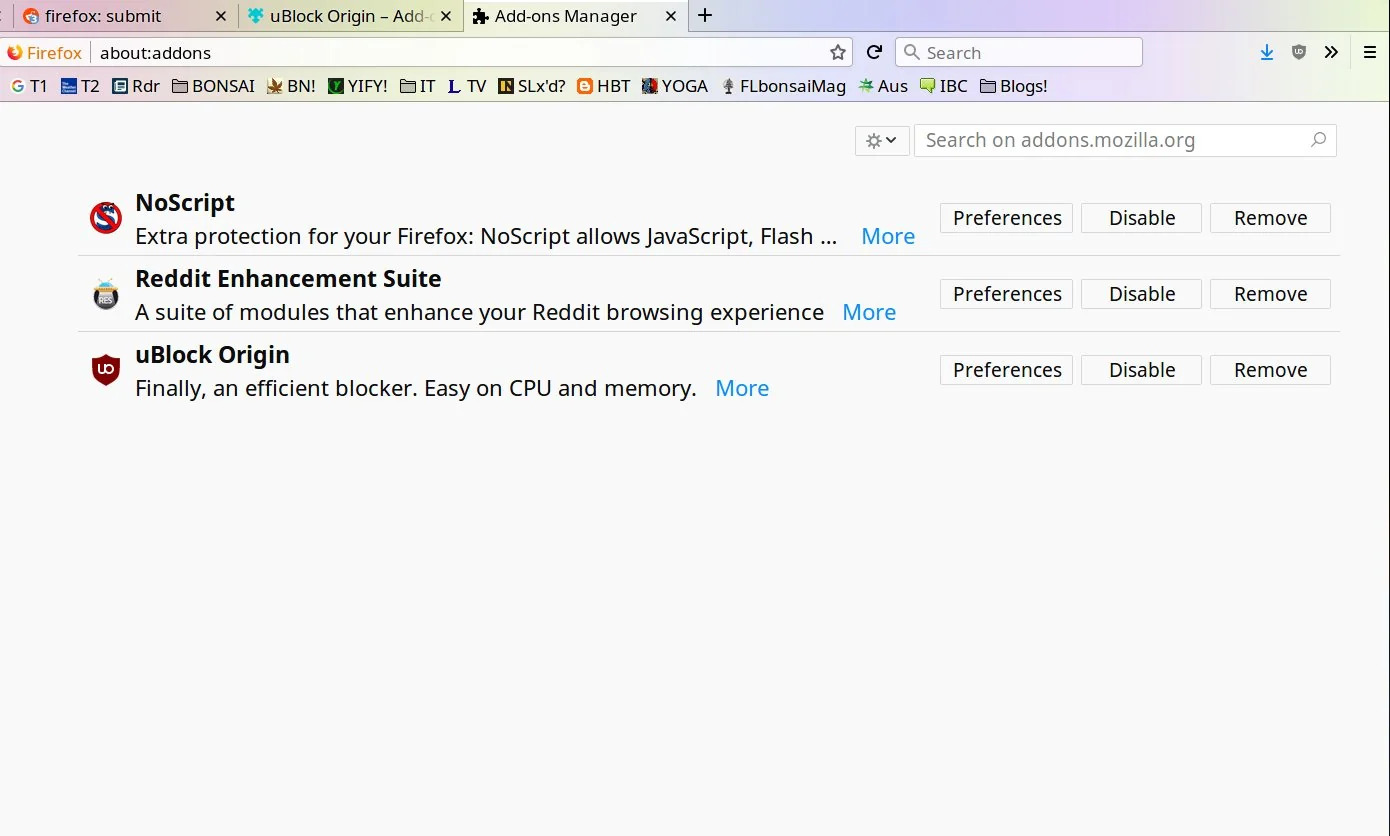
The transition from legacy add-ons to WebExtensions was a necessary modernization step, but it came with costs. Older, powerful extensions like classic download managers or full-featured toolbars had deep access to the browser's internals. WebExtensions are more limited and sandboxed, which is more secure but also less capable. This meant some popular legacy add-ons were discontinued or had to be rewritten with fewer features. More importantly, poorly optimized modern extensions can still be resource hogs. An extension that constantly runs background scripts or tracks your activity in real time can consume significant CPU and memory. If you notice Firefox slowing down, a resource-draining extension is often the culprit. To check, open the Firefox Task Manager and sort by "Memory" or "CPU" to see which extensions are active. Disable any that you don't absolutely need, and consider replacing heavy ones with lighter alternatives. Always review an extension's permissions before installing, and remove any that you no longer use.
Privacy features that can cause site compatibility issues
Firefox's strong privacy protections are a major selling point, but they can sometimes break websites. Enhanced Tracking Protection (ETP) automatically blocks cross-site trackers, while Total Cookie Protection (TCP) isolates cookies for each site. These features prevent companies from following you across the web, but they can also interfere with site functionality. For example, a site might rely on a third-party cookie to keep you logged in or to load a comment section. When Firefox blocks that cookie, the site may appear broken or fail to load properly. If you encounter a site that isn't working, click the shield icon to the left of the address bar. This opens the "Protections" panel. From there, you can click "Privacy Settings" and then "Advanced settings" to adjust the level of protection. You can switch from "Standard" to "Strict" for more blocking, or choose "Custom" to fine-tune which trackers are blocked. For a specific site, you can also disable protections entirely by toggling the switch in the shield panel. This gives you control over when privacy features are worth potential compatibility trade-offs.
Quick fixes to reduce Firefox memory usage
If you need immediate relief from high memory usage, several quick actions can help. First, restart Firefox regularly. This clears out accumulated memory from all the processes and extensions. Second, close resource-intensive tabs. If you have many tabs open, consider using a tab suspender extension or manually closing the ones you don't need. Third, you can enable a hidden setting that releases memory when you minimize the browser. Type `about:config` in the address bar, search for `config.trim_on_minimize`, and set it to `true`. This tells Firefox to return unused memory to your operating system when you minimize the window. Finally, make sure Firefox and your video drivers are up to date. Outdated drivers can cause rendering issues and increased CPU usage. Mozilla provides official troubleshooting steps that include these checks. By combining these actions, you can often see a noticeable improvement in responsiveness and memory footprint.
The Gecko engine difference and web compatibility
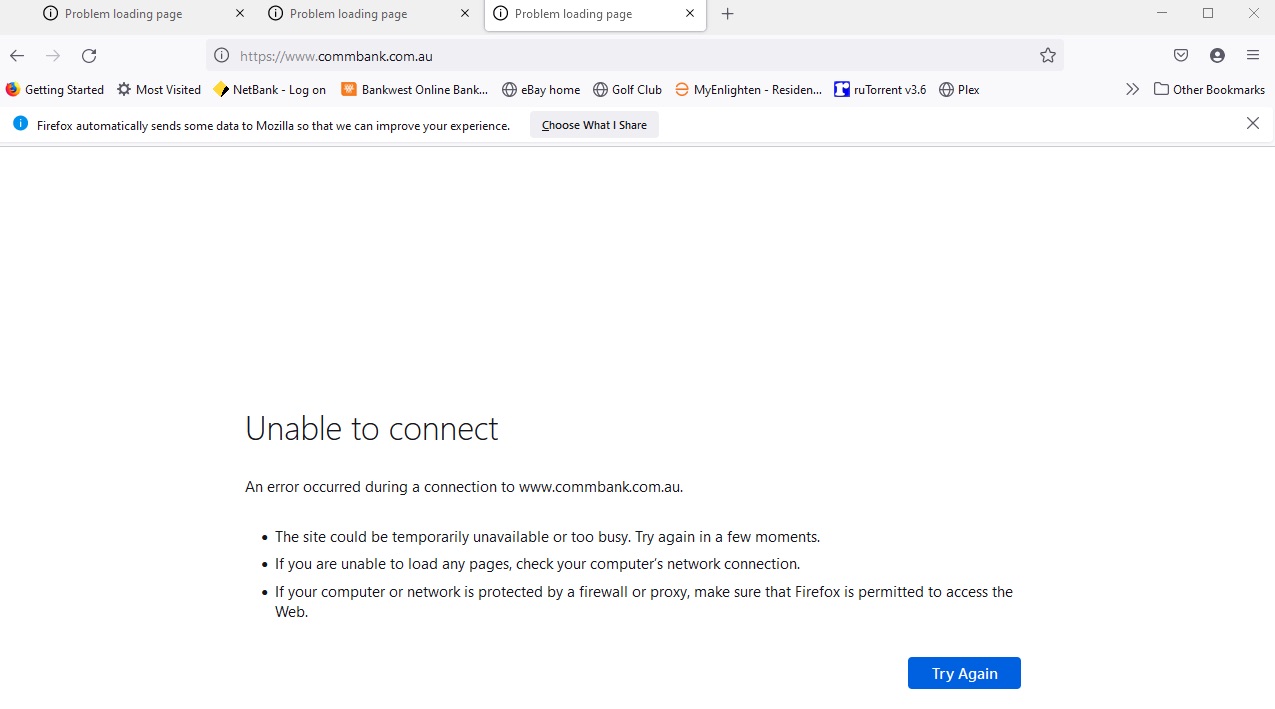
Firefox is built on its own Gecko rendering engine, while most other major browsers use Google's Chromium. This independence is a strength for web diversity, but it also means sites are often tested primarily in Chromium. As a result, some websites may not work perfectly in Firefox. You might encounter buttons that don't respond, layouts that break, or videos that won't play. This isn't because Firefox is "bad", it's because the site's developers didn't test for Gecko. In many cases, the issue is minor and can be fixed by switching to a different browser or using a user-agent switcher extension. However, for critical tasks like online banking or government forms, a site might have issues. If you suspect a site is broken because of the engine, try opening it in a different browser to see if the problem persists. If it works elsewhere, the issue is likely a compatibility quirk specific to Gecko. While this is frustrating, it's a consequence of having a diverse web ecosystem. Supporting Firefox helps ensure that the web remains open and not controlled by a single engine.
Understanding Firefox's data collection and privacy stance
Some users worry that Firefox's background processes are collecting too much data, which could contribute to slowdowns. Mozilla collects "Telemetry" data, performance metrics and usage information, to improve the browser. This data helps them identify bugs and understand how features are used. Importantly, Mozilla's Data Privacy Principles and Privacy Policy govern this collection. They state that Mozilla does not sell your personal data. However, they do sometimes share data with partners for optional ads on the New Tab page and sponsored search suggestions. These partners have measures in place to prevent revealing your specific identity. You can choose to block all telemetry or limit it to technical data only. This doesn't directly speed up the browser, but it gives you control over what's sent. The background processes associated with telemetry are generally minimal, so disabling them won't significantly improve performance. But for peace of mind, it's good to know you have options. Firefox's commitment to privacy is a core reason to stick with it, even when other browsers might feel faster. The trade-off between privacy and convenience is a personal choice, and Firefox gives you the tools to make that choice.
\nRelated reading: How To Import Opera GX To Firefox, How To Pin A Site On Firefox, and How Do I Contact Mozilla Firefox.