To whitelist a website on Chrome means granting it specific permissions, like pop-ups, cookies, or location access, that the browser might otherwise block. There are two main methods: the quick address bar approach for the site you're currently on, and the deeper Settings method for managing permissions across all sites. If your school restrictions are overriding these settings, you may need to disable goguardian on school Chromebook first.
Fastest way to whitelist a website on Chrome
When you're on a website that isn't working correctly, perhaps a login button fails or a feature won't load, the quickest fix is to use the address bar. Click the lock icon (🔒) or "View site information" to the left of the URL, then select "Site settings." From there, you can toggle permissions like pop-ups, cookies, or JavaScript directly for that specific site. This is ideal when you want to whitelist a website on Chrome immediately because a broken feature is blocking your task.
How to allow pop-ups for a specific site
Pop-ups are often blocked by default, which can break payment windows or login portals. You have two ways to whitelist a website on Chrome for pop-ups:
- Using the address bar: When Chrome blocks a pop-up, a "Pop-up blocked" icon appears in the address bar. Click it, then select "Always allow pop-ups and redirects from [site]" and click "Done."
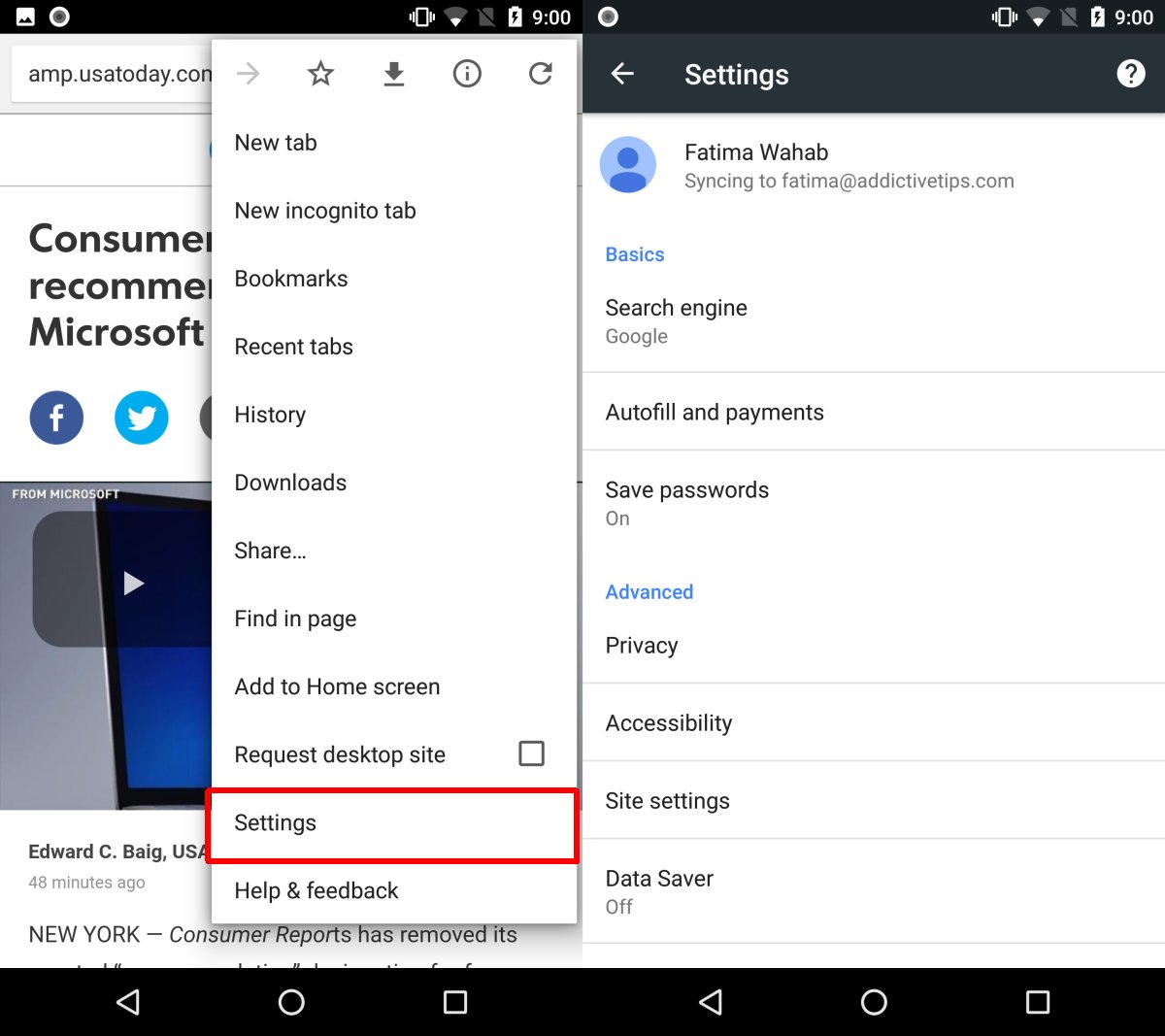
- Through Settings: Go to Settings > Privacy and security > Site settings > Pop-ups and redirects. Under "Allowed to send pop-ups and use redirects," click "Add" and enter the website URL (e.g.,
[*.]example.comto include subdomains).
How to allow cookies for a specific site
If a site requires cookies to keep you logged in or to remember your preferences, you can whitelist it for cookies. Navigate to Settings > Privacy and security > Cookies and other site data. Scroll down to "Sites that can always use cookies," click "Add," and enter the website URL. This is the method to use when you want to whitelist a website on Chrome for cookie access so that login sessions or shopping carts work reliably.
Managing other permissions (location, camera, microphone)
For permissions like location, camera, or microphone, you can whitelist a website on Chrome by going to Settings > Privacy and security > Site settings. Select the specific permission (e.g., "Location" or "Camera"), then under "Customized behaviors," click "Add" next to the "Allow" list and enter the website URL. This is useful when a web app asks for your location to show nearby results or needs your camera for a video call.
Important notes about Chrome permissions
Site-specific permission settings override the default global settings you have configured in Chrome. Changes to site settings are saved automatically, so you don't need to click a separate save button. However, Chrome may automatically remove permissions from sites you haven't used recently to protect your data, so revisit the settings if a trusted site stops working after a long gap. In managed environments (e.g., schools or businesses), network administrators can use "URLAllowlist" policies to allow specific websites, which can override user settings or broader blocking policies. If your device is managed, check with your IT department for details.
\nRelated reading: How To Get Session ID In Chrome and How To Enable HTML5 In Chrome.