To play Roblox in your browser, you must open Roblox.com in a supported web browser, which then launches the separate Roblox Player application on your computer, the game does not run directly inside the browser window itself. This official method lets you access the full Roblox experience without needing to manually open the Player app, but it does require the Player to be installed on your device.
How to play Roblox in your browser: what you need to know
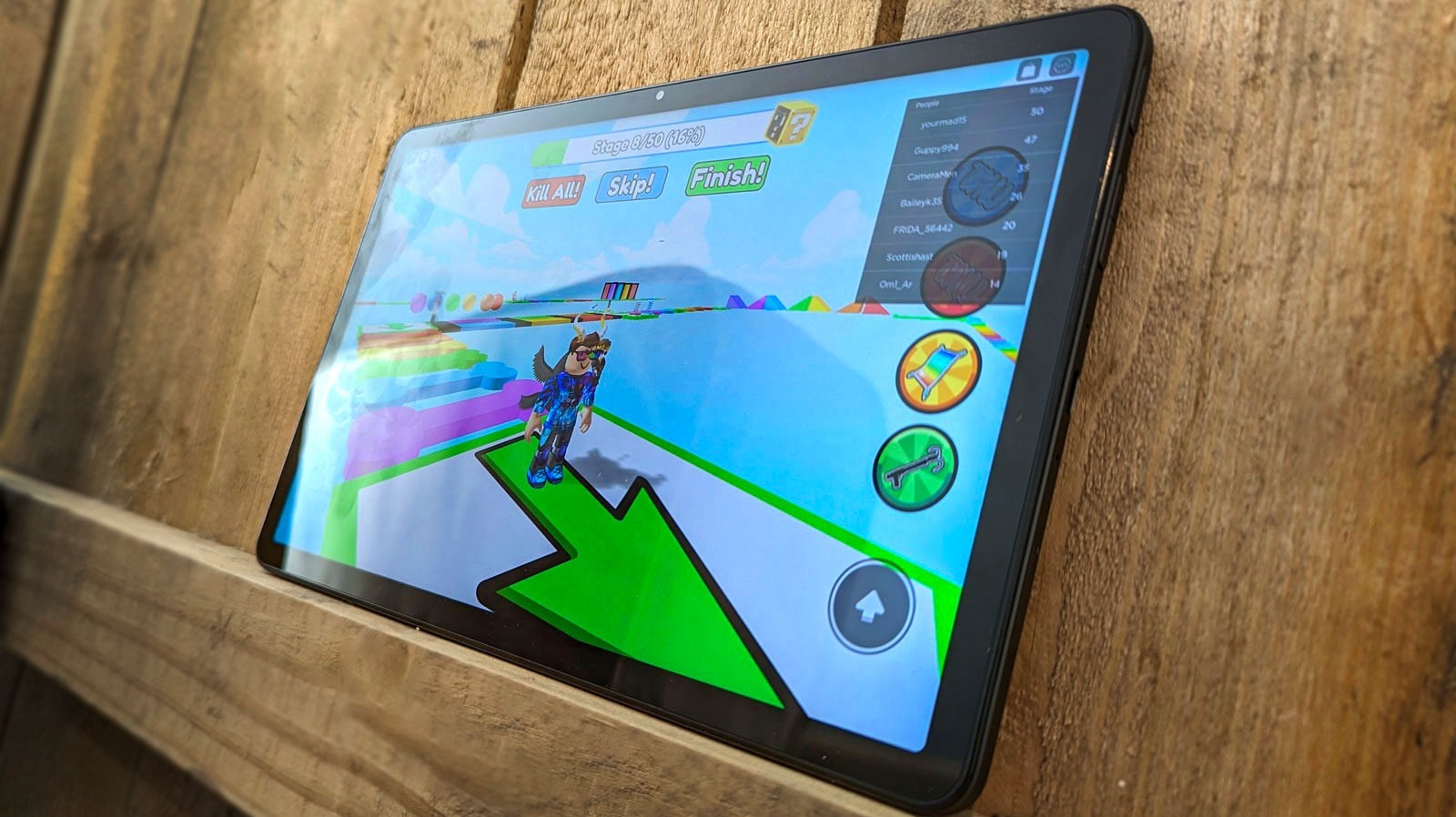
Playing Roblox through your browser means using a supported web browser as the gateway to start Roblox experiences. When you click "Play" on Roblox.com, the browser triggers the installed Roblox Player application to open and run the game. You cannot play Roblox purely inside a browser tab without the Player. Supported browsers for Windows include Chrome, Firefox, and Microsoft Edge. On Mac, supported browsers are Chrome, Firefox, and Safari. If the Player fails to launch, you may need to update Roblox on Amazon kid tablet to resolve similar compatibility issues on that device.
System requirements for playing Roblox through your browser
Before you begin, your device must meet the minimum system requirements for the Roblox Player. For PC, you need 64-bit Windows 10 or Windows 11, a graphics card that supports DirectX 10 or higher, a processor from 2005 or newer running at 1.6 GHz or better, and at least 1 GB of RAM. For Mac, Roblox Player requires macOS 10.13 (High Sierra) or higher. Roblox also recommends at least 300 MB of system storage space for installation.
Step 1: Open a supported web browser
Launch one of the supported browsers on your computer. On Windows, use Chrome, Firefox, or Microsoft Edge. On Mac, use Chrome, Firefox, or Safari. This browser will serve as the starting point for accessing Roblox.
Step 2: Go to the Roblox website and sign in
Navigate to Roblox.com in your browser. If you already have a Roblox account, sign in with your username and password. If you are new, create an account by choosing a username, setting a password, and providing your date of birth.
Step 3: Choose a game and click the play button
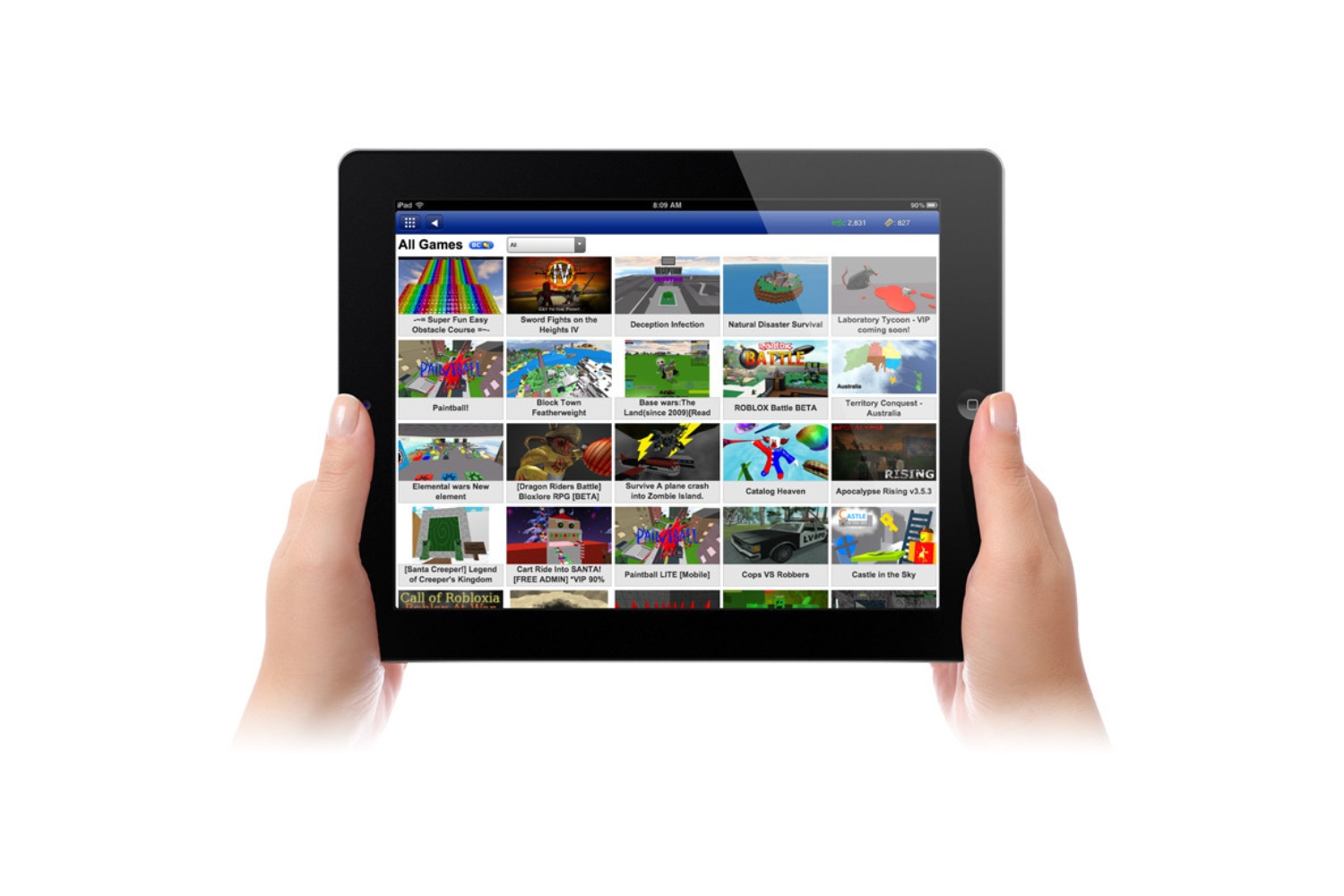
Browse the Roblox game library and select any experience you want to try. Click the green Play button on the game's page to start the launch process.
Step 4: Install Roblox Player when prompted
If the Roblox Player is not already on your computer, your browser will prompt you to download and install it. Follow the on-screen instructions to complete the installation. This is where you would typically download Roblox to get the Player on your system.
Step 5: Allow your browser to open Roblox
After installation, your browser may ask for permission to open the Roblox link using an app on your computer. You must allow this for the Roblox Player to launch and run the game. If you ever need to change which browser opens links, you can adjust this in your operating system's default app settings.
Playing Roblox on Chromebook
Chromebook users can play Roblox by enabling the Google Play Store and using the Android app version of Roblox. This requires Chrome OS version 53 or above. Note that you cannot download Roblox on Chrome OS without Google Play or download Roblox on a Chromebook without the Play Store, as the Android app is the only officially supported method on Chrome OS.
Why Roblox is not supported on Linux
Roblox is not officially supported on Linux. The Roblox Player does not run on Linux systems, and there is no official workaround or alternative provided by Roblox for this operating system.
For the wider topic, see download Roblox.



![How to Connect and Use WhatsApp Web [Mac & Windows]](https://robots.net/wp-content/uploads/2020/09/WhatsApp-for-web.jpg)