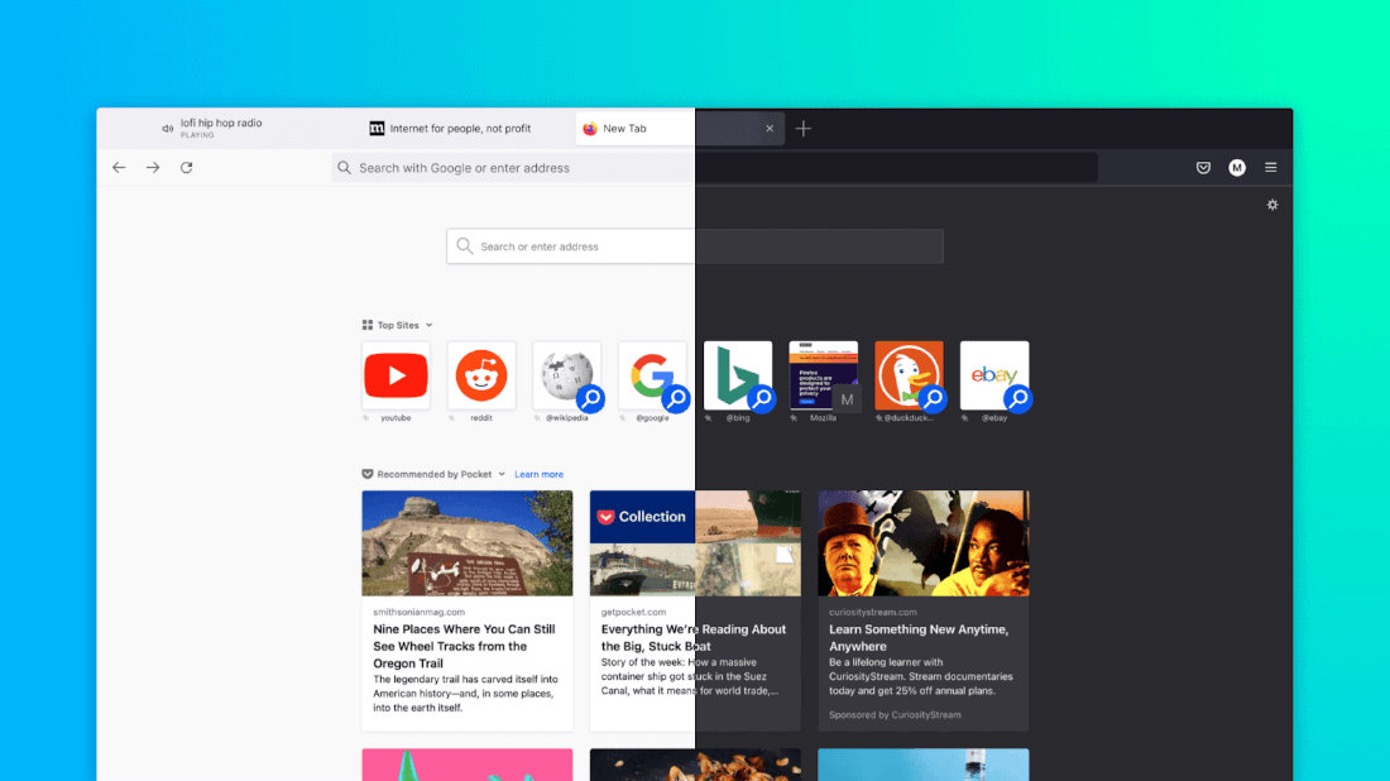
How To Make New Firefox Look Like Old
To make new Firefox look like old, you need to reverse the Proton redesign introduced in Firefox 89 by enabling compact density mode and adding custom CSS through userChrome.css. The fastest way to start is by turning on the hidden Compact density option, then layering in CSS tweaks to restore squared tabs and reduce menu padding.
How to make new Firefox look like old: understanding the Proton redesign
The unwanted changes you're seeing come from the Proton user interface, which Mozilla rolled out in Firefox version 89 in June 2021. Proton replaced the previous Photon design with floating tabs that appear detached from the toolbar, increased spacing and padding throughout menus and toolbars, redesigned dropdown panels, and updated iconography. For long-time users, the most jarring differences are the rounded, pill-shaped tabs that hover above the address bar and the excessive whitespace crammed into every menu. These two issues, floating tabs and inflated spacing, are the core reasons most people search for how to make new Firefox look like old.
The quickest fix: enable compact density mode
Before diving into CSS, try the simplest built-in solution: Firefox still includes a Compact density setting, but Mozilla hides it by default. To reveal it, type about:config into the address bar and press Enter. Click "Accept the Risk and Continue" on the warning screen. In the search box, type browser.compactmode.show, then click the toggle icon on the right to switch its value from false to true.
Next, click the menu button (three horizontal lines in the top-right corner), select "More tools," then "Customize toolbar…". At the bottom of the customization screen, find the "Density" dropdown and choose "Compact (not supported)". This immediately reduces toolbar height, tab padding, and menu spacing, giving you a noticeably denser interface that feels much closer to the pre-Proton Firefox. This one setting alone eliminates a large portion of the "new Firefox look" you want to get rid of.
Enabling advanced customization with userChrome.css
Compact density helps, but it won't restore squared tabs or fully revert the menu redesign. For that, you need userChrome.css, a stylesheet file that lets you override Firefox's internal UI. To enable it, go back to about:config and search for toolkit.legacyUserProfileCustomizations.stylesheets. Double-click the preference to set its value to true.
Now locate your profile folder by typing about:support in the address bar. Under the "Application Basics" section, find "Profile Directory" (or "Profile Folder") and click the "Open Folder" button next to it. This opens your profile in your file manager. Inside this folder, create a new subfolder named chrome if it doesn't already exist. Then, inside that chrome folder, create a new text file and name it exactly userChrome.css, make sure the file extension is .css, not .txt. If Windows hides file extensions, enable "File name extensions" in File Explorer's View tab first.
Restoring the classic tab and menu style with CSS
With the userChrome.css file created, you can now paste custom CSS code to revert specific Proton elements. Open the file in a plain text editor like Notepad, paste your CSS rules, save, and restart Firefox for changes to take effect. The most common fixes include:
- Square tabs: Remove the border-radius on
.tabbrowser-taband.tab-backgroundto eliminate the floating pill shape. - Tab connected to toolbar: Set
marginandpaddingto 0 on tab elements so they sit flush against the navigation bar. - Reduced menu padding: Override
--arrowpanel-menuitem-paddingand related CSS variables to shrink dropdown menu items. - Classic back/forward buttons: Restore the older icon layout by adjusting
#back-buttonand#forward-buttonstyles.
You can find ready-made snippets on sites like userchrome.org or the FirefoxCSS subreddit, but the exact code depends on your Firefox version and personal preferences. Start with a small set of rules, test, and iterate. Remember to back up your userChrome.css file before making major changes, and always restart Firefox after editing to see the results.
Important warnings about unsupported customizations
Mozilla does not officially support userChrome.css customizations or changes made via about:config, and these methods may cause instability, security issues, performance problems, or break with future Firefox updates. The Compact density option is explicitly labeled "not supported" in the UI, and CSS overrides can produce visual glitches if Firefox updates change internal element names. If a future Firefox release breaks your customizations, you'll need to update your CSS manually or revert the changes.
Related reading: How To Import Opera GX To Firefox, How To Pin A Site On Firefox, and How Do I Contact Mozilla Firefox.