The short answer
You can share files with a QR code by uploading your file to a transfer tool that generates a scannable code, then letting the other person scan it with their phone camera. The QR code acts like a shortcut, it carries the download link so nobody has to type a long URL or wait for an email attachment to arrive.
Why a QR code instead of email or text
Email attachments hit size limits fast. Messaging apps compress photos and videos, and they often require both people to have the same app installed. A QR code sidesteps all of that. You upload once, you get a code, and the other person grabs the file directly through their browser. There is no sign-up, no app install, and no account linking the two devices.
The underlying technology is straightforward. When you pick a file on a website, the browser gives the page secure, temporary access to that file through something called the File API. The site reads the file, stores it briefly, and hands back a unique web address. That address gets turned into a QR code, a visual pattern that any modern phone camera can decode in under a second.
What you need on both ends
The setup is minimal. The person sharing needs a device with the file on it and a browser. The person receiving needs a phone with a camera and an internet connection. That is the whole list.
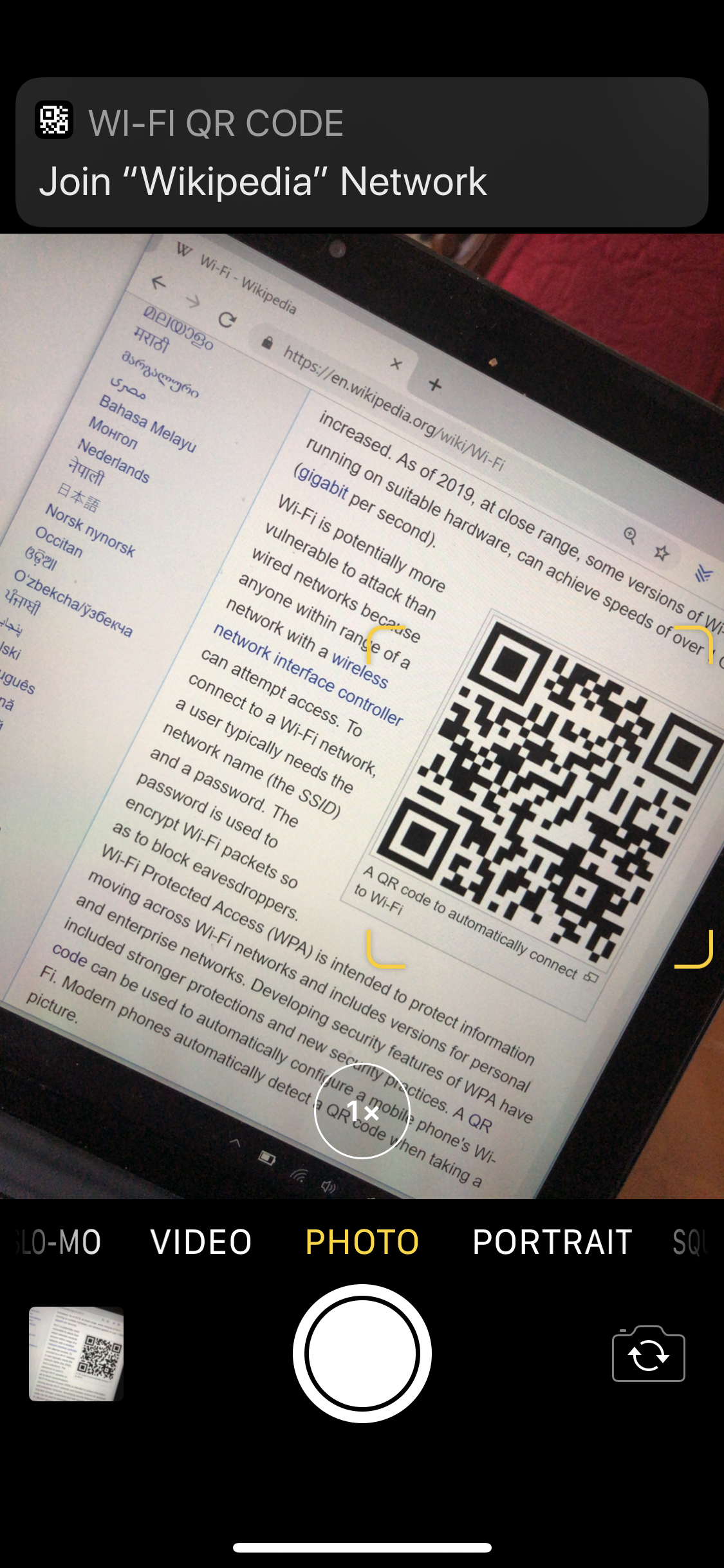
Most Android phones scan QR codes straight from the built-in camera app. If yours does not, Google provides a guide for scanning QR codes on Android that covers the camera method and the quick-settings tile option. On an iPhone, the camera app has done this automatically for years, and Apple walks through it in their instructions for scanning QR codes on iOS. In both cases, you open the camera, point it at the code, and tap the notification that appears.
Step 1: Pick a browser-based transfer tool
You want a tool that works without installing anything. ShareIt Online is one that runs entirely in a browser tab. You drag a file onto the page, it uploads, and you get both a shareable link and a QR code on the same screen. The free tier handles files up to 3 GB, which covers high-resolution video, zipped project folders, or a large batch of raw photos. Because there is no account, the file is not tied to anyone’s identity, and the link stops working on its own after a set time.
Other browser-based services follow a similar pattern. The key things to check are the size limit, whether the connection is encrypted (look for the lock icon in the address bar), and whether the link expires automatically. Automatic expiry matters because it means you do not have to remember to delete anything later.
Step 2: Upload the file and get the code
Open the tool on your laptop or phone. Drag the file onto the upload area or tap to browse your files. The upload begins immediately. A progress bar shows you how long is left, which is useful for large files on a home Wi-Fi connection.
Once the upload finishes, the page displays two things: a web link and a QR code. The QR code contains that same link. If you are sharing with someone sitting next to you, they can scan the code right off your screen. If they are somewhere else, you can screenshot the code and send it through any messaging app, or you can copy and paste the link instead. The QR code is just a convenience, it removes the step of typing a URL character by character.
Step 3: Get the code to the other person
How you deliver the QR code depends on the situation.
- Same room, different devices: Hold your screen up. The other person opens their camera, scans the code, and taps the link. The download starts in their browser. Nothing is saved to either device permanently unless they choose to keep the downloaded file.
- Different locations: Take a screenshot of the QR code and send it through a chat app, email, or even a photo-sharing album. The quality needs to be good enough that a phone camera can pick out the pattern, but a standard screenshot works fine.
- Printed or projected: You can print the QR code on a handout or put it on a presentation slide. Anyone in the room scans it and gets the file on their own device without crowding around a single screen.
One detail that trips people up: the QR code is not the file itself. It is a pointer to where the file lives temporarily online. The recipient needs an internet connection at the moment they scan it. If they are offline, the code will not resolve until they reconnect.
Step 4: The recipient downloads the file
When the recipient taps the link from the QR code, their browser opens a download page. On a phone, the file usually saves to the Downloads folder or the Files app. On a laptop, it lands in the default download directory. The experience is the same as clicking any other download link on the web.
The recipient does not need the same tool you used to upload. They do not need to create an account or enter a password. The link is all they need. That is what makes QR-code file sharing work across different devices and operating systems without friction.
What happens to the file after sharing
The file sits on the transfer service’s servers for a limited window. With a tool like ShareIt Online, the link expires automatically. The exact duration depends on the service, but the idea is that the file is not hosted indefinitely. Once the link expires, the QR code becomes useless, scanning it will lead to an error page or a “file not found” message.
This automatic cleanup is a privacy feature. You do not need to log back in to delete anything, and there is no forgotten link floating around months later. If you need the file to be available longer, you would be better off using a cloud storage service with persistent sharing. For one-time transfers, the temporary model is exactly what you want.
When QR code sharing works best
The method shines in a few specific scenarios:
- Sharing photos and videos at an event. Put a QR code on a sign or a screen, and everyone can grab the high-resolution versions without crowding a single phone or swapping contact details.
- Sending large work files between your own devices. Upload from your laptop, scan the code with your phone, and you have the file on both without a cable or a cloud sync folder.
- Helping someone less technical. You do the upload on your end and send them a screenshot of the QR code. All they do is point their camera at it. No instructions about unzipping, logging in, or navigating a file system.
- Sharing a file with a group. One upload, one QR code, and everyone scans it. Each person gets their own independent download.
What to watch out for
A few practical limits are worth knowing before you rely on this.
File size ceilings vary. The 3 GB limit on some services is generous, but if you are trying to send a 4K feature-length video or a full disk image, you may hit it. Check the limit before you start the upload so you are not waiting on a progress bar that will never finish.
Upload speed depends on your internet connection, not the tool. On a typical home broadband connection with slow upload speeds, a multi-gigabyte file can take long enough that you might want to start the upload well before you need to share it.
The QR code is a link, and links can be forwarded. Anyone who has the code or the URL can download the file while it is still live. For sensitive documents, consider adding a password to the file itself before uploading, or use a transfer tool that offers encryption and a recipient verification step.
Finally, the recipient needs enough free space on their device. A 2 GB video will not save to a phone with only 500 MB available. The download will fail, and the browser may not give a clear reason why. It is worth mentioning the file size when you send the code so the recipient can check.
What to do next
Pick a file you have been meaning to share, a batch of vacation photos, a video too large for text, a zip of documents for a colleague, and try the upload-and-scan flow once. The whole process takes less than a minute for a typical file, and once you have done it, you will know exactly when it is the right tool for the job. If the person you are sharing with has never scanned a QR code before, walk them through it the first time; after that, they will have the skill for good.
Frequently asked questions
Can someone else download my file if they get the QR code?
Yes. The QR code contains a direct download link, and anyone who has the code or the URL can download the file while it is still live. For sensitive documents, add a password to the file itself before uploading, or use a transfer tool that offers encryption and a recipient verification step.
Why does the QR code stop working after a few days?
The link inside the QR code expires automatically because the transfer service only hosts the file for a limited window. This automatic cleanup is a privacy feature. Once the link expires, scanning the code leads to an error page. For files you need available longer, use a cloud storage service with persistent sharing instead.
Does the person receiving need the same app to download the file?
No. The recipient does not need the same tool you used to upload, and they do not need to create an account or install anything. Their browser handles the download directly from the link. That is what makes QR-code file sharing work across different devices and operating systems without friction.
What happens if the download fails on the other person's phone?
The most common cause is insufficient free space. A large file will not save to a device that lacks room for it, and the browser may not give a clear reason why. Mention the file size when you send the code so the recipient can check their available storage before starting the download.





![13 Best Free People Search Engines and Websites [Tips Included]](https://robots.net/wp-content/uploads/2020/05/free-people-search.png)