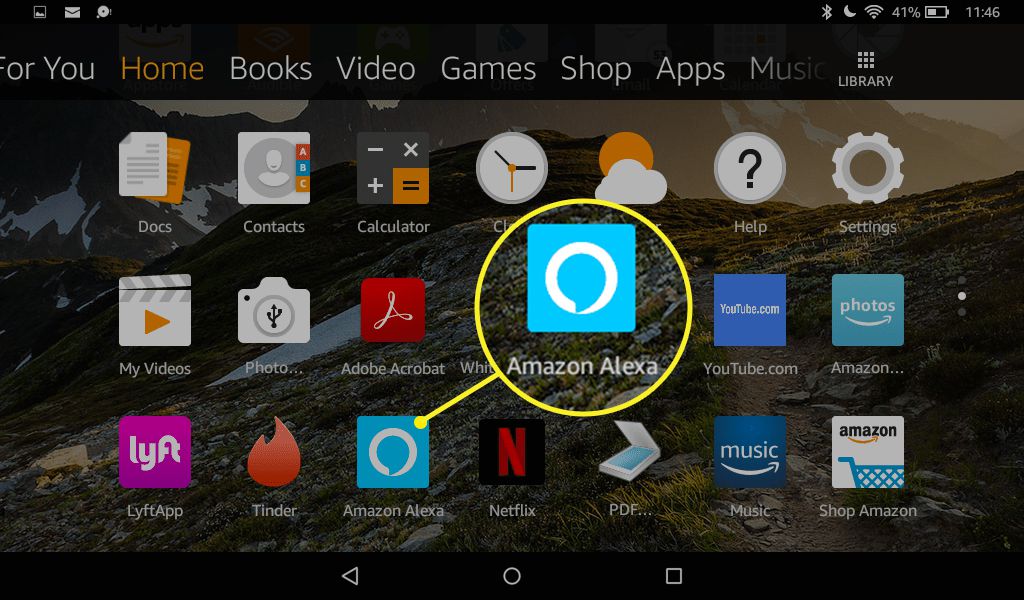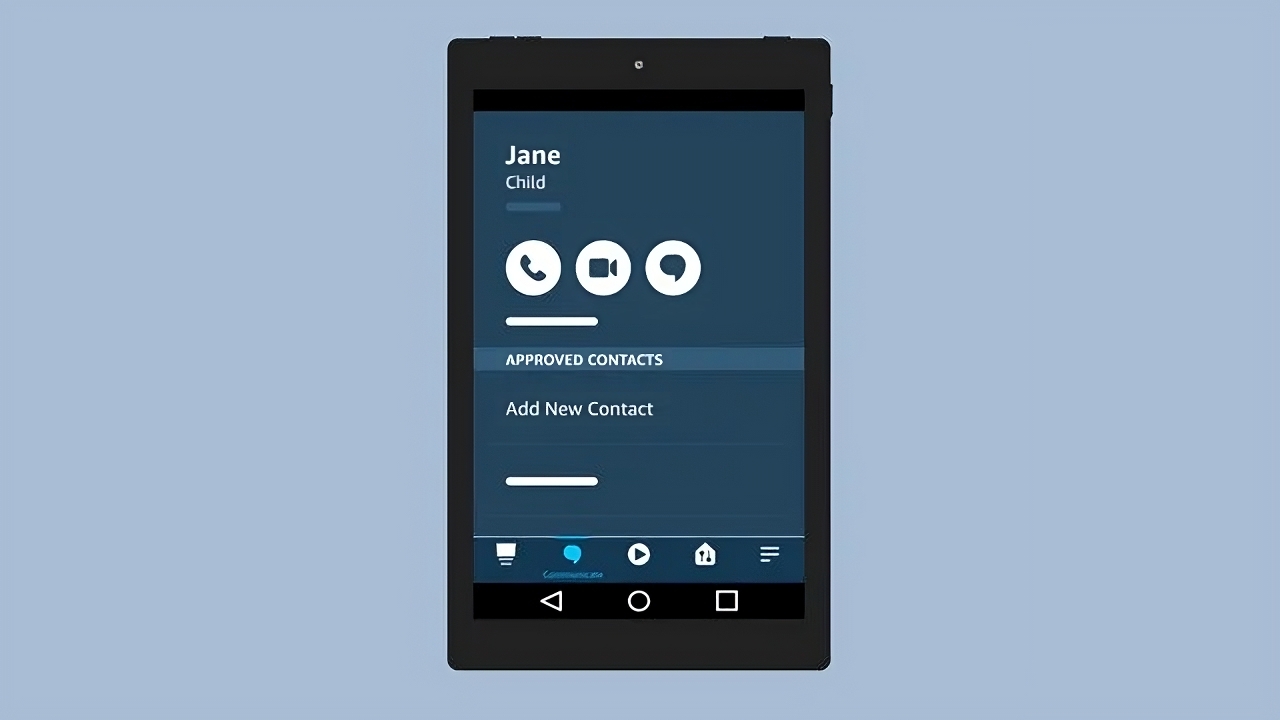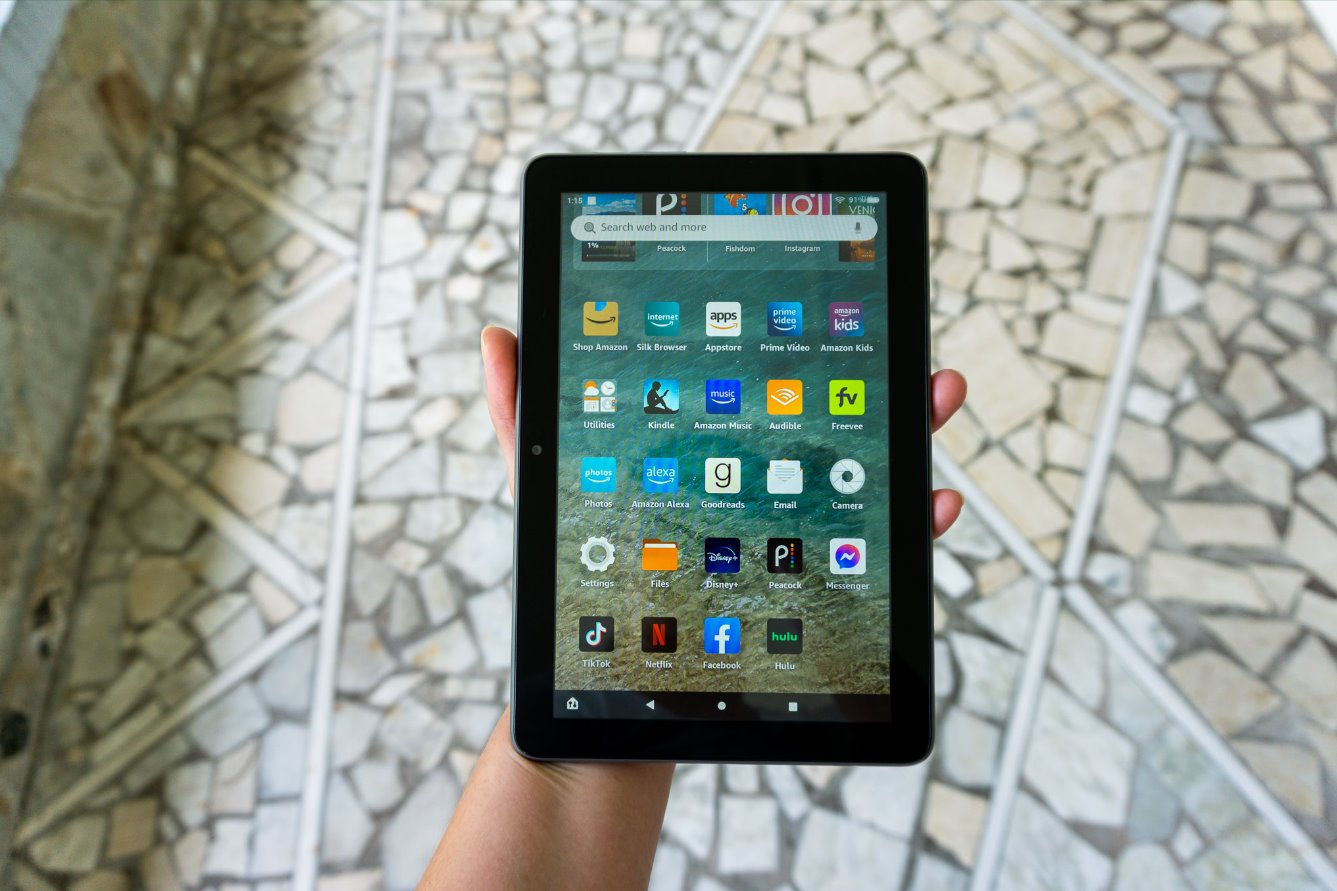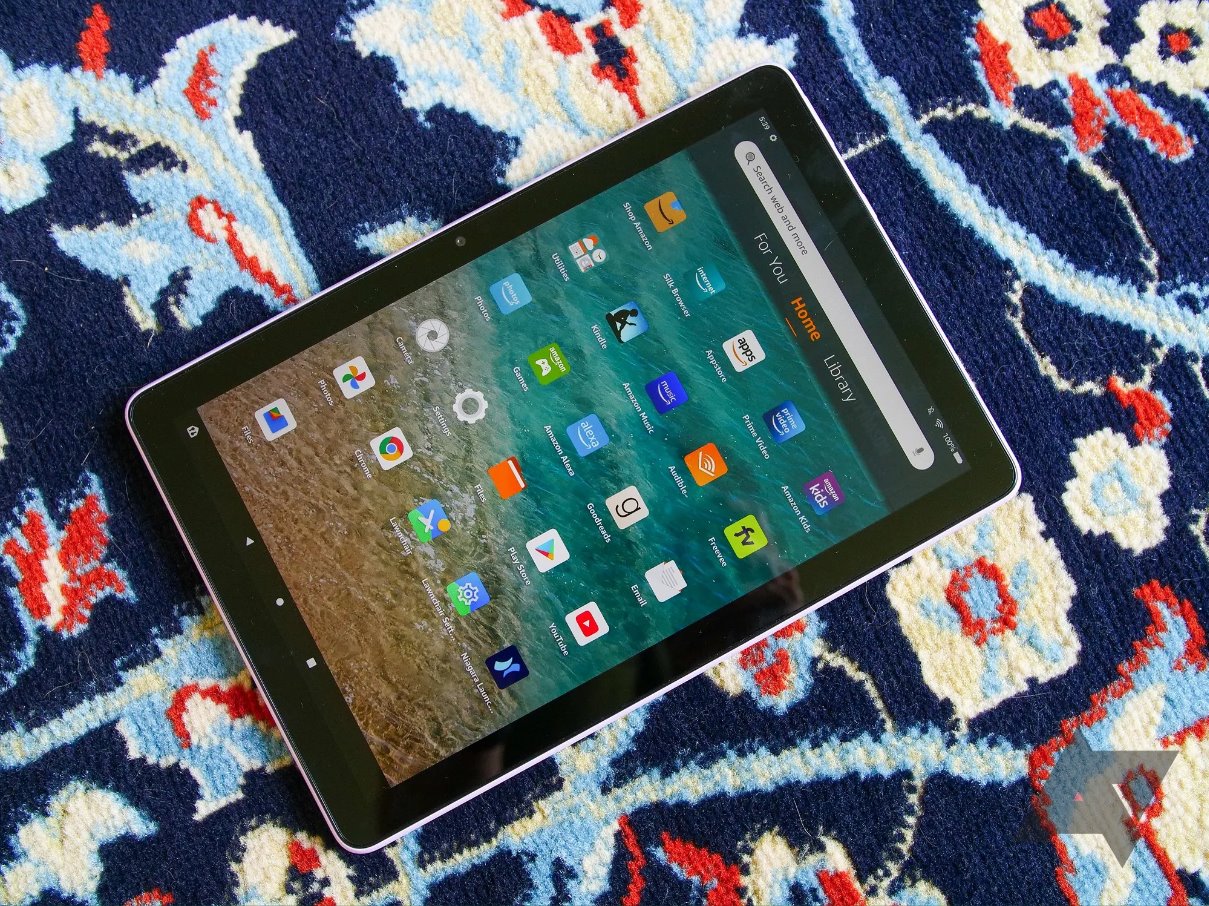
An Amazon Fire tablet lets you stream movies, read Kindle books, play games, browse the web, and control smart home devices with Alexa, all without the Google Play Store. You can also call on Amazon Fire tablet using Alexa-to-Alexa voice and video calls. Here is a practical overview of what you can do with Amazon Fire Tablet, from entertainment and productivity to parental controls and customization.
What can you do with an Amazon Fire Tablet?
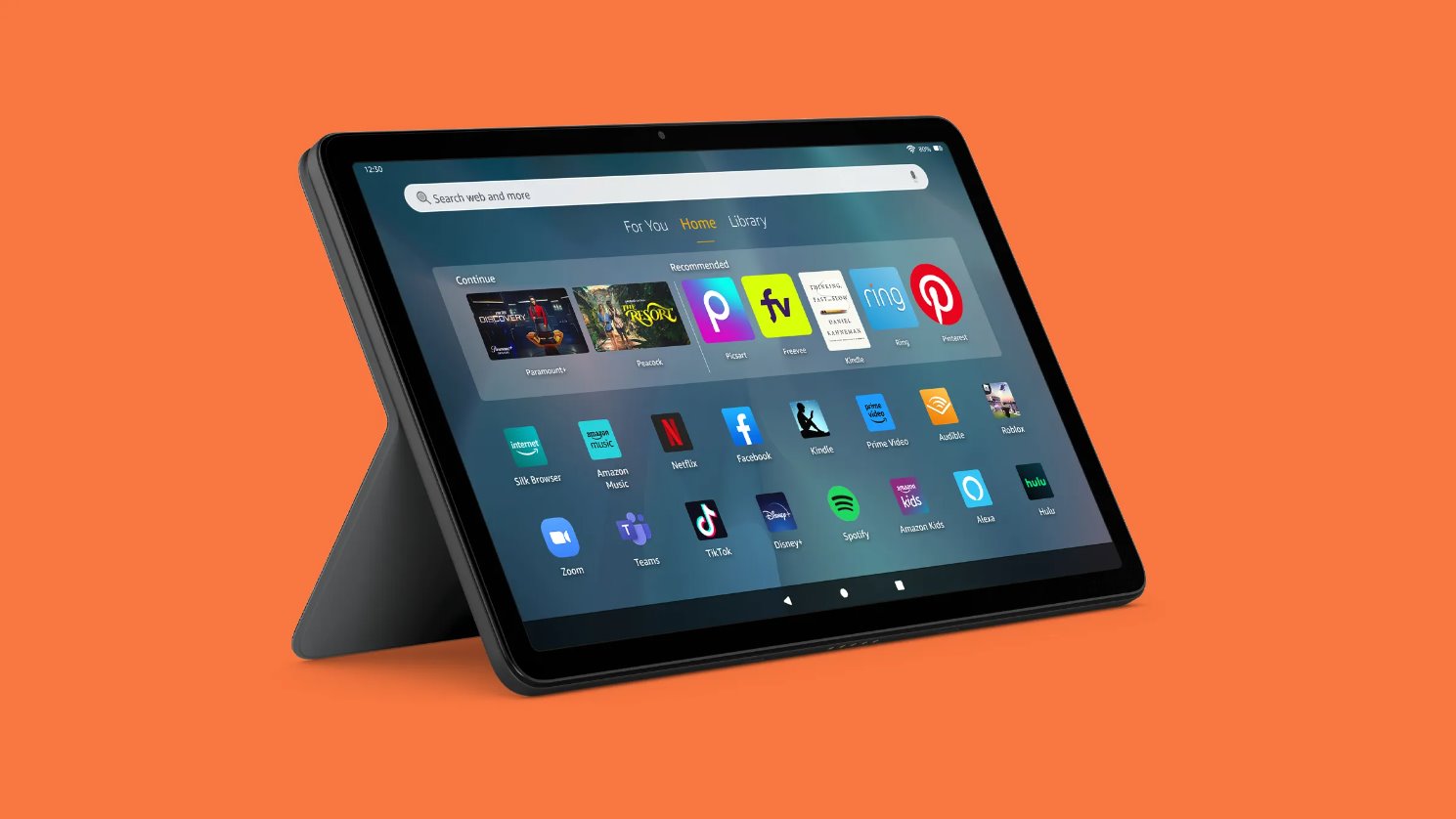
The Fire tablet is built around Amazon's ecosystem, giving you direct access to Prime Video, Kindle, Amazon Music, and the Amazon Appstore. Its core strength is entertainment and reading, but it also handles productivity tasks, web browsing, and communication. The key limitation is that it runs Fire OS, a modified version of Android that does not include the Google Play Store or Google apps like Gmail, Chrome, or YouTube. You get a capable device for streaming, reading, gaming, and smart home control, but you cannot install standard Android apps from Google's store, though you can still get Pokemon go on Amazon Fire tablet with a manual workaround.
Stream movies, TV shows, and music
The Fire tablet's vibrant display and built-in speakers make it a solid device for watching video and listening to music. You can stream from Amazon Prime Video, Netflix, Hulu, and other popular services available through the Amazon Appstore. For music, the tablet supports Amazon Music, Spotify, and Pandora, letting you create playlists and discover new artists. Audio quality is good through the built-in speakers, and you can connect headphones or external speakers via Bluetooth for a better listening experience.
Read Kindle books, audiobooks, and other formats
The Kindle app comes preloaded, giving you access to millions of titles from the Kindle Store. You can adjust font size, backlight, and reading settings for comfort in any lighting. The tablet supports PDFs and comic book files, so you can read documents, magazines, and graphic novels. Audible integration lets you listen to audiobooks, and Whispersync syncs your reading progress across your Kindle e-reader, smartphone, and Fire tablet, so you can switch devices without losing your place.
Play games from the Amazon Appstore and cloud
The Amazon Appstore offers a wide selection of casual and immersive games, from puzzles to action titles. The tablet's touchscreen and motion controls (using the accelerometer and gyroscope) provide interactive gameplay. You can connect a Bluetooth controller for a console-like feel in games that support it. For cloud gaming, Amazon Luna lets you stream high-quality titles directly to your Fire tablet without needing powerful hardware, and you can play seamlessly across devices.
Get work done with productivity apps
You can create and edit documents, spreadsheets, and presentations using Amazon's Docs, Sheets, and Slides, or install Microsoft Office apps (Word, Excel, PowerPoint) from the Amazon Appstore. Cloud storage integration with Amazon Drive, Google Drive, and Dropbox lets you access files across devices. For note-taking, apps like Evernote or OneNote work well with the touchscreen for sketching or handwriting. You can also connect a Bluetooth keyboard for faster typing and use the tablet to deliver presentations by connecting to a larger screen.
Browse the web with Amazon Silk
The Fire tablet features the Amazon Silk browser, which supports bookmarks, tabs, and private browsing. You can access web-based services like email (Gmail, Outlook), social media (Facebook, Twitter, Instagram), and any other website. Silk is optimized for the tablet's touchscreen, making pinch-zoom, swiping, and scrolling smooth. You can also use the browser to log into web apps and cloud services, giving you access to tools you might normally use on a computer.
Stay connected with messaging and video calls
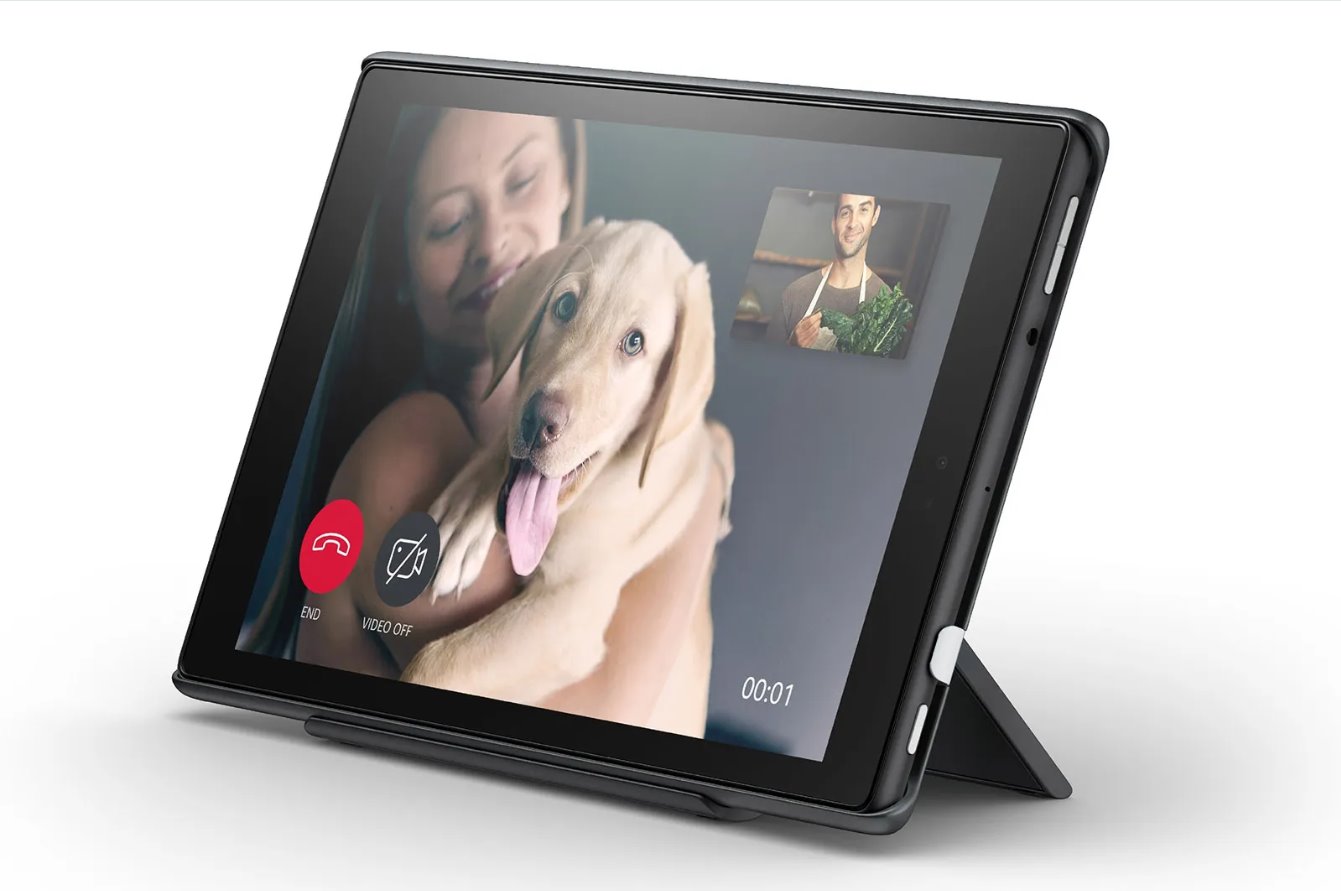
You can install WhatsApp, Facebook Messenger, and Skype from the Amazon Appstore to send messages, make voice and video calls, and share media. The tablet also supports email clients like Gmail, Outlook, and the built-in Email app, so you can manage multiple accounts. Contacts sync across devices, making it easy to reach people from the tablet's interface. Social media apps keep you connected with friends and family, and the front-facing camera works well for video calls.
Control your world with Alexa hands-free
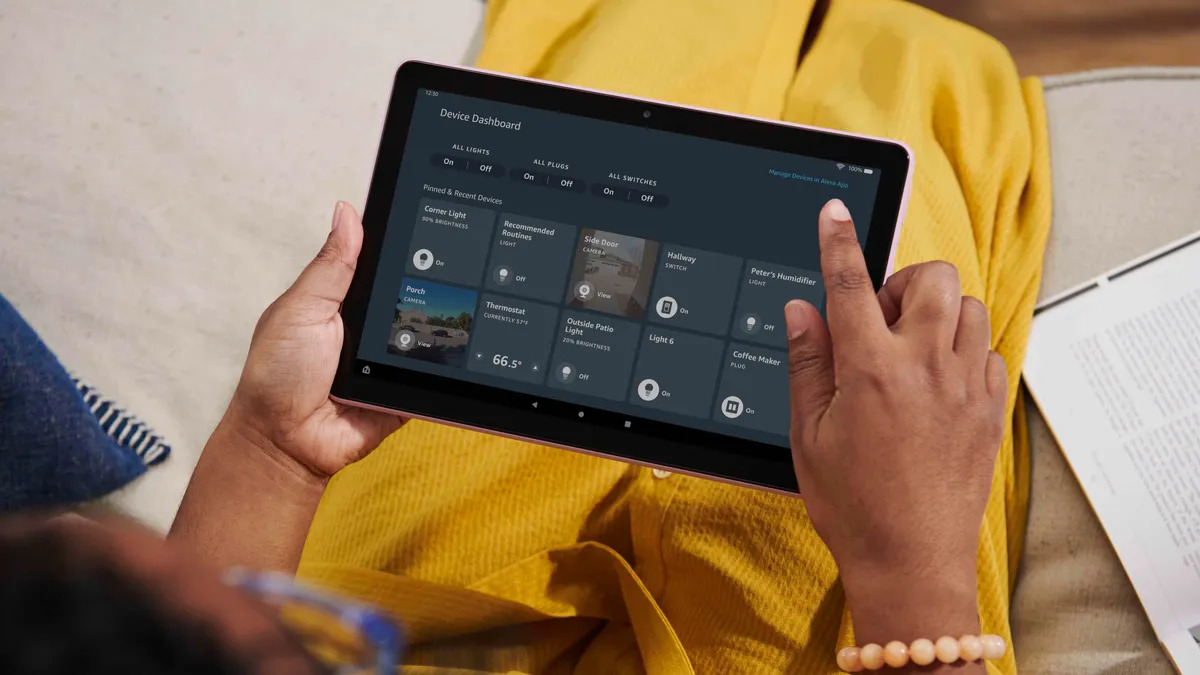
Newer Fire tablet models (such as Fire 7 2022, Fire HD 8 2024, Fire HD 10 2023, and Fire Max 11 2023) support hands-free Alexa when the screen is on or the device is connected to power. You can ask questions, set reminders, check the weather, control smart home devices (lights, thermostats, cameras), and use Drop In to instantly connect with other Alexa-enabled devices in your home. The Announcements feature lets you broadcast a message to all Alexa devices on your network. Visual feedback appears on the screen, such as a weather forecast or a timer countdown.
Set up parental controls and Fire for Kids
To set up parental controls, swipe down twice from the top of the screen, tap the Settings icon, select "Parental Controls," toggle the switch to "On," and enter and confirm a password. This restricts access to shopping, content, apps, and settings, and lets you set daily screen time limits. Amazon Kids (formerly FreeTime) allows you to create child profiles with age-appropriate content, customized web browsing, and educational goals. You can track usage, set bedtime curfews, and protect controls with a PIN or password. This makes the Fire tablet a safe device for children while giving parents peace of mind.
Customize your Fire Tablet experience
You can change wallpapers and themes, organize apps into folders, and add widgets (weather, calendar, news) to the home screen. Accessibility features include "Tap to Alexa," which lets you interact with Alexa using touch instead of voice, and a Text to Speech function for reading content aloud. Storage expansion is available via a microSD card, with some models supporting up to 1 TB. You can also use screen mirroring on Fire OS 8 and higher to cast your display to a compatible Miracast-enabled device, such as an Amazon Fire TV or Fire Stick, swipe down from the top, select "Screen Mirroring," and tap the device name.
What a Fire Tablet cannot do
Fire tablets run on Fire OS, an Android-based operating system, but they do not officially include the Google Play Store or Google's suite of apps (Gmail, Chrome, YouTube, Google Maps, etc.). This means you cannot install standard Android apps from Google's store. While some users sideload the Google Play Store, this is not officially supported and can lead to compatibility issues. If you rely on Google services or want access to the full Android app ecosystem, a Fire tablet may not meet those needs. For streaming, reading, gaming, and Alexa integration, it works well, but it is not a standard Android tablet.
For a broader look at getting started, see how to use the Fire tablet.