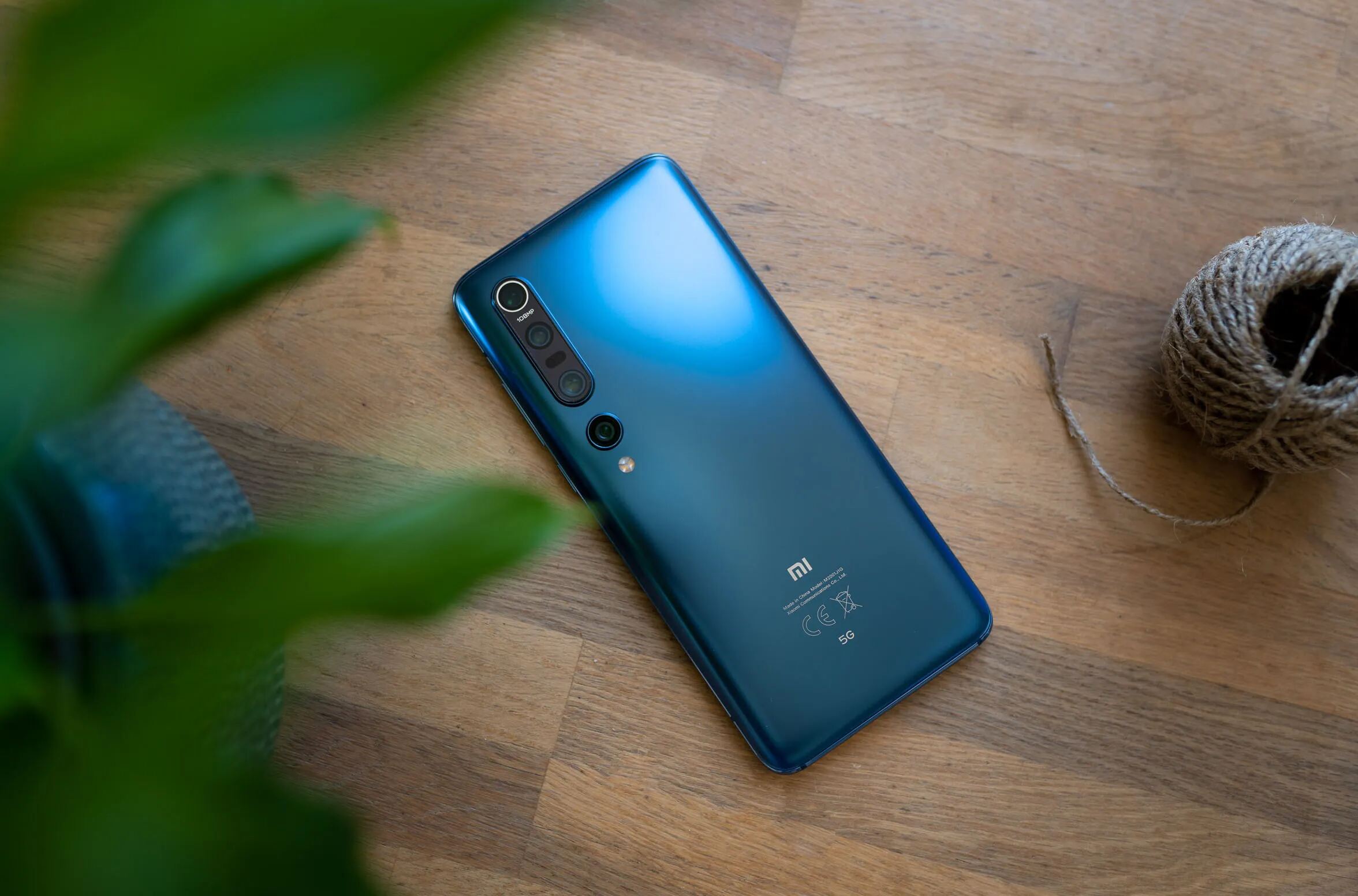
If your Redmi phone’s power button is broken or unresponsive, you can still restart it using built-in software options, no repair needed. The most reliable way to restart redmi phone without power button is through the Accessibility Menu, which puts a virtual power button on your screen.
Restart redmi phone without power button using the Accessibility Menu
The Accessibility Menu is a system-level tool that places a floating shortcut on your screen, giving you one-tap access to power options like restart, screenshot, and volume controls. Once enabled, you can restart your phone entirely from the touchscreen, bypassing the physical button. To set it up, go to Settings, then Additional settings, then Accessibility, and look for the Accessibility Menu option. Toggle it on, and you’ll see a small blue icon appear on the edge of your screen. Tap that icon and look for power-related options that may allow you to restart the device. Your Redmi phone will shut down and boot back up normally, and you never have to touch the broken power button.
Schedule power on/off to automatically restart a redmi phone
MIUI includes a built-in scheduler that can power your phone off and on at preset times, effectively performing a restart while you sleep or during a meeting. This is especially useful if the power button is completely dead but you still want a fresh reboot daily or weekly. Open the Security app, tap the battery icon, then go to Additional features and choose Schedule power on/off. Alternatively, you can reach it via Settings > Battery > Additional features. If your device lacks this scheduling option, the method for restarting Realme phone without power button offers a different button-free approach. The phone will automatically shut down and then boot up on its own, giving you a clean restart without any button input.
Force restart a frozen redmi phone with volume and power keys
If your screen is frozen and the touchscreen isn’t responding, the Accessibility Menu won’t help, so you’ll need to use the physical keys. However, you can still restart a frozen Redmi phone even if the power button feels broken by using a combination of volume and power keys. Press and hold the Power Button and Volume Up buttons simultaneously for 8-10 seconds until the Mi/Redmi/POCO logo appears, then release, the phone will reboot. If that doesn’t work, try holding Power Button and Volume Down together for about 10 seconds. In both cases, the phone will force a hardware-level restart, clearing the frozen state without needing a working power button alone.
Enter Recovery Mode to reboot a redmi phone that won't turn on
When your Redmi phone is completely powered off and the power button is broken, you can still get it to boot by entering Recovery Mode using the charger. Connect the charging cable to a power source, then while the phone is off, press and hold the Volume Up button and plug the cable into the phone at the same time. Keep holding Volume Up until the Recovery Mode menu appears on screen. From there, use the volume keys to navigate to “Reboot system now” and select it with the power button (if it still works) or by tapping the screen if touch is active. This method restarts the phone into Android normally. Be careful: Recovery Mode also has a “Clear all data” option, do not select it unless you want to erase everything, since that operation will wipe your phone completely.
Use ADB commands from a PC to restart your redmi phone
If you had USB Debugging enabled before the power button failed, you can restart your Redmi phone from a computer using ADB commands. This method is ideal for advanced users who have a PC handy and want a precise, command-line-based restart. Connect your phone to the PC via USB cable, open a terminal or command prompt, and type adb reboot followed by Enter. The phone will immediately restart, and you don’t need to touch any physical button. This works even if the screen is off or the UI is unresponsive, as long as the phone is powered on and ADB is authorized. It’s a lifesaver when the power button is dead but you still have a working data connection.
Troubleshooting when your redmi phone still won't restart
If none of the above methods work, the issue may be deeper than a broken power button. First, check for low battery indicators, if the LED Indicator flashes red when you plug in the charger, the power is too low for the screen to light up. Charge with the original charger for 15-30 minutes, or use a weak current like a computer USB port, then try again. If the phone is hot without any reaction while plugged into the original power adapter, unplug it immediately and take the phone, original power adapter, and original data cable to an authorized after-sales center for inspection. Also, if the phone remains stuck on the Mi logo interface for a long time without an Android display at the bottom of the screen, that indicates a system-level failure, visit an after-sales center rather than attempting further software tricks. Finally, note that some older Redmi phone models may not support Recovery mode or Fastboot mode for flashing, so those devices won’t respond to the Recovery or ADB methods at all, and a hardware repair is the only reliable path forward, though if your device powers on but shuts down unexpectedly, fixing automatic shutdown issue on redmi phones can help you isolate the cause.
\nRelated reading: How To Get My Tablet Off Safe Mode.