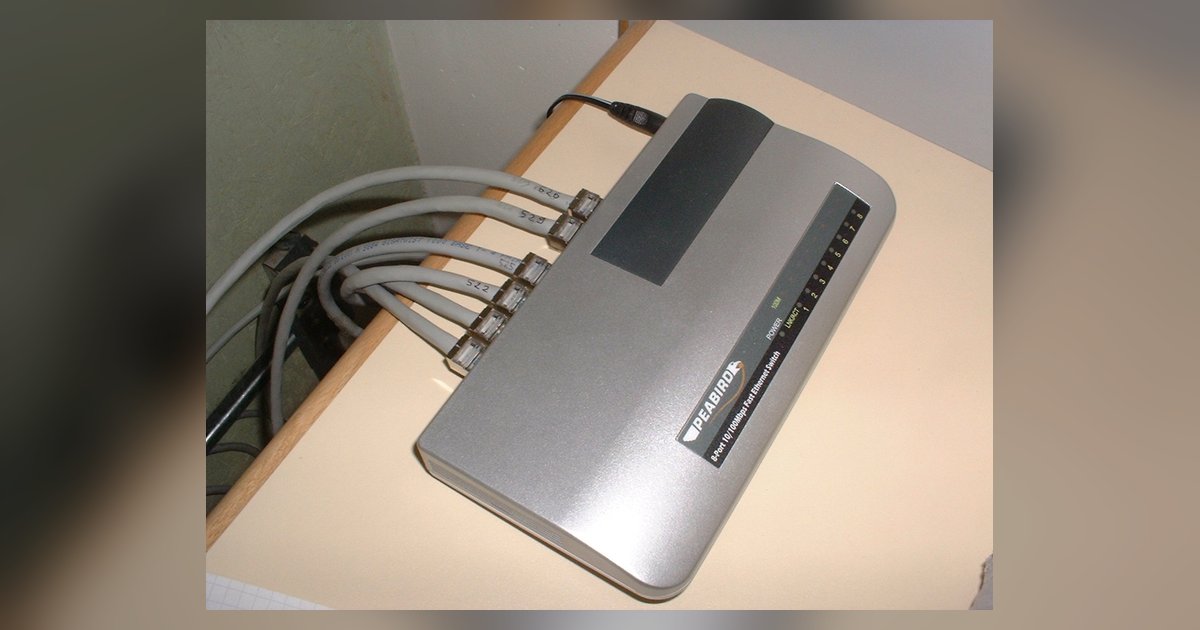
Yes, you can mix router brands with a network switch, because Ethernet and TCP/IP are universal standards. However, brand-specific VLAN tagging defaults, proprietary bridge-mode naming, and DHCP quirks often break the setup unless you manually align the low-level settings.
Why mixing router brands breaks VLAN tagging silently
Different manufacturers assign conflicting default VLAN IDs for their management traffic. A TP-Link router might tag its web GUI on VLAN 1 by default. A Netgear router sends untagged traffic on the same physical port. When you connect both to a switch that expects a specific VLAN for the management interface, packets from the second router get dropped because the switch sees no tag. To fix this, you must configure a managed network switch to either force all untagged traffic into a single VLAN or explicitly assign the same VLAN ID to every router’s LAN interface. If you ignore this, the switch silently discards DHCP offers and ARP replies, making the network appear dead even though the cables are fine.
The bridge mode translation trap
Every brand uses a different name for the setting that turns a router into a transparent forwarding device. TP-Link calls it “Bridge Mode” or “Access Point Mode.” The networking company from California labels it “IP Passthrough” or “Modem Only.” ASUS uses “Access Point Mode” or “Repeater Mode.” If you mix an ASUS router set to Access Point Mode with a Netgear router in IP Passthrough mode on the same switch, the second router will still perform Network Address Translation because IP Passthrough only forwards the public IP to a single client. The result is double NAT: the ASUS router sees a private IP from the other device, not the public IP it expects. To avoid this, you must ensure that exactly one router acts as the DHCP server and NAT gateway. Configure every other router to disable its DHCP server and NAT entirely. On a TP-Link, look for “Operation Mode” under Network. On a Netgear, locate the NAT or bridge mode setting in the advanced setup menus.
When the answer is no
The specific failure case where a consumer mesh system refuses to work behind a wired router from another brand occurs when the mesh system demands total network control. A TP-Link Deco mesh kit requires that it be the only DHCP server on the network and that it can see all client MAC addresses directly. If you connect the Deco to a switch that also hosts an ASUS router acting as the DHCP server, the Deco will detect the foreign DHCP offers and either stop working entirely or create a second subnet, isolating itself from the rest of the LAN. In this scenario, mixing brands on a single switch is impossible unless you demote the mesh system to Access Point mode. Many consumer mesh kits hide or remove this setting entirely. If the mesh system lacks an explicit bridge mode, you cannot mix it with another brand’s router on the same switch.
Making mixed brands talk on one switch
To make mixed brands work, perform three manual checks. First, unify the management VLAN: access the Netgear network switch and set the management VLAN to the same ID used by the TP-Link and ASUS routers. Usually this is VLAN 1. Alternatively, configure a trunk port that carries all VLANs only to the router that needs management access. Second, force one DHCP server: disable the DHCP server on every router except the one that will assign IP addresses. On a Netgear device, find the DHCP server setting in the LAN or network setup section. On an ASUS, find the DHCP server setting in the LAN configuration section. Third, disable hardware NAT offload on all routers except the primary gateway. Hardware NAT offload causes packet drops when multiple routers try to forward traffic across the switch. ASUS may label this feature under a term like 'NAT Acceleration'. The manufacturer may label this feature under a term like 'Hardware NAT'. After you set up TP-Link 5-port gigabit Ethernet network switch with these alignments, reboot every device. The switch will then forward frames correctly, and each router will behave as a transparent bridge or a single gateway.
The core idea of how to use a network switch with 2 routers is straightforward, but the moment you connect a TP-Link, Netgear, and ASUS router to the same managed switch, you must account for each manufacturer’s hidden assumptions.