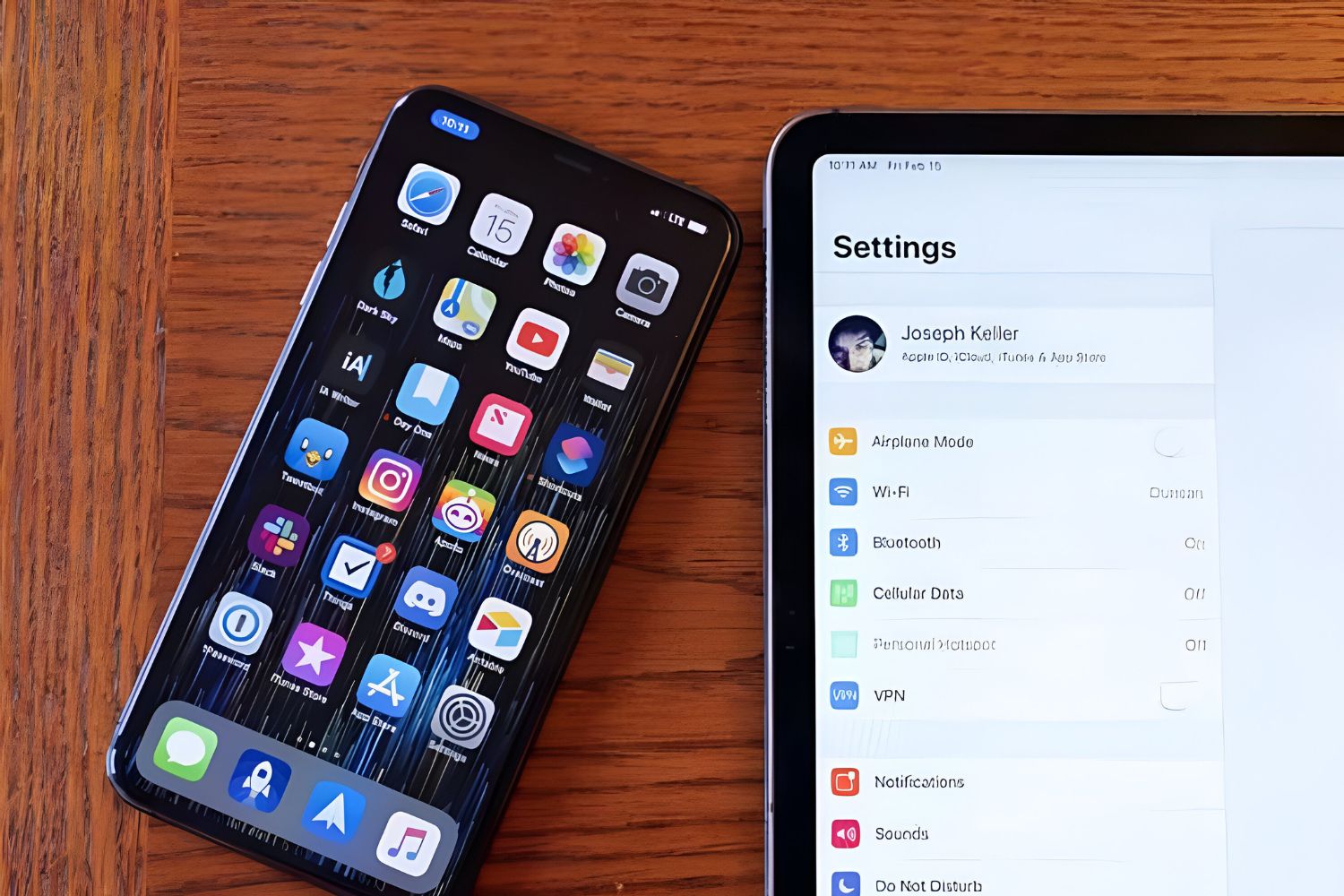
Linking iPad to iPhone hotspot is the fastest way to get your tablet online when no Wi‑Fi is available. If you and your iPhone are signed into the same Apple Account, you can use Instant Hotspot: on your iPad, go to Settings, tap Wi‑Fi, then tap the name of your nearby iPhone, no password needed. For streaming on a bigger screen, the same tethering trick works when connecting Roku TV to hotspot.
Linking your iPad to an iPhone hotspot: the quick way
This guide covers every method for using a phone hotspot with any device, including the Instant Hotspot shortcut for Apple devices on the same account. For the fastest connection, ensure both devices have Wi‑Fi and Bluetooth turned on and are near each other. On your iPad, open Settings, tap Wi‑Fi, then select your iPhone’s name. Because you’re already signed into the same Apple Account, the connection happens automatically, no password required. If the hotspot keeps disappearing, see our preventing iPhone hotspot from turning off tips to keep it discoverable.
Step 1: Enable personal hotspot on your iPhone
- Open the Settings app on your iPhone.
- Tap Personal Hotspot (or tap Cellular, then Personal Hotspot).
- Toggle Allow Others to Join to the on position.
- Note the Wi‑Fi password displayed on this screen; it must be at least eight characters and use only ASCII characters.
If the Personal Hotspot option is missing or dimmed, verify that your carrier plan includes Personal Hotspot service. Contact your wireless carrier to ensure it’s enabled on your plan.
Step 2: Connect your iPad to the hotspot via Wi‑Fi
- On your iPad, open Settings and tap Wi‑Fi.
- From the list of available networks, select the name of your iPhone.
- If prompted, enter the Wi‑Fi password shown on your iPhone’s Personal Hotspot screen.
Your iPad can also connect using USB or Bluetooth. For a USB connection, plug the iPad into the iPhone with a cable and follow on‑screen prompts. For Bluetooth, pair the devices and select the hotspot from the iPad’s Bluetooth settings. Wi‑Fi is the most straightforward method for most users.
Troubleshooting common connection problems
Restart both devices
If the connection fails, restart your iPhone and iPad. This clears temporary glitches and often resolves the issue.
Check for software updates
Ensure both devices are running the latest iOS and iPadOS. Outdated software can cause compatibility problems.
Toggle Maximize Compatibility
In your iPhone’s Personal Hotspot settings, you’ll find the Maximize Compatibility option. Enabling it may reduce performance for connected devices, but it can help if your iPad has trouble connecting or staying connected.
Verify carrier support
If the Personal Hotspot feature is unavailable, contact your carrier. Some plans require activation or may not include hotspot service. Remember, you cannot share a Wi‑Fi network from your iPhone via Personal Hotspot, it only shares the iPhone’s cellular data.
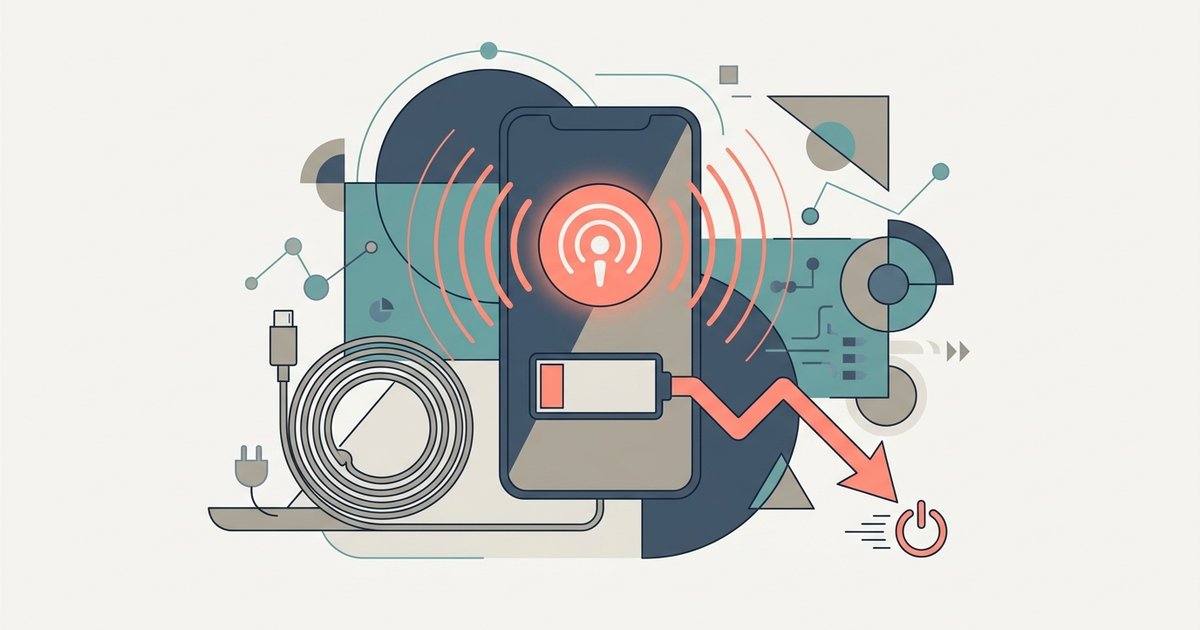
Preventing iPhone hotspot from turning off
To keep the connection stable, avoid letting your iPhone’s screen lock for extended periods. Check your device’s auto‑lock settings and keep the Personal Hotspot screen active while in use.