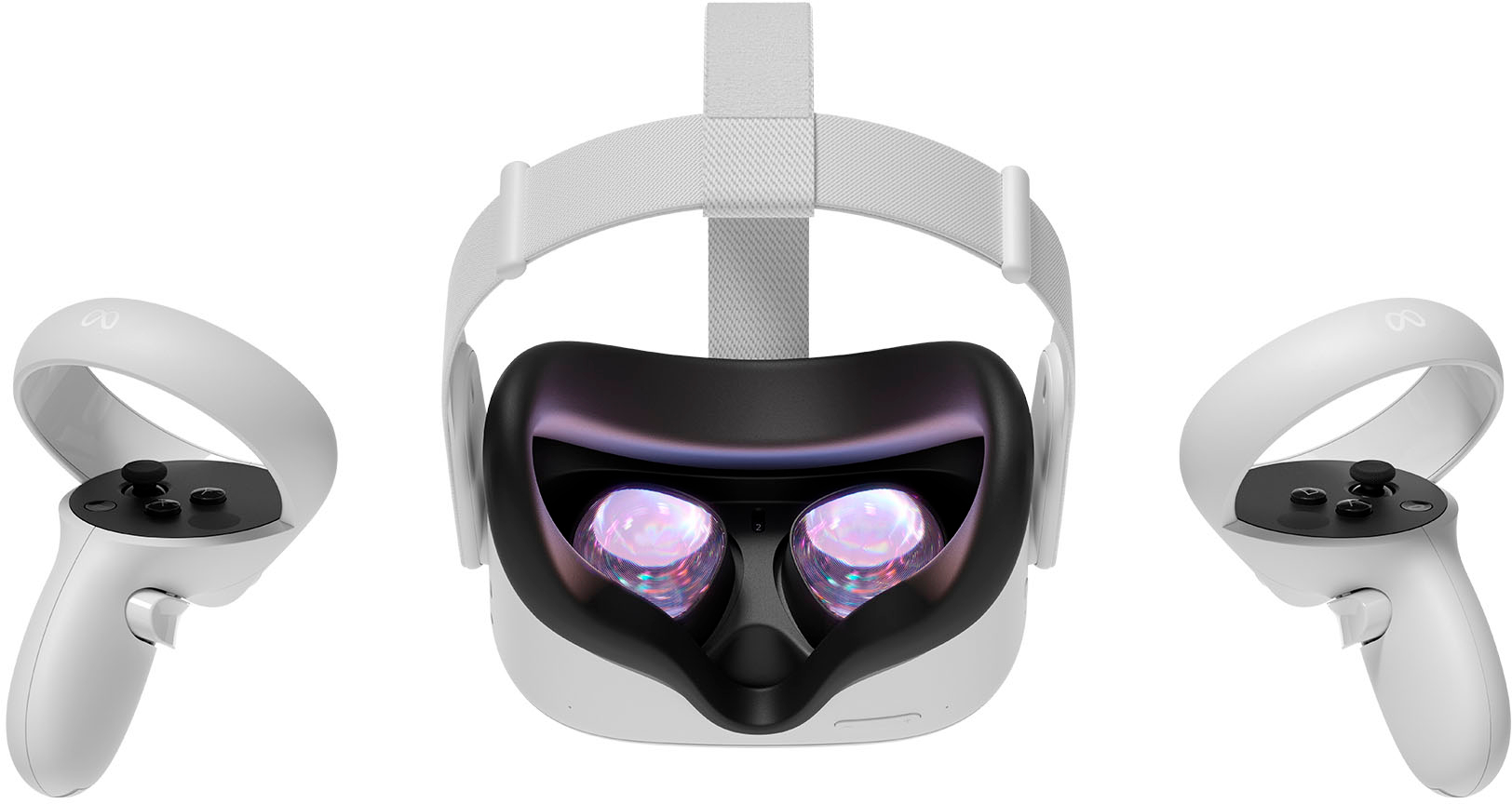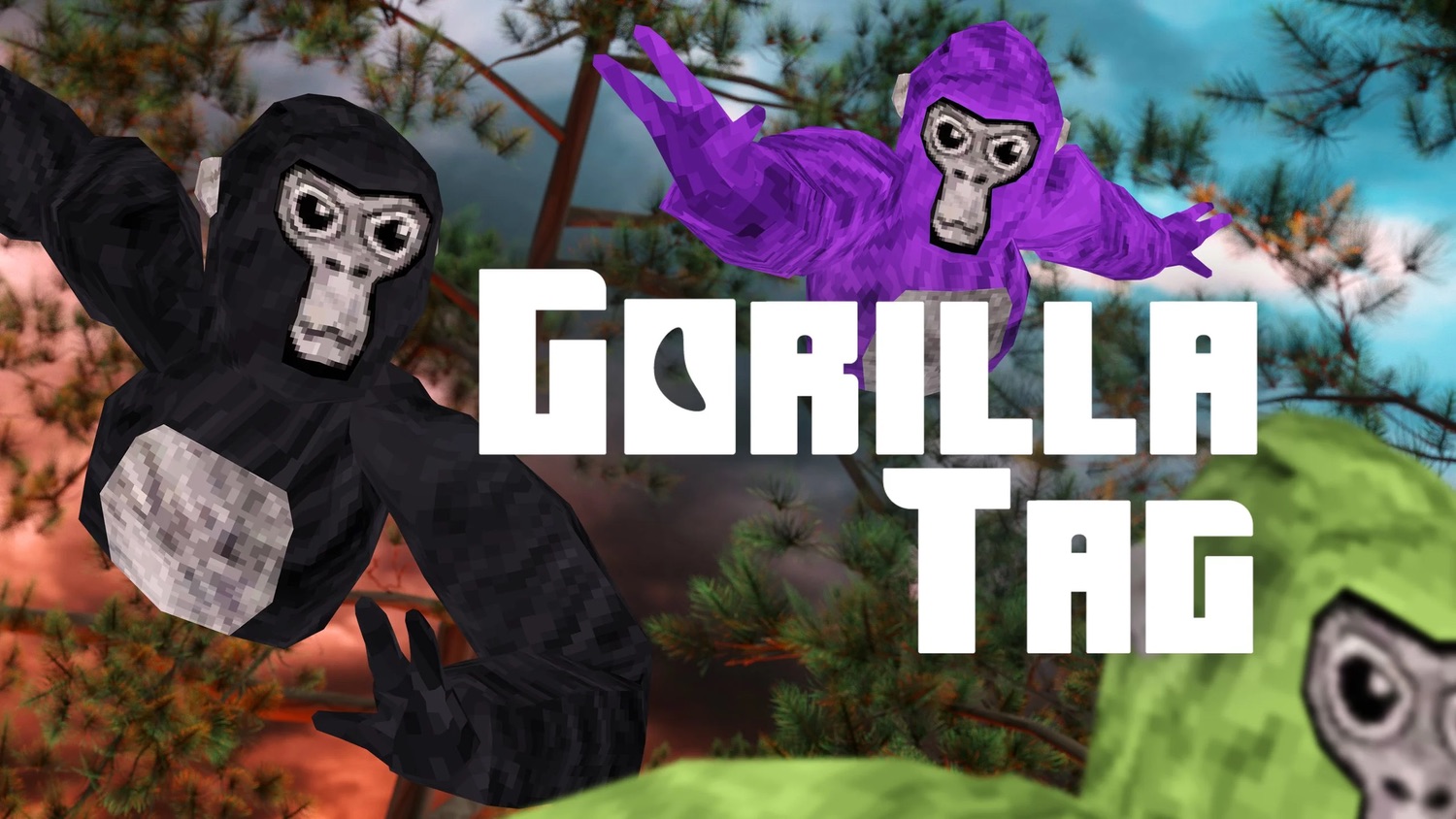
To download Gorilla Tag mods on Oculus Quest 2, you need a PC, a USB-C cable, a charged headset, and a stable internet connection. This process uses SideQuest to sideload a mod installer directly onto your headset, giving you access to custom maps, cosmetics, and gameplay tweaks.
What you need before you download gorilla tag mods on oculus quest 2
Before starting, gather these essentials:
- A Windows, Mac, or Linux computer.
- A USB-C cable capable of data transfer (the one that came with your Quest 2 works).
- A fully charged Oculus Quest 2 headset.
- A stable internet connection for downloading files.
Step 1: Enable developer mode on your oculus quest 2
Developer mode unlocks the ability to sideload apps. You must first create a developer organization. Visit the Oculus Developer Dashboard at developer.oculus.com and sign in with your Oculus account. Follow the instructions to create a developer organization and register as a developer. Once approved, put on your headset, navigate to Settings, scroll to the "Developer" section, and toggle "Developer Mode" on. Confirm the action when prompted.
Step 2: Allow content from unknown sources in the meta quest PC app
This critical step is often overlooked. Open the Meta Quest PC app on your computer. Select "Settings" in the left menu, then select the "General" tab. Next to "Unknown Sources," adjust the toggle to allow content from unknown sources. Confirm your choice in the dialog box, acknowledging that these apps have not been reviewed by Meta for security, comfort, content, or health and safety.
Step 3: Set up SideQuest and connect your headset
- Download the SideQuest application from sidequestvr.com and install it on your computer.
- Connect your Quest 2 to your computer using the USB-C cable.
- Put on your headset. A prompt will appear asking you to allow USB debugging. Use your controller to accept it.
- Launch SideQuest. It should display "Connected" in the top right corner.
Step 4: Install the gorilla tag mod installer
- In SideQuest, use the search bar to type "Gorilla Tag Mod Installer" and press Enter.
- Click on the result to open its page.
- Click the "Install" button. The installer will be downloaded and pushed to your headset.
Step 5: Launch gorilla tag with mods
- Put on your headset and navigate to the Library menu.
- Find the "Unknown Sources" section. Select "Gorilla Tag Mod Installer" from the list.
- Follow any on-screen instructions within the installer to apply mods.
- Launch the standard Gorilla Tag game from your library. The mods you selected will now be active.
Troubleshooting common mod issues
If you encounter crashes or conflicts, disable mods one at a time in the mod installer's settings to isolate the problem. Check for updates to both the mod installer and individual mods, as developers often fix compatibility issues. Reinstall a problematic mod if it becomes corrupted. Clear the mod cache within the game settings if available. For persistent issues, seek community support on dedicated Gorilla Tag modding forums or Discord servers. Ensure your Gorilla Tag game is updated to the latest version. If you need a fresh start with the basics, you can download mods for gorilla tag again using a step-by-step walkthrough, or if you lack a computer, you can still get mods on gorilla tag without a PC directly on your headset. As a last resort, temporarily disable antivirus software during installation, as it can sometimes interfere.
\nRelated reading: How To Download Mods On Oculus Quest 2.