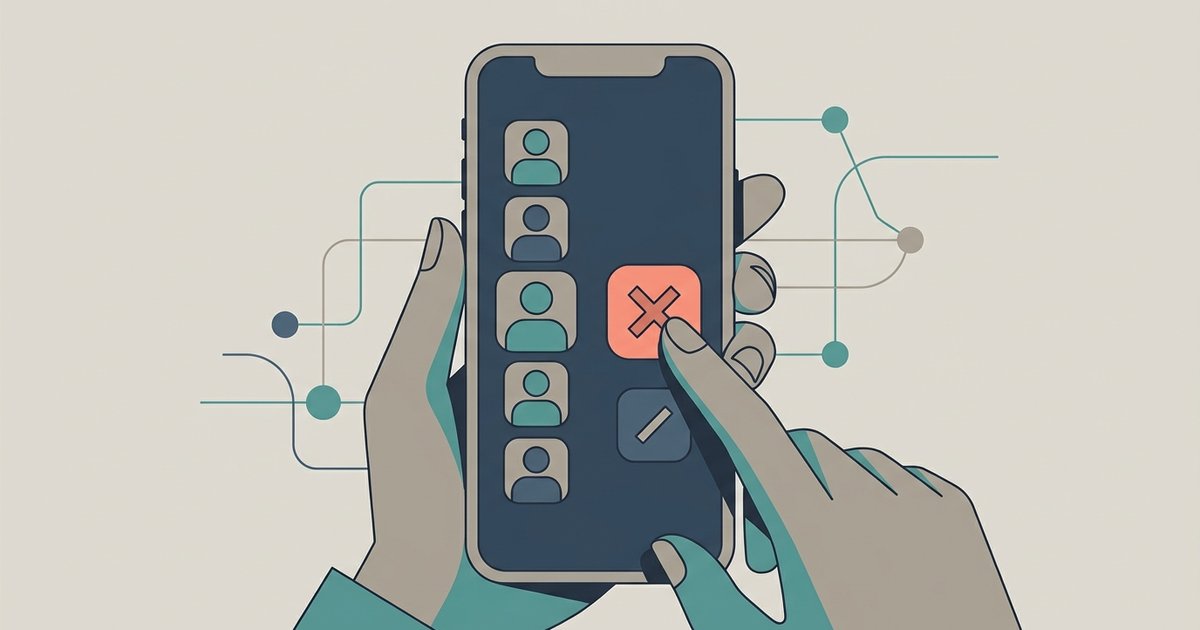
You can kick or ban players in the lobby before the game starts, and during emergency meetings any player can vote to kick or ban someone.
Finding the Kick Among Us Button in the Lobby
The kick icon appears as a boot symbol located just underneath the Text Chat icon in the top-right corner. Pressing it shows a list of players to select. This button only becomes visible to the host, the player who created the room. It is only available while the lobby countdown timer is still running or paused. Once the host presses "Start" and the game begins, the chat box no longer shows kick or ban options until an emergency meeting is called. To see the button, open the chat panel by tapping or clicking the chat icon in the top-right corner of the screen. This icon is usually a speech bubble. Then press the Boot button under the Text Chat icon and select the unwanted player's name from the list that appears. The button is grayed out for non-hosts, so if you are not the host, you cannot kick anyone yourself.
Why You Can't Ban Mid-Game
The game engine locks host-only moderation controls during active gameplay, but during emergency meetings any player can open the chat, click the Boot icon, and vote to kick or ban someone. If a troll starts spamming or griefing during a round, you can call an emergency meeting or report a dead body to initiate a vote to remove them. The round ends by completing all tasks, calling a meeting, or having the impostor kill everyone. The only workaround is to finish the current round as quickly as possible. You can skip all votes, let the impostor win, or have crewmates complete tasks. Once the "Return to Lobby" screen appears, you regain access to the kick and ban buttons in the chat box. If you close the app or disconnect, the lobby may dissolve entirely, so it is better to endure the round than to abandon the game.
Banning vs. Kicking for Future Sessions
Kicking a player removes them from your current lobby but does not prevent them from rejoining using the same room code if you share it again. Banning, by contrast, blocks that player's Among Us account from entering your specific private room again, but the ban does not carry over if you create a new lobby with a different code. To ban, click the boot icon and then confirm the "Ban" option when it appears. A simple kick requires selecting the player from the list and confirming the Kick option. This distinction is important if you host regular games and want to keep out repeat troublemakers. For permanent removal, always choose the ban option rather than the kick. If you want to keep your lobby exclusive to trusted players, you can add a friend on Among Us after banning strangers, ensuring only invited guests join.
If a troll joins your private room, you must wait until the current round ends and everyone returns to the lobby screen to use the moderation options. For more on managing your group experience, consider the broader topic of playing Among Us with friends and crossplay.
\nRelated reading: Among Us Private Lobby Code Not Working.