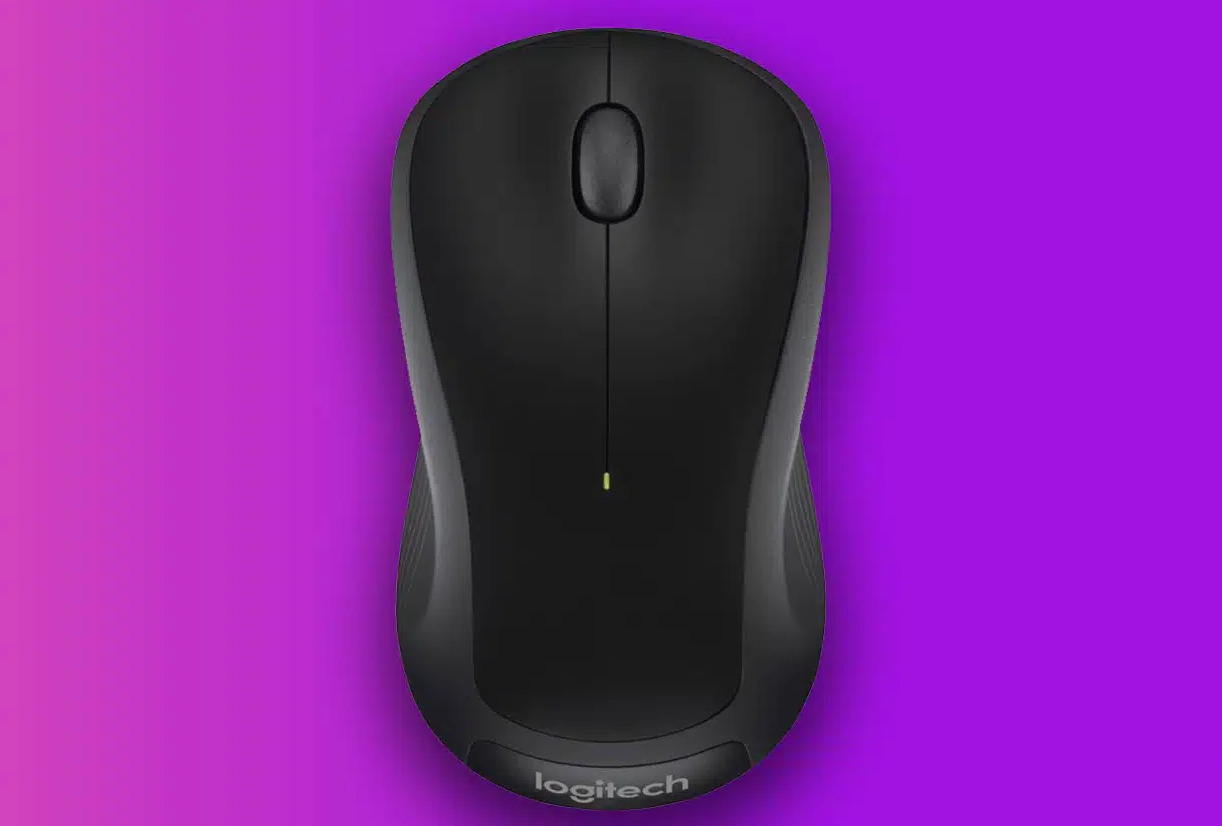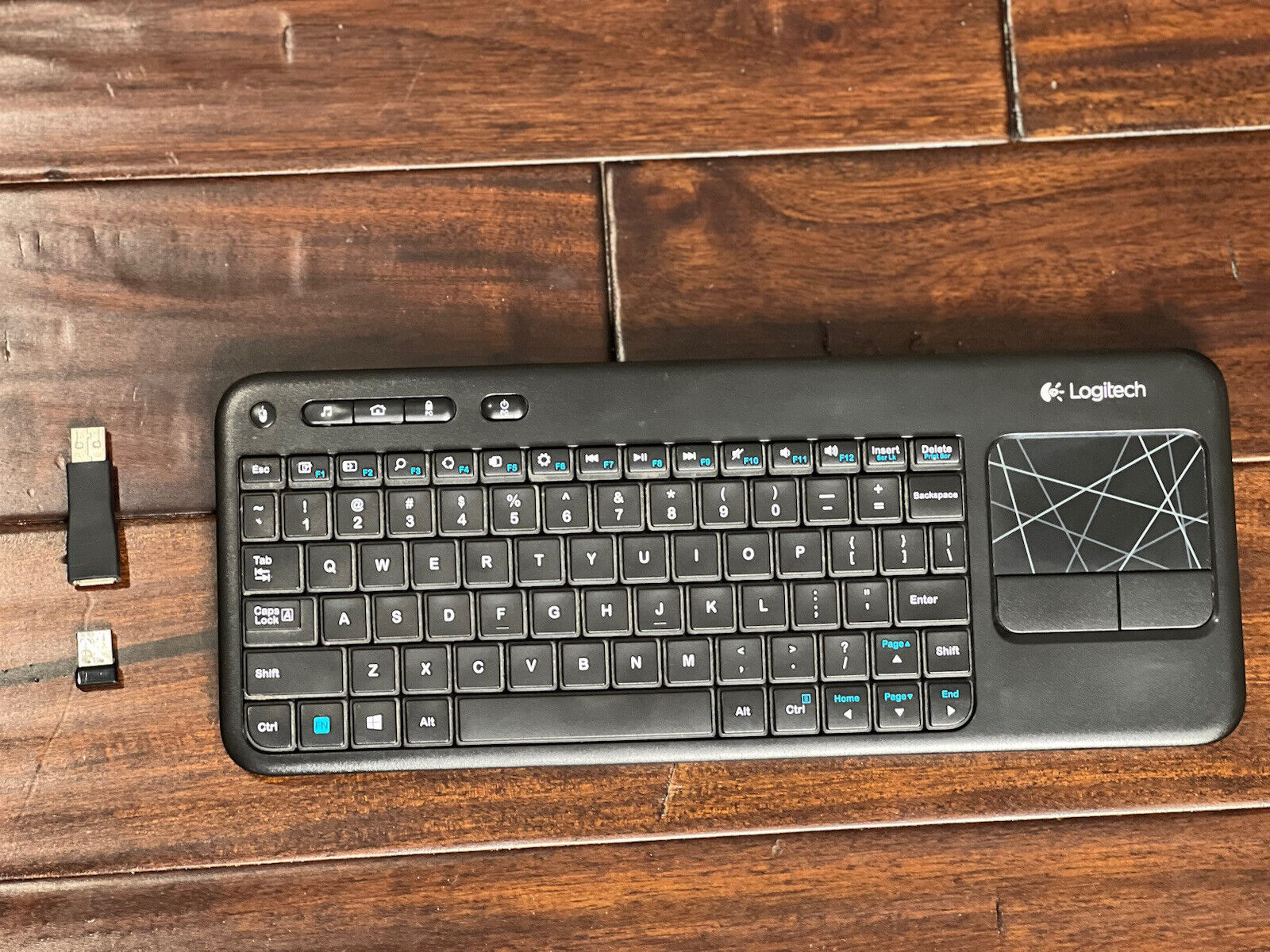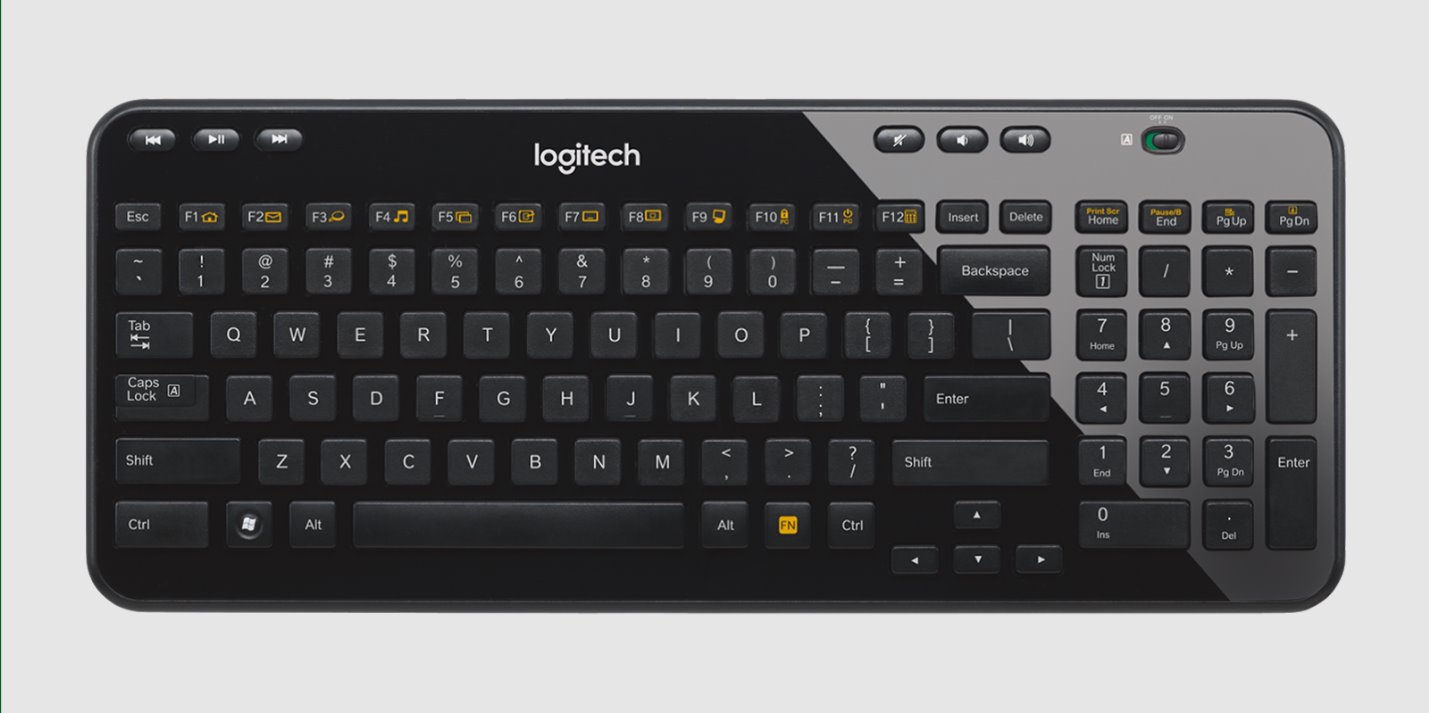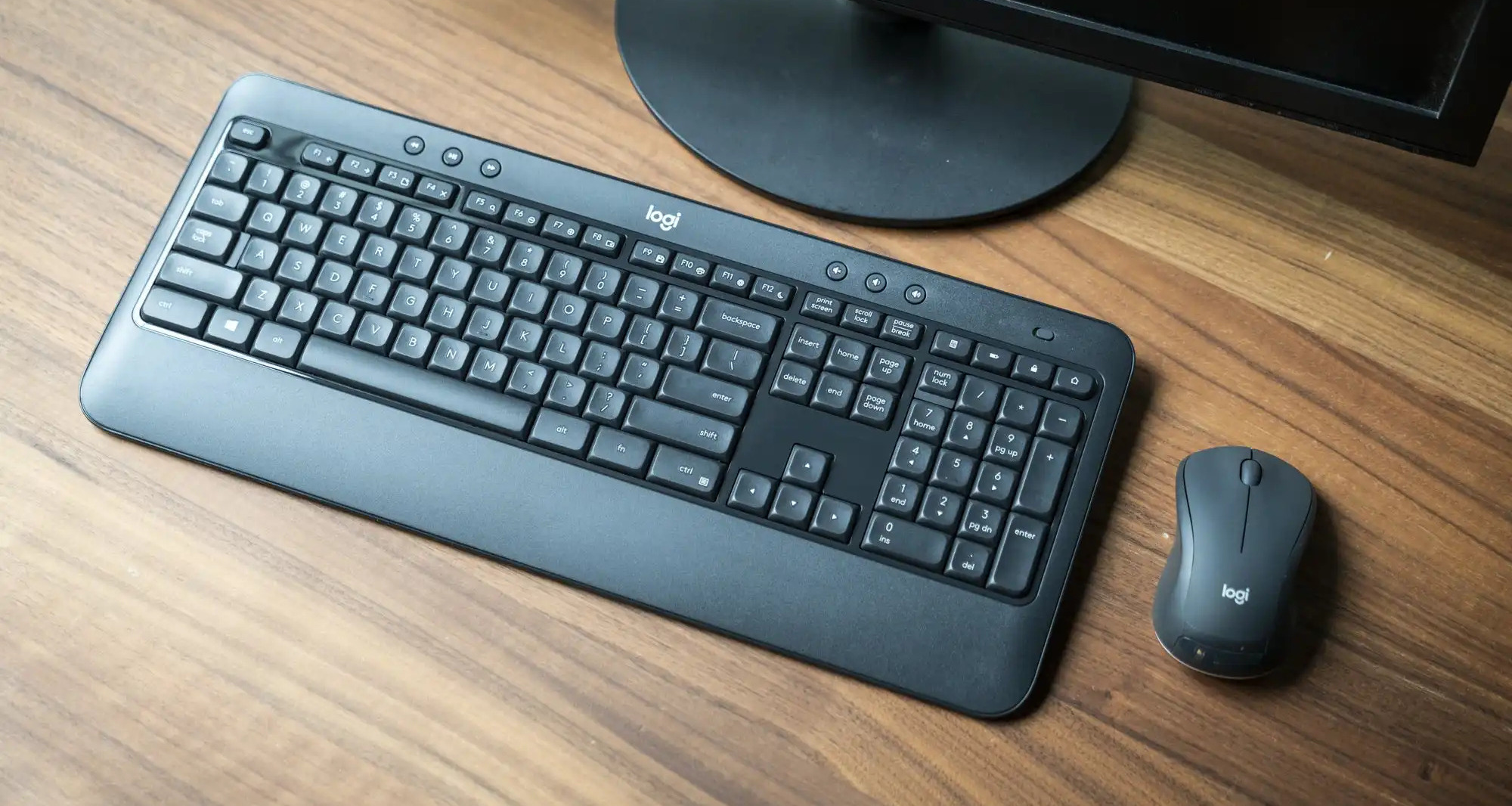
To connect Logitech wireless mouse and keyboard, you first need to identify which connection method your devices use, then follow the specific steps for that method. Whether you have a Unifying Receiver, a Logi Bolt Receiver, or a Bluetooth-only device, the process is straightforward once you know your hardware.
Before you connect your Logitech wireless mouse and keyboard: Preparing the devices
Before attempting to connect, ensure your devices are ready. Check the battery requirements for your specific Logitech mouse and keyboard. Most models use AA or AAA batteries, but some have built-in rechargeable batteries. Insert batteries following the polarity markings inside the compartment. Turn on each device using its power switch, typically located on the underside of the mouse or the top edge of the keyboard. A small LED indicator should light up briefly to confirm power.
Identify your Logitech connection type
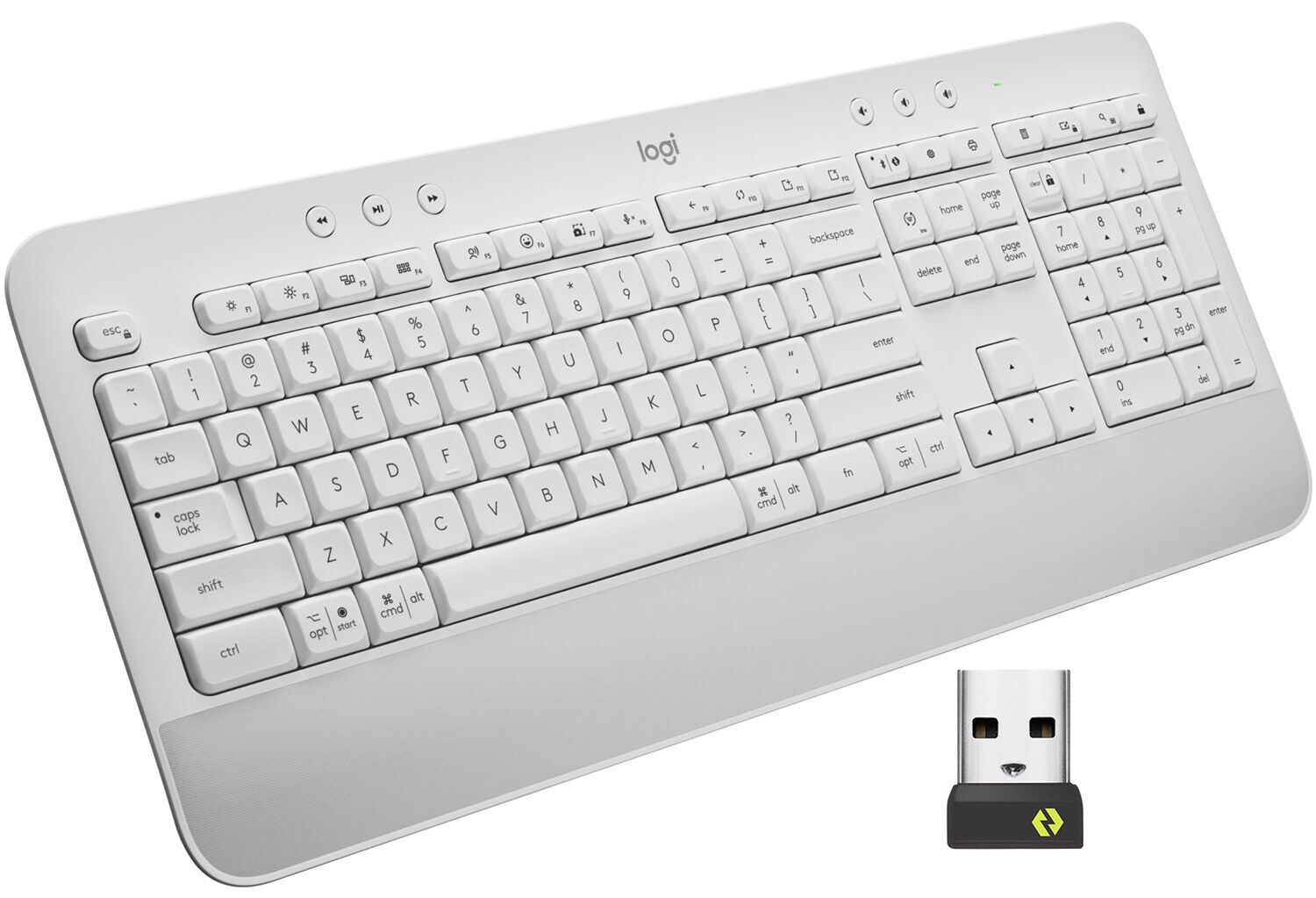
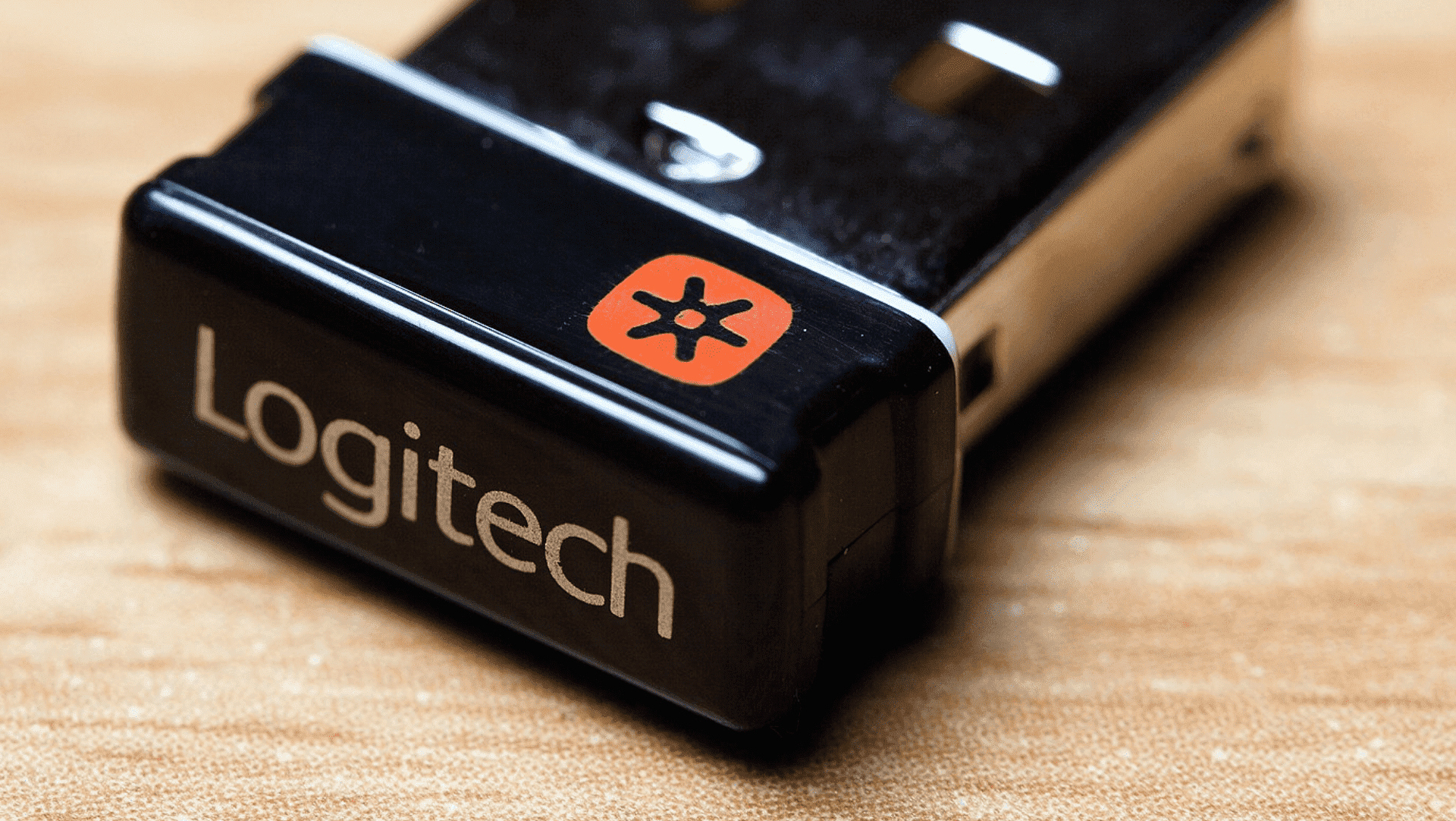
Logitech wireless devices use one of three main connection methods. Knowing which one you have determines the exact pairing process. The Logitech Unifying Receiver is a small USB dongle that can connect up to six compatible devices. The Logi Bolt Receiver is a newer, more secure USB dongle that also supports up to six devices. Many Logitech wireless keyboards and mice also support direct Bluetooth connectivity, which requires no receiver at all. Check your receiver for a logo, an orange star indicates Unifying, while a green lock icon indicates Logi Bolt. If you have no receiver, your device uses Bluetooth, but you can connect a Logitech wireless keyboard to a different receiver if you ever need to replace a lost dongle. If your keyboard lacks a receiver entirely, you can still connect Logitech wireless keyboard k270 without receiver by pairing it directly via Bluetooth.
How to connect with a Logitech Unifying receiver
- Plug the Unifying Receiver into an available USB-A port on your computer.
- Turn on your Logitech keyboard or mouse.
- Download and install the Logi Options+ app from the official Logitech website. This app is required for pairing and full functionality.
- Open Logi Options+ and click "Add Device" in the upper right corner.
- Select the "Logi Unifying Receiver" option.
- Follow the on-screen instructions to confirm pairing. Your device will now be connected.
How to connect with a Logi Bolt receiver
- Plug the Logi Bolt Receiver into a USB port on your computer.
- Turn on your Logi Bolt device.
- Download and install Logi Options+ if you haven't already. The Logi Options+ app is required to pair Logi Bolt devices.
- Open Logi Options+ and click "Add Device".
- Choose the "Logi Bolt receiver" option.
- On your device, long-press the connect button (or Easy-Switch key) for three seconds until its light blinks rapidly.
- In the app, select "CONNECT" next to your device's name.
- Enter the verification numbers shown on the app using your keyboard, or follow mouse verification steps, then press Enter. This security step ensures a secure connection.
How to connect your Logitech mouse via Bluetooth
- Turn on your mouse.
- If the LED is not blinking fast, press and hold the Easy-Switch button for 3 seconds until it blinks rapidly. This puts the mouse in pairing mode.
- On your computer, open Bluetooth settings and ensure Bluetooth is enabled.
- Select your mouse from the list of available devices. The mouse will now connect.
How to connect your Logitech keyboard via Bluetooth
- Turn on your keyboard.
- Press and hold one of the Easy-Switch keys (often F1, F2, or F3) for about 3 seconds until its LED blinks rapidly. This puts the keyboard into pairing mode via Bluetooth.
- On your computer, open Bluetooth settings and select your keyboard from the list.
- If prompted, type the pairing code shown on the screen using your keyboard and press Enter. The keyboard is now connected.
Troubleshooting common Logitech connection issues
No response: Ensure your wireless device is powered on and has sufficient battery or is charged before attempting to connect. Check that batteries are inserted correctly and that the power switch is in the on position.
Poor connectivity: Move the receiver closer to your devices and away from metal objects or other wireless sources. Try a different USB port. For Bluetooth, reduce distance between computer and device.
Unresponsive controls: Restart your computer and try pairing again. If using a receiver, remove and reinsert it. For Bluetooth, forget the device in Bluetooth settings and re-pair.
Software problems: Logi Options+ is compatible with Windows 10 or later and macOS 12 or later. Ensure you have the latest version installed. Restart the app or reinstall it if pairing fails. If a device won't pair, repeat the pairing steps from scratch, ensuring the device is in pairing mode with a rapidly blinking LED.