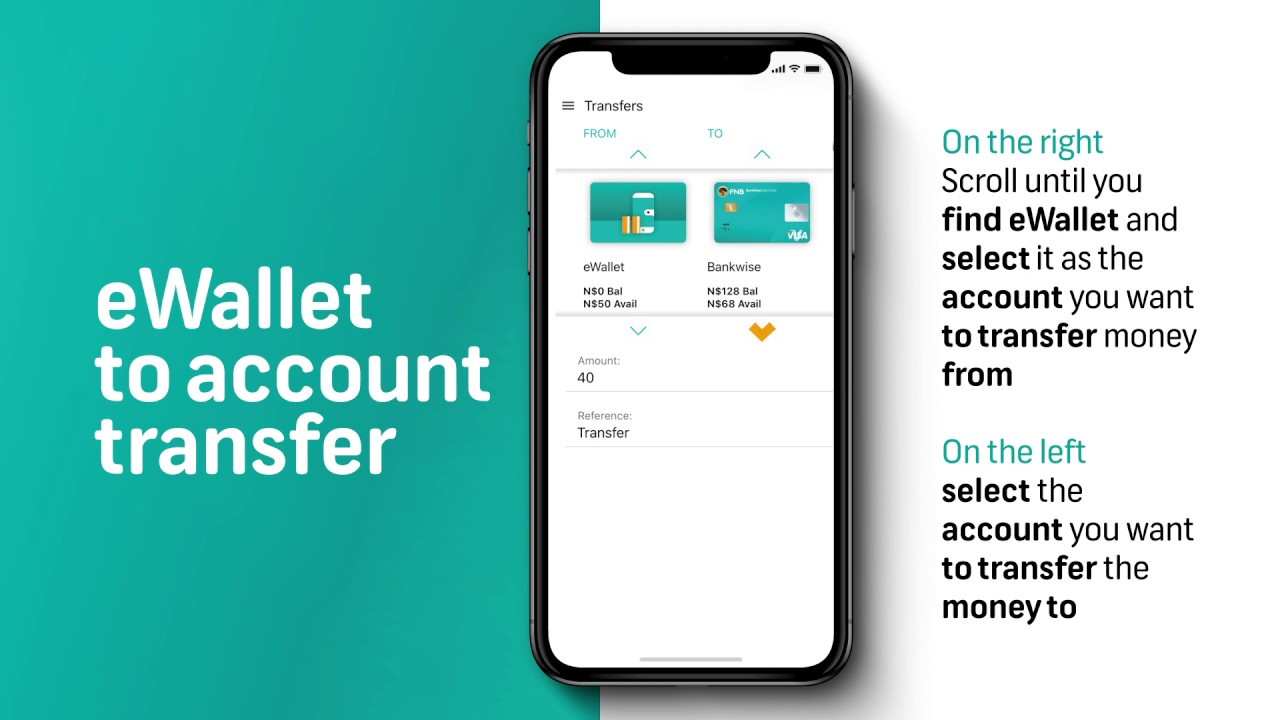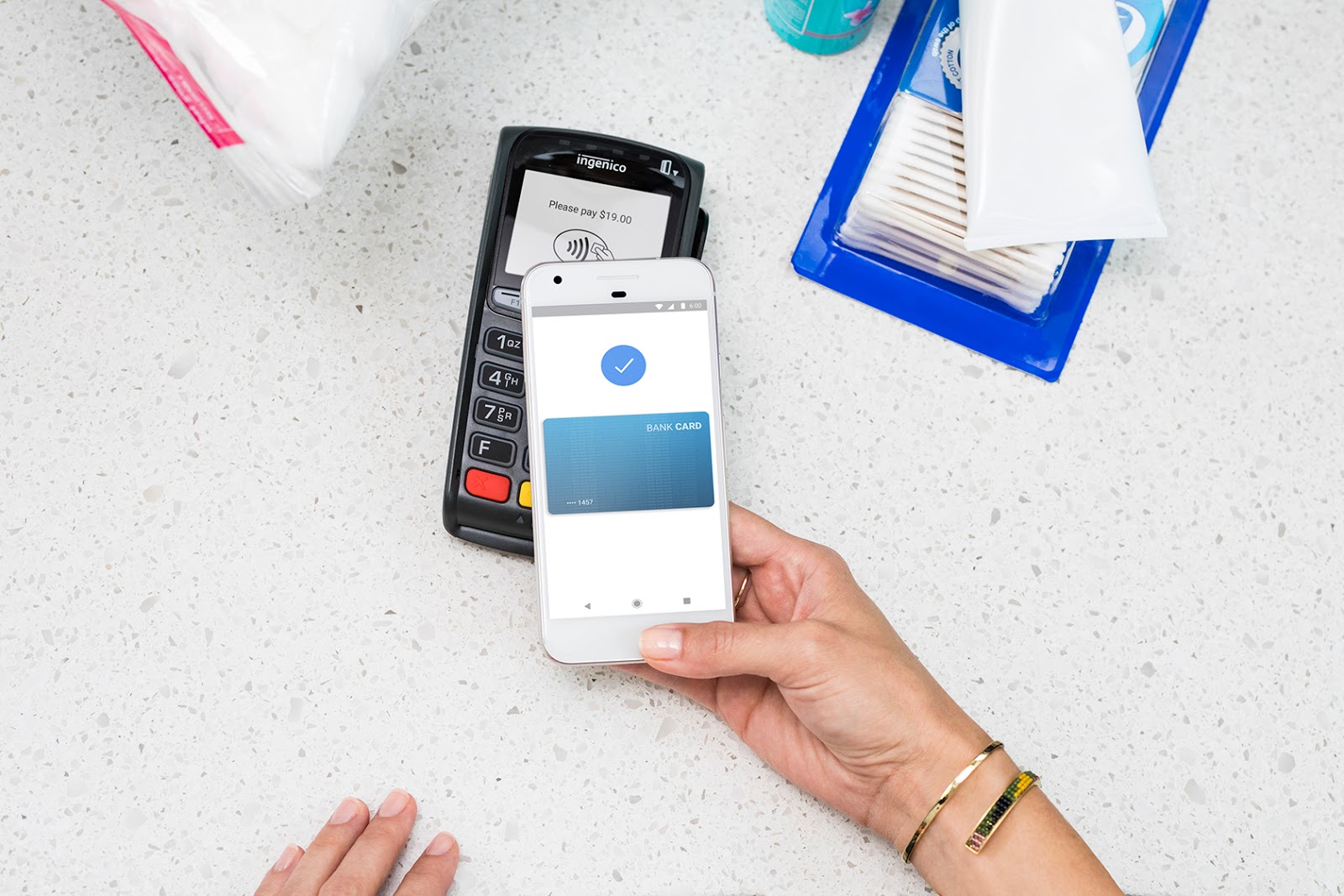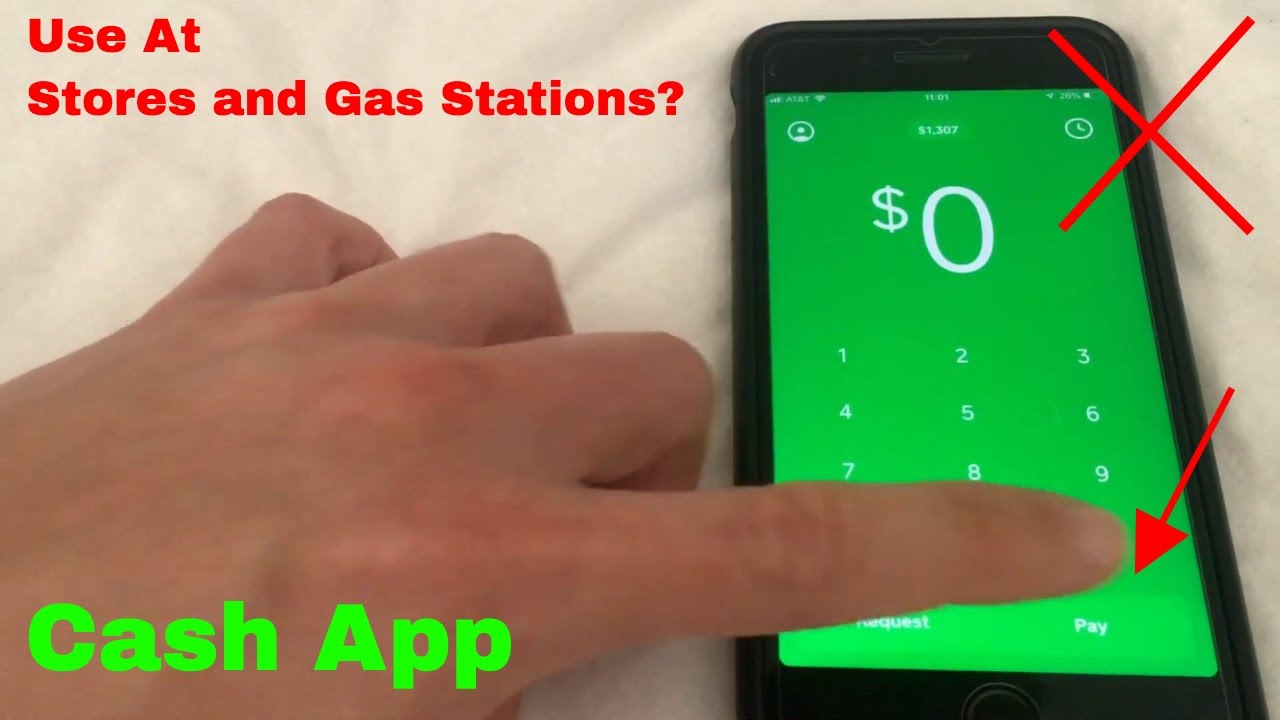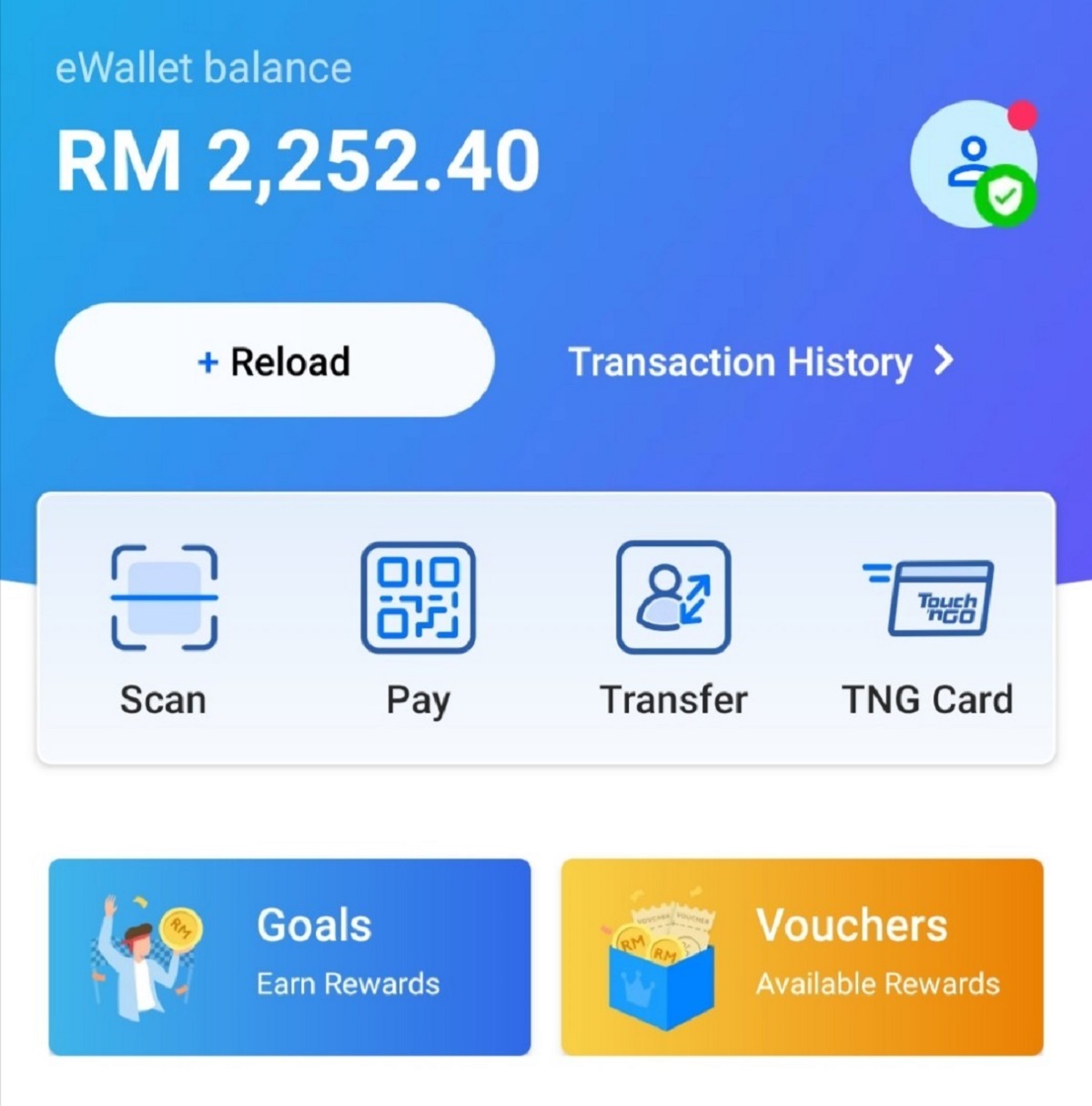
To check your e-wallet balance, open the specific app for your provider, such as PayPal, Venmo, or Google Pay, log in, and look for the balance on the main dashboard or in the wallet section. For most apps, the balance appears immediately after login, though some services require identity verification or an extra tap to see the full amount, and you can still use Google pay without NFC to make payments even on devices that lack the hardware. If your balance is low, you can transfer touch n go card balance to e-wallet to top it up instantly.
How to check your e-wallet balance on PayPal
After logging into the PayPal app or website, your available balance is typically displayed on the home dashboard in a prominent blue box. This is the fastest way to see how much money you can spend or withdraw right now.
For a more detailed view, navigate to the "Wallet" section within your account. There, you’ll find a breakdown of balances across different currencies, which is useful if you hold funds in multiple countries or receive payments internationally.
How to check your balance on Venmo
Open the Venmo app and log in with your credentials. Tap the "Me" tab, located at the bottom right corner of the screen, and your Venmo balance will appear at the top of that page.
Note that to actually use money held in your Venmo account for payments, you must first verify your identity. Checking the balance itself does not require verification, but the option to spend those funds will be locked until you complete the identity check.
How to check your Google Pay balance
Your real-time Google Pay balance, funds stored directly with Google, is accessible within the Google Wallet app. Open the app, and the balance appears on the main screen without needing to dig through menus.
Be aware that the virtual Google Pay Balance Card will be removed on June 22, 2026. However, your funds remain accessible and can still be managed through Google Wallet, so you won’t lose access to your money.
Checking balances in Apple Wallet
For debit or credit cards linked to Apple Pay, some banks may display your available balance or recent transactions directly in the Apple Wallet app. This convenience varies by bank, so you might see the balance right on the card’s screen or after tapping the card.
If your bank doesn’t show the balance automatically, tap "view statement" or "open bank" to see the full amount via your bank’s app or website. This extra step is necessary for many issuers, but it still keeps the process within a couple of taps.
Other ways to get your balance
If the mobile app is unavailable or you’re on a computer, logging into the provider’s website is a reliable fallback. Most e-wallet services mirror the app’s dashboard on their web version, so the balance appears right after login.
Contacting customer service is another dependable option when you can’t access the app or website. A representative can confirm your balance over the phone, via live chat, or through email, though response times vary, this method ensures you get accurate, up-to-date information even if you’re locked out of your account.
\nRelated reading: How To Transfer E-wallet To Bank Account.